Amazon EFS Performance Engineering - Throughput Modes, IOPS Ceilings, Per-Client Limits, and Burst Credits
First Published:
Last Updated:
What stops you from deciding is not that the causes are hard to think of. It is that there are too many of them. A single file system can be subject to multiple limits simultaneously, and the appropriate course of action depends entirely on which limit is being reached. If the entire file system's bandwidth is the bottleneck, the throughput mode and the per-Region limit are what to look at. If a single client is hitting a limit, changing the throughput mode has no effect, and the only remedy is more clients. If burst credits are exhausted, the thing to examine is what ran in the hours before, not what is running now.
Many explanations simply list the three throughput modes as features: Elastic, which automatically scales; Provisioned, which allows you to set a fixed value; and Bursting, which scales proportionally to capacity. While this description is technically correct, it only answers about half of what readers really want to know. When you actually open the AWS performance specifications, you discover that changing the throughput mode affects not only bandwidth, but also the maximum IOPS and the per-client limit. Compared ceiling to ceiling, that gap runs to more than tenfold.
This article is not an introduction to EFS features. It is written to help you identify the current limit affecting an existing file system and determine whether that limit can be adjusted. It is not for readers creating an EFS file system for the first time, or those who are trying to decide between EFS, Amazon FSx, and Amazon S3 – that audience is better served by a different article.
The technical information in this article is checked, as of August 30, 2026, against the Amazon Elastic File System User Guide, the Amazon EFS API Reference, the AWS CloudFormation Template Reference, the Amazon ECS Developer Guide, and AWS What's New. Limit values and defaults move. Look them up again at the time you read this. This article does not cover pricing.
Table of Contents
- 1. A Slow File System Is Not One Problem
- 2. The Three Choices That Bound EFS Performance
- 3. What the Throughput Mode Changes
- 4. Why the Numbers in the Table Are Ranges
- 5. The Ceiling You Cannot Raise from the File System Side
- 6. Bursting Baselines and Burst Credits
- 7. When Metadata Is the Workload
- 8. Storage Classes and the Latency of a Cold Read
- 9. Which ceiling are you hitting?
- 10. The Choices You Cannot Take Back
- 11. Where the Primary Sources Disagree
- 12. Failure Modes and Anti-Patterns
- 13. Frequently Asked Questions
- 14. Summary
- 15. References
1. A Slow File System Is Not One Problem
1.1 The Situation This Article Assumes
This article assumes a scenario where your Amazon EFS file system is already running in production and reports are being received regarding performance issues. The mount is successful, there are no access permission problems, and the application logs show no errors. However, it is slower than before, or not as fast as expected.The first instinct in this situation is often to switch the throughput mode. It takes a few clicks in the console and does not require stopping the application. In some cases, this resolves the issue. When it does not, the problem is usually that changes are made without understanding what those changes are intended to affect.
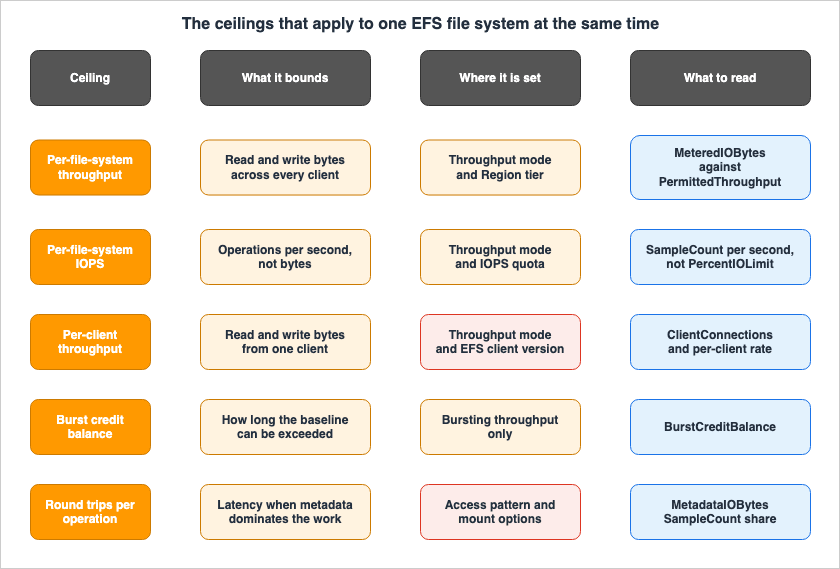
EFS performance is measured across three key areas: latency, throughput, and IOPS. Each file system has a maximum limit for each of these three metrics. Those limits then divide again: some apply to the whole file system, others to each client attached to it. If any one of these limits is reached, performance will slow down, regardless of how much headroom remains in the other areas.
1.2 Multiple Ceilings Are What Make Diagnosis Hard
Several ceilings at once is an ordinary situation. What makes it hard is that depending on which one is being reached, the correct course of action can be exactly opposite.For example, if the file system as a whole is at its throughput ceiling, the move is to raise the throughput mode or request a quota increase. If a single client is hitting its limit, nothing you do to that client moves the number, and the only remedy is to spread the load over more clients. If the burst credit is exhausted, the system will temporarily operate at a baseline level, requiring you to either wait for the credit to replenish or switch to a throughput mode that doesn't rely on burst credits. If metadata operations are the primary bottleneck, the system may have ample throughput capacity, but latency is the issue – and you might not find any anomalies when examining bandwidth metrics.
And, from the application's perspective, all of these symptoms appear the same: simply, slowness. It's only when examining the file system's metrics, and correlating them with the specific limits being reached, that you can differentiate between the various causes.
1.3 What Existing Articles Already Cover
This article does not cover the following topics, all of which are addressed in existing publications.| Publication | Scope of Coverage |
|---|---|
| Amazon EBS Performance Engineering - Volume Types, io2 Block Express, Snapshot Initialization, and Multi-Attach | Block storage performance engineering, including volume types, io2 Block Express, queue depth, snapshot initialization, and Multi-Attach. This article does not include any details regarding EBS numerical values or mechanisms. |
| Amazon FSx Family Decision Guide - Choosing Between Lustre, NetApp ONTAP, OpenZFS, and Windows File Server | Selection of shared file systems. This article does not compare the performance of EFS and FSx. |
| AWS History and Timeline regarding Amazon FSx - Overview, File Systems, Features, Summary of Updates, and Introduction | When each FSx file system became generally available, and which updates reached all four. This article does not cover dates on the FSx side. |
| AWS Data Movement Decision Guide - DataSync, Transfer Family, Storage Gateway, and Data Transfer Terminal | Selection of methods for data transfer. This article does not cover data movement. |
| Elastic Fabric Adapter and the AWS Network Fabric - SRD, ENA Express, and Placement Group Design | What the network fabric constrains. The per-client ceiling in this article is an EFS ceiling, not a statement about network bandwidth. |
| AWS Service Quotas - A Practical Cheat Sheet for Major AWS Services | A cross-service list of quotas. Regarding Amazon EFS, this publication includes a table listing file system counts, mount targets, and other details. This article will not reproduce that list, but will focus solely on performance-related quotas, including the rationale behind those values. |
| Amazon S3 Object Key Design Best Practices - Performance and Partitioning | Splitting and partitioning on the object storage side. |
| AWS Service Quotas History and Timeline - From Service Limits to Quotas, the Defaults That Moved, and Where Each Change Was Recorded | When a default quota value moved and which AWS document recorded the change. This article does not track the history of quota values. |
| How Amazon S3 Files Keeps a Bucket and a File System in Sync - The Export Window, Close-to-Open Consistency, and Where the Losing Write Goes | The NFS file system that Amazon S3 Files puts on an Amazon S3 general purpose bucket, and the synchronization semantics between the two surfaces. That service is built on Amazon EFS technology, but this article does not cover it and none of the ceilings here are stated for it. |
| AWS History and Timeline regarding Amazon EFS - Overview, Functions, Features, Summary of Updates, and Introduction | When each storage class, throughput mode, and mount path was added to Amazon EFS. This article covers what those settings do, not when they arrived. |
The EBS article includes a section discussing instance-side limits that are not visible from the volume-side metrics. This article's fifth section notes that a similar structure exists with shared file systems as well, but the numbers and mechanisms are entirely different, so that single statement is where the comparison ends.
2. The Three Choices That Bound EFS Performance
2.1 The Three Settings Move Different Things
The Amazon EFS User Guide identifies three configurations that affect file system performance: file system type, performance mode, and throughput mode.| Configuration | Options | Primarily Affects |
|---|---|---|
| File System Type | Regional or One Zone | Availability, write latency, and which tier of ceilings applies |
| Performance Mode | General Purpose or Max I/O | Latency per operation |
| Throughput Mode | Elastic, Provisioned, Bursting | Bandwidth, maximum IOPS, and the per-client ceiling |
The third row of this table is the focus of this article. The throughput mode is not simply a setting for choosing a bandwidth pricing model. Section 3 takes it up.
2.2 File System Type
Regional file systems store data redundantly across multiple Availability Zones in one Region. One Zone file systems store data within a single Availability Zone. The User Guide recommends using Regional file systems.There are two key performance considerations. First, One Zone file systems offer lower write latency. Second, the tier of limits: One Zone file systems land on the same latency and the same maximum IOPS no matter which of the three throughput modes is selected, with one exception on the throughput side. Both points are visible in the tables in Section 3.
2.3 Performance Mode
Performance mode has two options: General Purpose and Max I/O. General Purpose is the default and offers the lowest latency per operation. One Zone file systems always use General Purpose.Regarding Max I/O, it is essential to read the User Guide carefully.
Max I/O mode is a previous generation performance type that is designed for highly
parallelized workloads that can tolerate higher latencies than the General Purpose mode.
Max I/O mode is not supported for One Zone file systems or file systems that use Elastic
throughput.
Due to the higher per-operation latencies with Max I/O, we recommend using General Purpose
performance mode for all file systems.That is a positioning as a previous generation type together with a recommendation to use General Purpose on every file system. It is not an announcement that new use is closed off, nor a notice of retirement. A strong recommendation and a deprecation are different things, so this article does not describe Max I/O as deprecated either.
However, Max I/O has two limitations. It cannot be used with One Zone file systems, and it is also incompatible with file systems that use Elastic throughput. The latter effectively means that choosing Max I/O prevents you from using the throughput mode that offers the highest IOPS limit.
On top of that, the performance mode cannot be changed once the file system exists. Section 10 returns to this.
2.4 Throughput Mode
Throughput mode has three options: Elastic, Provisioned, and Bursting. The User Guide describes the selection criteria as follows:| Throughput Mode | Applicable Conditions (as described in the User Guide) |
|---|---|
| Elastic | Suitable for workloads with highly variable or unpredictable demands. Use when it's difficult to estimate performance requirements. Applicable when the ratio of average demand to peak demand is 5 percent or less. |
| Provisioned | Use when the performance requirements of the workload are known. Applicable when the ratio of average demand to peak demand is 5 percent or more. |
| Bursting | Ideal when you require throughput proportional to the amount of data the file system stores. |
Everything up to this point appears in any description of the service. The sections that follow look at what the choice actually moves.
3. What the Throughput Mode Changes
3.1 Reading the Official Performance Specification Table
The Amazon EFS User Guide publishes a table detailing the performance specifications for file systems in the General Purpose performance mode. This table, consisting of nine columns, identifies file system types and throughput modes in the first two columns. The remaining seven columns are divided into two columns for latency, two columns for maximum IOPS, and three columns for maximum throughput.It is crucial to note the scope of this table: it applies only to file systems using the General Purpose performance mode. A separate table is not published for file systems using the Max I/O performance mode. If you are using file systems with the Max I/O mode, the numbers in this table do not represent your actual maximum performance limits. The User Guide only states that file systems using Max I/O have higher latency per operation compared to those using General Purpose mode.
The table is split in two here for readability. Latency and IOPS come first.
Amazon EFS Performance Specifications (General Purpose Performance Mode, Latency and Maximum IOPS, as of August 30, 2026)
| File System Type | Throughput Mode | Read Latency | Write Latency | Maximum Read IOPS | Maximum Write IOPS |
|---|---|---|---|---|---|
| Regional | Elastic | Approximately 1 millisecond | Approximately 2.7 milliseconds | 900,000 to 2,500,000 | 500,000 |
| Regional | Provisioned | Approximately 1 millisecond | Approximately 2.7 milliseconds | 55,000 | 25,000 |
| Regional | Bursting | Approximately 1 millisecond | Approximately 2.7 milliseconds | 35,000 | 7,000 |
| One Zone | Elastic, Provisioned, Bursting | Approximately 1 millisecond | Approximately 1.6 milliseconds | 35,000 | 7,000 |
Throughput follows.
Amazon EFS Performance Specifications (General Purpose Performance Mode, Maximum Throughput, as of August 30, 2026)
| File System Type | Throughput Mode | Read Throughput (per file system) | Write Throughput (per file system) | Read/Write Throughput (per client) |
|---|---|---|---|---|
| Regional | Elastic | 20 to 60 GiBps | 1 to 5 GiBps | 1,500 MiBps |
| Regional | Provisioned | 3 to 10 GiBps | 1 to 3.33 GiBps | 500 MiBps |
| Regional | Bursting | 3 to 5 GiBps | 1 to 3 GiBps | 500 MiBps |
| One Zone | Elastic, Provisioned, Bursting | 3 GiBps | 1 GiBps | 500 MiBps |
The two tables share the same four rows. The combination of file system type and throughput mode results in four distinct configurations. While Regional is divided into three rows based on its three throughput modes, One Zone consolidates all three modes into a single row.
There is one exception regarding One Zone's throughput. According to a footnote in the User Guide, file systems using Bursting throughput in a One Zone configuration can achieve the same per-file-system throughput as file systems using Bursting throughput in a Regional configuration (up to 5 GiBps for reading and 3 GiBps for writing). The 3 GiBps and 1 GiBps values listed in the One Zone row correspond to the values for Elastic and Provisioned, respectively.
3.2 What the Table Shows
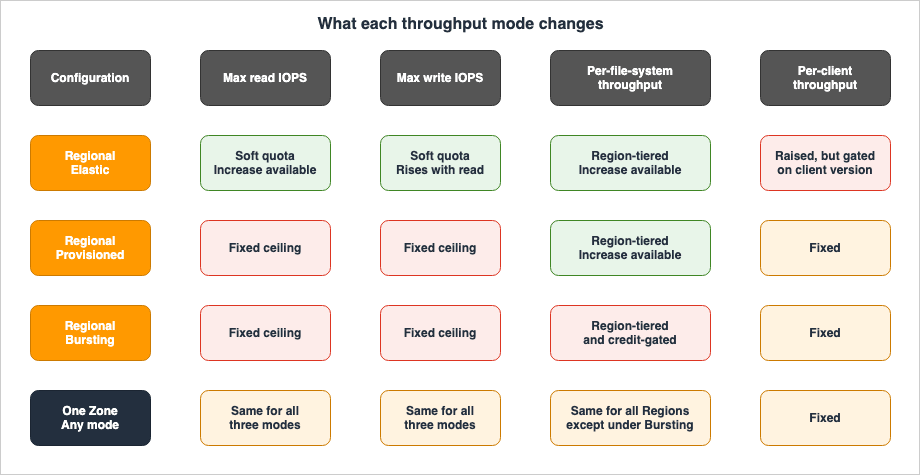
The tables demonstrate that commonly cited explanations regarding throughput mode are often incomplete.First, the maximum IOPS moves by orders of magnitude with the throughput mode. Within Regional, Bursting tops out at 35,000 read IOPS, Provisioned at 55,000, and Elastic at 900,000 to 2,500,000. Write IOPS also follow a similar pattern, ranging from 7,000 to 25,000, and then to 500,000. While the term "throughput mode" might suggest a focus on bandwidth, in reality, it is here that the IOPS limits are also determined.
Second, the per-client ceiling also moves with the throughput mode. Elastic alone is at 1,500 MiBps; Provisioned and Bursting are both at 500 MiBps. That 1,500 MiBps carries conditions, which Section 5 sets out.
Third, latency does not move with the throughput mode. The three Regional rows carry identical read and write latency values. Latency only changes when the file system type is altered; the One Zone write latency (approximately 1.6 milliseconds) is lower than the Regional latency (approximately 2.7 milliseconds). Changing the throughput mode does not improve latency. This is a key finding that is not apparent unless the tables are read by column, and is not mentioned in the general descriptions of each mode.
Fourth, in One Zone, throughput mode does not affect IOPS. Because the One Zone row covers all three modes, switching a One Zone file system from Bursting to Elastic leaves the maximum IOPS at 35,000 and 7,000. Therefore, the central claim of this section applies only to file systems configured in the Regional setting.
3.3 IOPS Is Metered Inside Throughput
Why does throughput mode determine the IOPS limit? The User Guide explicitly explains how this is calculated.Applications can scale their IOPS elastically up to the limit associated with the performance
mode. You are not billed separately for IOPS; they are included in a file system's throughput
accounting. Every Network File System (NFS) request is accounted for as 4 kilobyte (KB) of
throughput, or its actual request and response size, whichever is larger.IOPS are not a separate resource but are instead factored into the throughput calculation. Every NFS request is metered as whichever is larger: its actual size or 4 KB. Therefore, a workload that sends many small requests is charged for more data than it moves. Section 7 returns to this.
Another key point is that read and write operations are not symmetrical. The User Guide states that reads are metered at one third the rate of other operations, meaning that a file system can carry three times as much read activity under one throughput allowance. Furthermore, the limits for read and write operations are not two separate limits but rather a single limit that, when combined, represents 100 percent. As illustrated in the User Guide, a file system using 33 percent of the read limit can simultaneously reach up to 67 percent of the write limit.
4. Why the Numbers in the Table Are Ranges
Seven cells across the two tables in Section 3 hold a range rather than a single value. These include six cells representing throughput per file system, and one representing the maximum read IOPS for Elastic. The two kinds of cell are ranges for entirely different reasons. And in neither case is the lower end necessarily the default.4.1 The Throughput Ranges Are Region Tiers
The throughput range for each file system doesn't change based on the workload; it varies by Region. The User Guide's quotas section includes tables that, for each throughput mode, divide Regions into two tiers.Throughput Tiers per Region (as of August 30, 2026)
| Throughput Mode | Top Tier Read/Write | Number of Regions in Top Tier | Other Regions |
|---|---|---|---|
| Elastic | 60 GiBps and 5 GiBps | 11 | 20 GiBps and 1 GiBps |
| Provisioned | 10 GiBps and 3.33 GiBps | 4 | 3 GiBps and 1 GiBps |
| Bursting | 5 GiBps and 3 GiBps | 5 | 3 GiBps and 1 GiBps |
The values in these three rows are exactly the two ends of the six ranges in the throughput table in Section 3. For Elastic, the range of 20 to 60 GiBps is represented as 60 for the top tier and 20 for the other Regions. Both the Provisioned range of 3 to 10 GiBps and the Bursting range of 3 to 5 GiBps follow the same structure.
This is the heart of it. The set of Regions that fall into the top tier differs for each throughput mode. The top tier covers 11 Regions for Elastic, 4 for Provisioned, and 5 for Bursting. Not only do the numbers differ, but the Regions themselves are not the same.
The specific consequence of this is as follows: Asia Pacific (Tokyo) is in the top tier for Elastic throughput, but is not in the top tier for either Provisioned or Bursting throughput. Switch from Elastic to Provisioned in that Region and the maximum read throughput per file system drops from 60 GiBps to 3 GiBps, a twentieth of what it was. The write throughput also decreases from 5 GiBps to 1 GiBps.
Provisioned throughput is a mode where you specify the required amount, so it's not common to think about potential upper limits. However, you can only specify values within a particular tier; the tier itself does not change. The amount you can specify with Provisioned throughput ranges from 1 to 3414 MiBps, and the API Reference states that the ceiling depends on the Region. 3414 MiBps is approximately 3.33 GiBps, which is exactly the top-tier write ceiling.
Because the list of Regions in the top tier can change, this article will not list them. Always verify this information on the Amazon EFS Quotas page. The key is to determine whether your Region is in the top tier associated with the throughput mode you are currently using.
4.2 Both Ends of the IOPS Range Follow an Increase Request
The reason the maximum read IOPS for Elastic is written as 900,000 to 2,500,000 is not the Region. A footnote in the User Guide explains it.By default, file systems that use Elastic throughput drive a maximum of 90,000 read IOPS for
infrequently accessed data, 250,000 read IOPS for frequently accessed data, and 50,000 write
IOPS. If your workload requires more IOPS, then you can request an increase of up to 10 times
these numbers.This range encompasses two distinct categories. One differentiates between data accessed frequently and data accessed less often, with separate maximum limits for each. The other distinction is between the default values and the limits achievable after submitting an increase request.
Elastic Throughput IOPS Defaults and Ceilings (as of August 30, 2026)
| Category | Default | Maximum Limit (After Increase Request) |
|---|---|---|
| Read IOPS for Frequently Accessed Data | 250,000 | 2,500,000 |
| Read IOPS for Infrequently Accessed Data | 90,000 | 900,000 |
| Write IOPS | 50,000 | 500,000 |
Both ends of the 900,000 to 2,500,000 range in the performance specifications represent values achieved after submitting an increase request. The maximum read IOPS for a file system without any modifications are 250,000 for frequently accessed data and 90,000 for all other data. Directly applying the numbers in the table as the limit for your own file system could lead to a tenfold miscalculation. The same principle applies to write operations; the table shows a maximum of 500,000, while the default is 50,000.
These three figures are interconnected. The quotas page states that increasing the read IOPS for frequently accessed data will also increase both the read IOPS for infrequently accessed data and the write IOPS. These are not adjustable independently.
On January 19, 2024, AWS announced an increase in the read IOPS for infrequently accessed data and metadata, from 65,000 to 90,000. This 90,000 value corresponds to the default value for infrequently accessed data shown in the table above.
4.3 Which Ceilings You Can Raise
The increase request in Section 4.2 is available only to file systems that use Elastic throughput. The quotas page lists the maximum read IOPS per file system using Elastic throughput as the item that accepts increase requests, rather than Provisioned or Bursting IOPS.That makes the IOPS columns in Section 3 more asymmetric than they look.
| Throughput Mode | Nature of Maximum IOPS |
|---|---|
| Elastic | Soft quota. Can apply for increases up to 10 times the default. |
| Provisioned | Fixed at 55,000 and 25,000. |
| Bursting | Fixed at 35,000 and 7,000. |
For throughput per file system, both Elastic and Provisioned admit a request to raise the per-Region limit. The User Guide states that these increase requests are individually reviewed by the Amazon EFS service team. It also notes that approval might depend on the type of workload, so being able to ask is not the same as being granted.
The per-Region limit for Bursting throughput cannot be modified on either a Regional or a One Zone file system. A fixed quota governs it.
5. The Ceiling You Cannot Raise from the File System Side
5.1 The Per-Client Ceiling Applies Independently
The last column of the throughput table in Section 3 gives the ceiling per client, not per file system. The presence of this column means that even if the file system as a whole has available bandwidth, no single client can exceed this value.A Regional file system using Elastic throughput can reach a maximum read throughput of 60 GiBps across the whole file system. However, a single client is limited to a combined read/write throughput of 1,500 MiBps. Since 60 GiBps equates to 61,440 MiBps, it's clear that a single client cannot reach the file system's overall limit. Dividing the file system's overall limit by the per-client ceiling results in 40.96. Therefore, to reach the file system's 60 GiBps limit in a Regional environment, at least 41 clients would have to be at their own 1,500 MiBps ceiling at once.
The EBS article has a section on instance-side limits that volume-level metrics cannot see. Shared file systems have the same shape, in that the per-client ceiling does not show up in any file-system-level metric. From here on the article stays with the EFS facts and does not return to that comparison.
5.2 The 1,500 MiBps Figure Has Two Conditions
The most easily overlooked aspect of the 1,500 MiBps limit is that two conditions must be met. As noted in the User Guide's footnote:The maximum combined read and write throughput is 1,500 MiBps for file systems using Elastic
throughput and mounted using version 2.0 or later of the Amazon EFS client (amazon-efs-utils
version) or the Amazon EFS CSI Driver (aws-efs-csi-driver). For all other file systems, the
throughput limit is 500 MiBps.These two conditions are using Elastic throughput and mounting with Amazon EFS clients or the Amazon EFS CSI driver version 2.0 or later. If either condition is not met, the limit drops to 500 MiBps.
It is the only cell in either table in Section 3 that depends on something outside the file system's own configuration. The file system's own settings and the Region between them determine the maximum IOPS and the throughput per file system. Only the per-client limit depends on the version of the software installed on the client.
Therefore, it's possible to encounter a situation where changing the throughput mode from Bursting to Elastic doesn't result in a change to the per-client limit. The file system may be configured correctly, but the client-side software is not.
5.3 You Cannot Buy Throughput with More Connections
NFS supports thenconnect mount option, which allows you to establish multiple TCP connections to a single mount. It is the first thing most people reach for when one client will not go fast enough. Amazon EFS does not support nconnect. This is explicitly stated in the additional considerations section on the quotas page.The NFS client counts its own throughput as the total bytes it sends and receives. As a reminder, the minimum NFS request size is 4 KB, and a metering rate of one third is applied to read operations.
5.4 Network Latency Lowers the Per-Client Ceiling
The quotas page outlines another condition regarding NFS clients.Network latency of 1 ms or less is required to achieve maximum per-client throughput.The User Guide states that clients located on-premises or in a different Region may experience lower throughput than clients connecting from the same Region. This is due to increased network latency.
The same phenomenon can occur on a smaller scale. While mount targets are located in each Availability Zone, the User Guide notes that using a mount target located in a different Availability Zone from your instance may result in increased latency for file system operations.
5.5 The File System Ceiling Takes Ten or More Clients
The per-file-system figures in Section 3 read like properties of the file system. AWS itself, on the performance tips page, sets out what it takes to reach them.For workloads that demand high throughput and IOPS, the User Guide first calls for Regional file systems configured with the General Purpose performance mode and Elastic throughput. It also notes that reaching the maximum read IOPS for frequently accessed data requires Elastic throughput. It then gives three conditions for parallelization. Distribute the workload evenly across all clients and directories, with at least as many directories as the clients in use. Minimize contention by aligning individual threads to distinct datasets or files. And distribute the workload across 10 or more NFS clients, with at least 64 threads per client in a single mount target.
AWS explicitly states these as requirements, not mere recommendations. That means the 2,500,000 read IOPS and the 60 GiBps in Section 3 are out of reach for a small fleet of clients. Many instances of slow performance despite not reaching the file system's stated limits can likely be attributed to failing to meet these conditions.
The same page also discusses average I/O size. Due to EFS's distributed architecture, each operation incurs a small latency overhead. Therefore, a larger average I/O size generally results in higher overall throughput, because the overhead is amortized over more data.
6. Bursting Baselines and Burst Credits
6.1 The Baseline Is Proportional to Standard Storage
The burst credits discussed in the following sections are specific to Amazon EFS file systems. While the term "burst credits" is also used with Amazon EBS gp2 volumes and EC2 instance network bandwidth, these are distinct resources, and this section does not address them.File systems with bursting throughput have a baseline throughput that is proportional to the amount of data they store. The User Guide explicitly defines the criteria for this proportionality.
With Bursting throughput, the base throughput is proportionate to the file system's size in
the Standard storage class, at a rate of 50 KiBps per each GiB of storage.
The calculation rests on the data held in the EFS Standard storage class, not the total size of the file system. Data moved to the Infrequent Access or Archive storage classes does not count. Move data to a colder storage class through lifecycle management and the Bursting baseline falls with it.
50 KiBps per GiB is equivalent to 50 MiBps per TiB. The User Guide uses this unit in the section describing burst credits.
As long as burst credits remain, a file system can drive up to 100 MiBps per TiB held in the Standard storage class. The Region limit caps that, and a floor of 100 MiBps holds even for small file systems. When burst credits are exhausted, the throughput falls to 50 MiBps per TiB. The floor in that case is 1 MiBps.
Those two per-TiB figures, 50 MiBps and 100 MiBps, are metered throughput. Reads are metered at one third the rate, so reads alone can transfer three times the number of bytes with the same credits. That is why the read-only figures in the table in Section 6.2 are three times the write-only figures.
Because reads are metered at one third the rate, a file system can sustain a baseline of up to 150 KiBps per GiB with reads alone. For writes, the baseline is 50 KiBps per GiB.
6.2 How Credits Accrue and Where They Stop
File systems accumulate credits while operating below the baseline throughput rate, or when idle. These accumulated credits are then used to exceed the baseline and achieve higher throughput.The User Guide provides specific calculation examples. For a file system with 100 GiB of metered data using the Standard storage class, the baseline is 5 MiBps. If the file system remains idle for 24 hours, it will accumulate 432,000 MiB of credits, which is equivalent to the amount of data that can be burst at 100 MiBps for 72 minutes.
The credit balance has a ceiling of its own. For file systems smaller than 1 TiB, the limit is 2.1 TiB. For file systems larger than 1 TiB, the limit is 2.1 TiB per TiB of storage. The User Guide states that this limit corresponds to the amount of data that can be burst continuously for 12 hours. A file system larger than 1 TiB can always burst for up to half the time, provided it is idle for the other half.
The relationship between the baseline and bursting is illustrated in the following examples from the User Guide:
Bursting Throughput Baseline and Burst Examples (from the Amazon EFS User Guide, as of August 30, 2026)
| Metered Data Volume (Standard Storage Class) | Bursting | Baseline |
|---|---|---|
| 100 GiB | Read-only: 300 MiBps for 72 minutes per day, or Write-only: 100 MiBps for 72 minutes per day | Read-only: 15 MiBps, or Write-only: 5 MiBps continuously |
| 1 TiB | Read-only: 300 MiBps for 12 hours per day, or Write-only: 100 MiBps for 12 hours per day | Read-only: 150 MiBps, or Write-only: 50 MiBps continuously |
| 10 TiB | Read-only: 3 GiBps for 12 hours per day, or Write-only: 1 GiBps for 12 hours per day | Read-only: 1.5 GiBps, or Write-only: 500 MiBps continuously |
| Generally, for larger file systems | Read-only: 300 MiBps for 12 hours per day, or Write-only: 100 MiBps for 12 hours per day, per TiB of storage | Read-only: 150 MiBps, or Write-only: 50 MiBps, per TiB of storage, continuously |
The file system size used for calculating baselines and balances is the
ValueInStandard value returned by the DescribeFileSystems API. In CloudWatch, the Standard dimension of StorageBytes carries the same value.6.3 What to Choose When Credits Run Out
When yourBurstCreditBalance is approaching zero, you have two options: reduce your load until your credit replenishes, or move to a throughput mode that has no notion of credits.Elastic throughput file systems neither accumulate nor consume burst credits. Provisioned throughput file systems operate based on a quantity you specify, independent of the file system's size or credit balance. The User Guide recommends using either Elastic or Provisioned if, while using Bursting, you judge that your application is throughput-constrained. The examples it gives of that state are using more than 80 percent of the permitted throughput and having used up your burst credits.
Provisioned carries one wrinkle. The User Guide states that if the file system's baseline throughput exceeds the quantity you've specified for Provisioned, the file system automatically uses the Bursting throughput allowed for it. That behavior carries a per-Region limit: the User Guide bounds it at the prevailing Bursting baseline throughput limit in that Region. In other words, on a large enough file system, specifying a small Provisioned amount does not drop you below the baseline.
6.4 Credits Produce Symptoms on a Delay
What makes burst credits awkward is that the moment the problem appears and the moment its cause was created are not the same moment.The balance falls by whatever the file system drives above the baseline and rises by whatever it leaves below. For example, a nightly batch process might exhaust the credit balance, and then the following morning an interactive workload sits pinned at the baseline. Even if you observe the load in the morning, it may not always appear to exceed the baseline.
Read
BurstCreditBalance, then, not as the value at the moment the symptom appeared, but as the trajectory that led there. The Minimum statistic for this metric returns the lowest credit balance seen in any one-minute interval of the period.7. When Metadata Is the Workload
7.1 Slow While Throughput Sits Idle
There is a state in which the file system is slow while none of the ceilings in Section 3 has been reached. In many cases, this occurs when metadata operations dominate the workload.As Section 3.3 showed, every NFS request is metered as either its actual size or 4 KB, whichever is larger. Reading a single small file requires not only the read operation itself, but also open and close operations. The User Guide refers to these as two additional round trips, and states that they cannot be ignored when reading and writing small files. On a workload of many small files, most of the metered bytes come from metadata operations.
The file system metrics will show headroom, because the byte count really is low. What is slow is something the byte count does not measure: the constraint is not bytes, it is round trips.
7.2 Why Open and Close Are Expensive
The User Guide specifically addresses the performance of small files.File open, close, and metadata operations generally cannot be made asynchronously or through
a pipeline.Each round trip (file open, file close) can take as much time as reading or writing megabytes
of bulk data.Both statements say the same thing: the round trips themselves are the cost. There are also limits on how much of that cost the client can absorb. The list of unsupported features on the quotas page includes client delegation or callbacks of any type. The
OPEN operation consistently returns OPEN_DELEGATE_NONE as the delegation type. While the User Guide does not explicitly link the round trip cost with the lack of delegation support, both bear on workloads made of many small files.The User Guide offers three remedies. Do not close a file unnecessarily if the workflow will need it again. Use parallelism to dilute the cost of the round trips. Finally, for numerous small, mostly read-only reference files, consider bundling them into a
.zip archive, allowing you to read many files with a single open and close operation. The .zip format allows for random access to individual files, even when bundled.7.3 Protocol Versions and Mount Options
The same page also details differences based on the NFS version. While NFSv4.1 can handle over 10,000 small files per second in parallel reads, NFSv4.0 handles fewer than 1,000 files per second. macOS instances on EC2 running macOS Big Sur only support NFSv4.0.On mount options, the User Guide names the ones to avoid outright.
| Mount Options to Avoid | Reason |
|---|---|
noac, actimeo=0, acregmax=0, acdirmax=0 | These options disable the attribute cache, which has a very large performance impact. |
lookupcache=pos, lookupcache=none | These options disable the file name lookup cache, which also has a very large performance impact. |
fsc | This option enables local file caching, but it does not change NFS cache coherency and does not reduce latency. |
All of the options listed here disable caching. They are sometimes added in the name of stronger consistency, and their cost often goes unnoticed until someone reports a performance problem.
The User Guide recommends increasing the read and write buffer sizes to 1 MB. The mount options used by the EFS mount helper are configured with
rsize=1048576 and wsize=1048576.7.4 The Read-Ahead Default Changes with the Kernel
Another setting quietly impacts client-side performance. The NFSread_ahead_kb parameter specifies the number of kilobytes the Linux kernel will read ahead during sequential reads.Prior to Linux kernel 5.4, this value would default to 15 MB when using the recommended mount options. However, in Linux kernel 5.4 and later, the default value for the NFS client has been reduced to 128 KB. The User Guide recommends increasing this value to 15 MB.
The EFS mount helper, included in
amazon-efs-utils version 1.33.2 and later, automatically sets read_ahead_kb to the equivalent of 15 MB after mounting. If you mount without using the mount helper on kernel 5.4 or later, the amount of data read ahead will be significantly reduced – to less than one-hundredth of the previous value. Symptoms of slow sequential reads, despite no change to the file system configuration, can sometimes originate from this change.7.5 Directory Structure
The User Guide also offers recommendations regarding directory organization. Where possible, keep the number of directories on the file system below 10,000 and use nested subdirectories instead. When listing directories, avoid retrieving file attributes unless absolutely necessary. A directory does not hold its files' attributes, so retrieving them constitutes a separate operation.When running
ls on a directory containing more than 100,000 files, and that directory is being updated concurrently, Linux NFS clients may sometimes fail to return a response. Kernel 5.11 fixed this, and Amazon Linux 2 carries the fix in kernels 4.14, 5.4, and 5.10.The high-IOPS conditions in Section 5.5 called for at least as many directories as clients in use. Here the User Guide recommends keeping the number of directories below 10,000. These two recommendations are not conflicting; the former represents a lower limit, while the latter represents an upper limit.
8. Storage Classes and the Latency of a Cold Read
8.1 Three Storage Classes and Their Latencies
Amazon EFS offers three storage classes. EFS Standard uses solid state drive storage and delivers the lowest latency for frequently accessed files. EFS Infrequent Access and EFS Archive are classes designed for data accessed less frequently.The performance specifications page states that for Standard, the latency to read the first byte is 1 millisecond, and for writing, it's 2.7 milliseconds. For Infrequent Access and Archive, the latency is listed as tens of milliseconds.
The latency figures listed in the performance specifications table in Section 3 represent the values for Standard. On a file system where lifecycle management has moved data to a colder storage class, reads of that data are not explained by the figures in the table.
8.2 There Are Three Lifecycle Policies
Lifecycle management consists of three policies: transitioning to Infrequent Access, transitioning to Archive, and reverting to Standard. By default, files that have not been accessed for 30 days are moved to Infrequent Access, and files that have not been accessed for 90 days are moved to Archive.The default setting for the third policy is particularly important from a performance perspective. By default, a file in a colder storage class does not return to Standard even when it is accessed. This means that once a file is moved to Archive, it will continue to incur first-byte latency in the tens of milliseconds each time it is read.
The User Guide provides guidance on this point.
For performance-sensitive use cases that demand the fastest latency performance (such as
applications that work with a large volume of small files), choose to transition files into
Standard storage On first access.
For an application that works with many small files, or any use case that needs the fastest latency available, the User Guide's prescription is to set the transition back into Standard to happen on first access. Lifecycle policies are applied across the entire file system and cannot be configured on a per-directory basis.
8.3 Metadata Never Goes Cold
Lifecycle management has one property that works in your favor here.File metadata, including file names, ownership information, and file system directory
structure, is always stored in Standard to help ensure consistent metadata performance.File names, ownership information, and directory structure always stay in the Standard storage class. Even if data is in Archive, the directory listing remains responsive.
Conversely, metadata operations on files in Infrequent Access or Archive – including listing directory contents – are not counted as accesses. Running
ls, for example, neither resets the timer that governs the return to Standard nor triggers a transition back on first access.An internal timer, not the publicly visible POSIX file attributes, tracks the last access time that governs transitions. The timer resets each time a file in Standard is accessed.
8.4 Every Write Passes Through Standard
The User Guide is specific about writes to a colder storage class. A write to a file that sits in the Infrequent Access or Archive storage class goes to Standard first, and becomes eligible to transition back to its class 24 hours later.Therefore, workloads that update files in Archive are effectively moving those files back to Standard with each update. Lifecycle management runs the transition at a lower priority than the file system's own workload. The time required for the transition varies depending on the file size and workload. The User Guide notes that for the same total capacity, transitioning numerous smaller files takes longer than transitioning a smaller number of larger files.
9. Which ceiling are you hitting?
9.1 Mapping Metrics to Ceilings
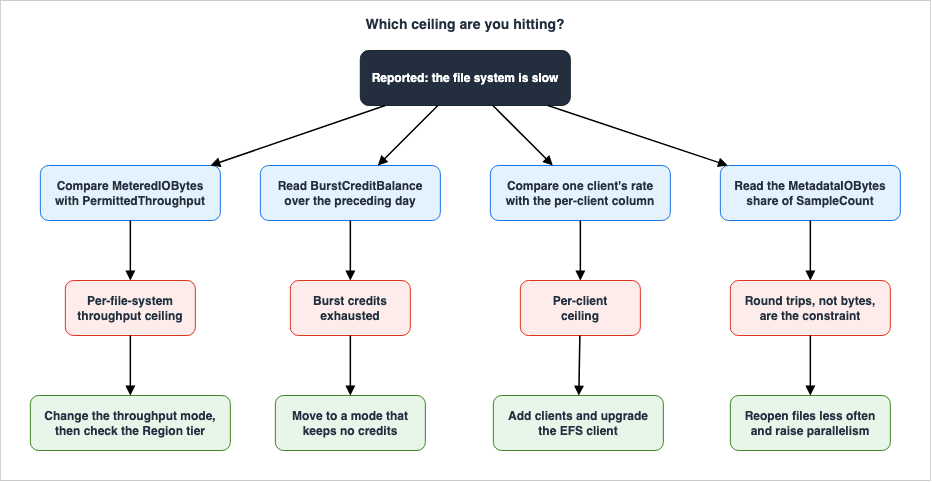
The limits discussed previously are mapped to CloudWatch metrics. Amazon EFS metrics live in theAWS/EFS namespace, and all metrics except TimeSinceLastSync are one-dimensional, using FileSystemId. Unless otherwise noted, these metrics are reported at a default interval of one minute. Statistics are retained for 15 months.| Limit Being Evaluated | Metric to Observe | Method of Calculation |
|---|---|---|
| Throughput per file system | Ratio of MeteredIOBytes to PermittedThroughput | Metric calculation. If equal, the allocation is fully utilized. |
| Burst credit depletion | BurstCreditBalance | Observe the trend using the Minimum statistic. |
| I/O limit for General Purpose performance mode | PercentIOLimit | Use the Maximum statistic. |
| Number of clients | ClientConnections | For standard clients, this represents one connection per mounted instance. |
| Dominance of metadata I/O | Ratio of MetadataIOBytes to TotalIOBytes, based on SampleCount | Metric calculation. |
| Average I/O size | Sum of DataReadIOBytes divided by SampleCount | Metric calculation. |
| Basis for the Bursting baseline | The Standard dimension of StorageBytes | Emitted every 15 minutes. |
9.2 There Is No IOPS Metric
The most easily misunderstood aspect of this table is that Amazon EFS does not have a metric that directly reflects IOPS. WhilePercentIOLimit indicates how close I/O usage is to the I/O limit for the General Purpose performance mode, it does not represent the number of operations per second.Operations per second come from the
SampleCount statistic on the I/O metrics. The User Guide publishes the metric math for it. Take any one of the SampleCount values for DataReadIOBytes, DataWriteIOBytes, MetadataIOBytes, or TotalIOBytes and divide it by the number of seconds in the period.m1 = SampleCount of TotalIOBytes, period 1 minute
e1 = m1/PERIOD(m1)Using the same principle, you can also determine the percentage of operations that involve metadata. Multiply the
SampleCount value for MetadataIOBytes by 100 and divide it by the SampleCount value for TotalIOBytes. This one expression settles whether the workload is the kind described in Section 7.m1 = SampleCount of TotalIOBytes, period 1 minute
m2 = SampleCount of MetadataIOBytes, period 1 minute
e1 = (m2*100)/m19.3 Throughput Utilization
The throughput utilization graph on the console's file system details page plotsMeteredIOBytes against PermittedThroughput. The User Guide publishes the metric math that reproduces it.m1 = Sum of MeteredIOBytes, period 1 minute
m2 = Average of PermittedThroughput, period 1 minute
e1 = (m1/1048576)/PERIOD(m1)
e2 = m2/1048576
e3 = ((e1)*100)/(e2)PermittedThroughput gives the maximum throughput a file system can drive, but its meaning varies depending on the throughput mode.| Throughput Mode | What PermittedThroughput Represents |
|---|---|
| Elastic | The maximum write throughput of the file system. |
| Provisioned | If the data stored in the EFS Standard storage class lets the file system drive more than the provisioned amount, the metric reflects that higher throughput instead of the provisioned amount. |
| Bursting | A function of the file system's size and the BurstCreditBalance. |
Read the Elastic row again: on a file system using Elastic throughput, that graph measures against the write ceiling. A low number when read operations dominate does not necessarily indicate headroom in the read throughput limit.
9.4 Reading the Average I/O Size
As Section 5.5 showed, EFS throughput rises as the average I/O size rises. Average I/O size comes out of metric math as well. ForDataReadIOBytes, DataWriteIOBytes, or MetadataIOBytes, divide the Sum by the SampleCount.m1 = Sum of DataReadIOBytes, period 1 minute
m2 = SampleCount of DataReadIOBytes, period 1 minute
e1 = (m1/1024)/m2A small value points to a workload dominated by round trips, where the remedies in Section 7 are the ones that apply.
9.5 Two Metrics, Before and After Metering
WhileMeteredIOBytes and TotalIOBytes have similar names, they represent different values.MeteredIOBytes counts the metered bytes for each file system operation, including data reads, data writes, and metadata operations. Reads carry a discount set by the throughput limit. This is the one to compare against PermittedThroughput.TotalIOBytes counts the actual bytes Amazon EFS processed, and does not apply any discounts for reads. The User Guide notes that this number may differ from the amount your applications actually requested, because it includes minimums. It also states that this number may exceed the value indicated by PermittedThroughput.Both metrics are reported in raw bytes. The User Guide explicitly states that they are not rounded to decimal or binary multiples. You will need to perform your own conversions when comparing them to values like GiBps or MiBps.
10. The Choices You Cannot Take Back
10.1 Performance Mode Cannot Change After Creation
Performance mode, like file system type, cannot be changed once the file system exists. The API Reference states it outright forPerformanceMode.The PerformanceMode can't be changed after the file system has been created.In other words, there is no operation to move a file system created with Max I/O to General Purpose. To achieve this, you must create a new file system and migrate the data. This is also verifiable through the API.
UpdateFileSystem updates the throughput mode and the provisioned amount of an existing file system, and its request body accepts only ThroughputMode and ProvisionedThroughputInMibps.When using CloudFormation, pay close attention to how this constraint manifests. The
PerformanceMode property of AWS::EFS::FileSystem is marked as Update requires: Replacement. If you modify this property in the template, the stack update will proceed without error, and the file system will be replaced. Conversely, the ThroughputMode of the same resource is marked as Update requires: No interruption, so modifying it will not trigger a replacement.10.2 Archive Transitions Pin the Throughput Mode
There is a second choice that is hard to undo. The EFS Archive storage class is supported on file systems that use Elastic throughput. The User Guide continues, stating:If your file system has a lifecycle policy that transitions data to Archive, you cannot change
the throughput mode to Bursting or Provisioned.When you configure a lifecycle policy to transition files to Archive, the throughput mode stays on Elastic and will not move. Conversely, file systems that require Bursting or Provisioned throughput cannot be configured to transition to Archive.
10.3 The 24 Hours After Switching to Provisioned
Changing the throughput mode itself does not stop the application. Provisioned throughput, however, carries a restriction in time.The User Guide states that after switching to Provisioned throughput, or increasing the Provisioned amount, two operations are restricted for a 24-hour period. These are switching from Provisioned to either Elastic or Bursting, and decreasing the Provisioned amount.
Therefore, if you switch to Provisioned and significantly increase the amount while investigating performance issues, you may not be able to revert to the previous setting or reduce the amount later that day. The switch is only quick in one direction.
10.4 What You Can Change and What You Cannot
The file system settings that affect performance, and whether each can be changed, are as follows.| Setting | Modifiable After Creation | Restrictions |
|---|---|---|
| File System Type | Not Modifiable | Regional and One Zone are determined at creation. The UpdateFileSystem request body only accepts two parameters. |
| Performance Mode | Not Modifiable | Modifying this setting results in a replacement within CloudFormation. |
| Throughput Mode | Modifiable | Cannot be changed from Elastic if transitioning to Archive. After changing to Provisioned, there is a 24-hour restriction. |
| Provisioned amount | Modifiable | Cannot be reduced within 24 hours of an increase. |
11. Where the Primary Sources Disagree
AWS spreads the Amazon EFS performance story across several documents, and some of them contradict each other. Four such instances are listed below, without declaring either side of any pair to be wrong. Read one side without noticing the disagreement and you can end up with a configuration that is not the one you meant to have.11.1 The Default Throughput Mode
The most significant discrepancy lies in this area. The Amazon EFS User Guide, on the page discussing throughput management, states:Elastic throughput is the default throughput mode in the Amazon EFS console and is recommended
for most use cases.Meanwhile, the Amazon EFS API Reference, regarding the
ThroughputMode parameter in CreateFileSystem, states:Default is bursting.Similarly, the AWS CloudFormation Template Reference, concerning the
ThroughputMode property of AWS::EFS::FileSystem, states the same.Default is bursting.Furthermore, the Amazon ECS Developer Guide, on its page of best practices for Amazon EFS volumes, states:
The default throughput mode for Amazon EFS file systems is bursting mode.These are not contradictory. The language in the User Guide specifies that the statement applies to the default in the Amazon EFS console, while the defaults for the API and CloudFormation are
bursting. The ECS Developer Guide is describing the default on the API side.The practical implication is clear. When creating a file system through the console, it defaults to Elastic. However, when creating it through the API, AWS CLI, CloudFormation, CDK, or Terraform without specifying a throughput mode, it defaults to Bursting. By the table in Section 4.2, the former starts at a default maximum read IOPS of 250,000 for frequently accessed data. The latter, by Section 3, is 35,000, and that figure is not eligible for an IOPS increase request. The same action, creating an EFS file system, lands on ceilings that differ by more than sevenfold depending on the path taken.
In environments managing file systems through Infrastructure as Code, without explicitly specifying a throughput mode, the default will be Bursting. It's worth reviewing your existing templates.
11.2 File Operations per Second for General Purpose
The same User Guide disagrees with itself as well. In its table of quotas specific to Amazon EFS file systems, the quotas page gives the number of file operations per second for General Purpose mode as 250,000, with a footnote pointing to the performance summary.The performance summary behind that footnote is the table reproduced in Section 3, and it gives a different maximum IOPS for each throughput mode. It gives 35,000 for Bursting, 55,000 for Provisioned, and up to 2,500,000 for Elastic. The single value of 250,000 doesn't align with any of these rows and matches the default read IOPS for frequently accessed data under Elastic throughput.
The 250,000 on the quotas page is not your file system's ceiling. You need to check the throughput mode and then refer to the corresponding row in the performance specifications table.
11.3 Where Max I/O Stands
How performance mode is handled depends on which document you read. As quoted in Section 2.3, the Amazon EFS User Guide positions Max I/O as a previous generation type and recommends General Purpose for every file system.In contrast, the Amazon ECS Developer Guide page quoted in Section 11.1 presents Max I/O as suitable for workloads such as data analytics, media processing, and machine learning.
Furthermore, the sample template included on the
AWS::EFS::FileSystem page in the AWS CloudFormation Template Reference specifies PerformanceMode as maxIO. The description of the PerformanceMode property on the same page includes a note recommending General Purpose for all file systems.The API Reference leans the other way by one more step. Its description of the
PerformanceMode parameter says that file systems using maxIO can scale to higher levels of aggregate throughput and operations per second, at the cost of slightly higher latencies for most file operations. Among the documents gathered here, that is the only place that names something Max I/O does better.This article does not state that either option is deprecated. Instead, it takes the approach of considering the service's own User Guide as the primary source on where that service stands. The combination restrictions in Section 2.3 then become the deciding factor. Since Max I/O cannot be combined with Elastic throughput, choosing Max I/O rules out the row with the highest IOPS in Section 3.
The API Reference page disagrees with itself in a smaller way. The description of the
CreateFileSystem operation states that Max I/O is not supported for One Zone file systems or file systems that use Elastic throughput. However, the description of the PerformanceMode parameter on the same page only mentions One Zone. The User Guide aligns with the description of the operation.11.4 The Minimum Unit of Metering
The fourth disagreement bears on how a metric is read. The performance specifications page, quoted in Section 3.3, states that every NFS request is metered as either 4 KB or its actual size, whichever is larger. The quotas page, in the section on NFS clients, also specifies a minimum NFS request size of 4 KB.However, the CloudWatch metrics page describes
TotalIOBytes using a different figure.Data operations are metered at 32 KiB and other operations are metered at 4 KiB. After the
minimum, all operations are metered per KiB.The minimum size for data operations is 32 KiB, while other operations have a minimum of 4 KiB. This value of 32 KiB does not appear on either the performance specifications page or the quotas page.
These two sources may be describing different things.
TotalIOBytes is a metric representing the actual number of bytes, without any discounts for reads, and its description includes a minimum value. In contrast, the 4 KB figure on the performance specifications page refers to accounting for throughput. The User Guide does not explicitly clarify the relationship between these two.The practical implications become apparent when examining
TotalIOBytes. Data reads of 4 KiB are recorded as 32 KiB in TotalIOBytes. When observing this metric on workloads with frequent small reads, the reported value can be significantly higher than the amount of data the application actually requested. Interpreting this discrepancy as a performance anomaly can lead to misdiagnosing the root cause.12. Failure Modes and Anti-Patterns
12.1 The Cases a Throughput Mode Change Does Not Fix
As Section 1 put it, a different ceiling calls for a different response. The situations where changing the throughput mode does not help are set out below, by cause.| Symptom | Root Cause | Does changing the throughput mode resolve the issue? |
|---|---|---|
| Throughput from one client plateaus | The per-client ceiling | Changing to Elastic throughput alone will not resolve it; client-side version updates may also be required. |
| The file system as a whole is idle, yet operations are slow | Round trips are the constraint, and metadata dominates | Changing the throughput mode will not resolve the issue; adjust access patterns instead. |
| Slow sequential reads only | read_ahead_kb remains at 128 KB | Changing the throughput mode will not resolve the issue; modify the mount configuration. |
| Slow initial reads for specific files only | The data sits in Infrequent Access or Archive | Changing the throughput mode will not resolve the issue; adjust the lifecycle policy. |
| Insufficient IOPS on a One Zone file system | One Zone carries the same maximum IOPS across all three modes | Changing the throughput mode will not resolve the issue; the file system type cannot be changed. |
| Fast during the day, but slow after nighttime batch jobs | Burst credit exhaustion | Moving to Elastic or Provisioned throughput may resolve it. |
| File system throughput sits at its ceiling | The per-file-system ceiling | It may. Check the Region tier first. |
12.2 Infrastructure as Code Lands Silently on Bursting
The discrepancies identified in Section 11.1 can directly lead to failure scenarios. It's possible to encounter a situation where a test environment is created through the console, while the production environment is built with CloudFormation or Terraform and lands on Bursting.The mismatch stays hidden while the load is light. The Bursting baseline scales with stored data, so it climbs as the data grows. The problem arises not from the volume of data itself, but when access patterns change. And it does not reproduce in the test environment.
The solution is relatively straightforward: set
ThroughputMode explicitly in the templates. On an existing file system, note that a change to Provisioned brings the 24-hour restriction in Section 10.3 with it.12.3 Switching to Provisioned Lowers the Ceiling
As discussed in Section 4.1, the Regions in the top throughput tier differ by throughput mode. In a Region that is in the Elastic top tier but not in the Provisioned top tier, switching from Elastic to Provisioned will result in a lower throughput limit per file system.While Provisioned allows you to specify the amount you need, there is a ceiling on what you can specify, and the Region sets it. Before making the switch, be sure to check the Provisioned throughput limit for your Region.
12.4 Mounting Without the Mount Helper
Client-side configurations are not reflected in any of the metrics reported by the file system. As Sections 5.2 and 7.4 showed, the per-client ceiling and the amount of prefetching can vary significantly depending on whether or not you useamazon-efs-utils.It is possible to mount the EFS file system directly using standard Linux NFS clients, without installing the Amazon EFS client. The mount succeeds and reads and writes work. What changes is only the ceiling, which is why a functional test will not catch it.
The User Guide recommends always using the latest version of
amazon-efs-utils. Available features vary by version; for example, mounting with IPv6 addresses requires version 2.3 or later.12.5 Mount Options That Turn Caching Off
The mount options named in Section 7.3 are sometimes added in the name of stronger consistency. Options likenoac and actimeo=0 disable attribute caching, while lookupcache=none stops the file name lookup cache. The User Guide says that each of these has a very large performance impact.EFS provides strong consistency and file locking as part of its file system access semantics. Before adding options to disable caching, it's worth verifying whether this is truly necessary.
12.6 What This Article Does Not Measure
Finally, a word on the limits of this article. Every ceiling named so far comes from a specification AWS publishes. Which ceiling a workload reaches first depends on the workload. This article makes no general claim about the order.For the same reason, this article does not compare the performance of other shared file systems. The selection of a shared file system is covered in the Amazon FSx Family Decision Guide.
What actually saturates a file system like this is, in most cases, jobs running in parallel. Job submission and the scheduler side of resource allocation belong to Batch and HPC Job Scheduling on AWS, which is the subject of its own article. The same question, how to split something without giving up the sharing, also arises on the database side, in Sharding Aurora PostgreSQL with Limitless Database, which is likewise the subject of its own article.
13. Frequently Asked Questions
Does changing the throughput mode stop my application?
No. The User Guide states that changing the throughput mode will not cause application downtime. However, if you change to Provisioned throughput, or increase the amount of Provisioned throughput, you will be unable to change the throughput mode again, or decrease the amount, for a period of 24 hours.Has Max I/O been deprecated?
No. The Amazon EFS User Guide identifies Max I/O as a previous generation performance type and recommends General Purpose for all file systems, citing higher latency per operation. This is a recommendation, and does not indicate that new usage is being discontinued or that the feature is being phased out. However, there are compatibility restrictions; Max I/O cannot be used with One Zone file systems or file systems that use Elastic throughput.Can I change the performance mode later?
No. The Amazon EFS API Reference states that the performance mode cannot be changed after the file system is created. To change it, you will need to create a new file system and migrate your data. If you modifyPerformanceMode in CloudFormation, the update does not fail; the file system is replaced.Does Elastic throughput triple my per-client throughput?
Yes, under certain conditions. The 1,500 MiBps figure applies only when the file system uses Elastic throughput and is mounted with either version 2.0 or later of the Amazon EFS client or the Amazon EFS CSI driver. If either of these conditions is not met, the throughput remains at 500 MiBps.Is there any way to raise a single client's throughput?
Yes, but the options are few. One is to meet the two conditions in the previous answer. Another is to maintain network latency at 1 millisecond or less; the User Guide lists this as a requirement for achieving the maximum per-client throughput. Increasing the number of connections usingnconnect is not supported with Amazon EFS. If you require even greater performance, you will need to increase the number of clients to distribute the load.Do I get the 2,500,000 read IOPS in the table without doing anything?
No. The 2,500,000 read IOPS in the table is not what a file system delivers by default. It is the ceiling reachable after an increase request has been submitted and approved. The defaults are 250,000 read IOPS for frequently accessed data, 90,000 for everything else, and 50,000 write IOPS. You can request an increase of up to ten times those figures. On top of that, the User Guide requires at least 10 NFS clients with at least 64 threads each to reach the highest levels of performance.Does One Zone make the file system faster?
In one respect only. The write latency of a One Zone file system is approximately 1.6 milliseconds, which is lower than the approximately 2.7 milliseconds of the Regional configuration. On the other hand, the maximum IOPS is the same 35,000 and 7,000 as Regional Bursting, whichever of the three throughput modes is selected. The throughput per file system is 3 GiBps and 1 GiBps for Elastic and Provisioned in every Region. One Zone also rules out Max I/O.My burst credit balance keeps falling. What should I do?
A steadily fallingBurstCreditBalance means the file system is driving above its baseline and has been for a while. The User Guide recommends moving to Elastic or Provisioned throughput once the application is judged to be throughput-constrained. It provides examples such as when the application is using more than 80 percent of the permitted throughput or when credits are being depleted. File systems using Elastic throughput neither accumulate nor consume burst credits.Why is the file system slow when throughput is not saturated?
The most likely cause is that the number of round trips is the limiting factor. The share of operations that are metadata operations identifies this case. Divide theSampleCount in MetadataIOBytes by the SampleCount in TotalIOBytes. If this percentage is high, the remedies are to reopen files less often, raise parallelism, and bundle reference files into a .zip archive. Also, check the average I/O size.Why is throughput utilization low in the console while the file system is slow?
On a file system using Elastic throughput,PermittedThroughput gives the maximum throughput for writes. Consequently, the throughput utilization graph also reflects the ratio against the write-side limit. On a read-dominated workload, a low number there does not mean the read side has headroom. Check PercentIOLimit and BurstCreditBalance as well.The CloudWatch numbers do not line up with GiBps.
CloudWatch metrics for Amazon EFS report raw data in bytes. The User Guide explicitly states that these metrics are not rounded to either decimal or binary multiples. To compare with values like GiBps or MiBps, you will need to perform the conversions yourself. Note that on the file system metrics page in the console, theStorageBytes metric is displayed using a base-1024 unit.Does putting data in Archive lock the throughput mode?
Yes. The User Guide states that a file system with a lifecycle policy that transitions data to Archive cannot have its throughput mode changed to Bursting or Provisioned. The EFS Archive storage class is supported on file systems that use Elastic throughput.14. Summary
This article approached Amazon EFS throughput modes not as a set of features but as a way of telling apart the several ceilings that apply to one file system at the same time. The key takeaways are as follows:Throughput modes are not simply settings that determine bandwidth. On Regional file systems they also set the maximum IOPS and the per-client ceiling. The maximum read IOPS are 35,000 with Bursting, 55,000 with Provisioned, and a default of 250,000 with Elastic, which can increase to 2,500,000 with an approved request. On One Zone file systems, though, all three modes share the same maximum IOPS and the same per-client ceiling.
The numbers in the performance specifications table are not, as they stand, your file system's ceilings. The range of per-file-system throughput is a Region tier, and the set of Regions in each tier differs by throughput mode. The IOPS range for Elastic is the value after an approved request; the default is one-tenth of that value.
Only the per-client limit depends on factors outside the file system. Achieving 1,500 MiBps requires both Elastic throughput and a compatible client version.
nconnect is not supported. And AWS states that reaching the maximum per-file-system throughput takes at least 10 clients.Metrics vary depending on the limit being monitored.
PermittedThroughput changes meaning based on the throughput mode, representing the write limit for Elastic. There is no dedicated IOPS metric; it is calculated from SampleCount. MeteredIOBytes and TotalIOBytes are the same traffic counted after and before metering.Certain choices are irreversible. The performance mode cannot be changed after creation and will require replacement within CloudFormation. Configuring a transition to Archive pins the throughput mode to Elastic. Switching to Provisioned throughput brings a 24-hour restriction with it.
Ultimately, this article does not provide a single answer to the question of which throughput mode to use. The appropriate choice is determined by the current limitations you are experiencing. If you are hitting the file system's overall bandwidth limit, consider the mode and the Region tier. If you are hitting the per-client limit, examine the client-side configuration. If you are running out of credits, move to a mode that keeps no credits. If the number of round trips is the constraint, no change of mode makes any difference.
15. References
- Amazon EFS performance specifications - Amazon Elastic File System
- Amazon EFS performance tips - Amazon Elastic File System
- Managing file system throughput - Amazon Elastic File System
- Amazon EFS quotas - Amazon Elastic File System
- CloudWatch metrics for Amazon EFS - Amazon Elastic File System
- Monitoring metrics with Amazon CloudWatch - Amazon Elastic File System
- Using metric math with CloudWatch metrics - Amazon Elastic File System
- Managing storage lifecycle - Amazon Elastic File System
- Features of Amazon EFS - Amazon Elastic File System
- What is Amazon Elastic File System? - Amazon Elastic File System
- Mount settings used by EFS mount helper - Amazon Elastic File System
- Installing the Amazon EFS client - Amazon Elastic File System
- Prerequisites for using the EFS mount helper - Amazon Elastic File System
- CreateFileSystem - Amazon Elastic File System API Reference
- AWS::EFS::FileSystem - AWS CloudFormation Template Reference
- Best practices for using Amazon EFS volumes with Amazon ECS - Amazon Elastic Container Service Developer Guide
- AWS announces higher read IOPS for Amazon Elastic File System - AWS What's New
- Amazon Elastic File System (EFS) FAQs
References:
Tech Blog with curated related content
Written by Hidekazu Konishi