How Amazon S3 Files Keeps a Bucket and a File System in Sync - The Export Window, Close-to-Open Consistency, and Where the Losing Write Goes
First Published:
Last Updated:
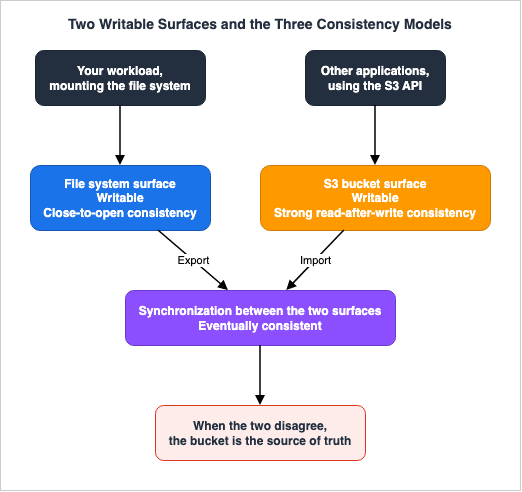
S3 Files implements a consistency model where the S3 bucket serves as the authoritative source of
truth. S3 API operations maintain strong read-after-write consistency, file system operations
provide close-to-open consistency, and the synchronization between these two systems is eventually
consistent.
Strong read-after-write consistency, close-to-open consistency, and eventual consistency are stacked inside one system. That single sentence is the most accurate description of what Amazon S3 Files is. There are two writable surfaces, the bucket and the file system. Each of these surfaces has its own consistency model, and a synchronization layer connects them, employing yet another model. From where you sit it looks like one file system, but underneath, three rules run at the same time.
What this article works out is the rule by which those three layers are made to look like one. When does your workload see the state of which surface? And when you write from both sides, which operation quietly falls behind, and which one loses?
Scope. This article provides a description of the semantics of synchronization, and is not a step-by-step guide to mounting procedures. It does not cover console operations or the construction of mount commands. It also does not address pricing. S3 Files has a structure that groups writes, and this article describes that structure, but not amounts or billing units. Performance design is also outside the scope. S3 Files is built using Amazon EFS technology, but the design aspects of EFS, such as throughput modes and IOPS limits, are the subject of the existing Amazon EFS Performance Engineering. Key design is covered in Amazon S3 Object Key Design Best Practices, while bucket policies and IAM design are addressed in Amazon S3 Security and Access Control Guide.
Terminology. The term consistency is the most important to understand in this article. In the context of S3 it names two distinct things. One is the strong read consistency provided by the object API, which S3 achieved in December 2020. The mechanisms behind this are described in the existing How Amazon S3 Achieves Strong Consistency and Durability, and will not be repeated here. The other is the consistency of the file system surface, which uses a different model, called close-to-open. This article focuses on the latter, along with the synchronization that connects the two. Because the same word is used to describe two different concepts, this article will explicitly state which surface is being discussed each time.
Verification Date. Everything this article says about availability and default values was checked against primary sources on September 14, 2026. Default values can be changed in the settings, and the list of Regions will grow. Where numerical values are mentioned, it is clearly indicated whether they represent the default value or the maximum limit.
1. The Machinery You Used to Build Between Files and Objects
To see what S3 Files folded in, it helps to look at the folded side first.When you have a workload that involves reading and writing data to files, and that data resides in S3, traditionally you had to build your own mechanisms to bridge the gap between the two. This often involved copying objects from S3 to a local environment at the start of a job, then writing the processed data back. You also had to track which files were not on hand yet. If multiple nodes were using the same data, you had to decide how to handle duplicate copies and ensure data freshness. And perhaps most complex of all, you had to define your own rules to determine which side - the object side or the file side - held the authoritative version.
This last point is the subject of this article. When you wrote the staging yourself, those consistency rules were in your own hands. You decided which side was the truth, and having decided it, you knew it. S3 Files takes on this responsibility. Its taking that on also means those rules leave your hands.
AWS defines this feature as follows:
S3 Files is a shared file system that connects any AWS compute resource directly with your data in
Amazon S3. It provides fast, direct access to all of your S3 data as files with full file system
semantics and low-latency performance, without your data ever leaving S3.
Pay particular attention to the phrase
without your data ever leaving S3. What it asserts is that the authoritative data stays in S3. It does not assert that no copy is made. In reality, as described later, S3 Files copies the data you access onto the file system's high-performance storage. What S3 Files folded in is not the copying itself, but the judgment of when to make a copy, when to drop it, and which version counts as the newer one.2. S3 Files Is Not a Client That Mounts S3
One premise has to be cleared up first. If you understand S3 Files as a client that translates S3's object API into file operations, the latter half of this article will not read correctly. The user guide states:Built using Amazon EFS, S3 Files gives you the performance and simplicity of a file system with the
scalability, durability, and cost-effectiveness of S3.There is a real file system here, built with Amazon EFS technology. This file system has its own storage, its own mount targets, and its own encryption settings. It is distinct from a bucket. Synchronization connects the two.
The key difference lies in the fact that both systems can accept write operations simultaneously. A client that simply translates the object API into file operations would only have one writable interface. S3 Files has two. Whether you write to the file system or directly place objects in the bucket, both actions are valid. All the rules discussed in this article stem from this fundamental fact.
2.1 Mountpoint for Amazon S3 Is Not a Former Name for S3 Files
Clients that simply translate files are a separate, actively maintained product: Mountpoint for Amazon S3. The user guide currently states:Mountpoint supports basic file system operations, and can read files up to 50 TB in size. It can
list and read existing files, and it can create new ones. It cannot modify existing files or delete
directories, and it does not support symbolic links or file locking.Mountpoint cannot modify existing files, cannot delete directories, and does not support file locking. This is a deliberate design choice rather than a gap, and the product page says so:
it exposes the native performance of Amazon S3 and doesn't support file system operations that can't be efficiently implemented against S3 object APIs. The product's stance is to avoid implementing operations that cannot be efficiently mapped to S3's object APIs.S3 Files, on the other hand, takes a different approach. It provides features such as file locking, POSIX permissions, and the ability to modify existing files. Consequently, it had to address the challenge of how to handle operations that cannot be directly mapped to S3's object APIs. Section 8 details the specifics of this undertaking.
These are two distinct products that coexist, and there is no successor relationship between them. The understanding that Mountpoint became S3 Files is incorrect.
2.2 Prerequisites: Versioning
S3 Files has one explicit prerequisite for the bucket it links to:S3 Files requires S3 Versioning to be enabled on the linked S3 bucket.This is a requirement, not a recommendation, as it's built into the design for synchronization. S3 Files writes file system changes back to the bucket as new object versions, and turns deletions into delete markers. Because the system is designed to add rather than overwrite, versioning is essential for it to function correctly. The user guide writes
making sure the old versions are preserved.Note that this requirement covers only the bucket that S3 Files links to. It is not a requirement for versioning imposed by other S3 features.
2.3 Terminology
These are the terms the user guide defines, and this article uses them throughout.File system refers to a shared file system linked to a bucket. High-performance storage is a low-latency layer within that file system, where the actual data and metadata for the files are stored. Synchronization is the process that keeps the file system and the bucket consistent with each other; importing data moves it from the bucket to the file system, while exporting moves it from the file system back to the bucket.
The term high-performance storage is particularly important. When this article refers to data being present on the file system, it means that the data is actually stored within this high-performance storage layer. As described later, whether data resides in this layer significantly affects the read paths and the timing of changes being reflected on the other side.
3. What Happens When You Read
Here is the shape of a read and a write, side by side. The following two sections provide a step-by-step explanation of these two processes.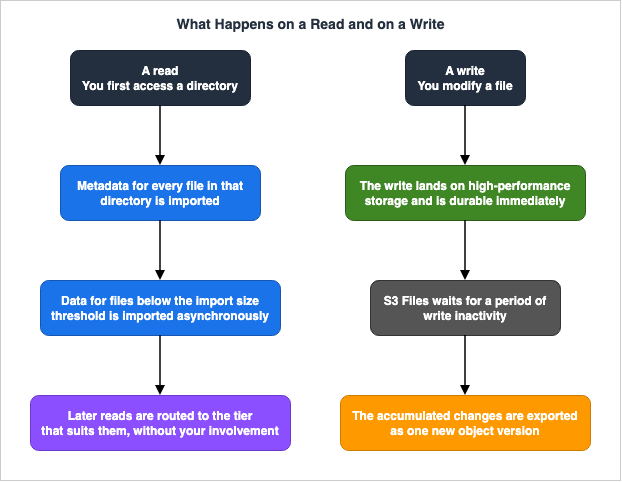
3.1 The First Access Works on a Whole Directory
The file system starts in an empty state. When it first encounters a directory, the contents of that directory are processed as a whole.By default, when you first access a directory by listing its contents or opening a file within it,
S3 Files imports the metadata for all files in that directory, along with the data for files smaller
than the import size threshold (default 128 KiB) from the S3 bucket.Two processes occur simultaneously. One involves metadata, which is collected for all files within that directory. The other process handles data, but only for files smaller than the import size threshold. The default value is 128 KiB.
The user guide provides a specific example. Suppose your bucket has a prefix
data/images/ holding 1,000 objects. When you first run ls /mnt/s3files/data/images/, 1,000 metadata entries are collected, and the data for files smaller than the threshold is copied asynchronously. This initial listing may take a few seconds, but subsequent commands like ls -la, stat, and cat will return with low latency.The user guide also says why metadata comes first. Listing a directory, reading file sizes, and checking permissions all stay low-latency. S3 Files gathers what it takes to behave like a file system before anything asks for it.
Files larger than the threshold have only their metadata collected; the data remains in the bucket.
3.2 Two Rules Send a Read Straight to the Bucket
That a file above the threshold gets read from the bucket is only half the rule. The user guide sets out two cases.S3 Files streams file reads directly from your S3 bucket in two cases: when the file's data is not
stored in the file system's high-performance storage, and for large reads >= 1 MiB, even when the
data also resides on the file system's high-performance storage.The first is as expected: when data is not present on the file system. The second is less obvious: reads exceeding 1 MiB will be read from the bucket, even if the data exists on the file system. High-performance storage is tuned for low latency and the bucket for high throughput, so a large read goes to the bucket because that is where it runs faster.
AWS does this routing on its own and calls it intelligent read routing. You do not choose the path. As described later, though, whether a path is available at all depends on your own permission settings.
3.3 Data You Just Wrote Always Comes Back from the File System
The rules so far have an exception.Recently modified data that has not yet been synchronized to S3 is always served from the file
system.Data you have written to the file system that has not yet reached the bucket always comes back from the file system. The troubleshooting page restates this from the read side:
Reads are only served directly from S3 when the file has not been modified through the file system.This rule is the counterpart of Section 4. While there is a delay between writing to the file system and the data being delivered to the bucket, older data will never be returned during that delay. If you read the data immediately after writing it, you will receive the data you just wrote.
3.4 The Import Rules Are Configurable
You are not required to use the default values. ThePutSynchronizationConfiguration API and the console both change the synchronization configuration, which holds two kinds of rules: import data rules and expiration data rules.A single file system takes up to 10 import data rules. Each rule has three parameters: a prefix, a trigger, and a size threshold. The trigger takes one of two values.
ON_DIRECTORY_FIRST_ACCESS imports, on the first touch of a directory, the data for its immediate children that fall under the threshold. ON_FILE_ACCESS imports a file's data only when that file is first read. The default is the former.The
sizeLessThan threshold is specified in bytes, ranging from a minimum of 0 to a maximum of 52,673,613,135,872 bytes, with a default value of 131,072 bytes. A minimum value of 0 has a specific meaning: it configures the system to only import metadata, without importing any data. The user guide offers this setting for agent-like workloads. When something reads many files once each and never comes back to them, walking the directory tree at low latency is all you need, and the reads themselves can come straight from the bucket.When multiple rules apply to a single file, the rule with the most specific prefix takes precedence. Furthermore, you must include exactly one rule that applies to the root directory.
Expiration data rules are limited to a maximum of one and have a single parameter:
daysAfterLastAccess. This ranges from a minimum of 1 day to a maximum of 365 days, with a default value of 30 days.4. What Happens When You Write
4.1 Writes Are Durable Immediately
Writes to the file system are first directed to high-performance storage.Writes go to the high-performance storage and are durable immediately.They are durable immediately. This single sentence forms the basis for understanding the export delays discussed later. That it takes time to reach the bucket, and that the data is at risk in the meantime, are two different claims.
4.2 Exporting Begins After a Period of Inactivity
Reaching the bucket goes through a window.When a file is modified on the file system, S3 Files waits for a period of write inactivity (60
seconds) before exporting those changes back to your S3 bucket.The number 60 seconds refers to the period of time with no write activity, not the elapsed time. Misinterpreting this will lead to incorrect predictions of behavior. The user guide gives an example. If an application appends data to a file every 30 seconds for 5 minutes, the export will begin after 6 minutes. During those 5 minutes, writes occur every 30 seconds, so the required 60-second period of inactivity is never met. Exporting only begins after 60 seconds of no write activity. Further changes will trigger the same process to repeat every subsequent 60-second period of inactivity.
The purpose of this window is to group consecutive write operations into a single unit.
Rapid successive writes to the same file are captured in a single S3 PUT request rather than
generating multiple object versions for each individual change. This reduces both your S3 request
costs and storage costs.
Because versioning is required, exporting on every write would mint a new version per write. The window is what keeps that from happening.
4.3 What Creations, Modifications, and Deletions Become in the Bucket
The bucket side represents file system operations like this:New files become new S3 objects, changes to existing files become new object versions, and deleted
files become S3 delete markers.Deletion becoming a delete marker follows directly from the versioning requirement. Even if a file is deleted on the file system, previous versions remain on the bucket.
4.4 POSIX Permissions as Object Metadata
S3 objects do not have owners or permission bits. S3 Files bridges that gap with user-defined metadata.POSIX permissions that you set on files and directories through the file system, such as owner
(UID), group (GID), and permission bits, are stored as user-defined S3 object metadata on the
corresponding S3 objects.The actual metadata keys are
x-amz-meta-file-owner, x-amz-meta-file-group, and x-amz-meta-file-permissions. Run chmod, chown, or chgrp, and S3 Files exports those changes to the bucket along the same path as a data change.The reverse direction is defined too. An object written straight into the bucket carries no such metadata, and the POSIX permissions page spells out what happens then, with the exact values.
S3 Files assigns those objects a default value of root:root ownership and 644 permissions, which
allow non-root users to read the file but not write to it.
The default directory permission is
0755. Section 9 comes back to this default. An object written into the bucket through the S3 API therefore appears to the file system as a read-only file owned by root, and that shapes how you design the operation.5. What Happens When the Other Side Writes
5.1 Changes Are Detected Through Events
S3 Files watches the bucket side and pulls those changes in.S3 Files monitors changes in your S3 bucket using S3 Event Notifications.This monitoring has a concrete presence inside your own account. The best practices page states that S3 Files creates an EventBridge rule with the prefix
DO-NOT-DELETE-S3-Files and instructs you not to disable, modify, or delete it. The same page spells out what happens if you delete it. If the rule is deleted, S3 Files will be unable to detect new objects or changes in the bucket, and the file system will remain outdated.This is the one place where the folded machinery shows its face on your side. Section 9 returns to it.
5.2 Only Files Whose Data Is on the File System Are Updated Immediately
A key limitation applies here:S3 Files automatically reflects those changes in the file system for files whose data is currently
stored in the file system's high performance storage. Files whose data has been expired from the
file system are not updated until the next time you access them, at which point S3 Files retrieves
the latest version from the S3 bucket.Not all files are updated immediately. Only files whose data sits on high-performance storage take the immediate update. Expired files wait until you touch them. However, when accessed, the latest version will be retrieved, so you will not encounter outdated data. The difference lies in whether the update process runs before or at the moment of access.
Updates appear within seconds in the normal case. The ceiling is 2,400 object changes per second per file system.
5.3 Expiration Carries Two Conditions
The rules governing data removal from high-performance storage also have conditions that are easy to overlook.If a file in your file system has not been read for 30 days (configurable) and its changes have
already been synchronized to the S3 bucket, S3 Files removes the file data from the file system.Two conditions apply. First, the file must not have been read for 30 days. Second, the changes must already be synchronized to the bucket. Files with changes that have not yet been exported will not expire.
The timer also resets each time a file is read. The customization page states,
Whenever a file is read, its expiration timer resets, extending the time that data remains in the file system. The 30-day period refers to the time since the file was last read, not from its creation date.Only the data expires; the metadata is not deleted. The user guide clearly states,
File metadata, such as names, sizes, and permissions, is never removed from the file system. Expired files still show up in a listing, with the right size and permissions. Only the data itself is unavailable.6. Which Side Wins, and Where the Losing Side Goes
This is the core of this article.6.1 Definition of Conflict
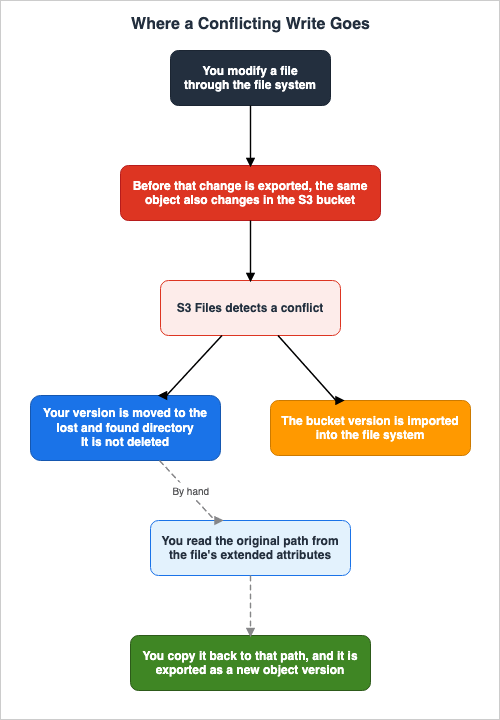
The word conflict here names a defined condition, not the everyday sense of the word.A conflict occurs when the same file has been modified through the file system and the corresponding
S3 object has also changed before S3 Files has synchronized the file system changes back to the S3
bucket.This condition consists of three elements: a file has been modified through the file system; the corresponding object has also changed on the bucket; and this change occurred before the file system modification was synchronized to the bucket.
The third element is crucial. Even if changes occur on both sides, it doesn't necessarily constitute a conflict. If the bucket changes after the file system modification has been exported, it is simply an overwrite, resulting in a single new version. A conflict arises when the other side moves during the window described in Section 4.
Detection fires on two triggers. S3 Files either tries to synchronize a file system change back to the bucket, or receives an event notification saying the object changed.
6.2 When S3 Is Considered Authoritative
The rule itself is clear.When a conflict occurs due to concurrent changes to the same data in both the file system and the S3
bucket, S3 Files treats the S3 bucket as the source of truth in case of conflicts.The reasoning is stated too. The bucket is the long-term store for the data, so it is treated as the source of truth, and the version held there always takes precedence. That is what makes the consistency predictable.
Do not generalize this rule into S3 always wins. The original documentation attaches the condition
in case of conflicts. This is a rule for resolving conflicts, and it does not mean that writes from the file system are always treated lightly. Writes that do not conflict reach the bucket in order as new versions, as Section 4 described.6.3 The Losing Side Is Not Discarded
And this is the point most easily overlooked.In case of a conflict, S3 Files moves the conflicting file from its current location in your file
system to a lost and found directory and imports the latest version from the linked S3 bucket into
the file system.The file that loses is not deleted. It is moved. The destination is a directory named
.s3files-lost+found-file-system-id located directly under the file system root.The move renames the file. S3 Files prepends a hexadecimal identifier so that several versions of the same file, moved at different times, stay distinguishable. If a filename exceeds 100 characters, it will be truncated to make room for the identifier. And the original directory structure is not preserved. The files sit flat in that directory instead.
The file's extended attributes hold its original location.
getfattr -n "user.s3files.status;$(date -u +%s)" .s3files-lost+found-fs-12345678/abcdef1234_report.csv --only-valuesThe timestamp in the attribute name forces the latest state rather than a cached one. The information returned consists of two attributes:
S3Key and FilePath. S3Key is the key of the object that caused the conflict, and FilePath is the path the file had before it. If the object has been deleted on the bucket side, the S3Key will be empty.6.4 If You Want to Keep Your Version
A defined procedure exists for adopting the losing side after all.If you want to keep your file system changes instead of the latest version in the S3 bucket, copy
the file from the lost and found directory back to its original path. You can retrieve the file's
original path from the extended attributes of the file in the lost and found directory. S3 Files
will then copy it to your S3 bucket as a new version of the object.Copy it back to that path and S3 Files treats it as an ordinary write, so it reaches the bucket as a new version. Conflict resolution is automatic, but the path to overturn its result is still open. That path is manual, and it does not happen on its own.
Conflicting files that S3 Files moves to the lost and found directory remain there indefinitely and count toward your file system storage costs.There is one more case, where the directory becomes invisible. If you mount through an access point that specifies a root directory, the lost and found directory is not visible from that mount. This is because the lost and found directory sits at a level above the access point's root. If you are using access points as your standard configuration, you can end up with a setup where you never notice that conflicts are happening. The
LostAndFoundFiles CloudWatch metric counts them.6.5 AWS's Own Advice Is to Pick One Side
The best practices page explains this mechanism and then offers a single-sentence recommendation.To avoid conflicts, designate one path (file system or S3) as the primary writer.Even though a conflict resolution mechanism is available, AWS's primary recommendation is to avoid conflicts in the first place. The mechanism should be considered a last resort, not a fundamental part of the operational design. If your design involves writing to the same data from both sides, that decision stays on your side.
7. Three Consistency Models Stacked in One System
7.1 Three-Layer Breakdown
Return to the sentence from the FAQ quoted at the start. On the object API side it is strong read-after-write consistency, on the file system side close-to-open consistency, and the synchronization that joins the two is eventually consistent.The first layer is outside the scope of this article. The mechanisms by which S3 achieved strong read consistency in December 2020, the metadata subsystem and its cache, and how durability is designed, are the subjects covered in the previously published How Amazon S3 Achieves Strong Consistency and Durability. This article defers to it. How the same word carries a different contract from one AWS surface to the next, and which assumptions must not be carried from one service into another, is the subject of What Consistent Means, Service by Service on AWS.
The third layer, as defined, represents eventual consistency, where changes on one side may have a delay before appearing on the other. The window described in Section 4 and the reflection process detailed in Section 5 represent the breakdown of that delay.
This section will focus on the second layer.
7.2 What is close-to-open?
According to AWS's definition:S3 file systems provide NFS close-to-open consistency, meaning that when a client closes a file,
future opens of that file by any client will see the latest version of the file content.Once a client closes a file, the guarantee is that any subsequent open of that file, by any client, sees the latest content. Conversely, it does not guarantee that a client will see writes made by other clients while that client's file is open. That distinction bites in workloads where several nodes open and write the same file at once.
S3 Files supports two versions of NFS:
S3 Files supports the NFS version 4.2 and 4.1 protocols.Specifically, versions 4.1 and 4.2, but not 4.0. Some optional features of NFSv4.2, such as server-side copy, sparse file operations, and custom extended attributes, are not supported. Locking has limits too. The list of unsupported features includes
Mandatory locking (all locks are advisory), indicating that all locks are advisory. It is important not to interpret any mention of file locking as implying the presence of mandatory locks.7.3 The Term Is Not in the NFSv4 Specifications
Widening the primary sources beyond AWS turns up something slightly surprising.The term close-to-open does not appear in either of the specifications that define the NFS versions supported by S3 Files. Neither RFC 8881, which defines NFSv4.1, nor RFC 7862, which defines NFSv4.2, contains it. For reference, RFC 7530, which defines NFSv4.0, does not contain it either. What the specifications describe is behavior: check the cache for validity on open, flush changes to the server on close.
The term itself first appears in RFC 2624, a document from 1999. This is an Informational document summarizing the design considerations for NFS version 4, and is not a normative specification.
NFS versions 2 and 3 make no caching requirements. Implementations typically implement
close-to-open cache consistency which requires clients flush all changes to the server on each file
close, and check for file changes on the server on each file open.
Regarding NFS versions 2 and 3, the documentation states that these versions lack cache requirements, and that implementations have, as a matter of practice, implemented close-to-open cache consistency. In other words, the term emerged not as a name for a guarantee required by the protocol, but as a name for a behavior that implementations have consistently adopted as a practice.
These two definitions describe the same mechanism from opposite perspectives. AWS's definition describes it from the perspective of a guarantee: once a file is closed, the next open of it sees the latest version. RFC 2624's definition describes it from the client's perspective: the client must write changes when closing a file and verify data when opening it. The guarantee is a result of fulfilling these obligations.
Therefore, this article does not state that RFCs define close-to-open. Instead, it treats as separate facts: AWS uses this term to describe the consistency of its file system, and that term originates from established practices in NFS implementations. Within what this article consulted, no description was found of how S3 Files implements that behavior internally, for example whether it uses NFSv4 delegation.
8. Areas of Incompatibility
When translating file system operations to object operations, there are certain aspects that do not map cleanly. This section provides a list of those areas.8.1 A Rename Rewrites Every Object Under the Prefix
S3 does not have directories.What appears as a directory in your file system is a common prefix shared by the keys of the objects
within the S3 bucket. Additionally, S3 objects are immutable and do not support atomic renames.So when you rename a file, S3 Files writes the data to a new key and deletes the original. When renaming a directory, the same process is repeated for all objects that share that prefix. An operation that would complete almost instantly in a file system takes time proportional to the number of objects on the S3 side. The user guide estimates that it may take several minutes for a directory rename involving 100,000 files to be fully reflected.
Past a certain scale, you are stopped at creation time instead.
S3 Files returns an error when you attempt to create a file system scoped to a prefix with a large
number of objects such that a rename can take up to 4 hours (approximately up to 12 million
objects).
Renaming operations can take up to 4 hours, with approximately 12 million objects representing the threshold. If you still want to create a file system with that prefix, you can use the
--AcceptBucketWarning parameter.8.2 Both Prefixes Are Visible While the Rename Runs
During the name change process, the bucket's status is in an intermediate state.Since S3 Files renames objects individually on the S3 bucket, both directories will be visible on
the S3 bucket until the rename is fully completed. Objects written after the directory was renamed
but before that rename is fully synchronized will not be moved.When viewing the bucket directly, both the old and new prefixes are visible. Objects written directly to the bucket after the rename but before the synchronization finishes are not moved. The user guide recommends against creating new objects through the bucket while the directory name is being changed.
8.3 Swapping Two File Names Can Fail
While renaming files is a straightforward operation from the perspective of the file system, it can create a circular dependency in the object world. S3 Files attempts to resolve this by using a temporary name, but if that temporary name exceeds the S3 key length limit, it cannot be resolved.One of the possible values for the
ExportError that indicates a failed export specifically addresses this situation. The error KeyTooLongToBreakCycle is described as: S3 Files could not resolve a circular dependency (for example, due to renaming two files to each other's names) because the file path exceeds the S3 key length limit. The recommended solution is to shorten the directory paths.8.4 Some Objects Never Become Files
Not every object in a bucket can become a file. Keys that are not valid POSIX paths never arrive. This includes objects with empty path components, relative path components, or those containing null bytes. Objects with path components exceeding 255 bytes are also excluded.Storage class imposes limits too. Objects stored in S3 Glacier Flexible Retrieval and S3 Glacier Deep Archive, as well as objects in the archive tier of S3 Intelligent-Tiering, cannot be read from the file system. They must first be restored using the S3 API.
Conversely, some objects cannot be exported from the file system to the bucket. Files and directories with a full path exceeding the S3 key length limit of 1,024 bytes cannot be exported. Similarly, objects with POSIX permission metadata exceeding 2 KB are also excluded. Hard links are not supported.
Finally, any changes made to S3 access control lists (ACLs) through the file system will not be preserved.
8.5 Failures Do Not Happen in Silence; They Have Names
Hitting one of these limits does not quietly lose your data. The export fails, and the reason is recorded. The same extended attributes from Section 6 give you each file's status.getfattr -n "user.s3files.status;$(date -u +%s)" missing-file.txt --only-valuesThe returned information includes
S3Key, and in cases of failure, ExportError. The ExportError value can take one of nine possible types: S3AccessDenied (indicating insufficient permissions), S3UserMetadataTooLarge (indicating metadata size exceeded), EncryptionKeyInaccessible (indicating inability to reach the encryption key), RoleAssumptionFailed (indicating failure to assume a role), PathTooLong (indicating a path that is too long), DependencyExportFailed (indicating failure to export a parent or dependency), S3ObjectArchived (indicating that the object has been archived), KeyTooLongToBreakCycle (as previously mentioned), and InternalError (indicating an internal error).S3 Files retries failed exports automatically;
ExportError is only displayed when the failure is of a type that will not be retried.9. What Stays on Your Side
What was folded in is the judgment about synchronization. The premises behind that judgment stay where they were. This section lists them.9.1 Items Requiring Decisions
Enable versioning. This is a prerequisite, as outlined in Section 2.2.Decide which side is the primary writer. Refer to AWS's recommendations in Section 6.5. If you adopt a design that writes from both sides, you have to settle what happens to a file when a conflict hits: where it goes, and who picks it up. Unclaimed, it stays there.
Adjust thresholds and expiration periods to match your workload. The defaults are 128 KiB and 30 days. They were picked as a sensible starting point for most workloads, not as an optimum. Raise the threshold for a training job that reads the same data over and over, or drop it to zero for a workload that reads many files once each.
Design the structure to minimize the need for renaming. Best practices recommend limiting the scope of the file system to the minimum necessary prefix, and avoiding placing large numbers of files within directories that are likely to undergo name changes.
9.2 Items Not to Be Modified
Your account holds two things that S3 Files created: an IAM role that S3 Files assumes for synchronization, and the EventBridge rule referenced in Section 5.1,DO-NOT-DELETE-S3-Files. The documentation says explicitly not to modify or delete either one. Altering the role will disrupt synchronization, and deleting the rule will prevent detection of changes on the bucket.Only the rule carries a warning in its name. The role does not, so an inventory sweep can put it on the list of things to delete.
9.3 One Setting Degrades Silently
The intelligent read routing of Section 3.2 depends on your permission settings. The troubleshooting page states that the IAM role attached to your compute resource needs an inline policy grantings3:GetObject and s3:GetObjectVersion on the linked bucket. If this policy is missing, all read operations will be routed through the file system.This does not result in an error. The reads succeed and the results are right. Only the path changes. What reveals it is the set of connectivity metrics the client emits:
NFSConnectionAccessible, S3BucketAccessible, and S3BucketReachable. A 1 means reachable, a 0 means not. They land in a namespace of their own, efs-utils/S3Files.9.4 The Default Permissions Matter in Practice
Here are the defaults from Section 4.4 again. Objects placed directly into the bucket will appear as files with permissions0644 and ownership root:root from the file system's perspective.This interacts with the IAM configuration. Without the
s3files:ClientRootAccess permission, every operation runs as the anonymous NFS user. The troubleshooting page says this is typically nfsnobody. With root as the default owner and an anonymous principal doing the work, writes do not go through.A setup where data you migrated with the S3 API cannot be read or written through the file system, because permissions stop you, arises from these two defaults landing on top of each other. The POSIX permissions page gives two ways out. One involves setting the object's metadata afterward, using
aws s3api copy-object with the --metadata-directive REPLACE option to specify the owner and permissions. The other is to include the metadata during the initial upload. The page's own best practice is to upload through the file system whenever you can, because that attaches the metadata for you. Uploading through the API rather than through the file system also brings the integrity behavior of the SDK itself into play: which checksum it computes and sends when you name none is the subject of Default Checksums and Data Integrity in Amazon S3.9.5 What should you watch?
CloudWatch carries the synchronization status. The namespace isAWS/S3/Files, and the dimension is FileSystemId.To check for delays, monitor
ImportAge and ExportAge. Both report, in seconds, how old the changes still in flight are, and both keep climbing when synchronization falls behind. PendingExports gives the number of exports still queued. ImportFailures and ExportFailures count failures, and the latter counts only the terminal ones that S3 Files will not retry. And LostAndFoundFiles, from Section 6.4, counts the conflicts.9.6 One Side You Can Take Back
And finally, the fact that matters most in the frame of this article.Buckets are always directly accessible. Creating an S3 file system does not make the bucket exclusive to it. The object API continues to function as usual, and authoritative data remains accessible there. Even if you delete the file system, the bucket persists.
This is the other side of the rule in Section 6.2. Treating the bucket as the source of truth means the file system gives way when the two conflict. However, it also means that you can always reach the authoritative side directly. No operation is offered for unfolding what was folded, but the surface that was there before the folding remains as it was.
10. Where the Primary Sources Disagree
Collating the primary sources for this article turned up places where several pages describe the same thing in different words. The ones that could affect practice are listed here.CloudWatch Metric Names. The troubleshooting page calls the metric that climbs when exports fail
FailedExports. In contrast, the metrics reference page and the best practices page use ExportFailures. The reference page's listing does not include FailedExports. This article uses ExportFailures. Set your alarms on the name the reference page carries.Import Granularity. The product page states,
When you read files, S3 Files lazily loads portions of file metadata and contents onto high-performance storage. The user guide writes imports the metadata for all files in that directory. The former describes a mechanism that loads only the necessary portions on demand, while the latter describes a process that loads metadata for an entire directory. Both describe the same mechanism at different grain. For a design decision, take the user guide, which states the conditions and the default values outright.Range of Compute Resources That Can Be Mounted. The user guide lists four, while the product page lists six. This article avoids creating its own list and instead refers readers to the official documentation.
Terminology for File System Consistency. The user guide's feature list mentions
read-after-write data consistency, file locking, and POSIX permissions, while the FAQ refers to NFS close-to-open consistency. This is not a contradiction. The two statements describe different layers. The former describes behavior within a single client, while the latter addresses scenarios involving multiple clients. If you are evaluating a design that involves mounting from multiple nodes simultaneously, the latter is the relevant consideration.The default for encryption at rest. The features list in the user guide reads as though an AWS owned key is the default, but the dedicated encryption page states that the default is SSE-S3 and that you can choose SSE-KMS when you create the file system. The dedicated page is the one to follow. Note also that file system encryption and bucket encryption are configured separately. No statement that the file system inherits the bucket's setting was found.
11. Frequently Asked Questions
Q. Is S3 Files a successor to Mountpoint for Amazon S3?A. No. They are separate products, and both are currently supported. Mountpoint is designed to offer only the operations that map efficiently onto S3's object API, so it does not support modifying existing files or file locking. S3 Files is a separate file system built using Amazon EFS technology and synchronizes with buckets. Which one you choose depends on whether you require file system semantics.
Q. Will data written within a 60-second interval be lost?
A. No. The 60-second interval represents a delay in reflecting changes to the bucket, not a period for discarding data. The user guide writes
Writes go to the high-performance storage and are durable immediately. And when you read changes that have not yet synchronized, the file system always returns the data, so you will never receive outdated information immediately after writing.Q. Will data be exported after 60 seconds?
A. No. It is 60 seconds after writing stops, not 60 seconds on a timer. As shown in the user guide example, if you continuously append data every 30 seconds for 5 minutes, the export will begin after 6 minutes. As long as writing continues, the window for export does not open.
Q. If a conflict occurs, will changes made on the file system be lost?
A. No. Changes made on the file system will be moved to the
.s3files-lost+found-file-system-id directory located directly under the root. The original path can be retrieved from extended attributes using getfattr. By copying the file to that path, you can write a new version to the bucket. However, this process is not automated, so you need to decide who will retrieve the file and when. If left unattended, the file will remain indefinitely.Q. Does the S3 bucket always win in case of conflicts?
A. Not unconditionally. This is the rule for conflicts, and the user guide attaches the condition
in case of conflicts. Writes that do not conflict reach the bucket in order, each as a new object version. A conflict arises when something changes the object in the bucket while the file system change is still on its way.Q. When do changes made on the bucket appear on the file system?
A. For files with data stored on high-performance storage, changes typically appear within a few seconds. Files with expired data will not be updated until the next access. However, when accessed, the latest version is always retrieved, so you will never receive outdated data.
Q. Which versions of NFS are supported?
A. The user guide lists two versions: NFSv4.1 and NFSv4.2. It does not include NFSv4.0. Furthermore, certain optional features of NFSv4.2, as well as pNFS and mandatory locking, are not supported. All locking is advisory.
Q. Is close-to-open defined in an RFC?
A. No. Neither RFC 8881, which defines NFSv4.1, nor RFC 7862, which defines NFSv4.2, contains the term, and those are the two versions S3 Files supports. The term itself appears in RFC 2624, a 1999 informational document that describes how NFS versions 2 and 3 have historically been implemented. The specifications describe a behavior where a file is verified upon opening and written to upon closing.
Q. Is it dangerous to change directory names?
A. It depends on the number of files. Since S3 does not have directories, changing a name involves rewriting and deleting all objects that share the prefix. For 100,000 files, it typically takes a few minutes. For prefixes containing over 12 million objects, the operation may take up to 4 hours, and creating a file system scoped to such a prefix returns an error unless you add the
--AcceptBucketWarning parameter.Q. Is a bucket dedicated to S3 Files only?
A. No. The object API remains fully functional. In fact, the design assumes the authoritative data lives in the bucket, so accessing it directly through the S3 API is the intended approach.
Q. How can you tell if synchronization is up-to-date?
A. Watch
ImportAge and ExportAge in the AWS/S3/Files namespace. Both report, in seconds, how old the changes still in flight are. PendingExports holds the queue depth, ExportFailures the terminal export failures, and LostAndFoundFiles the conflict count.12. Summary
What S3 Files folded in is the staging you used to write yourself, between files and objects - deciding which data to bring over, when to write it back, when to drop it, and which version counted as the newer one. Those rules now live inside one file system.The rules that went inside are written down, as this article has shown. On a read, the metadata for a whole directory comes in at once, followed by the data for files under the threshold. Reads of 1 MiB or more go to the bucket even when the data is already on the file system. On a write, the data is durable immediately, and it leaves for the bucket once writing has been quiet for 60 seconds. A change on the other side is reflected immediately only for files whose data is on the file system. If a file has not been read for 30 days and its changes are already synchronized, the data goes and the metadata stays. And when the two conflict, the bucket is the source of truth.
What was not folded in is the premise behind those rules. Enabling versioning is yours to do. So is tuning the threshold and the expiration window, so is choosing a layout that keeps renames cheap, and, above all, so is deciding which side is the primary writer. Even immediately after explaining its conflict resolution mechanism, AWS recommends avoiding conflicts altogether.
There are three places where it is better not to drop the qualifier as you read. The rule that makes the bucket the source of truth carries the condition
in case of conflicts. A change on the other side is reflected immediately only for files whose data is on the file system. And the 60 seconds is a delay in exporting, not a discard.Where the losing side goes is the fact this article finds easiest to miss. A conflicting file is not deleted. It moves to the lost and found directory, and its extended attributes still carry the original path, so you can write it back. This is not automated; if left untouched, the files will remain indefinitely and may not be visible from mounts accessed via access points. Conflict resolution being automatic, and the cleanup after a conflict being automatic, are two different things.
And one side you can take back. The bucket stays directly usable after you create the file system, and the authoritative data is there. No operation is offered for unfolding the synchronization, but the surface that existed before the folding is still there, untouched. Measured by how much you can take back, this article sits in the middle of the three.
Two other articles put the same question to a different layer. AWS Interconnect takes the case where what was folded in is physical wiring, and Amazon Bedrock AgentCore Harness takes the case where it is the control flow itself. How much you can take back differs across the three.
13. References
- Working with Amazon S3 Files - Amazon S3 User Guide
- Understanding how synchronization works - Amazon S3 User Guide
- Customizing synchronization for S3 Files - Amazon S3 User Guide
- Performance specifications - Amazon S3 User Guide
- S3 Files best practices - Amazon S3 User Guide
- Unsupported features, limits, and quotas - Amazon S3 User Guide
- Troubleshooting S3 Files - Amazon S3 User Guide
- Monitoring S3 Files with Amazon CloudWatch - Amazon S3 User Guide
- Security for S3 Files - Amazon S3 User Guide
- Encryption - Amazon S3 User Guide
- POSIX permissions in S3 Files - Amazon S3 User Guide
- Mount an Amazon S3 bucket as a local file system - Amazon S3 User Guide
- Amazon S3 FAQs
- Amazon S3 Files
- Open Source File Client - Mountpoint for Amazon S3
- Announcing Amazon S3 Files, making S3 buckets accessible as file systems
- Amazon Bedrock AgentCore Runtime now supports bring-your-own file system from Amazon S3 Files and Amazon EFS
- File system configurations for AgentCore Runtime - Amazon Bedrock AgentCore Developer Guide
- RFC 2624 - NFS Version 4 Design Considerations
- RFC 8881 - Network File System (NFS) Version 4 Minor Version 1 Protocol
- RFC 7862 - Network File System (NFS) Version 4 Minor Version 2 Protocol
Related Articles
The object API side of consistency, which the present article defers to. It works out how strong read-after-write consistency was achieved in December 2020, a layer distinct from the file system consistency covered here.
The performance design of the technology S3 Files is built on. Throughput modes, IOPS ceilings, and per-client limits.
How to design the common prefixes that are what a directory really is. Key design is its subject, and not one the present article takes up.
Access control and encryption on the bucket side. The whole of what the present article touched in a single sentence.
The timeline of feature additions to S3, S3 Files included. It is the article that holds the dates.
The same question applied to physical wiring. When what was folded in is equipment, no path is offered for taking it back.
- Amazon FSx Family Decision Guide - Choosing Between Lustre, NetApp ONTAP, OpenZFS, and Windows File Server
- AWS History and Timeline regarding Amazon EFS - Overview, Functions, Features, Summary of Updates, and Introduction
Choosing among file system products. The present article stays inside the rules of S3 Files and does not compare products.
References:
Tech Blog with curated related content
Written by Hidekazu Konishi