AWS Systems Manager Fleet Operations at Scale - Patch Manager, State Manager, Automation Runbooks, and Session Manager
First Published:
Last Updated:
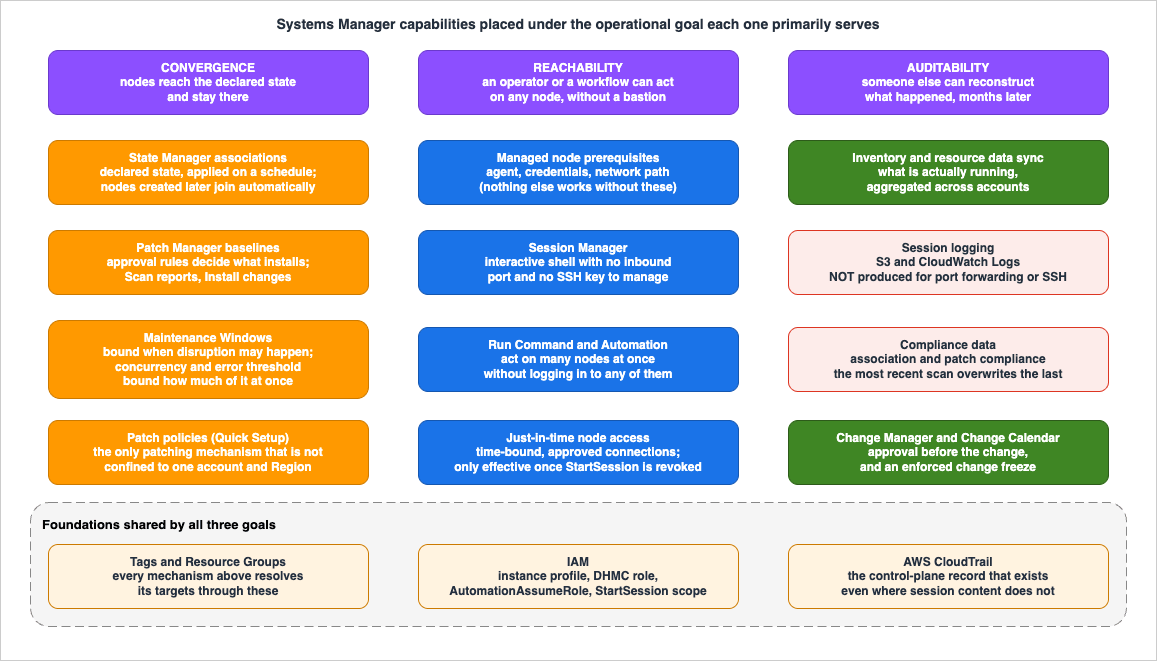
This guide is organized around three operational goals instead of around the product list.
- Convergence — every node ends up in the state you declared, and stays there. This is what State Manager and Patch Manager are for.
- Reachability — an operator or an automated workflow can act on any node, on demand, without a bastion host, an inbound port, or an SSH key. This is what Session Manager, Run Command, and Automation are for.
- Auditability — every change and every human connection leaves a record that someone else can reconstruct months later. This is what session logging, compliance data, Change Manager, and CloudTrail are for.
Every Systems Manager capability serves at least one of these, several serve two, and the interesting design decisions are almost all about the places where they conflict. Convergence wants to patch on a schedule; reachability wants nodes to stay up; auditability wants a record of a session that, as it turns out, Session Manager does not always produce.
Scope and honesty notes. This article covers the prerequisites that make a node manageable at all, fleet inventory, patch operations, maintenance windows and patch policies, state convergence, Automation runbooks, bastion-less access with Session Manager and just-in-time node access, multi-account and multi-Region operation, and the failure modes that show up in production. Every factual claim below was verified against AWS's official documentation on 2026-08-04; quotas, defaults, and Region lists change, so re-check them for your account and Region before you design to them. No patching operation, association, runbook, or reboot was executed to produce this article, and no measurements were taken — nothing here is a benchmark. Command fragments follow the patterns in AWS's documentation and are illustrative, not tested deployment artifacts. Patching is inherently destructive: an
Install operation changes software on a running server and, by default, reboots it. Wherever a procedure below can take a node out of service or is otherwise irreversible, it is flagged. This article does not discuss pricing; the case for retiring bastion hosts is made on attack surface, key management, audit consolidation, and procedural simplicity, not on cost.Several adjacent topics are deliberately delegated to existing articles rather than repeated here:
- Wrapping SSM Automation in a Step Functions approval workflow, with the CloudFormation to build it, belongs to How to Add an Approval Flow to AWS Step Functions Workflow (AWS Systems Manager Automation Edition) and its EventBridge sequel. This article covers approval inside a runbook and the permission model underneath it.
- Compliance of AWS resource configuration — recording, rules, conformance packs, organization-wide deployment — belongs to AWS Config Rules and Conformance Packs. This article is about state inside the node.
- The service history and feature chronology of Systems Manager belongs to the AWS Systems Manager timeline.
- Where secrets and configuration values belong is covered in AWS Secrets Manager and Parameter Store Decision Guide.
- The mechanics of interface and gateway endpoints are covered in AWS PrivateLink and VPC Endpoints Complete Guide; Section 2 uses them without re-deriving them.
- Tag design as a discipline belongs to AWS Tagging Strategy: Complete Guide. Several mechanisms below target nodes by tag and are only as good as that design.
- End-of-support tracking belongs to the AWS End-of-Support and EOL Reference. Patching keeps a supported OS current; it does not rescue an unsupported one.
- Building the AMI that nodes launch from belongs to EC2 Image Builder - Recipes, Workflows, Distribution, and Lifecycle Policies, and What the Image Resource Records About How an AMI Was Built, which covers recipes, components, and the build, test, and distribution workflows. This article patches nodes that are already running.
- Container image patching is out of scope. So is pricing.
Table of Contents
- 1. Introduction
- 2. Managed Nodes as a Prerequisite
- 3. Inventory and Fleet Visibility
- 4. Patch Manager: Baselines, Approval Rules, and the Reboot You Did Not Ask For
- 5. Scheduling the Disruption: Maintenance Windows and Patch Policies
- 6. State Manager: Declaring Desired State
- 7. Automation Runbooks
- 8. Session Manager and Just-in-Time Node Access
- 9. Multi-Account and Multi-Region Operations
- 10. Parameters and Secrets in Fleet Operations
- 11. Operating Model
- 12. Failure Modes and Anti-Patterns
- 13. Frequently Asked Questions
- 14. Summary
- 15. References
1. Introduction
The reader this guide is written for runs somewhere between a few dozen and a few thousand Amazon EC2 instances, quite possibly with on-premises or other-cloud servers alongside them, and has at least one of these three problems: SSH access still runs through a bastion host that nobody wants to own, patching is a quarterly fire drill performed by whoever is available, or configuration drifts and nobody notices until an incident.The guide is organized as a dependency chain, because that is how the capabilities actually depend on one another.
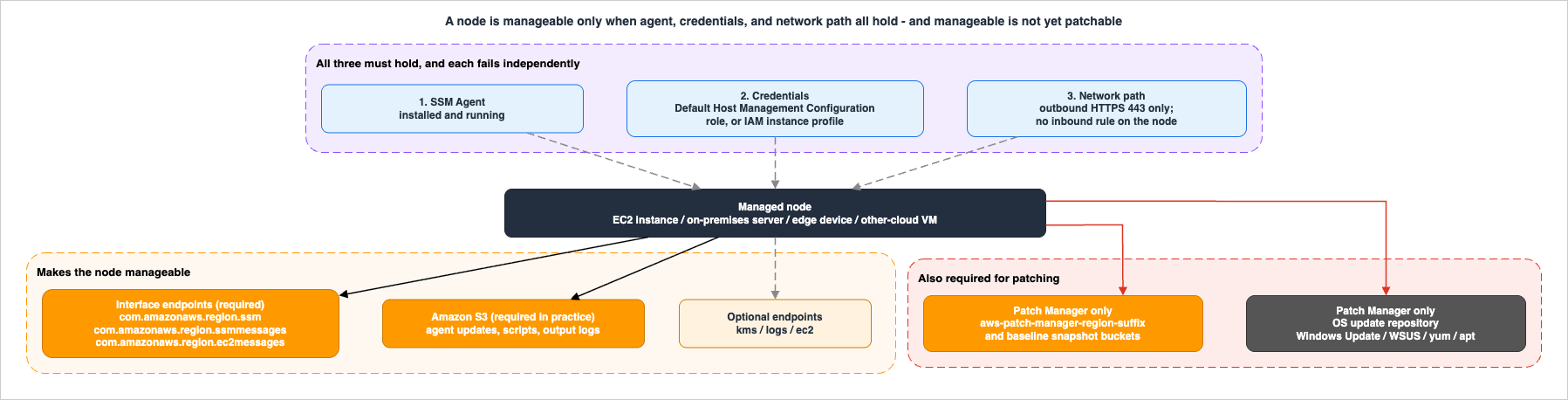
Section 2 is the gate. Nothing else in Systems Manager works until a node is a managed node, which requires three independent things to be true at once. More time is lost to this than to every other topic in this article combined, and the failure is silent: the node simply does not appear.
Section 3 establishes what you have. Sections 4 and 5 are patching — the baseline rules that decide what gets installed, and the scheduling machinery that decides when the disruption happens. Section 6 is convergence for everything that is not a patch. Section 7 is the escape hatch for anything a declarative model cannot express. Section 8 is reachability and the audit trail that is supposed to come with it. Sections 9 through 11 are what changes when there is more than one account, more than one Region, and more than one team. Section 12 collects the ways this goes wrong.
Three ideas recur throughout.
- Reachability is a prerequisite, not a feature. The agent, the credentials, and the network path are three separate conditions, each of which fails independently and none of which produces a useful error at the point of failure. Section 2 exists because every later capability inherits all three.
- Every convergence mechanism is a scheduled outage generator. A patch install reboots. An association restarts a service. The rate controls — concurrency and error threshold — are not tuning knobs; they are the only thing standing between a scheduled maintenance task and a fleet-wide simultaneous restart.
- Auditability is not automatic, and it has known holes. Session logging is off until you configure it, and even when configured, AWS documents that it does not cover port forwarding or SSH sessions. An operations model that assumes "we use Session Manager, therefore everything is recorded" is wrong in a specific, documented way.
2. Managed Nodes as a Prerequisite
A managed node is any machine configured for Systems Manager: an EC2 instance, an on-premises server, an edge device, or a virtual machine in another cloud. Everything else in this article operates on managed nodes and on nothing else.2.1 The three conditions
A node becomes managed when three independent conditions hold simultaneously.- SSM Agent is installed and running. It is preinstalled on AWS-provided AMIs; on anything else you install it yourself.
- The agent can obtain AWS credentials that allow it to call Systems Manager API operations — either from an IAM instance profile, or from the account-level role that Default Host Management Configuration provides.
- The agent can reach the Systems Manager service endpoints over HTTPS.
AWS states the requirement plainly: SSM Agent must connect to the required service endpoints, must have IAM permissions to call Systems Manager API operations, and EC2 must retrieve valid credentials from the instance profile or, with Default Host Management Configuration in place, from the default role it provides. If any one of these is missing, the agent fails to run — and the symptom you see is an absence, not an error.
Systems Manager now ships a one-click agent issue diagnosis and remediation runbook that you can schedule, precisely because this diagnosis is the most common support path in the service. It identifies why nodes cannot connect, including networking misconfiguration, and recommends remediation runbooks.
2.2 Credentials: Default Host Management Configuration or an instance profile
AWS's recommendation is explicit: if your use case allows, grant access at the account level using Default Host Management Configuration (DHMC) rather than attaching an instance profile to each instance.With DHMC turned on, every instance in that AWS Region and account that uses Instance Metadata Service Version 2 (IMDSv2) and has SSM Agent version 3.2.582.0 or later installed automatically becomes a managed node. DHMC does not support IMDSv1. When IMDSv2 became an account-level default, and why that default left running instances untouched, is covered in AWS Security Defaults History. The permissions come from the
AWSSystemsManagerDefaultEC2InstanceManagementRole IAM role, backed by the AmazonSSMManagedEC2InstanceDefaultPolicy AWS managed policy. You must turn DHMC on in each Region you want it to apply to, and after turning it on it can take up to 30 minutes before instances start using the role's credentials.There is one trap in DHMC that is worth internalizing before you turn it on, because it makes the feature silently do nothing. AWS states it as a precondition: "Before you begin, if you have instance profiles attached to your Amazon EC2 instances, remove any permissions that allow the
ssm:UpdateInstanceInformation operation. The SSM Agent attempts to use instance profile permissions before using the Default Host Management Configuration permissions."In other words, an existing instance profile that grants
ssm:UpdateInstanceInformation — which AmazonSSMManagedInstanceCore does — takes precedence, and the node keeps using the profile. If you migrate to DHMC and leave the old profiles in place, you will believe you are on the account-level model while every instance is still on the per-instance one, and the two have different permission sets.DHMC also stores registration information locally, in
/lib/amazon/ssm on Linux or C:\ProgramData\Amazon on Windows Server. Deleting those directories prevents the instance from acquiring credentials through DHMC at all; recovery means attaching an instance profile or recreating the instance.Turning DHMC on is itself a privileged action. The administrator needs
ssm:GetServiceSetting, ssm:ResetServiceSetting, and ssm:UpdateServiceSetting on the servicesetting/ssm/managed-instance/default-ec2-instance-management-role resource, plus iam:PassRole for the default role, ideally constrained with iam:PassedToService equal to ssm.amazonaws.com.The alternative is the classic instance profile carrying
AmazonSSMManagedInstanceCore, optionally with AmazonSSMDirectoryServiceAccess for Active Directory domain join and CloudWatchAgentServerPolicy for CloudWatch integration. Two operational notes: changing an instance profile takes time for credentials to refresh, and SSM Agent will not process requests until that happens — restarting the agent or the instance speeds it up. And non-EC2 machines do not use an instance profile at all; they use an IAM service role established during hybrid activation.One more failure source that is easy to miss in an organization: an AWS Organizations service control policy that explicitly denies any of the permissions in these managed policies will break the agent no matter how correct the instance-level configuration is. SCP design is covered in AWS Multi-Account Operational Patterns; the point here is that it is on the list of things to check.
2.3 Reachability: what a private subnet actually needs
SSM Agent initiates every connection outbound. AWS is explicit that you do not need to configure your firewall to allow inbound traffic to your instances for Systems Manager. That is the whole basis of bastion-less operation, and it is worth stating before the endpoint list, because it is the security property you are buying.If the node has outbound internet access, it needs HTTPS (port 443) egress to
ssm.region.amazonaws.com, ssmmessages.region.amazonaws.com, and ec2messages.region.amazonaws.com. In an IPv6-only environment you must also allow ssm.region.api.aws, ssmmessages.region.api.aws, and ec2messages.region.api.aws.If it does not, you create interface VPC endpoints. AWS's list, with what each one is actually for:
* You can sort the table by clicking on the column name.
| Endpoint service name | Required | What it is for |
|---|---|---|
com.amazonaws.region.ssm | Yes | The Systems Manager service endpoint |
com.amazonaws.region.ssmmessages | Yes | Required for SSM Agent to communicate with the service, for Run Command, and for the secure data channel used by Session Manager |
com.amazonaws.region.ec2messages | Yes | Calls from SSM Agent to the service. From SSM Agent 3.3.40.0 onward, Systems Manager uses ssmmessages whenever available instead of ec2messages |
com.amazonaws.region.s3 | Effectively yes | Used to update SSM Agent, to retrieve scripts and files from buckets, and to upload output logs. If the node's security group restricts egress, add a rule allowing the Amazon S3 prefix list |
com.amazonaws.region.ec2 | Conditional | Needed if you use Systems Manager to create VSS-enabled snapshots. Without it, enumerating attached EBS volumes fails and the command fails |
com.amazonaws.region.kms | Optional | Needed for AWS KMS encryption of Session Manager data or Parameter Store SecureString parameters |
com.amazonaws.region.logs | Optional | Needed for CloudWatch Logs from Session Manager, Run Command, or SSM Agent |
Endpoint list confirmed against the Systems Manager User Guide on 2026-08-04. This is the set that page enumerates; it is not a claim that no other endpoint can ever be relevant to an adjacent feature.
Four constraints around those endpoints cause most of the remaining failures.
- The endpoint's security group must allow inbound 443 from the private subnet. AWS states this directly: if incoming connections are not allowed, the managed instance cannot connect to the SSM and EC2 endpoints. This is the reverse of the instinct that "the agent only makes outbound connections, so no inbound rules are needed" — that is true of the instance, not of the endpoint.
- Custom DNS needs a conditional forwarder. If you run your own DNS server, queries to the
amazonaws.comdomain must be forwarded to the Amazon DNS server for your VPC. - The VPC endpoint policy must allow the AWS managed S3 buckets that SSM Agent communicates with. A restrictive endpoint policy that only lists your own buckets will break agent updates.
- Patch operations need their own buckets. This is the one that most closed-network designs miss. AWS maintains regional buckets named
aws-patch-manager-region-unique-suffixcontaining the SSM Command documents used for patching —AWS-RunPatchBaseline,AWS-RunPatchBaselineAssociation,AWS-RunPatchBaselineWithHooks,AWS-InstanceRebootWithHooks,AWS-PatchAsgInstance,AWS-PatchInstanceWithRollback— and separate buckets holding patch baseline snapshots. If you run an on-premises firewall and plan to use Patch Manager, that firewall must allow access to the appropriate patch baseline endpoint. A fleet can be perfectly manageable for Run Command and Session Manager and still fail every patching operation because these buckets are unreachable.
Note also that Patch Manager does not supply the patches themselves. It orchestrates whatever mechanism the operating system already uses, so nodes must additionally be able to reach their update repository — Windows Update, a WSUS server, or the Linux repositories you have configured.
2.4 Keeping the agent current
An out-of-date agent is a slow-motion outage. Several features in this article have hard minimums: DHMC needs 3.2.582.0 or later,AWS-RunPatchBaseline needs 2.0.834.0 or later, AWS-RunPatchBaselineWithHooks needs 3.0.502 or later, and the switch from ec2messages to ssmmessages happens at 3.3.40.0.AWS's recommended option is one click: Auto update SSM Agent on the Settings tab in Fleet Manager. Systems Manager then checks every two weeks for a new version and updates using the
AWS-UpdateSSMAgent document. Mechanically, this creates a State Manager association — which means it obeys the same rate-control and association-count rules as everything else in Section 6, and deleting the setting deletes that association.Two exceptions worth knowing. On Bottlerocket, SSM Agent cannot be updated with
AWS-UpdateSSMAgent; updates are managed inside the Bottlerocket control container. On macOS 11.0 or later, the instance needs SSM Agent 3.1.941.0 or higher before it can run AWS-UpdateSSMAgent at all, so the first update has to come through Homebrew.If you prefer manual control, subscribe to AWS's agent release notifications and drive updates with Run Command, a State Manager association, or a maintenance window.
2.5 Hybrid and multicloud nodes
Non-EC2 machines — on-premises servers, edge devices, and VMs in other clouds — join the fleet through one of two paths, and this area changed substantially in 2026.Hybrid activations are the general mechanism. You run
create-activation, receive an activation code and ID, and supply both when installing SSM Agent on the machine. Two properties matter operationally: an activation has an expiration (a window during which you can register machines with it) and a registration limit (a maximum number of machines). Expiry has no effect on already-registered machines; it only stops new registrations, and you create a new activation. Registered non-EC2 nodes appear with an mi- prefix and stay registered until you explicitly deregister them with DeregisterManagedInstance or the Fleet Manager console. Non-EC2 macOS machines are not supported.Cloud Connectors are the newer path, currently for Microsoft Azure. A Cloud Connector establishes credential exchange between AWS and Azure and registers Azure tenants and subscriptions with Systems Manager; agent installation and VM registration happen without direct access to the VMs. Azure VMs onboarded this way behave as standard hybrid-activated managed instances, so Run Command, Patch Manager, State Manager, Automation, Inventory, and Session Manager all apply. The current limits are up to 10 Cloud Connectors per AWS account, up to 75 Azure subscription targets per connector, and all connectors in one AWS account must target the same Azure tenant. AWS states that Google Cloud Platform support is planned for a future release.
The advanced-instances tier is gone. This is the single most consequential change for anyone who last designed a hybrid fleet before mid-2026, and most third-party material has not caught up. AWS's User Guide states it directly: "Effective June 30, 2026, the advanced-instances tier has been removed. There is no longer a 1,000-instance limit for hybrid managed nodes, and you no longer need to enable a paid tier to use Session Manager on non-EC2 machines."
Two practical consequences. First, the old design constraint — "the standard tier caps you at 1,000 hybrid machines per account and Region, so shard across accounts" — no longer applies. Second, the old prerequisite — "turn on the advanced tier before you can use Session Manager on on-premises servers" — is no longer a step in your runbook.
Watch for stale documentation on this point, including AWS's own. As of 2026-08-04 the AWS General Reference quota page for Systems Manager still lists "Maximum number of hybrid-activated machines in a hybrid and multicloud environment — Standard instances: 1,000; Advanced instances: available on a pay-per-use basis," and still describes the advanced tier as the way to use Session Manager on non-EC2 machines. The User Guide pages carry the removal notice. When two AWS pages disagree, prefer the one that carries an explicit dated statement, and verify against the console for your account.
3. Inventory and Fleet Visibility
You cannot converge a fleet you cannot enumerate. Inventory collects metadata about applications, files, network configuration, Windows registry entries, AWS components, and instance details from managed nodes.The mechanism matters more than the feature list: Inventory is a State Manager association. When you configure inventory collection you are creating an association, and Systems Manager collects the data when that association runs. This is enforced rather than incidental — invoking the
aws:softwareInventory plugin any other way, for example through Run Command, returns The aws:softwareInventory plugin can only be invoked via ssm-associate.Because it is an association, its multiplicity rules are association rules, and they bite:
- A node can have one inventory association targeting all nodes (
--targets "Key=InstanceIds,Values=*"), plus one specific association using tag key-value pairs or a resource group. - If a node has multiple inventory associations, the one that did not run shows status Skipped; the most recent run shows the real status.
- If a node is assigned multiple inventory associations that each use a tag key-value pair, those associations fail to run on that node because of the tag conflict. They still run on nodes without the conflict. This is the failure mode that produces "inventory works for most of the fleet and silently does not for a subset," and it is a direct consequence of overlapping tag-based targeting.
For anything beyond a single account and Region, configure a resource data sync to a central S3 bucket. Systems Manager creates a baseline of all inventory data in the bucket and updates it as new data arrives, at which point Athena and QuickSight become available for querying. You get a maximum of 5 resource data syncs, and inventory data is capped at 1 MB per managed node per call — when that is reached, no new inventory data is collected for the node, while previously collected data is retained until expiration.
Two design points connect Inventory to the rest of this guide.
Inventory is where tag design becomes load-bearing. Every targeting mechanism below — patch policies, maintenance window targets, association targets, just-in-time access policies — resolves nodes by tag. Inventory collects
AWS:Tag as one of its plugins, which makes it the place where tag coverage gaps become visible. The design of those tags is the subject of AWS Tagging Strategy: Complete Guide.The fleet-size quota is a communication limit, not a display limit. The default is 2,400 managed nodes per AWS account per Region, and AWS is unusually candid about what happens beyond it: "Exceeding this quota may cause instances to stop communicating with Systems Manager, but actual capacity varies." Utilization is calculated from the number of
UpdateInstanceInformation API calls in a five-minute window, which means an agent configured to call more often than the default five-minute interval inflates your measured utilization above 100% without adding a single node. If you are planning a fleet in the low thousands, request the increase during design, not during the incident.Inventory only collects metadata. AWS states it does not collect personal or proprietary data.
4. Patch Manager: Baselines, Approval Rules, and the Reboot You Did Not Ask For
Warning: everything in this section changes software on running servers, and by default restarts them. Patch installation is not reversible in the sense that matters operationally — you cannot un-apply a maintenance window. Test every baseline change on a non-production patch target first, stage the rollout, and read Section 4.6 before you accept a default.4.1 Predefined and custom baselines
A patch baseline is the rule set that decides which patches are approved for a node. Patch Manager provides one predefined baseline per supported operating system. You cannot customize a predefined baseline, and predefined baselines assign a compliance level ofUnspecified to every patch they install — if you want compliance severity to mean anything, you need a custom baseline.The predefined baselines and their approval behavior, as documented on 2026-08-04:
* You can sort the table by clicking on the column name.
| Baseline | Operating system | Approval behavior |
|---|---|---|
AWS-AlmaLinuxDefaultPatchBaseline | AlmaLinux | Security patches at Critical or Important severity, plus all Bugfix patches; auto-approved 7 days after release or update |
AWS-AmazonLinux2DefaultPatchBaseline | Amazon Linux 2 | Security at Critical or Important, plus Bugfix; auto-approved 7 days after release |
AWS-AmazonLinux2023DefaultPatchBaseline | Amazon Linux 2023 | Security at Critical or Important, plus Bugfix; both auto-approved 7 days after release |
AWS-CentOSDefaultPatchBaseline | CentOS Stream | All updates including non-security, 7 days after availability |
AWS-DebianDefaultPatchBaseline | Debian Server | All security-related patches at Required, Important, Standard, Optional, or Extra priority, approved immediately — no reliable release dates in the repositories |
AWS-MacOSDefaultPatchBaseline | macOS | All Security-classified OS patches, plus all packages with a current update |
AWS-OracleLinuxDefaultPatchBaseline | Oracle Linux | Security at Important or Moderate, plus Bugfix after 7 days; auto-approved 7 days after release or update |
AWS-RedHatDefaultPatchBaseline | RHEL | Security at Critical or Important, plus Bugfix; auto-approved 7 days after release or update |
AWS-RockyLinuxDefaultPatchBaseline | Rocky Linux | Security at Critical or Important, plus Bugfix; auto-approved 7 days after release or update |
AWS-SuseDefaultPatchBaseline | SLES | Security at Critical or Important; auto-approved 7 days after release or update |
AWS-UbuntuDefaultPatchBaseline | Ubuntu Server | All security-related patches at Required, Important, Standard, Optional, or Extra priority, approved immediately |
AWS-DefaultPatchBaseline | Windows Server | CriticalUpdates or SecurityUpdates with MSRC severity Critical or Important; auto-approved 7 days after release or update. This is the default for Windows unless you specify otherwise |
AWS-WindowsPredefinedPatchBaseline-OS | Windows Server | Same configuration as AWS-DefaultPatchBaseline; renamed to distinguish it from the OS-and-applications variant |
AWS-WindowsPredefinedPatchBaseline-OS-Applications | Windows Server | As above for the OS, plus all patches for applications released by Microsoft; both auto-approved 7 days after release or update |
The recurring 7-day auto-approval delay is the most important number in the table, because it is a default that silently defines your exposure window. AWS spells out the consequence for Windows: "To install a patch within 7 days after release, you must create a custom baseline." If your security policy says critical patches land within 72 hours, the predefined baseline does not implement it.
4.2 Approval rules, and three ways they surprise you
In a custom baseline you choose which patches to auto-approve by operating system, product name (both OS products such asRHEL 7.5 or Windows Server 2012 R2, and Microsoft-released applications on Windows Server), classification, and severity. For each approval rule you specify either an auto-approval delay or a patch approval cutoff date. A delay of 7 days means a critical patch released on July 7 is automatically approved on July 14. A cutoff date of July 7, 2023 means nothing released or last updated on or after July 8, 2023 installs automatically.Three documented behaviors turn this simple model into something you have to reason about.
Auto-approval is not available for Ubuntu Server. Because release dates for Ubuntu update packages cannot be reliably determined, the auto-approval options are not supported for that operating system.
A Linux repository without release date information falls back to 1970. For Amazon Linux 2, Amazon Linux 2023, and RHEL, Patch Manager uses the package build time when the repository does not provide a release date. If build time cannot be determined either, it uses a default date of January 1, 1970 — which means Patch Manager bypasses any auto-approval date specification set to approve patches released after that date. A rule you wrote to enforce a waiting period simply does not apply to those packages. Note also that for Amazon Linux 2, the 7-day wait is calculated from an
Updated Date value in updateinfo.xml, not a Release Date.On Windows Server 2019 and 2022, a long waiting period can mean a patch never installs. Those versions remove updates that are superseded by later updates. If
ApproveUntilDate names a date before the latest patch, the new patch is not installed when the operation runs — and the node still reports as compliant in Systems Manager terms, even though a critical patch from the previous month may be missing. The same applies to ApproveAfterDays: because of Microsoft's superseding behavior, AWS notes that a value generally greater than 30 days can result in Windows patches never being installed if each latest available patch is released before the waiting period elapses.A few smaller rules that avoid surprises: if a patch appears on both the approved and rejected lists in the same baseline, it is rejected. A managed node can have only one baseline defined for it. For on-premises servers and VMs, Patch Manager tries your custom default baseline and falls back to the predefined one. And when a rule combines multiple
Classification and Severity values, packages carrying only a classification attribute are matched on classification alone — the severity requirement in that rule is ignored for them.For Windows there is also a compliance-status choice that is easy to skip past. Security updates that are available but not approved — typically because your waiting period has not elapsed — can be reported as
Compliant or Non-Compliant at your discretion. In the console this is the Available security updates compliance status field; on the CLI it is the available-security-updates-compliance-status parameter of create-patch-baseline and update-patch-baseline. Since October 2025 a corresponding patch state, AvailableSecurityUpdate, reports all available security patches regardless of severity that do not conform to the baseline, and by default instances with such updates are marked Non-Compliant. If your waiting period is long, this is how you find out what you are deferring.4.3 Patch groups: understand them, do not build on them
A patch group associates managed nodes with a specific patch baseline via a tag. For years this was the way to run differentiated patching. It is now legacy, and AWS's documentation says so in two places: "Patch groups are not used in patching operations that are based on patch policies," and, more decisively, "Patch group functionality is not supported in the console for account-Region pairs that did not already use patch groups before patch policy support was released on December 22, 2022. Patch group functionality is still available in account-Region pairs that began using patch groups before this date."That is the practical rule: if you are designing patching in an account and Region that did not already use patch groups before 2022-12-22, patch groups are not a design option in the console. Use patch policies (Section 5.5). If you have inherited an environment that does use them, here is what you need to know to operate it without breaking it.
The tag key must be exactly
Patch Group (with a space) or PatchGroup (without). The key is case-sensitive; the value is arbitrary. When you register a patch group for a baseline, identical values under either key are treated as the same group — so five nodes tagged key=PatchGroup,value=DEV and five tagged key=Patch Group,value=DEV become one group of ten. This value-merging behavior is unique to the patch group registration command. If you run send-command with Key=tag:PatchGroup,Values=DEV and separately with Key=tag:Patch Group,Values=DEV, you are targeting two completely different sets of nodes. That asymmetry is a reliable source of "the same tag worked yesterday" incidents.Additional constraints: if you have allowed tags in EC2 instance metadata on an instance, you must use
PatchGroup without the space, because that option prevents tag key names from containing spaces. A managed node can be in only one patch group. A patch group can be registered with only one baseline per operating system type. Each array of targets for SendCommand holds at most five key-value pairs. And the quota is 25 patch groups per patch baseline, with 50 patch baselines per account and Region.When a patching operation runs, SSM Agent checks the node's patch group value, Patch Manager looks up the baseline registered to that group, and if there is none the node falls back to the current default baseline for its OS type.
4.4 The patching document and its parameters
Patching runs through the SSM Command documentAWS-RunPatchBaseline, including when it is driven by a patch policy. The document downloads a patch baseline snapshot — specific to an AWS account, patch group, operating system, and snapshot ID — delivered through a presigned S3 URL that expires 24 hours after creation. You can regenerate a presigned URL for the same snapshot for up to 3 days using get-deployable-patch-snapshot-for-instance.The parameters that shape an operation:
* You can sort the table by clicking on the column name.
| Parameter | Required | Behavior |
|---|---|---|
Operation | Yes | Scan determines and reports patch compliance state without installing anything or rebooting. Install installs approved, applicable, missing updates |
AssociationId | No | The ID of a State Manager association, used to attribute compliance data. With a patch policy baseline override present, supplying it makes the operation report ExecutionType: PatchPolicy; omitting it reports Command |
Snapshot ID | No, but | Inside a maintenance window, do not supply one — Systems Manager derives a GUID from the maintenance window execution ID so every invocation uses the same approved set. Outside a maintenance window, do supply one, or each node gets its own snapshot and the fleet can end up with differing patch sets |
InstallOverrideList | No | An HTTPS or S3 path-style URL to a YAML list of patches that overrides the baseline's patch selection |
BaselineOverride | No | A JSON object in S3 defining patching preferences at runtime, matched to the host OS, instead of the default baseline's rules |
RebootOption | No | RebootIfNeeded (default) or NoReboot. See Section 4.6 |
StepTimeoutSeconds | No | 1 to 36,000 seconds (10 hours) before a command is considered failed |
InstallOverrideList has an asymmetry that catches people managing mixed fleets. On Linux and macOS, Patch Manager attempts to apply listed patches present in any enabled repository whether or not they match the baseline rules — but only as updates to packages already installed; patches for packages not present on the node are not installed. On Windows Server, listed patches are applied only if they also match the baseline rules. And in both cases, Scan operations ignore InstallOverrideList entirely, so compliance reports always reflect baseline policy rather than what a particular operation approved. That is deliberate, and it means an override list can leave you compliant-by-report and different-in-fact.Also note that neither the
InstallOverrideList nor the BaselineOverride file name may contain a backtick, single quote, double quote, or dollar sign.4.5 Lifecycle hooks
AWS-RunPatchBaselineWithHooks is a wrapper around AWS-RunPatchBaseline that differs only in its Install operation, where it splits patching into two events with three hook points: before the Install with NoReboot operation, after that operation, and after the reboot. Each hook runs an SSM document of your choosing — AWS-owned or your own. The canonical uses are draining an application before patching, running third-party installers between installation and reboot, and health-checking the application after the reboot.Three constraints: the document does not support
InstallOverrideList, it is not supported on macOS, and it requires SSM Agent 3.0.502 or later. The on-demand Patch now flow exposes the same hooks, with the available set depending on the reboot option you choose — the "on exit" hook exists only for Reboot if needed, and a separate "after scheduled reboot" hook exists only for Schedule a reboot time.4.6 The reboot is the operation
This subsection exists because the default here is the single most common source of unplanned outages in a Systems Manager rollout.RebootOption defaults to RebootIfNeeded. With that setting, the node is rebooted if Patch Manager installed one or more patches, or if it detects patches in INSTALLED_PENDING_REBOOT state during the Install operation. Critically, in AWS's own words: "Patch Manager doesn't evaluate whether a reboot is required by the patch. The system is rebooted even if the patch doesn't require a reboot."So "reboot if needed" means "reboot if anything was installed," not "reboot if the patch needs it." AWS's justification is consistency: it ensures updated packages are flushed from memory and keeps behavior uniform across operating systems. It is a defensible default. It is not the default many teams assume they are getting.
Choosing
NoReboot moves the disruption rather than removing it, and it has two documented consequences:- An installed patch is assigned status
InstalledPendingReboot, and the managed node itself is markedNon-Compliant. Compliance is restored only after a reboot occurs and a subsequentScanruns. If your compliance dashboard is a KPI, aNoRebootpolicy will make it look worse than the fleet actually is until the reboot window closes. NoRebootonly prevents operating system-level restarts. Service-level restarts can still occur as part of the patching process. AWS gives the example of a Docker update causing dependent services such as Amazon ECS to restart automatically even withNoRebootenabled. If a service must not be disrupted, the mitigation is to remove the node from service or patch inside a maintenance window — not to setNoRebootand hope.
Patch Manager tracks installed patches in a file on the node — under
/var/log/amazon/ssm/patch-configuration/ on Linux, C:\ProgramData\Amazon\PatchBaselineOperations\State\ on Windows Server. Do not delete or modify it; if it is lost or corrupted the compliance report for that node becomes inaccurate, and recovery is a reboot plus a Scan.Finally, one workload exclusion worth carrying into design reviews: AWS explicitly does not recommend Patch Manager for patching cluster instances in Amazon EMR, and specifically warns against
RebootIfNeeded there, because the underlying yum and dnf operations create incompatibilities with how EMR installs packages.4.7 Reading compliance honestly
describe-instance-patch-states returns the numbers that matter for a node: InstalledCount, InstalledOtherCount, InstalledPendingRebootCount, InstalledRejectedCount, MissingCount, FailedCount, NotApplicableCount, UnreportedNotApplicableCount, AvailableSecurityUpdateCount, plus CriticalNonCompliantCount, SecurityNonCompliantCount, and OtherNonCompliantCount, along with Operation, RebootOption, and LastNoRebootInstallOperationTime.The one operational caution AWS attaches to all of this: if you use more than one patch compliance scanning method at a time, the compliance information you see is always the result of the most recent scan, and previous results are overwritten. If those methods use different baselines with different approval rules, compliance can change unexpectedly with no change to the fleet. Pick one scanning path per node and stay on it. Patching is only one of the recurring obligations a Windows fleet brings with it. The license that decides which tenancy the instance may run on, and the path by which the node joins an Active Directory domain, are settled before any of this applies, and Running Windows Server Workloads on AWS sets out what each one requires.
5. Scheduling the Disruption: Maintenance Windows and Patch Policies
Section 4 decided what gets installed. This section decides when, how many at once, and what happens when it starts failing.5.1 Maintenance window anatomy
Each maintenance window has a schedule, a maximum duration, a set of registered targets, and a set of registered tasks. Schedules use cron, rate, or one-timeat() expressions. Optional start and end dates in ISO-8601 format bound the valid period during which the window may run; an optional IANA time zone (Asia/Tokyo, Europe/Berlin) determines the zone the schedule is interpreted in during that period. AWS is explicit that these two options do not influence each other.Two parameters do the safety work:
--durationis the maximum length of the window in hours.--cutoffis the number of hours before the end of the window after which no new tasks are started. A window with--duration 5 --cutoff 2runs for up to five hours but stops launching new work two hours before the end. This is what prevents a long patch job from being started at the very edge of the window and running past it.
--schedule-offset waits a specified number of days after the date a cron expression names. The canonical use is Microsoft's patch Tuesday: cron(0 30 23 ? * TUE#3 *) with --schedule-offset 2 runs two days after the third Tuesday of each month. Schedule offsets are supported for cron expressions only.Maintenance windows can run four task types: Run Command commands, Automation workflows, AWS Lambda functions, and AWS Step Functions tasks. Step Functions tasks support Standard state machine workflows only — not Express. Targets are mandatory for Run Command-type tasks and optional for the other three. Targets can be resource groups, which is how you reach nodes that are offline at the time the window opens.
5.2 The quotas are the rollout design
Maintenance window quotas are low enough that they shape architecture rather than merely constraining it:| Resource | Default |
|---|---|
| Maintenance windows | 50 |
| Tasks per maintenance window | 20 |
| Targets per maintenance window | 100 |
| Targets per task | 10 |
| Concurrent executions of maintenance windows | 5 |
Quotas confirmed on 2026-08-04. Most Systems Manager quotas are per account and per Region, and many are adjustable — check Service Quotas for your applied values.
Concurrent executions of maintenance windows: 5 is the one that surprises people building a wave-based rollout out of many small windows. A design with twelve windows all scheduled at 02:00 does not run twelve waves in parallel. Stagger the schedules.
5.3 Patch policies: the only multi-account patching path
AWS's recommendation is unambiguous: "AWS recommends the use of patch policies to configure patching for your organization and AWS accounts." A patch policy is a Quick Setup configuration that defines the schedule and baselines for automated patching, introduced in December 2022.What it changes:
- One wizard instead of several consoles. Setting up patching with a maintenance window or a State Manager association requires tasks in different parts of the Systems Manager console; a patch policy is a single flow.
- Multi-account and multi-Region. This is the decisive difference. With a maintenance window, a State Manager association, or Patch now, you are limited to a single AWS account and Region pair. With AWS Organizations, one patch policy can apply to all managed nodes in all Regions in all accounts, to selected organizational units and Regions, or to a single local account.
- Separate scan and install schedules. The older Quick Setup Host Management option scans daily at a predetermined time and produces compliance information only — no installations. A patch policy lets you scan daily for fresh compliance data and install weekly to bound downtime, each with its own cron or rate expression.
- Per-OS baseline selection in one list, AWS managed or custom, without designating a default baseline per OS in separate tasks.
- No patch groups. As covered in Section 4.3.
Three operational details to plan around. Compliance is reported individually per account-Region pair even when the policy spans an organization. Updates you make to custom baselines are synchronized with Quick Setup once an hour — and if a baseline referenced by a patch policy is deleted, a banner appears on the configuration details page and subsequent patching operations fail until you select a replacement. And the patching status of a node under a patch policy is the status of its State Manager association execution: if the association execution is
Non-Compliant, so is the node's patching status, regardless of what the patches themselves did.Patch policy configurations are supported in 16 Regions as of 2026-08-04: US East (Ohio), US East (N. Virginia), US West (N. California), US West (Oregon), Asia Pacific (Mumbai), Asia Pacific (Seoul), Asia Pacific (Singapore), Asia Pacific (Sydney), Asia Pacific (Tokyo), Canada (Central), Europe (Frankfurt), Europe (Ireland), Europe (London), Europe (Paris), Europe (Stockholm), and South America (São Paulo). Verify current coverage before committing an organization-wide design to it.
On-demand patching with Patch now remains limited to a single account-Region pair.
5.4 Choosing the mechanism
* You can sort the table by clicking on the column name.| Requirement | Mechanism | Why |
|---|---|---|
| Patching across an organization, multiple accounts, multiple Regions | Patch policy | The only mechanism that is not limited to one account-Region pair |
| Patching one account and Region, with pre-work and post-work tasks in the same window | Maintenance window | Runs multiple tasks of different document types; the natural home for drain, patch, verify, re-register sequences |
| Continuous enforcement of a state across all nodes including ones launched later | State Manager association | Automatically applies to newly launched nodes matching the target criteria, including Auto Scaling instances |
| Strict compliance reporting on a declared state | State Manager association | AWS names compliance reporting as a primary State Manager use case |
| A one-time patch on a defined set of nodes right now | Patch now | Single account-Region only |
AWS's own summary of the split: State Manager is the recommended tool if you want to maintain all managed nodes in a consistent state, use EC2 Auto Scaling to generate new nodes, or have strict compliance reporting requirements. Maintenance Windows is the tool if your high-priority operations include patching, running multiple types of tasks during an update period, or controlling when update operations can run.
5.5 Staging a rollout you can stop
The rate controls are the same two knobs everywhere in Systems Manager — a concurrency value and an error threshold — and the discipline is to set both deliberately at every layer.A workable pattern for a fleet of a few thousand nodes, expressed as design intent rather than as a tested runbook:
- Scan everywhere, daily. A scan installs nothing and reboots nothing, and it gives you the compliance data that makes every later decision informed.
- Install on a canary group first, on its own schedule, with a concurrency of a handful of nodes and an error threshold of zero, so the first failure stops the operation.
- Then a wave per tier, staggered by hours or days, each with concurrency expressed as a percentage of the tier and an error threshold small enough that a systemic failure halts the wave rather than completing it.
- Set
--cutoffgenerously so long-running installs are never started near the end of the window. - Keep the reboot decision explicit at every layer, and remember that
NoRebootdefers rather than avoids (Section 4.6).
This is a destructive sequence. Every step from 2 onward changes running software, and steps that reboot take nodes out of service. There is no rollback for an applied patch within Patch Manager; recovery means restoring from a snapshot or replacing the instance. Design the wave boundaries so that the blast radius of a bad patch is a tier, not a fleet.
6. State Manager: Declaring Desired State
State Manager sets and maintains the targeted state configuration for managed nodes and AWS resources in your account. The unit is an association: a document, a set of targets, a schedule, and parameters. An association is simply a configuration.6.1 Schedules and what they can express
Association schedules accept cron and rate expressions with real constraints, documented rather than incidental:- Cron: every 1/2, 1, 2, 4, 8, or 12 hours; every day; every week; a specified day and time of the week; a specific day in a specific week of the month; or the last X day of the month at a specific time. Months cannot be specified in cron expressions for associations.
- Rate: intervals of 30 minutes or greater and less than 31 days.
- The
nth weekday form uses#, as incron(30 23 ? * TUE#3 *)for the third Tuesday at 23:30 UTC. The last weekday of a month usesL, as incron(0 0 ? * 3L *). - A schedule offset waits a given number of days after the scheduled day. To use offsets you must choose the Apply association only at the next specified cron interval option — which also stops the association from running immediately at creation time.
For associations that collect inventory, AWS recommends a rate expression rather than a cron expression.
6.2 Targets
Associations target nodes by ID, by tag, by resource group, or by wildcard:--targets Key=InstanceIds,Values=i-02573cafcfEXAMPLE,i-0471e04240EXAMPLE
--targets Key=tag:Environment,Values=Development,Test,Pre-production
--targets Key=resource-groups:Name,Values=WindowsInstancesGroup
--targets Key=InstanceIds,Values=*The wildcard form is the one that makes State Manager the right tool for Auto Scaling fleets: any new node matching the target criteria — through tags or through "all nodes" — automatically has the association applied when it comes online.
6.3 Rate controls, and the default nobody sets
Concurrency limits how many nodes process an association at one time, as an absolute number or a percentage. The error threshold specifies how many association executions may fail before Systems Manager sends a command to every node configured with that association telling it to stop running until the next scheduled execution.The behaviors worth knowing:
- If you create an association using targets and do not specify a concurrency value, State Manager enforces a maximum concurrency of 50 nodes. That is a default, not a design.
- If new nodes matching the target criteria come online while an association is running, they run it if the concurrency value is not exceeded; if it is, they are ignored for the current interval and pick it up at the next one.
- With an absolute error threshold of three, State Manager sends the stop command when the fourth error is returned.
- If you update a running association, nodes already executing are allowed to complete, associations that have not started are stopped, and then all target nodes immediately run the association again because it was updated — subject to the concurrency value. Editing an association during business hours is therefore an action with immediate fleet-wide effect. Treat it as a change, not as a configuration edit.
6.4 The ceiling that actually binds
| Resource | Default |
|---|---|
| Maximum number of associations | 2,000 |
| Maximum number of versions per association | 1,000 |
| Maximum number of associations targeting a single managed node | 20 |
Confirmed on 2026-08-04, per account and per Region.
Twenty associations per node is a smaller number than it looks once you count what is already there in a mature setup: agent auto-update, inventory collection, patch scanning under a patch policy, patch installation under the same policy, CloudWatch agent configuration, a domain-join association, and whatever configuration management you layered on top. Design associations to be composable — one association running a document that does several things — rather than accumulating one association per task.
6.5 Convergence, compliance, and where AWS Config ends
State Manager drives association compliance: whether the declared configuration was successfully applied to each node. Under a patch policy, patching status is derived from exactly this signal (Section 5.3).The boundary with AWS Config is worth stating precisely, because both produce something called compliance:
- AWS Config evaluates the configuration of AWS resources — is this security group open, is this bucket encrypted, is this instance of an approved type. Its remediation path runs SSM Automation runbooks.
- State Manager evaluates whether a declared configuration was applied inside the node — is the agent running, is this package installed, is this configuration file in place.
They meet at the node but they are not substitutes. Config rule design, conformance packs, and organization-wide deployment are covered in AWS Config Rules and Conformance Packs.
One permission note that connects to Section 7: an association that runs an Automation runbook requires a service role. AWS lists "when you create a Systems Manager State Manager association that runs a runbook" as one of the situations that mandate specifying an
AutomationAssumeRole.7. Automation Runbooks
Automation is where you put the operations that a declarative model cannot express: multi-step workflows, conditional logic, approval gates, actions against AWS resources rather than against the inside of a node.7.1 What a runbook is
A runbook is a Systems Manager document of typeAutomation, written in YAML or JSON against schema version 0.3, containing steps that run in sequential order. This distinguishes it from Command documents (schema 1.2, 2.0, or 2.2), Policy documents (2.0 or later), and Session documents. Automation supports 20 distinct action types, including aws:executeScript for custom Python and PowerShell, aws:runCommand, and aws:approve.7.2 The permission model is the design
By default, an automation runs in the context of the user who invoked it. A service role — passed as theAutomationAssumeRole parameter — changes that. AWS names four situations where a service role is required:- When you want to restrict a user's permissions on a resource but still allow that user to run an automation that requires elevated permissions.
- When you create a State Manager association that runs a runbook.
- When you have operations you expect to run longer than 12 hours (the maximum duration an automation can run in the context of a user).
- When you run a runbook not owned by Amazon that uses
aws:executeScriptto call an AWS API operation or act on an AWS resource.
The first of these is the interesting one, and it is the core of a defensible operating model. It lets you grant an operator the ability to run a specific runbook without granting them the permissions that runbook exercises. The operator can restart the database; the operator cannot restart arbitrary databases by hand. That separation is expressed entirely in IAM, and it is why
iam:PassRole matters: the Automation service role needs iam:PassRole scoped to the specific role ARN so the service can pass it onward. If the automation attaches an IAM instance profile role to an EC2 instance, the Automation service role needs iam:PassRole on that instance profile role's ARN too.A runbook's assume role is a standing privilege. It is worth reviewing these roles the same way you review any elevated role: scope the resources, avoid
Resource: "*" where the runbook's actual targets are known, and separate the roles used by high-blast-radius runbooks from those used by read-only diagnostics.7.3 Approval inside the runbook
aws:approve temporarily pauses an automation until designated principals approve or reject the step. You can place it anywhere in mainSteps.mainSteps:
- name: approve
action: aws:approve
timeoutSeconds: 3600
onFailure: Abort
inputs:
NotificationArn: arn:aws:sns:us-east-2:111122223333:AutomationApprovalTopic
Message: "Approve the staged reboot of the payments tier."
MinRequiredApprovals: 2
Approvers:
- arn:aws:iam::111122223333:role/PlatformOnCall
- arn:aws:iam::111122223333:role/ServiceOwnerThe constraints that shape how you can use it:
- The default timeout is 7 days (604,800 seconds) and the maximum is 30 days (2,592,000 seconds), settable per step with
timeoutSeconds. - Maximum 10 approvers, specified as user names, user ARNs, IAM role ARNs, or assume-role ARNs.
MinRequiredApprovalsdefaults to one and cannot exceed the number of approvers. - The SNS topic name must be prefixed with "Automation".
aws:approvedoes not support multi-account and multi-Region automations. This is a real architectural constraint: a single runbook cannot both fan out across accounts (Section 9.2) and gate on a human approval. If you need both, the approval has to sit outside the fan-out — in Change Manager (Section 11) or in a workflow that invokes per-account automations after approval.
Approvals are granted or denied in the Automation console by selecting an execution with status Waiting, or programmatically via
SendAutomationSignal.If you need the approval to live in a Step Functions state machine — with the Lambda, EventBridge, and CloudFormation to build it — that implementation is covered end to end in How to Add an Approval Flow to AWS Step Functions Workflow (AWS Systems Manager Automation Edition) and the EventBridge edition.
7.4 Scale, failure, and event-driven execution
Automation has rate controls of the same shape as State Manager: a concurrency value and an error threshold, applied across the resources an automation targets. Since August 2025 it also supports automatic retries of throttled API calls during high-concurrency scenarios and re-execution of a runbook from the console with pre-populated parameters — which turns a failed run into a corrected re-run rather than a hand-rebuilt one.Automation is an EventBridge target, so a runbook can be triggered by an event: a GuardDuty finding, a CloudWatch alarm state change, an EC2 state transition, a Config rule evaluation. It is also a maintenance window task type, so the same runbook can be both scheduled and event-driven without being rewritten.
The quotas that bound a fleet-scale design, all per account and Region and confirmed on 2026-08-04:
* You can sort the table by clicking on the column name.
| Resource | Default |
|---|---|
| Concurrently running automations | 100, raisable to 500 by enabling adaptive concurrency |
Concurrent automations with blocking actions (aws:approve, aws:pause, aws:sleep) | 400 |
| Automation queue | 5,000 |
| Concurrently running rate control automations | 25 |
| Rate control automation queue | 1,000 |
| Levels of nested automation | 5 |
| Automation execution history retention | 30 days |
| Maximum duration in the context of a user | 12 hours |
aws:executeScript maximum run time and output | 10 minutes, 100 KB |
aws:invokeLambdaFunction maximum run time and output | 5 minutes, 200 KB |
StartAutomationExecution transactions per second | 1 |
Two of these bite in practice.
StartAutomationExecution at 1 TPS means an event-driven design that starts one automation per node cannot start a thousand of them quickly; use a rate control automation with target locations instead. And 30-day execution history retention means Automation is not your audit store — CloudTrail is.8. Session Manager and Just-in-Time Node Access
8.1 What bastion-less actually buys
Session Manager provides secure node management without opening inbound ports, maintaining bastion hosts, or managing SSH keys. Stated as design properties rather than as marketing:- The attack surface shrinks. Inbound SSH and remote PowerShell ports can be closed on managed nodes, which removes the standing exposure that those ports represent.
- There are no long-lived credentials to rotate or lose. Access is granted by IAM policy, not by distributing key material.
- Access control is centralized. Administrators have a single place to grant and revoke access, and one mechanism covers Linux, macOS, and Windows Server.
- The audit trail consolidates, subject to the significant caveat in Section 8.3.
- Nodes without public IP addresses are reachable through the interface endpoints of Section 2.3.
None of this is a cost argument, and it should not be made as one. It is an argument about how many things can go wrong.
8.2 Configuring the audit trail
Session logging is not on by default. You configure it through Session Manager preferences, which are stored in an SSM document namedSSM-SessionManagerRunShell with sessionType: Standard_Stream:{
"schemaVersion": "1.0",
"description": "Document to hold regional settings for Session Manager",
"sessionType": "Standard_Stream",
"inputs": {
"s3BucketName": "amzn-s3-demo-bucket",
"s3KeyPrefix": "sessions",
"s3EncryptionEnabled": true,
"cloudWatchLogGroupName": "MyLogGroupName",
"cloudWatchEncryptionEnabled": true,
"cloudWatchStreamingEnabled": false,
"kmsKeyId": "MyKMSKeyID",
"runAsEnabled": true,
"runAsDefaultUser": "",
"idleSessionTimeout": "20",
"maxSessionDuration": "",
"shellProfile": { "windows": "", "linux": "" }
}
}Four destinations exist, and they answer different questions:
- AWS CloudTrail captures Session Manager API calls — who called
StartSession, against which node, when. This is control-plane evidence and it is always there. - Amazon S3 stores session log data. The default is an encrypted bucket, using either a KMS key or S3 server-side encryption (AES-256). If you use a customer managed key, the IAM instance profile attached to your instances must have explicit permission to read the key; with an AWS managed key it does not.
- Amazon CloudWatch Logs receives session log data, by default encrypted with your KMS key. If you enable Allow only encrypted CloudWatch log groups, the log group itself must be encrypted with a KMS key or sessions fail to start with "We couldn't start the session because encryption is not set up on the selected CloudWatch log group."
- EventBridge and Amazon SNS notify when a user starts or ends a session, which is what you alert on rather than what you archive.
idleSessionTimeout defaults to 20 minutes and is configurable between 1 and 60 minutes. Session execution history is retained for 30 days, which is precisely why the S3 or CloudWatch Logs copy exists.Who can change these preferences is itself a control. Because preferences live in a document, you can deny
ssm:CreateDocument, ssm:UpdateDocument, and ssm:DeleteDocument on document/SSM-SessionManagerRunShell to everyone outside a small administrative group — otherwise anyone who can edit that document can turn logging off.8.3 The documented hole in the audit trail
This is the most important sentence in this section, quoted from the Session Manager documentation: "Logging isn't available for Session Manager sessions that connect through port forwarding or SSH. This is because SSH encrypts all session data within the secure TLS connection established between the AWS CLI and Session Manager endpoints, and Session Manager only serves as a tunnel for SSH connections."An operating model that says "all interactive access goes through Session Manager, therefore all interactive access is recorded" is wrong for port forwarding and for SSH-over-Session-Manager. Both are supported, useful features. Neither produces session content logs.
What you still have for those sessions is the control-plane record: CloudTrail shows the
StartSession call, the principal, the target node, and the document used. What you do not have is what happened inside.Three mitigations, in the order they are worth applying:
- Treat port forwarding and SSH as separate privileges.
ssm:StartSessiontakes the document ARN as a resource alongside the instance ARN, so you can grant interactive shell access without grantingAWS-StartPortForwardingSessionorAWS-StartPortForwardingSessionToRemoteHost, and grant those two only to the identities that genuinely need them. - Alert on their use. An EventBridge rule on session start, filtered to those documents, turns an unlogged session into at least a noticed one.
- Compensate at the destination. If the tunnel terminates at a database, that database's own audit log is the record of what happened. Design the evidence chain so the unlogged hop is not the only observer.
8.4 Port forwarding is a lateral movement surface
Two documents implement forwarding.AWS-StartPortForwardingSession forwards a local client port to a port on the managed node:aws ssm start-session \
--target i-02573cafcfEXAMPLE \
--document-name AWS-StartPortForwardingSession \
--parameters '{"portNumber":["8080"],"localPortNumber":["8080"]}'AWS-StartPortForwardingSessionToRemoteHost forwards to a port on a different host that the managed node can reach:aws ssm start-session \
--target i-02573cafcfEXAMPLE \
--document-name AWS-StartPortForwardingSessionToRemoteHost \
--parameters '{"host":["mydb.example.us-east-2.rds.amazonaws.com"],"portNumber":["3306"],"localPortNumber":["3306"]}'The second form is the one to reason about carefully. It turns any managed node into a reachable entry point for everything that node's network position can reach — which, in a flat VPC, may be considerably more than the node itself. Combined with Section 8.3, that means the highest-reach access path is also the least-logged one. Scope it by document ARN, scope it by instance ARN, and revisit it whenever network segmentation changes. Segmentation design itself is covered in AWS Zero-Trust Network Architecture Guide.
8.5 Making permissions granular
Session Manager permissions are more expressive than "can connect / cannot connect," and using that expressiveness is most of the security value:{
"Version": "2012-10-17",
"Statement": [
{
"Effect": "Allow",
"Action": "ssm:StartSession",
"Resource": [
"arn:aws:ec2:us-east-1:111122223333:instance/i-02573cafcfEXAMPLE",
"arn:aws:ssm:us-east-1:111122223333:document/allowed-session-document"
]
},
{
"Effect": "Allow",
"Action": ["ssmmessages:OpenDataChannel"],
"Resource": ["arn:aws:ssm:*:*:session/${aws:userid}-*"]
}
]
}Three points in that policy. The document is a resource, so you decide which session documents a principal may start — including custom
Session-type documents that run a single fixed interactive command, which lets you give someone the ability to tail a log without giving them a shell. ssmmessages:OpenDataChannel scoped to session/${aws:userid}-* confines a principal to their own sessions. And instances are addressable individually or by pattern, which is where a disciplined tagging scheme pays off again.8.6 Just-in-time node access
Just-in-time node access, launched in April 2025, removes standing access entirely: users request temporary, time-bound access to a node and connect only after the request is approved.The model has three policy types:
- Auto-approval policies define which nodes users may connect to automatically.
- Manual approval policies define the number and levels of approvals required. Up to 5 approvers per level and up to 5 levels, with approvers being IAM Identity Center users and groups or IAM roles. Access duration is between 1 and 336 hours. You may create up to 50 manual approval policies per AWS account and Region.
- Deny-access policies explicitly prevent auto-approval for specified nodes. A deny-access policy applies to all accounts in the organization; auto-approval and manual approval policies apply only to the account and Region where they are created.
When a user attempts to connect they are prompted for a reason, policies are evaluated, and either the connection proceeds or a manual approval request is created on their behalf. Approvers can be notified by email or through Amazon Q Developer in chat applications with Slack or Microsoft Teams. Windows Server RDP sessions can be recorded to S3.
Three constraints deserve to be in your design notes:
- Setting up just-in-time node access does not disable Session Manager. AWS states it directly: "You must remove permission to the
StartSessionAPI action from your IAM policies to ensure that only just-in-time node access is used when users attempt to connect to your nodes." Leavessm:StartSessionin place and you have built an approval workflow with a documented bypass. AWS recommends testing approval policies against a subset of users and nodes before removing those permissions. - Only AWS STS
AssumeRoletemporary credentials are supported, and the Single Sign-On authentication type is not supported when connecting to Windows Server instances with Remote Desktop. - Systems Manager does not automatically terminate just-in-time sessions. Once approved, the user can start as many sessions as needed for the duration of the access window. "Time-bound" bounds the window in which sessions may be started, not the sessions themselves.
Just-in-time node access requires the unified Systems Manager console to be set up, and its targets must be a subset of the organizational units and Regions chosen during that setup — adding new targets afterwards is not supported.
8.7 What remains after all of this
Bastion-less access is a genuine improvement over a jump box, and it is not a solved problem. The residual risks, stated plainly:- Sessions are unlogged for port forwarding and SSH (Section 8.3). This is by design and cannot be configured away.
- Logging is opt-in and can be turned off by anyone who can update the preferences document.
- Port forwarding to remote hosts extends reach beyond the node to everything that node can route to.
- A permissive
ssm:StartSessiongrant is equivalent to shell access on every node it covers — including the ability to read whatever the instance profile can read. - Just-in-time access is bypassable while
ssm:StartSessionremains granted, and approved windows allow unlimited sessions until they expire. - The instance profile is still a credential. Someone with a shell on a node has that node's IAM role. Bastion-less access changes who can get the shell; it does not change what the shell can do.
9. Multi-Account and Multi-Region Operations
9.1 What is scoped to one account and Region
The first thing to establish is which primitives are local, because most of them are:* You can sort the table by clicking on the column name.
| Primitive | Scope |
|---|---|
| Maintenance windows | Single account and Region |
| State Manager associations | Single account and Region |
| Patch baselines | Single account and Region |
| Patch now | Single account and Region |
| Patch policies | Organization, selected OUs, or a single account — across Regions |
Automation with TargetLocations | Multiple accounts and Regions |
| Resource data sync | Aggregates multiple accounts and Regions into one bucket |
| Most service quotas | Per account, per Region |
The consequence is that "roll this out everywhere" has exactly two supported shapes: a patch policy for patching, and multi-account Automation for everything else.
9.2 Multi-account, multi-Region Automation
An automation targets a combination of accounts and Regions through aTargetLocation structure containing Accounts, Regions, ExecutionRoleName (defaulting to AWS-SystemsManager-AutomationExecutionRole), TargetLocationMaxConcurrency, TargetLocationMaxErrors, and an optional CloudWatch alarm configuration. Note that the concurrency and error controls here apply to the number of Regions and accounts running concurrently, not to nodes.The IAM setup is two roles:
AWS-SystemsManager-AutomationAdministrationRolein the central account only.AWS-SystemsManager-AutomationExecutionRolein every account you want to target. AWS recommends CloudFormation StackSets to create it, which is the only practical way at organization scale.
AWS publishes CloudFormation templates for both, including an Organizations-aware variant of the administration role. Since August 2025, target selection also supports nested organizational units, which removes the need to enumerate leaf OUs.
Remember from Section 7.3 that
aws:approve does not work in multi-account and multi-Region automations. A fan-out automation cannot contain its own approval gate.9.3 Aggregation and delegation
A resource data sync aggregates inventory and operations data from multiple accounts and Regions into a single S3 bucket, either from all accounts in your Organizations configuration or from selected organizational units, and with an option to include future Regions automatically. Systems Manager uses theAWSServiceRoleForAmazonSSM_AccountDiscovery service-linked role to discover account information.Configure a delegated administrator so that resource data syncs are managed from a dedicated operations account rather than from the Organizations management account. Two properties to plan for: a delegated administrator can create a maximum of five resource data syncs, and syncs created by a delegated administrator are only visible in that account — you cannot view them or the aggregated data from the management account. Opt-in Regions are the exception: a delegated administrator account cannot create a resource data sync in an opt-in Region, and you must use the management account for those.
The broader design of the operations account, guardrails, and organizational structure is covered in AWS Multi-Account Operational Patterns, and log aggregation in Centralized Logging and Audit Architecture on AWS.
9.4 The unified console
The unified Systems Manager console, released on November 21, 2024, consolidates node management across accounts and Regions: centralized views, node insights such as which nodes run outdated OS software, filters by instance metadata, and the automated agent diagnosis and remediation mentioned in Section 2.1. It is available in 16 Regions as of 2026-08-04 — the same list as patch policies in Section 5.3.Setting it up matters beyond convenience, because just-in-time node access requires it and inherits its target scope.
10. Parameters and Secrets in Fleet Operations
Parameter Store shows up in fleet operations as the place to keep the values that patching and automation reference: baseline IDs per environment, the S3 URL of an override list, per-Region endpoint names, feature flags that a runbook branches on.The quotas that matter when you are storing operational configuration rather than application configuration:
| Resource | Standard | Advanced |
|---|---|---|
| Maximum number of parameters | 10,000 | 100,000 |
| Maximum size for parameter value | 4 KB | 8 KB |
| Parameter policies per parameter | Not available | 10 |
| Parameter versions retained | 100 | 100 |
GetParameter, GetParameters, and GetParametersByPath share a default of 40 transactions per second across all three, raisable with higher throughput. SecureString throughput may be further limited by AWS KMS request quotas depending on the Region — a detail that surfaces when a fleet-wide association reads an encrypted parameter on every node at the same moment.Two practices are worth carrying into runbook design.
Interpolate parameters into environment variables rather than into command strings. Run Command has supported interpolating parameters into environment variables since August 2025, specifically to handle parameters as literal strings and prevent unintended command injection. A runbook that concatenates a parameter value into a shell command is an injection surface; one that passes it as an environment variable is not.
Do not put secrets here by default. Whether a value belongs in Parameter Store as a
SecureString, in Secrets Manager, or somewhere else is a design decision with rotation, cross-account access, and audit consequences, and it is covered in AWS Secrets Manager and Parameter Store Decision Guide.11. Operating Model
The capabilities above only add up to an operating model if you can answer three questions: who approves what, how does that connect to change management, and what does the evidence chain look like when someone asks six months later.11.1 Three approval surfaces, three jobs
Systems Manager offers three distinct approval mechanisms, and using the wrong one is a common source of process that nobody follows.* You can sort the table by clicking on the column name.
| Mechanism | Approves | Use it when |
|---|---|---|
aws:approve step in a runbook | A specific point inside a specific workflow execution | The approval is technical and contextual — "the canary looks healthy, continue to wave 2." Up to 10 approvers, 7-day default timeout, 30-day maximum. Not available in multi-account automations |
| Change Manager change request | A change, before any runbook runs | The approval is organizational — a scheduled change to production that needs a record, a template, and a calendar check |
| Just-in-time node access request | A human's access to a node | The approval is about access, not about change. Up to 5 levels of 5 approvers, 1 to 336 hours |
11.2 Change Manager and the change calendar
A change template in Change Manager defines required approvals, the runbooks available to a change request, and notification options. Templates themselves can be required to go through an approval process before they may be used.The mechanism that makes this more than a ticket queue is the interaction with Change Calendar:
- A standard change template produces change requests that cannot run when there are blocking events in Change Calendar — unless additional approvals are received from designated change freeze event approvers.
- An emergency change template produces change requests that can run despite blocking events. This is the documented emergency path, and it should be a small number of templates with a named approver group.
- Even
AutoApprovedoes not bypass the calendar. AWS states it explicitly: ifAutoApprovableis enabled in a template andAutoApproveis set totrueonStartChangeRequestExecution, the change request bypasses approver review — but "Change Calendar restrictions are not bypassed in this scenario. If the state of an associated calendar isCLOSED, change freeze approvers must still grant permission for this change request to run."
That combination is what a change-freeze policy looks like when it is enforced by the platform rather than by a wiki page. The runbooks specified for a change request cannot run until all required approvals have been received.
11.3 The evidence chain
"Explainable to an auditor" means that for any change to any node, someone can reconstruct what happened from records that the operator could not have edited. The chain Systems Manager gives you:- What was supposed to happen — the patch baseline, the association definition, or the change request, each of which is a versioned resource.
- What was authorized — the change request approvals, the
aws:approvesignals, or the just-in-time access approval, plus the CloudTrail record of the API calls that granted them. - What ran — the maintenance window execution history, the association execution history, and the Automation execution history (retained 30 days in Systems Manager, so CloudTrail and your log archive are the durable copies).
- What a human did interactively — the S3 or CloudWatch Logs session log, with the caveat of Section 8.3 that this is absent for port forwarding and SSH.
- What the resulting state is — patch compliance and association compliance, with the caveat of Section 4.7 that the most recent scan overwrites the previous one.
Two gaps in that chain are structural rather than configurational and should be named in your control documentation instead of being papered over: unlogged tunnel sessions and compliance data that reflects only the latest scan.
11.4 Ownership
A workable division of responsibility, offered as a starting point rather than as the only shape:- The platform team owns the managed-node prerequisites (agent, credentials, endpoints), the patch baselines, the patch policy or maintenance window schedules, the Automation service roles, and the Session Manager preferences document.
- Service teams own the tags that decide which wave their nodes are in, the pre- and post-patch hook documents for their applications, and the health checks that decide whether a wave proceeds.
- Security owns the just-in-time approval policies, the session log destinations and their retention, and the review of Automation assume roles.
- Nobody owns an ad-hoc
ssm:StartSessiongrant that was added during an incident and never removed. Give those an expiry from the day they are created.
12. Failure Modes and Anti-Patterns
Letting the agent go stale. Several capabilities have hard minimum agent versions, and an old agent fails by being absent from a feature rather than by erroring. Turn on Auto update SSM Agent, and remember it is implemented as a State Manager association that counts against your per-node association limit.An instance profile that silently shadows Default Host Management Configuration. SSM Agent prefers instance profile permissions over DHMC permissions. If your profiles still grant
ssm:UpdateInstanceInformation, DHMC is not being used no matter what the setting says.Three endpoints and no path to the patch buckets. The
ssm, ssmmessages, and ec2messages endpoints make a node manageable. They do not make it patchable. Patch operations additionally need the regional aws-patch-manager-* buckets, the baseline snapshot buckets, and the OS's own update repositories. A fleet where Run Command works and every patch job fails is almost always this.Deleting the patch tracking file. Some hardening scripts clean
/var/log. The Patch Manager state files live under /var/log/amazon/ssm/patch-configuration/, and losing them makes the node's compliance report inaccurate until you reboot and rescan.Building new patching on patch groups. In an account and Region that did not already use them before 2022-12-22, patch group functionality is not supported in the console. Design on patch policies.
Mixing
Patch Group and PatchGroup. The value-merging behavior applies only to the patch group registration command. Every other targeting API treats them as different keys, so the same logical group resolves to two different node sets depending on which call you make.Assuming
RebootIfNeeded means "only if the patch requires it." It means "if anything was installed." This is the default.Assuming
NoReboot means nothing restarts. It prevents OS-level restarts only; service-level restarts still occur, and AWS names Docker updates restarting dependent services as the example. It also marks the node Non-Compliant until a reboot and a rescan.Maintenance window concurrency set for speed. The rate controls are the only thing between a scheduled task and a simultaneous fleet restart. Set concurrency as a small percentage, set the error threshold low enough to stop a systemic failure, and set
--cutoff so long jobs are never started near the window's end.Scheduling many maintenance windows at the same minute. Only 5 maintenance windows execute concurrently by default. Twelve windows at 02:00 is not twelve parallel waves.
Association collisions on a node. The per-node limit is 20. Multiple inventory associations that each target by tag fail on the nodes where the tags conflict, while succeeding elsewhere — producing partial inventory that looks like a collection problem rather than a targeting problem.
Editing a live association as if it were a config change. Updating an association stops the un-started executions and then immediately re-runs it on all targets. That is a fleet-wide action, not an edit.
An Automation assume role that is effectively an administrator. The whole point of
AutomationAssumeRole is to let a low-privilege operator run a high-privilege workflow. If the role can do anything anywhere, running the runbook and having administrator access are the same privilege, and the separation is decorative.Session Manager with logging never configured. It is off until you turn it on. And once on, anyone who can update the
SSM-SessionManagerRunShell document can turn it back off — deny those document actions outside a small group.Treating port forwarding as ordinary session access. It produces no session content logs, and the remote-host variant reaches everything the node can route to. Grant it as a distinct privilege by document ARN, and alert on it.
Deploying just-in-time node access while leaving
ssm:StartSession granted. The approval workflow is then optional for anyone who reads the CLI documentation.Running more than one patch compliance scanning method. The most recent scan overwrites the previous results. With different baselines behind them, compliance changes without the fleet changing.
Designing to the 2,400-node fleet quota without asking for an increase. Exceeding it can cause instances to stop communicating with Systems Manager. Utilization is measured from
UpdateInstanceInformation call rate, so a shortened agent interval inflates it without adding nodes.Assuming a maintenance window covers the organization. It covers one account and one Region. So do State Manager associations, patch baselines, and Patch now. Only patch policies and multi-account Automation cross those boundaries.
13. Frequently Asked Questions
My instance does not appear in Fleet Manager. Where do I start?Check the three conditions of Section 2.1 in order, because they fail independently. Is SSM Agent installed and running? Can it get credentials — an instance profile with
AmazonSSMManagedInstanceCore, or DHMC with IMDSv2 and agent 3.2.582.0 or later? Can it reach ssm, ssmmessages, and ec2messages on port 443, whether through the internet or through interface endpoints whose security group allows inbound 443 from the node's subnet? ssm-cli get-diagnostics --output table on the node reports failed health checks and missing configuration. Also confirm no SCP explicitly denies the permissions in the managed policy, and that the console is open in the right Region.Should I use Default Host Management Configuration or instance profiles?
AWS recommends DHMC if your use case allows, because it grants access at the account level and covers instances you have not thought about. Two practical caveats: it requires IMDSv2 and SSM Agent 3.2.582.0 or later, and existing instance profiles that grant
ssm:UpdateInstanceInformation take precedence over it. Migrating means removing that permission from the profiles, not just enabling the setting. Non-EC2 machines use an IAM service role either way.Do I still need patch groups?
Almost certainly not. AWS recommends patch policies, and patch group functionality is not supported in the console for account-Region pairs that did not already use patch groups before December 22, 2022. Patch policies also remove the single biggest limitation of the older mechanisms — being confined to one account and Region. Keep patch groups only if you have inherited an environment already built on them.
Will Patch Manager reboot my servers?
By default, yes, whenever it installs anything.
RebootOption defaults to RebootIfNeeded, and Patch Manager does not evaluate whether the patch actually requires a reboot — it reboots if one or more patches were installed, or if it finds patches in INSTALLED_PENDING_REBOOT state. NoReboot defers the OS restart but does not prevent service-level restarts, and it marks the node Non-Compliant until a reboot and a subsequent Scan. If you need control over timing, combine NoReboot with a scheduled reboot in a maintenance window, or use AWS-RunPatchBaselineWithHooks to drain and verify around the restart.State Manager or a maintenance window?
Use State Manager to maintain nodes in a consistent state, to cover nodes created later by Auto Scaling, and where compliance reporting is a requirement — a matching node that appears tomorrow gets the association automatically. Use a maintenance window when the work is disruptive, time-boxed, and multi-step: drain, patch, verify, re-register, each as a task of a possibly different document type. For patching across accounts and Regions, neither — use a patch policy.
Is Session Manager a complete replacement for a bastion host?
For interactive shell access it removes the inbound port, the SSH key distribution, and the separate host to patch, and it centralizes authorization in IAM. It is not a complete audit replacement: AWS documents that logging is not available for sessions that connect through port forwarding or SSH, because those are tunnels. And a session still runs with the node's instance profile, so shell access is IAM access. Treat the tunnel documents as a separate privilege, alert on their use, and rely on the destination system's own logs for what happens inside the tunnel.
Does just-in-time node access replace Session Manager permissions?
Not automatically. Setting it up does not affect existing IAM policies or Session Manager preferences, and AWS states you must remove permission for the
StartSession API action from your IAM policies so that only just-in-time access is used. AWS recommends testing your approval policies with a subset of users and nodes before removing those permissions. Also note that approved access grants a window — up to 336 hours — during which the user can start any number of sessions, and Systems Manager does not automatically terminate them.Can one Automation runbook fan out across accounts and also pause for approval?
No.
aws:approve does not support multi-account and multi-Region automations. Put the approval outside the fan-out: gate the whole operation with a Change Manager change request, or approve once and then start the multi-account automation. If the approval needs to live in a broader workflow with its own state machine, that pattern is covered in the existing Step Functions approval-flow articles.Is the 1,000-node limit on hybrid machines still real?
No. AWS removed the advanced-instances tier effective June 30, 2026; there is no longer a 1,000-instance limit for hybrid managed nodes, and enabling a separate tier is no longer a prerequisite for using Session Manager on non-EC2 machines. Be aware that as of 2026-08-04 the AWS General Reference quota page still describes the old tiers, while the Systems Manager User Guide carries the removal notice. The separate 2,400 managed nodes per account per Region fleet-size quota still applies and is the one to plan against.
14. Summary
Systems Manager is not one product with many features; it is a set of mechanisms that each serve convergence, reachability, or auditability, and the design work is deciding which ones you need and where they conflict.The decisions, condensed:
- Managed-node status is three independent conditions, and every capability in this article inherits all three. Agent, credentials, network path. Prefer Default Host Management Configuration, but remove
ssm:UpdateInstanceInformationfrom existing instance profiles or it will silently take precedence. - A closed network needs more than three endpoints.
ssm,ssmmessages, andec2messagesmake a node manageable; S3 access, the regional patch buckets, and the OS's own repositories make it patchable. The endpoint security group must allow inbound 443 from the node's subnet. - The default patch policy is a 7-day exposure window. Every predefined baseline for a distribution with reliable release dates auto-approves after seven days. If your policy is faster than that, you need a custom baseline.
- The reboot is the operation.
RebootIfNeededis the default and reboots whenever anything was installed, regardless of whether the patch required it.NoRebootdefers the OS restart, does not prevent service restarts, and marks the node non-compliant until a rescan. - Patch groups are legacy; patch policies are the only multi-account path. Maintenance windows, State Manager associations, patch baselines, and Patch now are all confined to a single account and Region.
- Rate controls are the safety system, not a tuning knob. Concurrency and error threshold appear in State Manager, maintenance windows, Automation, and patch policies. The State Manager default when you use targets and do not set one is 50 nodes.
- The quotas that actually bind are small: 20 associations per node, 5 concurrent maintenance window executions, 5 resource data syncs, 1 TPS on
StartAutomationExecution, and 2,400 managed nodes per account and Region. AutomationAssumeRoleis where privilege separation lives, and it only works if the role is scoped. An automation role that can do anything makes running the runbook equivalent to being an administrator.- Bastion-less is a real security gain with documented holes. Session logging is opt-in, is absent for port forwarding and SSH, can be disabled by whoever can edit the preferences document, and does not change the fact that a shell on a node carries that node's IAM role. Just-in-time node access closes the standing-privilege gap only after you remove
ssm:StartSession. - Auditability is a chain you assemble: versioned baselines and associations, approval records, execution history that Systems Manager keeps for 30 days, session logs you route to durable storage, and compliance data that reflects only the most recent scan. Name the two structural gaps rather than assuming they are covered.
The fleet you can converge, reach, and explain is a different asset from the fleet you merely own. Sections 2 and 5 are where most of that difference is decided.
15. References
- AWS Systems Manager User Guide - What is AWS Systems Manager?
- AWS Systems Manager User Guide - Configure instance permissions required for Systems Manager
- AWS Systems Manager User Guide - Improve the security of EC2 instances by using VPC endpoints for Systems Manager
- AWS Systems Manager User Guide - Working with managed nodes
- AWS Systems Manager User Guide - Managing nodes in hybrid and multicloud environments with Systems Manager
- AWS Systems Manager User Guide - AWS Systems Manager Hybrid Activations
- AWS Systems Manager User Guide - Set up a Cloud Connector for Microsoft Azure in Systems Manager
- AWS Systems Manager User Guide - Automating updates to SSM Agent
- AWS Systems Manager User Guide - Learn more about Systems Manager Inventory
- AWS Systems Manager User Guide - Configuring inventory collection
- AWS Systems Manager User Guide - Setting up Systems Manager Inventory
- AWS Systems Manager User Guide - Predefined and custom patch baselines
- AWS Systems Manager User Guide - Patch groups
- AWS Systems Manager User Guide - Patch policy configurations in Quick Setup
- AWS Systems Manager User Guide - Configure patching for instances in an organization using a Quick Setup patch policy
- AWS Systems Manager User Guide - SSM Command document for patching: AWS-RunPatchBaseline
- AWS Systems Manager User Guide - SSM Command document for patching: AWS-RunPatchBaselineWithHooks
- AWS Systems Manager User Guide - SSM Command documents for patching managed nodes
- AWS Systems Manager User Guide - Patching managed nodes on demand
- AWS Systems Manager User Guide - Reference: Amazon S3 buckets for patching operations
- AWS Systems Manager User Guide - Working with Patch Manager resources using the AWS CLI
- AWS Systems Manager User Guide - AWS Systems Manager Maintenance Windows
- AWS Systems Manager User Guide - Maintenance window scheduling and active period options
- AWS Systems Manager User Guide - Choosing between State Manager and Maintenance Windows
- AWS Systems Manager User Guide - Understanding targets and rate controls in State Manager associations
- AWS Systems Manager User Guide - Creating associations
- AWS Systems Manager User Guide - Reference: Cron and rate expressions for Systems Manager
- AWS Systems Manager User Guide - AWS Systems Manager Automation
- AWS Systems Manager User Guide - Setting up Automation
- AWS Systems Manager User Guide - Create the service roles for Automation using the console
- AWS Systems Manager User Guide - aws:approve - Pause an automation for manual approval
- AWS Systems Manager User Guide - Running automations in multiple AWS Regions and accounts
- AWS Systems Manager User Guide - AWS Systems Manager Session Manager
- AWS Systems Manager User Guide - Logging session data using Amazon S3 (console)
- AWS Systems Manager User Guide - Logging session data using Amazon CloudWatch Logs (console)
- AWS Systems Manager User Guide - Update Session Manager preferences (command line)
- AWS Systems Manager User Guide - Additional sample IAM policies for Session Manager
- AWS Systems Manager User Guide - Restrict access to commands in a session
- AWS Systems Manager User Guide - Start a session
- AWS Systems Manager User Guide - Just-in-time node access using Systems Manager
- AWS Systems Manager User Guide - Setting up just-in-time access with Systems Manager
- AWS Systems Manager User Guide - Create manual approval policies for just-in-time node access
- AWS Systems Manager User Guide - AWS Systems Manager Change Manager
- AWS Systems Manager User Guide - Configuring Change Manager options and best practices
- AWS Systems Manager User Guide - Creating an AWS Organizations delegated administrator for Systems Manager
- AWS Systems Manager API Reference - StartChangeRequestExecution
- AWS General Reference - AWS Systems Manager endpoints and quotas
- AWS What's New - AWS Systems Manager launches just-in-time node access
- AWS What's New - AWS Systems Manager simplifies Azure VM management and hybrid node pricing
- AWS What's New - AWS Systems Manager Patch Manager launches security updates notification for Windows
- AWS What's New - AWS Systems Manager Automation enhances runbook execution control
Related Articles
- AWS History and Timeline regarding AWS Systems Manager — The service history and feature chronology behind every capability in this guide.
- How to Add an Approval Flow to AWS Step Functions Workflow (AWS Systems Manager Automation Edition) — The implementation of an approval flow that wraps SSM Automation in a state machine.
- How to Add an Approval Flow to AWS Step Functions Workflow (AWS Systems Manager Automation and Amazon EventBridge Edition) — The event-driven sequel to the above.
- AWS Config Rules and Conformance Packs — Compliance of AWS resource configuration, and the remediation path that runs SSM Automation runbooks.
- AWS PrivateLink and VPC Endpoints Complete Guide — The interface and gateway endpoints that Section 2.3 relies on.
- AWS Tagging Strategy: Complete Guide for Operations, Automation, and Security — The tag design that every targeting mechanism in this guide depends on.
- AWS Multi-Account Operational Patterns - Control Tower, Organizations, SCPs — The organizational structure that Section 9 operates within.
- Centralized Logging and Audit Architecture on AWS — Where session logs and compliance data go to become durable evidence.
- AWS Secrets Manager and Parameter Store Decision Guide — Where operational configuration and secrets belong.
- AWS Zero-Trust Network Architecture Guide — The segmentation that decides how far a port-forwarding session can reach.
- AWS Security Incident Response Playbooks — What to do when the fleet you are operating turns out to be compromised.
- AWS End-of-Support and EOL Reference — Patching keeps a supported platform current; this is what to do when it stops being supported.
- Amazon EC2 Instance Types History and Timeline — The instances that make up most of the fleets this guide is about.
- Cron Expression Parser and Builder Tool — For working out the maintenance window and association schedules in Sections 5 and 6.
- ARN Parser Builder Tool — For the instance and document ARNs used in the Session Manager policies of Section 8.5.
- AWS CLI Command Generator — For building the AWS CLI invocations referenced throughout.
References:
Tech Blog with curated related content
Written by Hidekazu Konishi