Running Windows Server Workloads on AWS - What Carries Over, Why the License Decides the Tenancy, and Which Path Into the Domain
First Published:
Last Updated:
This article traces the chain of cause and effect - eligibility determining tenancy, tenancy determining the counting method, and the counting method setting the floor for the configuration - based solely on what official AWS sources state. It also examines where the branch between bringing a license and not bringing one becomes one-way, and sets out the prerequisites for each of the three paths into a domain. This article does not assess the eligibility of your existing licenses. As AWS itself states, the information provided here is for informational purposes only and does not constitute legal advice, and this article takes the same position. All information presented here was verified on September 4, 2026.
Table of Contents
- 1. Introduction - The Decisions This Article Supports
- 2. The Starting Point - Windows Server Has No License Mobility
- 3. What Makes a License Eligible
- 4. If the License Is Eligible, Which Hardware Can It Run On
- 5. Counting - Physical Cores, Not vCPUs
- 6. Not Bringing a License
- 7. Tracking What You Brought
- 8. Getting Into the Domain
- 9. Which Directory
- 10. Failure Modes and Anti-Patterns
- 11. Frequently Asked Questions
- 12. Summary
- 13. References
1. Introduction - The Decisions This Article Supports
The phrase "bringing Windows Server to AWS" can refer to at least two distinct processes.One option is to rebuild your business applications using AWS's managed services. The other is to continue running Windows Server directly as instances on Amazon Elastic Compute Cloud (Amazon EC2). This article focuses solely on the latter approach. The former has a different objective and a different amount of work behind it, so ranking one above the other is not the point.
When choosing the latter approach, the first decision you need to make is not about migration tools or network design. It is whether your existing Windows Server licenses carry over to AWS. Until you determine this, you can't decide which AWS tenancy to use, and without knowing the tenancy, you can't determine the number of licenses you'll need. While many people approach this in a different order, official AWS documentation consistently presents this as the initial step.
The intended audience for this article is individuals responsible for planning the migration of on-premises Windows Server environments to AWS. The assumption is that launching Amazon EC2 instances and designing an Amazon Virtual Private Cloud (Amazon VPC) are familiar work, but that explaining why dedicated infrastructure is required is not.
1.1 What This Article Leaves to Other Articles
This article is not a comprehensive list of Windows on AWS features. It does not address the following topics, as they are already covered in existing documentation:- AWS Systems Manager Fleet Operations at Scale covers patching and fleet management design, including Patch Manager and State Manager. This article only mentions AWS Systems Manager in the context of domain joining.
- Amazon FSx Family Decision Guide covers file server selection and the Active Directory (AD) integration on the file system side.
- AWS IAM Identity Center Complete Setup Guide covers sign-in design for the AWS Management Console. The domain joining discussed in this article refers to joining a Windows domain, not signing in to AWS.
- Summary of AWS Application Migration Service (AWS MGN) Architecture and Lifecycle Relationships, Usage Notes covers migration by block-level replication.
- AWS History and Timeline regarding Amazon EC2 holds the history of Amazon EC2 Dedicated Hosts.
- Running VMware Workloads on AWS with Amazon EVS covers the configuration of the Amazon Elastic VMware Service (Amazon EVS) environment itself. This article only addresses the counting of Windows Server instances within that environment.
- VMware History and Timeline covers where the VMware product line came from and who has owned the company along the way. This article only addresses how Windows Server is licensed on top of it.
- Microsoft Identity History and Timeline covers the product lineage of Active Directory, AD FS, and Microsoft Entra ID, including the names the 2023 rename did not touch. This article covers only how AD DS is run on AWS.
- AWS History and Timeline regarding AWS Directory Service holds the history of the directory types that AWS Directory Service has offered, from Simple AD and AD Connector in 2014 to AWS Managed Microsoft AD (Hybrid Edition) in 2025, and who holds domain administrator authority in each. This article covers only which directory to choose for Windows Server workloads today.
Windows containers are outside the scope of this article.
1.2 AWS Does Not Give Licensing Advice, and Neither Does This Article
This section establishes a specific perspective. The AWS FAQ page regarding Microsoft licensing states, at the outset:The use of Microsoft software is solely subject to Microsoft's terms. When using Microsoft
Software as a customer of AWS, you are fully responsible for complying with Microsoft licensing
terms. This information is only provided as a guide for your convenience, and you should not
rely on its descriptions nor consider it any form of legal advice.This article takes the same stance. The following discussion will focus solely on how AWS's official documentation describes certain conditions and how those conditions translate into infrastructure configurations. The reader and the publisher settle whether any particular license is eligible. The same FAQ page advises that if you have any questions regarding licensing or rights, you should consult with your own legal counsel, Microsoft, or a Microsoft reseller.
2. The Starting Point - Windows Server Has No License Mobility
The fundamental starting point is that Windows Server is not eligible for License Mobility. If you misunderstand this, subsequent requirements may appear to be unnecessarily restrictive.2.1 What License Mobility Covers, and What It Does Not
License Mobility is a benefit of Microsoft's Software Assurance (SA) that allows you to move licenses for eligible products to a shared tenancy cloud environment. As an Authorized Mobility Partner, AWS allows eligible products with a valid SA to be moved to either a shared tenancy or a dedicated tenancy environment. The shared tenancy half is the one that matters here: these licenses can go onto the default tenancy.The list of eligible products highlighted in AWS Prescriptive Guidance includes SQL Server, SharePoint Server, Exchange Server, Project Server, Skype for Business Server, BizTalk Server, Remote Desktop Services user CALs, and System Center Server. This list is provided as an example. According to the FAQ, the definitive list of eligible products can be found in the Software Assurance section for each product in the Microsoft Product Terms.
What matters is that these products are untouched by the changes made on October 1, 2019. AWS Prescriptive Guidance puts it this way:
Microsoft products that have License Mobility Rights are not affected by the October 1, 2019
licensing changes made by Microsoft. As a result, products with License Mobility don't have any
purchase date or version restrictions.
In other words, restrictions related to purchase date and version only apply to products outside the scope of License Mobility.
2.2 The Products Without It, and What That Requires
Windows Server is external to this. The same page lists products that are not eligible.Windows Server, Visual Studio, Microsoft Developer Network (MSDN), Windows desktop operating
systems, Microsoft Office, and Microsoft 365 apps (formerly Office 365) don't have License
Mobility rights granted to them in the Microsoft Product Terms, even if the licenses have SA or
are active subscription licenses.The text says outright that these products stay ineligible even with SA. That single sentence dismantles the belief that keeping SA is enough to carry them over.
The consequence of being ineligible is stated in the rest of the same paragraph. Bringing these licenses requires dedicated infrastructure. This is the first time hardware is mentioned. It arises not from performance requirements or isolation needs, but as a consequence of the licensing terms.
From here on, this article refers to the form of hardware occupancy as tenancy. In Amazon EC2, tenancy refers to how an instance occupies a physical server. There are three primary models: the default, where customers share a physical server; a dedicated model, where each customer has exclusive access; and a model where a customer is allocated the physical server itself, providing control over visibility and placement. This is a distinct concept from multi-tenancy, which refers to the number of users sharing a software application.
Furthermore, the same page states that Microsoft designated AWS as a Listed Provider as part of a change implemented on October 1, 2019. As a result, the Flexible Virtualization Program offered by Microsoft is not available on AWS.
3. What Makes a License Eligible
Putting a license on dedicated infrastructure does not by itself make it eligible. The license side carries conditions of its own.3.1 The Four Conditions
AWS Prescriptive Guidance outlines four requirements for bringing products without License Mobility to AWS.* Licenses must be purchased as perpetual use rights (not subscription).
* The purchase date of the licenses must be before October 1, 2019, or the licenses must be
purchased within a Microsoft Enterprise Agreement term that started before October 1, 2019.
* The version deployed must have been publicly available prior to October 1, 2019.
* The product must be deployed on dedicated infrastructure.These conditions are independent of each other, and failure to meet even one of them disqualifies a product from being eligible for Bring Your Own License (BYOL). The following table details what each condition excludes.
| Condition | What It Excludes |
|---|---|
| Must be a perpetual use right | Subscription licenses |
| Purchased before October 1, 2019, or within the term of an Enterprise Agreement (EA) that started before that date | Purchases that meet neither of those two conditions |
| The version being deployed must have been publicly available before October 1, 2019 | Versions such as Windows Server 2022 and later. For some readers the ceiling falls even earlier (Section 3.4) |
| Must be deployed on dedicated infrastructure | Instances on the default shared tenancy |
The same page goes further on subscription licenses.
Subscription licenses for products without License Mobility will lose BYOL once purchased or
renewed on or after October 1, 2019.
The right is lost on renewal as well. The date is not something you check only at the moment of purchase.
3.2 Where the Primary Sources Word the Enterprise Agreement Condition Differently
The second condition mentioned above is not consistently worded across AWS documentation. The three pages reviewed for this article state the condition as follows:| Source | Wording |
|---|---|
| AWS Prescriptive Guidance - Microsoft licensing on AWS | Purchased during the term of an Enterprise Agreement that began before October 1, 2019. |
| AWS Microsoft FAQ - Licensing section | Purchased as a "true-up" under an Enterprise Enrollment that was in effect before October 1, 2019. |
| Same FAQ - Licensing - Windows Server section | Added as a "true-up" under a contract that was in effect before October 1, 2019. |
The exact wording in the FAQ is as follows:
To be eligible to bring licenses without License Mobility benefits, the licenses must be
perpetual, originally purchased before October 1, 2019 (or originally purchased as a true-up
under an active Enterprise Enrollment that was effective prior to October 1, 2019).
Whether purchases made during the Enterprise Agreement term are broadly covered, or only apply to those added as a "true-up," is not clearly defined by AWS documentation. This article does not attempt to determine which interpretation is correct. If readers believe this condition applies to their own contracts, they should refer to their contract with the publisher and to the Microsoft Product Terms, rather than relying on the wording of the AWS pages.
The three documents do agree on something. All three name October 1, 2019 as the boundary, and all three write it as before that date rather than on or before it.
3.3 Software Assurance Is Not a Requirement Here
Misunderstandings regarding Software Assurance (SA) can easily arise. As Section 2.1 showed, having SA does not grant License Mobility. That does not make SA a requirement for BYOL either. The Prescriptive Guidance states the following:Products without License Mobility don't require active SA for BYOL on AWS, as long as the
licenses meet the requirements above.The Windows Server section of the FAQ also states the same point, and organizes the BYOL requirements for Windows Server into three items.
1. The licenses must be deployed on EC2 Dedicated Hosts.
2. The licenses must have been purchased before 10/1/2019 (or added as a true-up under an
   agreement that was effective prior to 10/1/2019).
3. The version was publicly available prior to 10/1/2019.
This three-item list does not explicitly mention the requirement for a perpetual license, but instead, the condition for dedicated infrastructure is specified in relation to Amazon EC2 Dedicated Hosts. The two lists appear to describe the same rules at two different levels of detail.
3.4 The Version Ceiling Moves With Your Own History
The highest version you can bring is Windows Server 2019. However, not everyone can deploy as far as 2019. Another AWS Prescriptive Guidance guide provides examples illustrating how this limit varies depending on the reader.In these specific BYOL scenarios, you can upgrade only licenses to versions available prior to
October 1, 2019. For example, if you dropped SA in 2017, you have the rights to deploy only up
to Windows Server 2016, not 2019. However, 2019 is the last version eligible for BYOL to AWS.In essence, 2019 is the ceiling for the program as a whole, while the ceiling for any individual reader is set by how long they maintained their SA. Failing to recognize this distinction could lead to situations where you tell your internal teams they can use versions up to 2019, only to discover that their actual rights extend only to 2016.
3.5 One Purchase Channel Is Excluded Outright
A purchase channel can rule a license out on its own. The FAQ places a note in its Windows Server section.Note: Due to Microsoft licensing restrictions, Windows Server licenses purchased through the
Microsoft Cloud Solution Provider Program (CSP) are not eligible for BYOL on AWS.Meeting the date and version requirements is not enough if the purchase channel was a Cloud Solution Provider (CSP). It is necessary to record the purchase channel during inventory.
Regarding Services Provider License Agreement (SPLA), there are also time-limited, closed purchase paths. Prescriptive Guidance states that, effective October 1, 2025, Microsoft no longer allows BYOL for licenses purchased under SPLA on Listed Provider clouds. The FAQ states the same information, but with a deadline of September 30, 2025. Both documents refer to the same boundary.
4. If the License Is Eligible, Which Hardware Can It Run On
Once these conditions are met, it is settled which hardware the license can run on. The following diagram combines the causal relationships from Section 2 through this section.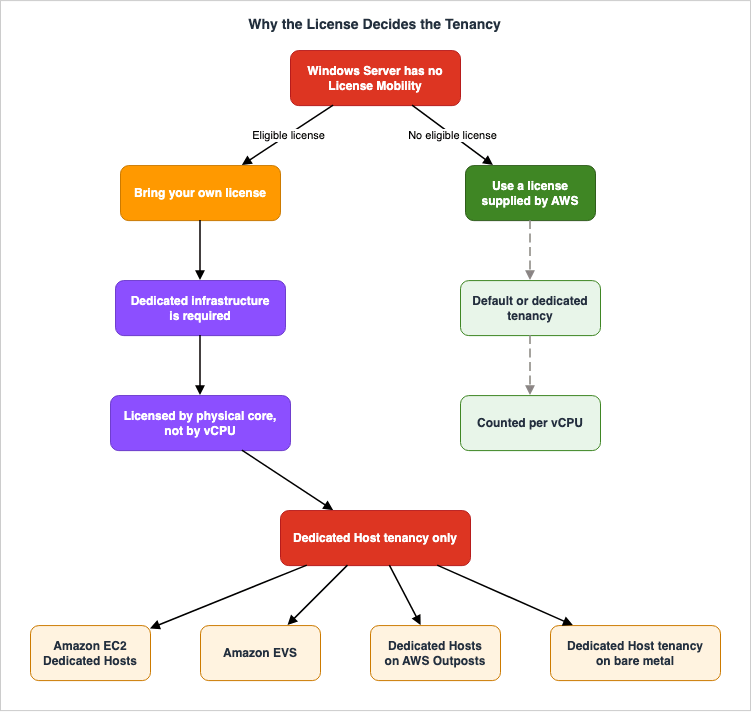
4.1 The List Changes Depending on Which Product You Are Asking About
AWS documentation carries two lists of dedicated infrastructure. Both are correct. Which one applies changes depending on which product you are asking about.Regarding products that do not have License Mobility, the Prescriptive Guidance states the following:
bringing licenses for these products requires dedicated infrastructure: Amazon EC2 Dedicated
Hosts, Amazon EC2 Dedicated Instances, Amazon Elastic VMware Service (Amazon EVS), and Dedicated
Hosts on AWS Outposts.
The list on the FAQ includes five items, adding Amazon BYOL WorkSpaces to it.
However, for Windows Server specifically, the same Prescriptive Guidance page notes a different condition.
Windows Server BYOL requires dedicated host tenancy (such as Amazon EC2 Dedicated Hosts, Amazon
Elastic VMware Service (Amazon EVS), and Dedicated Hosts on AWS Outposts) because Windows Server
BYOL must be licensed by physical core.
The condition that applies is not the list in the parentheses. Because it begins with
such as, it provides examples, and it cannot be interpreted as excluding anything else. The relevant condition is the one immediately preceding it. It does not refer to dedicated infrastructure in general, but rather to dedicated host tenancy, and the reason for this is explained in the same text: licenses must be counted by physical core.Amazon EC2 Dedicated Instances are dedicated infrastructure. They are not host tenancy, so they do not meet this condition.
4.2 Dedicated Hosts and Dedicated Instances Are Not Interchangeable Here
This distinction can also be verified in the Amazon EC2 user guide. In a comparison table for Dedicated Hosts and Dedicated Instances, the BYOL row shows Supported for Dedicated Host and Partial support for Dedicated Instance, with a footnote clarifying the scope.Microsoft SQL Server with License Mobility through Software Assurance, and Windows Virtual
Desktop Access (VDA) licenses can be used with Dedicated Instance.The footnote specifically mentions two options: SQL Server with License Mobility through Software Assurance, and Windows Virtual Desktop Access (VDA). Windows Server is not included. This footnote lists what is available with Dedicated Instances, and ultimately reaches the same conclusion as the dedicated host tenancy condition in Section 4.1, from a different direction.
The core difference lies in visibility. According to the same table, Dedicated Hosts display the number of sockets, physical cores, and the host ID. Dedicated Instances do not. Given that calculations must be made based on physical cores, any configuration that cannot be counted is not usable. The FAQ makes the same point.
It is important to note that most BYOL scenarios are supported through the use of Dedicated
Hosts, while only certain scenarios are supported by Dedicated Instances.
The following table lists both options, focusing on the aspects relevant to the subject of this article.
| Aspect | Dedicated Host | Dedicated Instance |
|---|---|---|
| Socket and physical core visibility | Yes | No |
| Host and instance affinity | Yes | No |
| Targeted placement | Yes | No |
| Billing unit | Per host | Per instance |
| Windows Server BYOL | Supported | Not supported |
| Capacity Reservations | Not supported | Supported |
4.3 Amazon EVS Is on the List
The inclusion of Amazon EVS in the list for Windows Server matters directly to readers who are bringing an on-premises VMware environment across whole. Amazon EVS is a service that allows you to run VMware Cloud Foundation on Amazon EC2 bare metal instances within your own VPC, and it allows you to bring Windows Server licenses to the virtual machines running within that environment.The configuration of the environment itself - specifically, the association of VLAN subnets and route tables, the prerequisites for name resolution, and the selection of VMware Cloud Foundation versions - is covered in Running VMware Workloads on AWS with Amazon EVS. This article focuses on how to count Windows Server licenses within that environment. The counting process will be discussed in Section 5.4.
4.4 Outposts and Bare Metal Dedicated Host Tenancy
A separate section listing the Windows Server options covers the remaining two.Windows Server BYOL is available for version 2019 or earlier with eligible licenses on Amazon
EC2 Dedicated Hosts, Amazon EVS, Dedicated Hosts on AWS Outposts, Dedicated Host tenancy on bare
metal (including Nutanix on EC2 (NC2) and Red Hat OpenShift (ROSA)).These are Dedicated Hosts on AWS Outposts and Dedicated Host tenancy on bare metal. The source gives Nutanix on EC2 and Red Hat OpenShift as examples of the latter. This list may expand in the future, so this article will not present it as a comprehensive overview. The key factor in making a decision is whether the hardware provides visibility into the physical core count and lets you pin instances to it.
5. Counting - Physical Cores, Not vCPUs
The hardware settles the counting method next. On-premises intuition stops carrying over here.5.1 You License Every Physical Core of the Host
Prescriptive Guidance specifies the counting method in a single sentence.If you bring BYOL-eligible Windows Server licenses to Amazon EC2 Dedicated Hosts, you must
license all physical cores (not vCPUs) of the host.The negative is spelled out in parentheses: not virtual CPUs. That negative is not something to drop.
The counting is based on the host, not the instances running on it. Even if only one instance is running on the host, the required number of licenses remains the same. Conversely, the more of the host you fill, the smaller the share of that fixed count each instance takes up. This asymmetry feeds into the edition choice in Section 5.2.
5.2 Datacenter and Standard Divide on What the Count Buys You
The same core count buys a different number of instances depending on the edition. The Prescriptive Guidance example is quoted directly below.For example, an R5 Amazon EC2 Dedicated Host has 48 physical cores. Bringing 48 cores of Windows
Server Datacenter edition to an R5 allows for as many Amazon EC2 instances to be deployed on the
host as technically possible. Bringing 48 cores of Windows Server Standard edition allows up to
two Amazon EC2 instances of any size on the host.With the Datacenter edition, you can run as many instances as technically possible. With the Standard edition, you can run up to two instances, regardless of the size. The number two applies to all instance sizes, whether large or small.
5.3 Stacking Standard Edition
The Standard edition has a stacking rule. It appears in the continuation of the same paragraph.You can stack Windows Server Standard edition licenses to allow for additional Amazon EC2
instances on the same host, where all of the physical cores of the host licensed a second time
allows for two additional Amazon EC2 instances (and so on).License the physical cores of the host in full a second time, and two more instances become available. This is not a partial stacking; each time, the full number of cores on the host constitutes a unit.
The following table takes the 48-core host from the quotation and expands the stacking that the source describes as and so on out to a third round. Only the row for 48 cores reflects the values stated in the original document; the rows for 96 and 144 cores were derived from the rules. This table is for illustrative purposes and does not represent a cost comparison.
| Quantity | Datacenter | Standard |
|---|---|---|
| 48 cores (full count, once) | As many as technically possible | 2 instances |
| 96 cores (full count, twice) | No change | 4 instances |
| 144 cores (full count, three times) | No change | 6 instances |
The structure that emerges is that the higher the consolidation ratio, the more the answer leans toward Datacenter. Rather than first deciding how many instances to run and then selecting an edition, the choice of edition sets the ceiling on how many instances you can run.
5.4 On Amazon EVS the Cluster Sets the Floor
On Amazon EVS, the starting point for this calculation is not a single host, but a cluster. The Prescriptive Guidance explicitly references EVS.On Amazon EVS, Standard edition is not recommended due to having multiple hosts in a cluster,
and instead Datacenter edition is recommended. For example, the minimum number of hosts on
Amazon EVS is four i4i.metal hosts, each with 64 physical cores, totaling 256 cores. This
configuration would require 256 cores of BYOL-eligible Windows Server Datacenter licenses, and
it allows for unlimited virtualization for virtual machines running version 2019 or earlier.The text says Standard edition is not recommended. It does not say Standard edition is unusable. That distinction is worth keeping.
Regarding the numbers, the minimum configuration consists of 4 hosts. Each host has 64 physical cores, resulting in a total of 256 cores. Given that Amazon EVS environments are created with a minimum scale of this size, that number is also the floor for how many licenses you bring. A smaller workload does not lower it.
5.5 The Same Hardware Also Offers a Per-vCPU Path
Everything above concerns the counting method when you bring a license. Amazon EVS offers one more path on the same hardware, and it counts something entirely different. That path uses Windows Server licenses supplied by AWS.The Amazon EVS user guide describes the calculation method for this entitlement as follows:
Windows Server license entitlement for Amazon EVS enables virtual machines (VMs) running in your
Amazon EVS environment to utilize AWS-offered Windows Server licenses. Windows Server license
entitlements are offered per vCPU per hour with a pay-as-you-go model.
BYOL counts the physical cores of the host. This entitlement counts virtual CPUs and time on the virtual machine. The former is tied to the hardware and is static, while the latter is tied to the virtual machine and is dynamic. Even on the same four-host cluster, the thing being counted changes with the path you take. The license included instances on Amazon EC2 that Section 6 covers form a third case: the Prescriptive Guidance states that those server licenses are offered per vCPU per second.
The following table lists the units used for counting across the three methods discussed in this article. It highlights the difference in what is being counted, rather than the cost.
| Method | Item Counted | Unit |
|---|---|---|
| BYOL for Dedicated Hosts | Host | Total physical cores |
| Amazon EVS Windows Server entitlement | Virtual Machine | Per virtual CPU, per hour |
| Amazon EC2 license included | Instance | Per virtual CPU, per second |
Details regarding the entitlement mechanism itself - specifically, the requirement for a vCenter Server appliance connector, and the eight-hour grace period in case of connectivity loss - can be found in Section 2.4 of Running VMware Workloads on AWS with Amazon EVS.
6. Not Bringing a License
There are two options regarding bringing a license. Even if you choose not to bring one, there are still options available that can be combined with Dedicated Hosts.6.1 License Included on Dedicated Hosts
Dedicated Hosts are not exclusively BYOL. On April 7, 2020, AWS announced that it would be possible to run license included Windows Server instances on Dedicated Hosts.You can now run license included Windows Server instances on EC2 Dedicated Hosts, which enables
you to use fully compliant Windows Server software licenses from AWS with a pay-as-you-go model.The same announcement notes that until then only your own eligible licenses could be used on Dedicated Hosts, and that this change is available in all AWS Regions outside China.
The understanding that Dedicated Hosts are solely for BYOL is no longer accurate. It opens the case where the reason for choosing a Dedicated Host lies on the SQL Server side while no eligible license exists on the Windows Server side.
6.2 The Versions You Can Only Get This Way
As seen in Section 3.4, the highest version compatible with BYOL is Windows Server 2019. Subsequent versions can only operate with a license included. The FAQ provides answers specific to each version.For Windows Server to be eligible for BYOL on AWS, Microsoft license terms require that the
version was released prior to 10/1/2019. As a result, Windows Server 2022 is not eligible for
BYOL. If you wish to deploy Windows Server 2022 on AWS, EC2 offers license included Windows
Server 2022 in default and dedicated tenant environments.The same page also states that Windows Server 2025 is similarly not supported for the same reason. AWS Prescriptive Guidance rephrases this in the context of Dedicated Hosts.
You can run Windows Server 2022 on Dedicated Hosts under the license-included model, as Windows
Server 2019 is the latest version where you can BYOL.
This section also addresses the timeline. Versions compatible with BYOL are fixed to older releases, while the support lifecycle for the Windows Server operating system itself continues to advance. AWS states that support for Windows Server 2016 will end on January 12, 2027, at which point they will cease publishing and distributing the corresponding AMI. However, existing instances and AMIs created by users will not be affected. For end-of-support on the AWS side, see AWS End-of-Support and EOL Reference.
6.3 Conversion Is Not Symmetric
It is possible to move between BYOL and license included through AWS License Manager's license type conversion. However, the process is not symmetrical.Instances that were originally launched from an Amazon provided Amazon Machine Image (AMI) are
not eligible for license type conversion to BYOL. The original Amazon EC2 instance must be
launched from your own virtual machine (VM) image.You cannot convert an instance launched from an Amazon provided AMI to BYOL later. The ability to convert is not determined by the current license type, but rather by the media from which the instance originated.
The following diagram illustrates this one-way process.
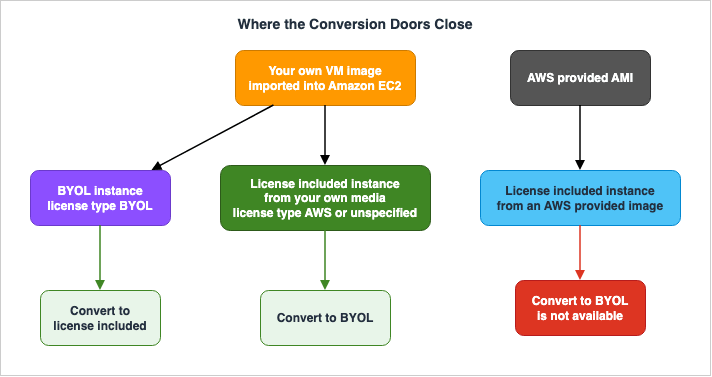
| Media Source | To BYOL | To license included |
|---|---|---|
| AWS provided Windows Server image | No | Yes |
| AWS provided SQL Server image | No | Yes |
| Your own Windows Server media | Yes | Yes |
| Your own SQL Server media | Yes | Yes |
Combinations carry restrictions too. The same page states:
Windows Server as BYOL with SQL Server as license included is an unsupported configuration.The conversion itself carries prerequisites. The target instance must be stopped and must have AWS Systems Manager Inventory configured. If stop protection is enabled, the conversion will fail. On-premises instances are not eligible.
Furthermore, the same page notes that when converting from license included to BYOL, you must first modify your Windows configuration to use your own key management server for license activation.
6.4 The Import Parameter That Decides the Default
Given these constraints, it becomes clear that the parameters specified during the initial import hold significant importance. The VM Import/Export user guide strongly recommends specifying either--license-type or --usage-operation when creating a new import task, stating that specifying both will result in an error. Choose a license type that does not fit the VM, and the import task fails.The guide also defines what happens when you specify nothing.
Windows Server operating systems support either the BYOL or AWS license type. Windows client
operating systems (such as Windows 10) support only BYOL licenses.

By default, an AWS license is used when you create a VM import task if the VM has a Windows
Server OS. Otherwise, a BYOL license is used.
In other words, importing Windows Server without specifying anything gives you the AWS license. If you intend to bring your own license, you state that at import time.
Regarding the
Auto label you may see in the console, AWS Prescriptive Guidance positions it as follows:A license type set to Auto is the equivalent of an AWS license-included option.The VM Import/Export user guide lists only two values for
licenseType: BYOL and AWS. It does not include Auto. It can be interpreted that Auto is a display indicating the same result as specifying no parameter.The same user guide also lists the conditions that must be met when using Microsoft licenses with BYOL. These include running the VM on a Dedicated Host, launching it via VM Import/Export from software binaries you provide, specifying the instance as BYOL, running it in a Region where AWS provides the BYOL model, and authenticating using your own Microsoft key or your own key management system. The hardware requirements discussed in Section 4 are mirrored in the import process as well.
It is also possible to run the VM with a license included model during the migration and then switch to BYOL once the migration is complete. However, even in that scenario, the Prescriptive Guidance states that you must initially use your own media and AMI.
7. Tracking What You Brought
You are responsible for managing the licenses you bring in. AWS License Manager is a tool that provides automated support for that management.7.1 Self-Managed Licenses
In License Manager, the unit used to define license rules is a self-managed license. The user guide explicitly states that this was previously referred to as a license configuration.Self-managed licenses (formerly known as license configurations) are the core of License Manager.The old term still survives in places. The page describing host resource group settings uses self-managed license in its heading while keeping
License configuration required as the name of a setting. When you read the documentation, treat the two names as the same thing.The primary components of a self-managed license are as follows:
| Component | Description |
|---|---|
| License type | The counting metric. It is one of vCPUs, Cores, Sockets, or Instances. |
| Product information | The products that are subject to automatic detection, such as Windows Server, SQL Server, Amazon RDS for Oracle, and Amazon RDS for Db2. |
| Expiry Date | An optional date you set to match the expiration on your BYOL licenses. |
| Rules | A collection of rules that can be applied for each counting metric. |
Service quotas apply as well. A single resource can carry up to 10 self-managed licenses, and a Region holds no more than 25 in total.
For managing licenses across multiple accounts and Regions, AWS added license asset groups in November 2025. Self-managed licenses operate within a single account, while these groups provide organization-wide visibility and management capabilities.
7.2 The Rule That Enforces the Tenancy
License Manager expresses the tenancy requirement from Section 4 as a rule. The rule list in the user guide includes Tenancy.Tenancy - Restricts license usage to the specified EC2 tenancy. Dedicated Hosts are required if
the counting type is Cores or Sockets. Shared tenancy, Dedicated Hosts, and Dedicated Instances
are supported if the counting type is Instances or vCPUs.When you select Cores or Sockets as the counting metric, Dedicated Hosts become mandatory. This is where the licensing provision about physical cores stops being prose and starts being enforced. The API name is
allowedTenancy, and it can accept three values:| Console Display | API Value |
|---|---|
| Shared | EC2-Default |
| Dedicated Instance | EC2-DedicatedInstance |
| Dedicated Host | EC2-DedicatedHost |
Associate a rule with an AMI, and License Manager tracks every instance launched from it. The user guide states that if hard limits are configured, the system can prevent resource launches. Regarding AMIs associated with all accounts, the documentation indicates that License Manager will block additional launches when hard limits are reached, while soft limits will trigger notifications regarding additional launches.
7.3 Host Affinity and the Reuse Window
Some license agreements include a condition that prevents transferring the license to a different physical machine for a specified period. The License Manager has rules to accommodate this.License affinity to host (in days) - Restricts license usage to the host for the specified number
of days. The range is 1 to 180. The counting type must be Cores or Sockets. After the affinity
period elapses, the license will be available for reuse within 24 hours.You can specify one to 180 days. This rule applies only when the counting metric is Cores or Sockets. It's important to note that after the affinity period expires, the license takes up to 24 hours to become available for reuse again. That window belongs in your operational planning.
The handling of stopped instances is also governed by these rules. The default setting for
includedStoppedInstances is False, meaning License Manager returns the licenses of stopped instances to the available pool. If the license agreement requires that assignments be maintained regardless of the instance's operational status, you should set this rule to True.7.4 Host Resource Groups Take Over Placement
A host resource group is the unit in which Dedicated Hosts are managed together. License Manager handles allocating hosts, releasing them, and moving instances off a host that has failed.In exchange, you give something up explicitly. The user guide spells it out.
After you add a Dedicated Host to a host resource group, you cannot launch instances directly on
the Dedicated Host, you must launch them using the host resource group.
Once a host joins a host resource group, you can no longer launch instances onto it directly. Operations that named individual hosts for placement change shape at this point.
The configuration options for a host resource group are as follows:
| Setting | Description |
|---|---|
| Allocate hosts automatically | Whether Amazon EC2 can acquire new hosts when capacity is insufficient. |
| Release hosts automatically | Whether Amazon EC2 can release hosts that are not running any instances. |
| Recover hosts automatically | Whether Amazon EC2 can migrate instances from a failed host to a new host. |
| Instance launch option | Whether to require association with a self-managed license for instances being launched. |
| Associated self-managed licenses | The self-managed licenses that can be used within this group. |
| Instance families | The instance types that can be launched. With Nitro-based instances, different types can be mixed in the same group. |
The default setting for
Instance launch option is License configuration required. In this case, the AMI used to launch the instance must have a core- or socket-based self-managed license associated with it that matches the ones configured on the host resource group.When using Amazon EC2 Auto Scaling with Dedicated Hosts, use launch templates that specify a host resource group. This is a condition listed in the Amazon EC2 user guide as a limitation of Dedicated Hosts.
7.5 What License Manager Does Not Cover
License Manager is responsible for tracking and enforcing rules, but it does not assume responsibility itself. This is explicitly stated in the user guide.AWS does not participate in the audit process with software vendors. Customers are responsible
for compliance and assume the responsibility of carefully understanding and capturing rules into
License Manager based on their licensing agreements.It also has technical limits. It does not track instances across Regions.
License Manager does not support cross-Region instance tracking. If you copy an AMI that has
associated license configurations to a different Region, License Manager blocks all instance
launches from the new AMI.
It does not merely stop tracking. Launches from that AMI stop as well. If you are using AMIs as part of a multi-region disaster recovery strategy, you should be aware of this behavior.
AWS Config is what records configuration changes on Dedicated Hosts. The FAQ recommends enabling AWS Config to record Dedicated Host changes before you start launching BYOL instances. This is because it is not possible to retroactively record these changes.
8. Getting Into the Domain
Once you've decided where to host your server, the next step is to join it to the domain. From this point forward the subject is no longer licensing, but AWS Identity and Access Management (IAM) and networking prerequisites.8.1 Three Paths
This article treats joining an Amazon EC2 Windows instance to a domain as three paths. The AWS Directory Service administrator's guide lists instance joining methods - joining during instance launch and joining manually - on a single page, while placing the AWS Systems Manager path inside the shared directory verification process. The count of three comes from this article's arrangement, not from how the official documentation counts. The following diagram lists what each path requires. Read it for what has to be satisfied, not for which method is better.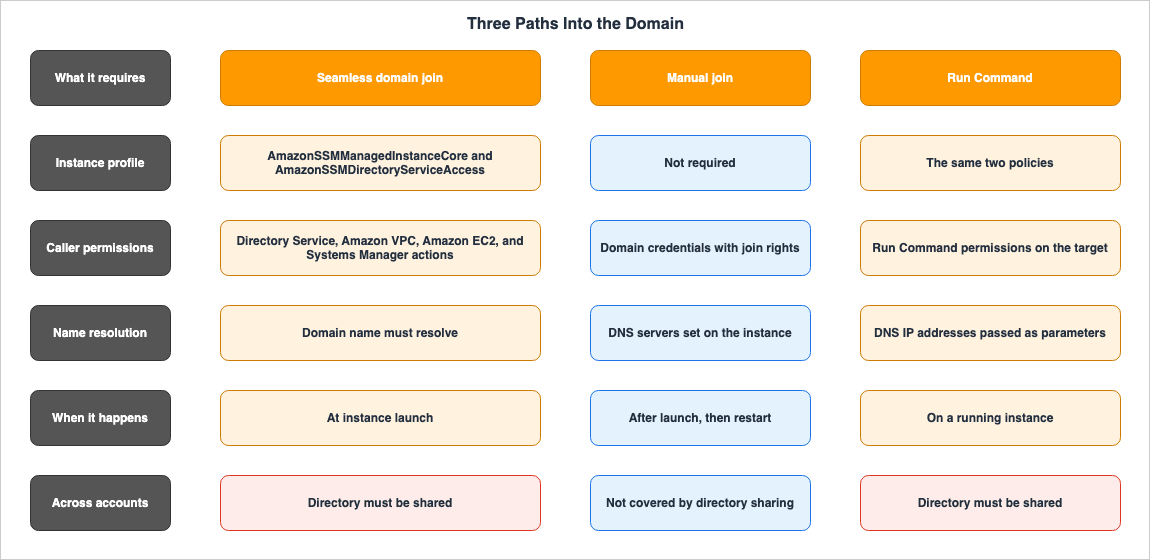
The second path is the manual join. This follows the same process as joining an on-premises server. You connect to the instance, configure the DNS server address, configure the computer name, join the domain, and then reboot.
The third path runs the
AWS-JoinDirectoryServiceDomain document through Run Command in AWS Systems Manager. What separates it from seamless domain join is that it works on instances that are already running.8.2 What Seamless Domain Join Requires
Seamless domain join has prerequisites outlined in the AWS Directory Service administrator's guide. These requirements are divided into two categories: permissions for the instance and permissions for the user performing the operation.The instance profile requires two AWS managed policies:
| Policy | Role |
|---|---|
AmazonSSMManagedInstanceCore | Minimum permissions to use AWS Systems Manager. |
AmazonSSMDirectoryServiceAccess | Permissions to allow the instance to join the Active Directory managed by Directory Service. |
The administrator's guide lists the necessary permissions for the user performing the operation, categorized into four groups:
| Group | Action |
|---|---|
| Directory Service | ds:DescribeDirectories / ds:CreateComputer |
| Amazon VPC | ec2:DescribeVpcs / ec2:DescribeSubnets / ec2:DescribeNetworkInterfaces / ec2:CreateNetworkInterface / ec2:AttachNetworkInterface |
| Amazon EC2 | ec2:DescribeInstances / ec2:DescribeImages / ec2:DescribeInstanceTypes / ec2:RunInstances / ec2:CreateTags |
| AWS Systems Manager | ssm:DescribeInstanceInformation / ssm:SendCommand / ssm:GetCommandInvocation / ssm:CreateBatchAssociation |
Attaching the two instance-side policies and stopping there leaves the join blocked on the caller.
This section has two network prerequisites. Name resolution is addressed separately in Section 8.3. First, the VPC you launch the instance into must allow the same ports that the AWS Managed Microsoft AD security group permits. Second, depending on network and firewall configurations, it may be necessary to additionally allow outbound traffic on port 443 to the following endpoints.
| Endpoint | Purpose |
|---|---|
ssm.region.amazonaws.com | Endpoint for AWS Systems Manager Session Manager |
ssmmessages.region.amazonaws.com | Creation and deletion of Session Manager session channels |
ec2messages.region.amazonaws.com | Same as above |
ds.region.amazonaws.com | Endpoint for Directory Service |
This list indicates a structure where seamless domain join is built on top of Systems Manager. It assumes that an agent is running and able to reach the control plane.
8.3 Name Resolution Comes First
Whichever path you take, name resolution has to work first. An instance that cannot resolve the domain name does not join it. The administrator's guide recommends creating a DHCP option set, and states that if one is not created, the AWS Managed Microsoft AD will use a static DNS server.An alternative approach is to use Amazon Route 53 Resolver. The administrator's guide notes that instead of manually configuring DNS addresses for each instance, Route 53 can be used to handle DNS queries.
The default DNS server for AWS Managed Microsoft AD is the VPC's DNS server, located at the second address in the VPC's CIDR block.
8.4 Across Accounts, the Directory Has to Be Shared
When the account that holds the directory differs from the account that launches the instances, sharing the directory becomes a prerequisite. The administrator's guide provides a four-step tutorial for this process. It also notes that the sharing procedure differs depending on whether the accounts are in the same AWS organization or outside it.- On the account that owns the directory, prepare the necessary network prerequisites for sharing.
- Using administrator privileges on the directory owner's account, initiate the sharing process and send an invitation to the user account.
- Using administrator privileges on the user account, accept the invitation. The administrator's guide designates this step as optional.
- On the user account, actually join a Windows Server instance to the domain and verify the connection.
When joining using Run Command, the user account will require the Directory ID of the owner account, the directory name, and the IP address of the DNS server. The administrator's guide even specifies the sections of the Directory Service console where to find these values. The Directory ID sits in the shared directory details, while the directory name and DNS IP address sit in the owner directory details.
9. Which Directory
When you decide to use a domain, you still need to choose where to host it. In addition to the types offered by AWS Directory Service, you also have the option of managing your own Active Directory. This section will cover that scope. In August 2025, AWS added one new form on the AWS Directory Service side.9.1 AWS Managed Microsoft AD
AWS Directory Service for Microsoft Active Directory is an actual Windows Server Active Directory that AWS manages for you. It supports Group Policy, trust relationships, schema extensions, Kerberos authentication, and LDAP.There are two editions available. The Standard Edition is designed to support approximately 30,000 directory objects, while the Enterprise Edition supports approximately 500,000 directory objects. The user guide clarifies that these numbers are estimates and may vary depending on the size of the objects and the required performance.
Creating one provisions a specific set of resources. Directory Service deploys the domain controllers across two Availability Zones by default and attaches an Elastic Network Interface to each. Directory Service takes a backup once per day and encrypts the Amazon Elastic Block Store volumes. It creates three organizational units (OUs) beneath the domain root. One of these OUs, providing users with full control, contains two child OUs: Computers and Users.
Directory Service also creates a security group. Outbound rules allow all destinations by default, while inbound rules admit only the ports Active Directory requires, and only from the VPC's CIDR range.
9.2 Hybrid Edition Extends Without a Trust
AWS added AWS Managed Microsoft AD (Hybrid Edition) in August 2025. This feature allows you to extend your existing, self-managed Active Directory to AWS. The key difference from traditional options is that it does not require an Active Directory trust relationship.Extension of self-managed AD to the AWS Cloud without needing to establish a trust relationshipThe prerequisites are significant. The administrator's guide dedicates an entire section to hybrid directories, outlining requirements for domains, necessary information, infrastructure requirements, Active Directory services that must be running, Kerberos pre-authentication, supported encryption methods, network ports, AWS account permissions, Amazon VPC requirements, and considerations for directory assessment. The comprehensive list belongs on that page. Only the items that intersect with the subject of this article are listed here. The following information was verified on September 4, 2026.
| Prerequisite | Details |
|---|---|
| Domain Functional Level | Must be Windows Server 2012 R2 or 2016 functional level. |
| Domain Controllers | Two standard domain controllers with all Active Directory services running. Read-only domain controllers cannot be used. |
| Routing | The Primary Domain Controller must be continuously reachable. Specific requirements apply to the IP addresses of the PDC Emulator and RID Master. |
| DNS | The _msdcs zone must be modernized. |
| Management Path | Two AWS Systems Manager nodes with administrator privileges. If the self-managed Active Directory sits outside AWS, they are Systems Manager nodes for a hybrid and multicloud environment. If it sits inside AWS, they are Systems Manager managed EC2 instances. |
| Credentials | Place the credentials for a service account belonging to the Domain Admins group in your self-managed Active Directory into an AWS Secrets Manager secret. |
| VPC | Must have at least two subnets located in different Availability Zones. The VPC must also be configured with the default tenancy. |
The final line directly intersects with the topics discussed throughout this article. The term default tenancy here refers to a VPC attribute, not the tenancy of individual instances launched within that VPC. When a VPC's attribute is set to dedicated, the instances within it become dedicated. Even within a VPC with the default attribute setting, individual instances can be launched with Dedicated Host tenancy. Changing the VPC's attribute to dedicated in order to run Windows Server on a Dedicated Host will prevent you from creating a hybrid directory in the same VPC.
Secrets have a specific format. The administrator's guide instructs you to create your own symmetric key, rather than using AWS's default KMS key, and directs you to place both the key and the secret in the same AWS account as the hybrid directory. The key-value pairs in the secret are fixed: the key names are
customerAdAdminDomainUsername and customerAdAdminDomainPassword. The value for the username should not include the domain prefix. The administrator's guide explicitly states that including the prefix will cause instance creation to fail.There is a specific order to the creation process itself. According to the administrator's guide, you must first create and successfully complete a directory assessment, and then use that successful assessment to create the hybrid directory. When you execute the creation, AWS runs another assessment to verify that the self-managed configuration is still valid before it creates the directory. If the creation fails, you must delete the failed directory in the console, and also delete any remaining AWS Reserved OUs on the self-managed side.
9.3 AD Connector Is a Gateway, Not a Data Path
AD Connector acts as a proxy, forwarding requests to an existing, self-managed Active Directory without replicating directory data to AWS. It's an option for those who want to continue using their existing directory.From the perspective of joining an Amazon EC2 instance to a domain, AD Connector has a property that is easy to misread. The administrator's guide notes it.
Once you join an instance to your self-managed Active Directory (on-premises), the instance
communicates directly with your Active Directory and bypasses AD Connector.
Once the join is complete, the instance communicates directly with Active Directory and does not go through AD Connector. AD Connector is the gateway into the domain join, not the path that traffic takes afterward. If you assume that authentication between joined servers, or the application of group policy, passes through AD Connector, you will read the architecture diagram wrong.
AD Connector also limits which applications it works with. The administrator's guide states that AD Connector is a proxy for AWS created applications and services only, and that no third-party applications work with it. Amazon RDS, for one, is compatible with AWS Managed Microsoft AD only, and not with AD Connector.
9.4 Self-Managed AD on Amazon EC2
An alternative is to manage Active Directory yourself on Amazon EC2 instances. AWS Prescriptive Guidance recommends deploying domain controllers across at least two Availability Zones in this scenario, and notes that more may be needed depending on the number of users and computers on the AWS side.It is also possible to connect an existing Active Directory environment with AWS Managed Microsoft AD using trust relationships. According to the guide, this eliminates the need for user, group, and password synchronization. Unlike the Hybrid Edition described in Section 9.2, which does not utilize trust relationships, this approach does. While the goals are similar, the underlying structure differs.
The following table outlines four options relevant to the topics discussed in this article. Simple AD will be addressed separately in Section 9.5.
| Option | Directory Location | Trust Relationship | Self-Managed AD Required? |
|---|---|---|---|
| AWS Managed Microsoft AD | AWS | Optional | No |
| AWS Managed Microsoft AD (Hybrid Edition) | Extended to AWS | No | Yes |
| AD Connector | On-premises only | Not applicable | Yes |
| Self-Managed AD on Amazon EC2 | User-defined location | Optional | Yes |
9.5 A Note on Simple AD
AWS Directory Service also offers Simple AD, but its availability has changed. The administrator's guide includes the following note:Only new customer onboarding to Simple AD is not permitted. Existing Simple AD customers retain
full functionality. Your directories, users, computers, and integrated workloads are not
affected, and you can continue to create new Simple AD directories.While new customers are no longer able to begin using it, existing customers can continue to utilize its features and continue creating new directories. It is not a viable option for new designs. Details regarding when this transition was announced and when new registrations were closed can be found in AWS Retired Services History and Timeline, which provides specific dates. The AWS Service Lifecycle States document outlines AWS's terminology for different service lifecycle stages.
Simple AD is an Active Directory compatible directory built on Samba 4. It does not support multi-factor authentication, trust relationships, schema extensions, or LDAPS.
10. Failure Modes and Anti-Patterns
This section lists failure modes and anti-patterns, specifically those explicitly discouraged in official documentation or that, if implemented incorrectly, can lead to irreversible problems.10.1 Eligibility, Tenancy, and Counting
| Failure Mode | What Happens | What to Decide First |
|---|---|---|
| Counting using virtual CPUs | The required license count appears smaller than it actually is. | Check the number of physical cores on the host. |
| Assuming a Dedicated Instance is enough | Windows Server BYOL requires dedicated host tenancy, so this does not hold. | Confirm that the tenancy is Dedicated Host. |
| Deciding the tenancy before checking the license conditions | If the licenses are not eligible, allocating a Dedicated Host does not let you bring them. | Inventory whether the licenses are perpetual, when they were purchased, which version they cover, and which channel they came through. |
| Telling your organization the version ceiling is 2019 | If Software Assurance was dropped part way, the real ceiling sits earlier. | Review your own Software Assurance history. |
| Selecting an edition without deciding the consolidation ratio | Standard edition stacks in units of the host's full core count, so the number of licenses you must bring rises steeply as instance counts grow. | Estimate the number of instances per host. |
| Working backward from workload size on Amazon EVS | The minimum configuration is a cluster of four hosts, so the floor does not move with the workload. | Confirm the minimum configuration of the cluster. |
10.2 Media, Conversion, and Tracking
| Failure Mode | What Happens | What to Decide First |
|---|---|---|
| Importing a virtual machine without specifying a license type | Windows Server gets the AWS license. | If you intend to bring your own license, specify this during the import process. |
| Launching from an Amazon provided AMI and then trying to switch to BYOL | The conversion is not available, so you rebuild with a different configuration. | Use your own media from the start. |
| Copying an AMI that has a self-managed license to another Region | License Manager blocks every instance launch from that AMI. | Decide whether you need to copy AMIs across Regions. |
| Launching BYOL instances and then enabling AWS Config | Configuration changes from before that point are not recorded. | Enable Dedicated Host recording before you launch. |
| Trying to launch directly onto a Dedicated Host after adding it to a host resource group | Once the host is in the group, the direct launch path is closed. | Decide whether to hold placement yourself or delegate it. |
10.3 Domain Join and Directories
| Failure Mode | What Happens | What to Decide First |
|---|---|---|
| Neglecting DNS configuration during domain join planning | Name resolution fails, halting the process. | Determine the DHCP option set or Route 53 Resolver configuration first. |
| Assuming that authentication after the join passes through AD Connector | A joined instance communicates directly with Active Directory. | Place AD Connector in the architecture diagram as the entrance to the join. |
| Attempting to join instances with multiple accounts without sharing the directory | Seamless domain join will not succeed. | Configure directory sharing first. |
| Assuming Hybrid Edition can immediately replace trust relationships | You will not be able to proceed with the pre-assessment if the domain controllers are not managed by AWS Systems Manager. | Register nodes as managed and complete the directory assessment first. |
| Setting the VPC tenancy attribute to dedicated to satisfy the Windows Server requirement | A hybrid directory requires a VPC with default tenancy, so it can no longer be created in the same VPC. | Confirm that what becomes dedicated is the instance, not the VPC. |
11. Frequently Asked Questions
Can I bring my Windows Server license to an Amazon EC2 instance in a shared tenancy environment?No. Windows Server is not eligible for License Mobility and requires dedicated infrastructure. The FAQ states that, unless you have received individual approval from Microsoft, you should not use your own Windows Server license on instances with default tenancy. If you have such individual arrangements, you should contact AWS Support or your account manager.
Can I bring my Windows Server license if I maintain Software Assurance?
No. Even with Software Assurance, Windows Server is not eligible for License Mobility. Conversely, Software Assurance is not a requirement for Windows Server BYOL either. The requirements are a perpetual license, the purchase date, the version being deployed, and dedicated infrastructure.
Can I run Windows Server 2022 on a Dedicated Host?
Yes, but it will be a license included configuration. BYOL only covers versions that were publicly available before October 1, 2019. Therefore, Windows Server 2022 and 2025 are not eligible for BYOL.
Are Dedicated Hosts exclusively for BYOL?
No. Since April 7, 2020, you can use the license included Windows Server AMIs that Amazon provides on Dedicated Hosts. That is available in all AWS Regions outside China.
Can I convert an instance launched from an Amazon AMI to BYOL later?
No. License Manager has no license type conversion path from an Amazon provided AMI to BYOL. The conversion is available only when the instance came from your own virtual machine image.
Is the number of licenses required determined by the number of instances?
No. For BYOL on Dedicated Hosts, you must license all physical cores of the host. Even if only one instance is running on the host, the required number of licenses remains the same. With Windows Server Standard, though, one full pass over the host's cores covers at most two instances.
Does the counting method remain the same even with Amazon EVS?
Yes, if you choose BYOL, the underlying principle is the same. However, the starting point is no longer a single host; it's a cluster. In the Prescriptive Guidance example, a minimum configuration of four
i4i.metal hosts adds up to 256 physical cores. If you choose the entitlement for Windows Server provided by AWS, the count shifts to the virtual CPUs and hours associated with the virtual machines.Which policies are required for seamless domain join?
The instance profile must include both
AmazonSSMManagedInstanceCore and AmazonSSMDirectoryServiceAccess. In addition, the entity performing the join requires permissions spanning Directory Service, Amazon VPC, Amazon EC2, and AWS Systems Manager.Does domain communication pass through AD Connector after the join?
No. Once an instance has joined the domain, it communicates directly with Active Directory and does not route traffic through AD Connector. AD Connector is the gateway into the join, and nothing more.
Is the only way to extend an existing Active Directory to AWS using trust relationships?
No. AWS Managed Microsoft AD (Hybrid Edition), introduced in August 2025, allows you to extend your self-managed Active Directory to AWS without establishing trust relationships. However, this requires certain prerequisites, including a single forest and a single domain, that the domain controllers are managed nodes within AWS Systems Manager, and successful completion of a preliminary directory assessment.
Can I determine if my license is eligible based on this article?
No. This article only indicates where the conditions are described. AWS explicitly states that the information provided is for informational purposes only and does not constitute legal advice. The reader and the issuing party determine eligibility.
12. Summary
When migrating Windows Server to AWS, the first factor to determine is not the infrastructure's form, but rather the license eligibility. Everything else is dependent on this.Four conditions determine eligibility: the license must be a perpetual use right, the purchase date must be before October 1, 2019 or fall within the term of an Enterprise Agreement that started before that date, the version being deployed must have been publicly available before that date, and it must be deployed on dedicated infrastructure. If the purchase channel is a Cloud Solution Provider, it will not be eligible, even if all other conditions are met.
If eligible, the hardware options are then narrowed down. Windows Server is licensed on a physical core basis, therefore, a dedicated host tenancy is required. This is not simply any dedicated infrastructure. It applies to Amazon EC2 Dedicated Hosts, Amazon EVS, Dedicated Hosts on AWS Outposts, and Dedicated Host tenancy on bare metal. Amazon EC2 Dedicated Instances, while dedicated infrastructure, do not meet this requirement as they are not a host tenancy.
Once the hardware is determined, the counting method is established. You license all the physical cores of the host. Not virtual CPUs. With Datacenter, you can technically run as many instances as possible. With Standard, you are limited to two instances, and to increase this number, you must license all cores of the host again.
With the counting method defined, a minimum configuration is required. The minimum configuration for Amazon EVS is a cluster of four hosts, which adds up to 256 physical cores in the example the Prescriptive Guidance provides. Even with smaller workloads, this minimum cannot be reduced.
There is also the option of not bringing a license. Since April 7, 2020, you can run license included Windows Server on Dedicated Hosts as well. Windows Server 2022 and 2025 can only operate through this route. However, the two paths are not symmetrical. You cannot convert an instance launched from an Amazon provided AMI to BYOL later. Furthermore, if you do not specify
--license-type during import, the AWS license is used for Windows Server, which also feeds into this branch.Once you have brought instances in, AWS License Manager tracks them. When selecting a metric for self-managed licenses, choosing Cores or Sockets requires Dedicated Hosts. This is where licensing terms become a practical constraint. However, AWS does not conduct audits. Furthermore, tracking across Regions is not supported.
Finally, there's the domain. There are three ways to join, and all require name resolution. Seamless domain join requires two policies on the instance profile, and permissions in four groups for whoever performs the join. If joining across accounts, directory sharing is a prerequisite. This article covers four options for the directory itself. The Hybrid Edition, added in August 2025, allows extending an existing Active Directory without establishing a trust relationship.
This article focuses on where these conditions are documented. The agreement between the reader and the publisher determines whether an individual license is eligible.
Carrying a server over does not mean the work running on it carries over too. For how the execution environment for those jobs holds prerequisites of its own, see Data Pipeline Orchestration on AWS.
13. References
- Microsoft licensing on AWS
- Bring licenses for Windows and SQL Server workloads
- Migrating Active Directory
- Amazon Web Services and Microsoft FAQs
- Amazon EC2 Dedicated Hosts
- Bring your own software licenses to Amazon EC2 Dedicated Hosts
- What is AWS License Manager?
- Self-managed licenses in License Manager
- Self-managed license parameters and rules in License Manager
- Self Managed License Rules in License Manager
- Host resource groups in License Manager
- Eligible license types for Windows and SQL Server in License Manager
- Conversion prerequisites for License Manager license types
- What is AWS Directory Service?
- Joining an Amazon EC2 Windows instance to your AWS Managed Microsoft AD Active Directory
- What gets created with your AWS Managed Microsoft AD
- Tutorial: Sharing your AWS Managed Microsoft AD directory for seamless EC2 domain-join
- Step 4: Test seamlessly joining an EC2 instance for Windows Server to a domain
- Understanding AWS Managed Microsoft AD (Hybrid Edition)
- Creating a hybrid directory
- Hybrid directory prerequisites
- Simple AD availability changes
- Ways to join an Amazon EC2 instance to your Active Directory
- Application compatibility policy for AD Connector
- Concepts and components of Amazon EVS
- Announcing the ability to run Windows Server license included instances on EC2 Dedicated Hosts
- AWS Directory Service launches Hybrid Edition for Managed Microsoft AD
- AWS License Manager introduces license asset groups for centralized software asset management
- Extend your Active Directory domain to AWS with AWS Managed Microsoft AD (Hybrid Edition)
- Licensing for your imported VMs
- Licensing considerations
- How to create Windows Server Bring-Your-Own-License AMIs from on-premises with VM Import/Export
References:
Tech Blog with curated related content
Written by Hidekazu Konishi