Amazon CloudWatch Omni and CloudWatch - What Stays in CloudWatch, What Omni Adds With Domains, Spaces, and Grants, and Where Each Setting Is Configured
First Published:
Last Updated:
Omni is an interface and set of workflows built on Amazon CloudWatch. It is not a replacement, and enabling it does not change anything you already run.Teams already using CloudWatch need to determine three things before enabling Omni. First, what impact will enabling Omni have on existing CloudWatch configurations? Second, what needs to be prepared within CloudWatch to view telemetry from multiple accounts in Omni? Finally, is who can see what decided with IAM or with Omni's grants?
This article outlines what remains within CloudWatch and what Omni adds, to help answer these three questions. It also indicates whether each configuration is performed in the CloudWatch console or within the Omni web UI. The AWS documentation referenced in this article does not provide a mapping table showing which CloudWatch elements correspond to which Omni elements. This article will only describe what is explicitly stated in the AWS documentation.
Related articles on this site:
- AWS Observability Architecture Guide - End-to-End Tracing, Metrics, and Logs with CloudWatch, X-Ray, Application Signals, and OpenTelemetry
- AWS History and Timeline regarding Amazon CloudWatch - Overview, Functions, Features, Summary of Updates, and Introduction
- OpenTelemetry-Native Observability on AWS - OTLP Ingestion, PromQL, and the X-Ray SDK Transition
- AWS DevOps Agent - What It Investigates by Default, What Needs Approval, and What It Refuses Even When the Role Allows It
- AWS IAM Identity Center Complete Setup Guide - Multi-Account SSO Design Patterns from Organization Structure to ABAC
- Amazon EventBridge Custom Event Bus and the Classic Bus - What Maps From Rules to Subscribers, Which Defaults Change, and What Stays on the Classic Bus
- AWS Network Security Manager and AWS Firewall Manager - The Policy Model, What Happens to Existing Web ACLs, and Which Policy Wins When Both Apply
- AWS Service Lifecycle States - Maintenance, Sunset, Full Shutdown, and What Each One Takes Away
- Where the AWS Primary Sources Disagree About Launch Dates - Which Document Systems Carry a Date, What Shapes the Disagreements Take, and Which Date to Record
Table of Contents
- 1. The Scope of This Article and the Date It Was Verified
- 2. What Stays in CloudWatch
- 3. Enabling CloudWatch Functionality by Creating a Space
- 4. What Omni Adds Alongside CloudWatch — Domain, Space, and Dataset
- 5. Carry-Over Table — CloudWatch Elements Mentioned in the User Guide
- 6. Two Approaches — A Single Account and an Organization
- 7. Two Access Mechanisms — IAM and Grants
- 8. Multiple Accounts and Regions — Aggregate With CloudWatch, Show in the Space
- 9. Potential for Misunderstanding
- 10. Frequently Asked Questions about CloudWatch Omni and CloudWatch
- 11. Summary
- 12. References
1. The Scope of This Article and the Date It Was Verified
This section will give the verification date and clarify the differences in dates related to the same event. It will then present how AWS documentation describes the relationship between Omni and CloudWatch, and list up front the aspects that this article will not cover.1.1 The Verification Date and Two Dates
This article's information was verified using primary source materials on September 27, 2026. Omni has only been generally available for a few days. The available Regions, features, and AWS managed policies are likely to evolve further. Before making any design decisions, review the primary source materials.The publication date (
postDateTime) for the What's New announcement is 2026-09-23T00:06:00Z, which corresponds to 5:06 PM Pacific Daylight Time on September 22, 2026. There are two other documents with a date of September 22, 2026. The introductory article on the AWS Cloud Operations Blog was published on September 22, 2026, at 3:21:53 PM Pacific Daylight Time (2026-09-22T15:21:53-07:00). The AWS managed policies update table in the user guide lists the addition of Omni managed policies on the rows for September 22, 2026 (this table does not specify a time zone).The What's New announcement lists the available Regions as:
CloudWatch Omni is generally available in US East (N. Virginia), US West (Oregon) and Europe (Ireland).This article avoids rounding dates and treats the publication date of What's New, as well as the dates of the blog post and update table, separately. Where the AWS Primary Sources Disagree About Launch Dates addresses the pattern of launch dates that split across sources.
1.2 How AWS Documentation Describes the Relationship Between Omni and CloudWatch
AWS documentation describes the relationship between Omni and CloudWatch in four different ways.| Document | Description |
|---|---|
| What's New (2026-09-23) | an evolution of Amazon CloudWatch |
| CloudWatch FAQ | the next evolution of Amazon CloudWatch, CloudWatch Omni builds on top of CloudWatch rather than replacing it. |
| AWS Cloud Operations Blog (2026-09-22) | the next generation of CloudWatch |
| CloudWatch User Guide | Omni is an interface and set of workflows built on Amazon CloudWatch. It is not a replacement, and enabling it does not change anything you already run. |
Announcements and the blog refer to Omni as an evolution or the next generation of CloudWatch. The user guide and FAQ state that Omni builds on top of CloudWatch, and the user guide explicitly states
It is not a replacement.Some documentation refers to the existing CloudWatch as "classic." The FAQ states
Omni extends classic CloudWatch, and the page detailing IAM policies for using CloudWatch Omni refers to an alarm or a CloudWatch dashboard as a classic CloudWatch resource. The What is Amazon CloudWatch? page differentiates between OpenTelemetry Metrics and CloudWatch Metrics (Classic). The documentation reviewed for this article does not associate the term "classic" with any end-of-service announcements or cessation of new registrations.This article is based on the descriptions in the user guide that define behavior. This article does not treat Omni as a lifecycle state change within CloudWatch. Neither CloudWatch nor Omni appears in any of the Service Availability Updates released in October 2025, March 2026, or June 2026 (checked on September 27, 2026, in What's New up to September 25, 2026). AWS Service Lifecycle States covers the definitions of the state terms.
1.3 Topics Not Covered
- Pricing for either Omni or CloudWatch.
- Evaluation of AI agents (evaluators, datasets, experiments). Refer to LLMOps Observability and Evaluation Architecture on AWS.
- Cross-account observability for CloudWatch (Observability Access Manager) and Application Signals. Refer to AWS Observability Architecture Guide.
- Ingestion via OTLP and PromQL. Refer to OpenTelemetry-Native Observability on AWS.
- Investigation permissions for AWS DevOps Agent. This article only describes the ability to initiate investigations from Omni alerts; AWS DevOps Agent covers the scope of permissions.
- Design of IAM Identity Center. This article only describes the constraints necessary due to its relationship with Omni domains; AWS IAM Identity Center Complete Setup Guide details the full design.
- Procedures for ingesting workloads from Azure.
- The history of CloudWatch. Refer to AWS History and Timeline regarding Amazon CloudWatch.
- Hands-on verification. This article will only include descriptions based on primary source materials.
2. What Stays in CloudWatch
The CloudWatch Omni page of the user guide includes a section titled How Omni relates to CloudWatch. That section, consisting of three points and one sentence, describes what remains within CloudWatch. This section examines each point in turn, verifying the scope that AWS states will remain unchanged.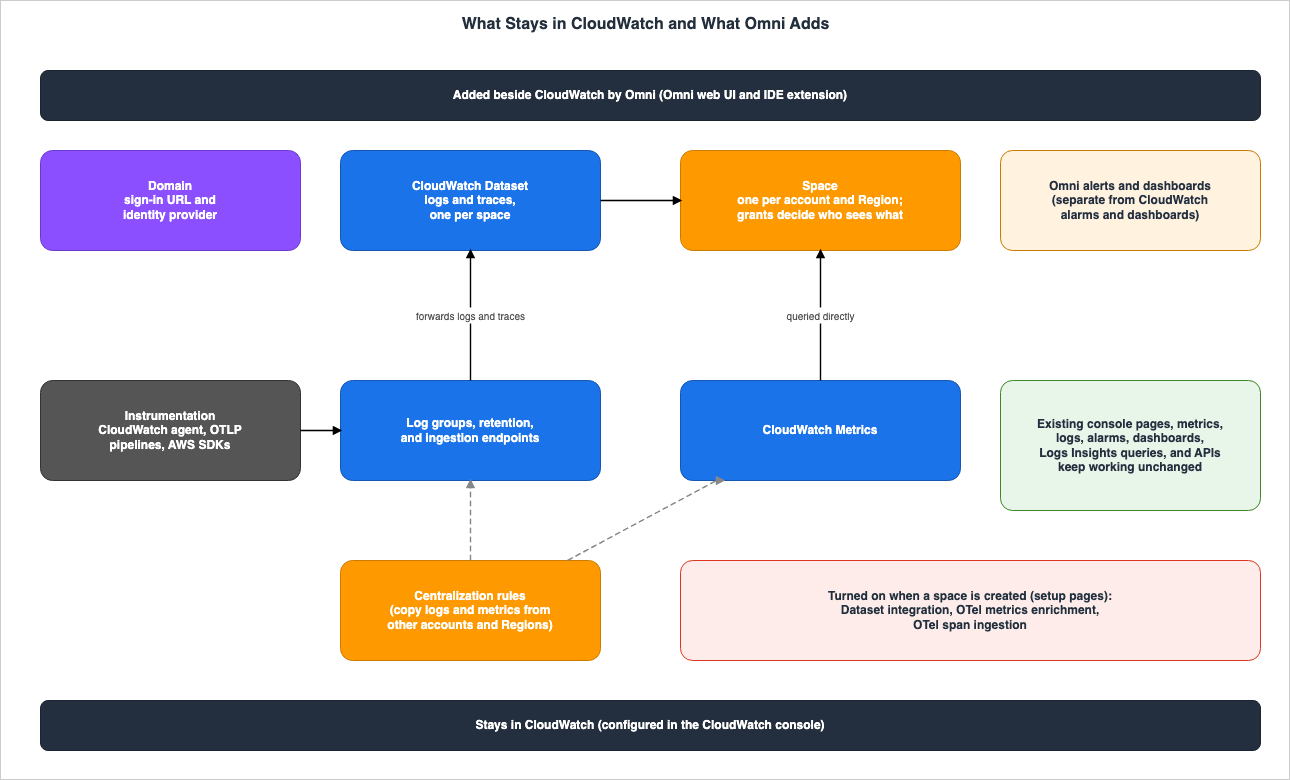
2.1 What AWS States Will Not Change
The first item in the How Omni relates to CloudWatch section lists specific features that will remain unchanged.Your existing console pages, metrics, alarms, dashboards, Logs Insights queries, and APIs keep working unchanged.Both the Set up Omni and Set up Omni for your organization pages contain the same note (this note is not present on the Set up Omni for a single account page).
Enabling Omni does not change or disable anything in CloudWatch. Your existing metrics, logs, alarms, dashboards, and Logs Insights queries keep working.The Omni section on the What is Amazon CloudWatch? page states that existing metrics, alarms, and dashboards will not change.
The three pages list slightly different elements. Only the CloudWatch Omni page mentions console pages and APIs. Only the setup notes mention logs. Combined, these list seven elements: console pages, metrics, logs, alarms, dashboards, Logs Insights queries, and APIs.
The CloudWatch Omni page and the setup notes use broader language, stating that Omni
does not change anything you already run and does not change or disable anything in CloudWatch. However, that same Set up Omni for your organization page also includes a separate table that explains how creating a space activates certain CloudWatch features. This article will focus on the statements regarding what will not change, specifically concerning the seven elements listed. Section 3 addresses the features that are activated.2.2 Instrumentation Remains Unchanged
The second item under the section How Omni relates to CloudWatch states that the instrumentation does not need to be modified.Instrumentation you already run (the CloudWatch agent, OTLP pipelines, and AWS SDKs) keeps sending telemetry without changes, and that telemetry appears in Omni.The telemetry data visible in Omni is sent to CloudWatch. The Send telemetry to CloudWatch Omni page states in its first sentence
CloudWatch Omni reads what Amazon CloudWatch has ingested., and says that the destination for application and OpenTelemetry Collector data is the CloudWatch OTLP endpoint. New workloads should also send data to CloudWatch in the same manner. OpenTelemetry-Native Observability on AWS covers the details of OTLP ingestion.Management of ingestion credentials is also handled on the CloudWatch side. According to the IAM chapter, metrics and logs have a path for using bearer tokens in addition to Signature Version 4 signing. API keys for bearer tokens are created in the CloudWatch console, specifically in the CloudWatch settings, using the user's own IAM permissions. Omni can list these API keys, but it cannot create, rotate, or delete them. Traces only accept Signature Version 4 signing and do not support bearer tokens.
2.3 Configuration Locations — Collection and Storage via CloudWatch Console
The final sentence in the section regarding Omni's relationship with CloudWatch specifies where the configuration is performed.You continue to configure how telemetry is collected and stored (log groups, retention, and ingestion endpoints) in the CloudWatch console.The configuration related to Omni is divided between the CloudWatch console and the Omni web UI. The table below summarizes the locations described in the primary documentation.
| Setting | Location | Source |
|---|---|---|
| Log groups, retention period, and ingestion endpoints | CloudWatch console | CloudWatch Omni |
| CloudWatch alarms | CloudWatch console | Alerts |
| Centralization rules | CloudWatch console (on the Organization tab under Settings of the management account or delegated administrator) | Cross-account cross-Region metrics centralization |
| Ingestion bearer token API key | CloudWatch console (CloudWatch settings). Omni can only list them. | Identity and access management for CloudWatch Omni |
| Domain and space creation, initial Space Admin | CloudWatch console, Omni setup page | Control access to your space |
| Adding and removing Space Admins | CloudWatch console (dedicated page that remains available after setup). Can also be added as a Space Admin grant through the Omni web UI. | Control access to your space, Manage space members and permissions |
| Other permission levels, data scope, and access profiles | Omni web UI | Control access to your space |
| Omni alerts and dashboards | Omni web UI | Alerts, Dashboards |
| Directly managing the Dataset integration | AWS CLI or IaC (aws observabilityadmin create-dataset-integration) | Send telemetry to CloudWatch Omni |
The top four rows describe settings related to CloudWatch that existed before enabling Omni. These settings continue to be managed within CloudWatch even after Omni is enabled. The five rows below detail settings for what Omni adds. Of these, the creation of domains and spaces, as well as the management of Space Admin, are handled in the CloudWatch console.
3. Enabling CloudWatch Functionality by Creating a Space
The previous section's statement regarding unchanging configurations refers to existing elements. The Set up Omni for your organization page, which carries that note, also states that creating a space activates CloudWatch functionality for that account and Region, listing three specific features in a table. IAM roles and an AWS Config recorder are also created. This section will list, based solely on the primary sources, the components that are added on the CloudWatch side when a space is created.3.1 Features That Are Turned On
Both the Set up Omni for your organization and Set up Omni for a single account pages list the features that are enabled when you create a space, using the same three-row table. The organization page states,Setting up a space turns on the following CloudWatch capabilities in your account and Region. The single account page, before the same table, states, You choose the optional capabilities during setup.| Feature | What it does | Link to page |
|---|---|---|
| CloudWatch Dataset integration | Forwards logs and traces to the space's Dataset, allowing you to query and correlate them within Omni. | CloudWatch Omni |
| OTel metrics enrichment | Adds resource attributes to AWS metrics in OpenTelemetry format, enabling querying with PromQL. | CloudWatch OTel metrics enrichment |
| OTel span ingestion | Enables the ingestion of traces and spans, allowing Omni to receive and correlate distributed traces. | Enable CloudWatch transaction search |
The organization page clarifies,
These are telemetry features, not permissions. The row for Dataset integration includes the sentence, You do not manage a separate store or change how you manage existing CloudWatch resources such as log groups. These three features are applied to the telemetry received after you complete the space setup.The link in the third row leads to a page that enables Transaction Search. The single account page, in the second sentence after the table, mentions enabling Transaction Search alongside OTel metrics enrichment (that sentence is about pricing, which this article does not cover). The Enable transaction search page states,
Transaction search is configured for the entire account. When enabled, spans sent to X-Ray will be ingested into a log group named aws/spans. Section 4.3 of the AWS Observability Architecture Guide describes the mechanism behind Transaction Search.Conversely, other pages within Omni describe Transaction Search as a feature that users enable. The Send telemetry to CloudWatch Omni page instructs users to enable Transaction Search in the Region before sending traces, and continues with,
It is an account-level setting, and until it is enabled spans do not arrive. The Omni tutorial page (Tutorial: Fix a production quality regression) also states that for agents running on Amazon Bedrock AgentCore, Transaction Search should be enabled once per account.These three points cannot be definitively determined from the primary documentation. First, it is unclear whether setting up a space always enables Transaction Search. Second, it is unclear what happens when a space is created on an account that already has Transaction Search enabled. Third, it is unclear which of these three features are optional. While the single account page states that users choose the optional features during setup, the table does not indicate which features are optional. This article leaves these three points open. If you are creating a space on an account that already uses X-Ray, it is recommended to verify the Transaction Search setting both before and after creating the space.
3.2 IAM Roles Created and Historical Data Ingestion
The space setup process creates IAM roles within your account. The two setup pages list the following three roles:| IAM Role | Function |
|---|---|
CloudWatchOmniOperatorRole | Assumed by Omni to manage the space, query telemetry, and configure integrations. |
CloudWatchOmniDatasetIntegrationExecutionRole | Assumed by CloudWatch to make telemetry accessible within Omni through the Dataset. |
AgentCoreEvaluationRole | Assumed by Amazon Bedrock AgentCore to perform online evaluation of agents. Optional; you can choose to use the default role, select an existing role, or not use a role at all. |
The IAM chapter also lists
CloudWatchOmniDomainAccessRole for the Organization domain, CloudWatchOmniIntegrationEnablementRole for enabling integrations, and the service-linked role AWSServiceRoleForCloudWatch_Omni. Regarding the CloudWatchOmniOperatorRole, it states One role per account, shared by every space in it. Section 7.3 discusses this point further.When you first enable a space, Omni ingests historical telemetry data from existing CloudWatch logs and traces, going back up to a maximum of 7 days. Telemetry older than 7 days, and data encrypted with customer-managed AWS KMS keys, are not included in this ingestion.
3.3 What Is Created in Member Accounts When Used Within an Organization
When using Omni within an organization, certain resources are also created for member accounts. The AWS Managed Policies page states that it provides managed policies for roles used to enable Context Graph at the organizational level. One of these policies,CloudWatchOmniAWSIntegrationPolicy, is a policy that allows Omni to discover resources and their relationships within an account for the purpose of Context Graph. The same page also describes the service-linked role policy, AWSCloudWatchOmniServiceRolePolicy, as follows:Attached to the AWSServiceRoleForCloudWatch_Omni service-linked role, which provisions the integration roles and the AWS Config recorder in member accounts.The page further states that the
CloudWatchOmniAWSIntegrationPolicy is also applied to integration roles that Omni creates for each source account in the organization's centralization rules. An AWS Config recorder is created not only in the member accounts of an organization but also whenever you create a space. According to the Using AWS Config for resource discovery page, when you create a space, Omni creates a service-linked configuration recorder, AWSConfigurationRecorderForCloudWatch, in the same Region as the space. You do not create this recorder, you cannot change its settings, and you cannot delete it while a space uses it. AWS Config does not send this recorder's records to your delivery channel. Regarding a recorder that you already have, the same page states:Your own recorder is separate. Omni does not change or use your customer managed recorder.In summary, the statements that existing elements do not change and the descriptions of newly added elements are found on separate tables and pages. Before enabling Omni, it is necessary to review both Section 2 and Section 3.
4. What Omni Adds Alongside CloudWatch — Domain, Space, and Dataset
CloudWatch Omni's page describes Omni using three core concepts. It statesThree concepts determine where your telemetry lives and who can reach it. and lists domain, space, and CloudWatch Dataset. This section will examine these three concepts in turn. Throughout this article, these three are referred to as the Omni domain, the Omni space, and the Dataset, respectively.4.1 Domain — Entry Point and Identity Connection
The Omni domain serves as the entry point for an organization. The domain name you select during setup will become the URL for your team's sign-in process. The format ishttps://<domain-name>.cloudwatch-omni.global.app.aws. The identity provider connects to the domain, rather than connecting to individual spaces. The IAM chapter describes the domain as the identity and federation boundary.Domain names are subject to specific rules. They must consist of lowercase letters, numbers, and hyphens, and must be between 3 and 63 characters long. The first and last characters must be letters or numbers. Hyphens cannot be used consecutively. AWS service names, Region-like names, and names beginning with prefixes like
aws-, amazon-, cloudwatch-, and omni- are reserved. The name must be unique across all CloudWatch domains.The user guide tells you to record the domain name and URL. In addition, the API Reference's Welcome page states that during setup, a domain ID is also created, and this ID is used to identify the domain during sign-in and in programmatic requests.
There are two types of domains: Account domains, which belong to a single account, and Organization domains, which apply to the entire organization. Section 6 discusses the differences between these types.
4.2 Space — One Account and One Region
A space in Omni is your workspace. The CloudWatch Omni page describes a space as follows:A space gives you access to telemetry from the account and Region in which the space is hosted, and controls who can see it. Because a space maps to one account and Region, that boundary is what separates spaces, rather than a filter applied when you query.A single domain can have multiple spaces. The organization page states,
Only one space can exist in a given account and Region combination. In other words, you can only create one space within a single account and Region.You cannot query data across different spaces. The organization page explicitly states
Cross-space queries are not supported. If you want to query data from multiple accounts, the organization page says to collect telemetry into a single account rather than creating separate spaces. Section 8 discusses the method for doing so.The official blog describes a space as
a workspace built around an application, team, or set of workloads. The boundary defined in the user guide is one account and one Region. Because you can only create one space per account and Region, if you need to separate spaces for different applications or teams, you will need accounts or Regions that are distinct.Data associated with a space is stored in the Region of that space. The Cross-Region inference in CloudWatch Omni page states,
Your data remains stored only in your space's Region. However, features that utilize AI, such as the Omni agent, may process input and output in a different Region in the same geographic area as your space's Region. In the prompt playground and when you configure an evaluator, you choose the model. The list includes global inference profiles, and if you select one, processing can occur in any supported commercial AWS Region rather than only within your geography. The data that Omni stores for a space also includes items created on the Omni side, such as dashboards.4.3 Dataset — Making Logs and Traces Queryable in One Place
The Dataset is designed to provide a single location for accessing telemetry data and correlating it across signals. The CloudWatch Omni page states,Enabling Omni creates one Dataset for your space.The documentation describes what a Dataset includes in different ways.
| Documentation | Signals Handled by the Dataset |
|---|---|
| CloudWatch Omni page in the user guide | A Dataset makes your logs and traces queryable and correlated across signals in one place. |
| Send telemetry to CloudWatch Omni page in the user guide | The integration forwards logs and traces together. Metrics are not forwarded; Omni queries them directly from CloudWatch Metrics. |
| Welcome page in the API Reference | A Dataset makes your logs, metrics, and traces queryable and correlated across signals in one place. |
This article follows the information provided on the Send telemetry to CloudWatch Omni page, which describes the forwarding mechanism. Logs and traces are forwarded to the Dataset, while metrics are not forwarded; instead, Omni directly queries them from CloudWatch Metrics. The Explore page for Omni also states that logs and traces are stored in the same Dataset. The query language used is CloudWatch Omni SQL for logs and traces, while metrics utilize PromQL.
Forwarding to the Dataset requires certain conditions on the CloudWatch side. According to the Send telemetry to CloudWatch Omni page, there is one Dataset integration per account in a Region, and forwarding is performed in the same account and Region. The permissions of the execution role, specifically the
logs:IntegrateWithDataset permission, determine which log groups will be forwarded. Log groups in the Delivery log class will not be forwarded, regardless of the role's permissions. If a log group is excluded from forwarding, no further records will be sent, although records already present in the Dataset will remain until their retention period expires.Masking configured on log groups does not extend to the Dataset. The Protect sensitive data page states:
CloudWatch Logs data protection policies apply to log data in CloudWatch Logs. They do not apply to the telemetry in your space's CloudWatch Dataset. A masking policy you configured for your log groups does not carry over.The same page also says that to keep sensitive values out of your space, you filter them at capture time or at the collector.
The space and the Dataset integration are separate resources. While the console setup creates them together, they are managed independently.
5. Carry-Over Table — CloudWatch Elements Mentioned in the User Guide
This section presents a table outlining how CloudWatch elements are handled within Omni, as described by AWS. The table uses the same four columns as the carry-over tables used previously with Amazon EventBridge Custom Event Bus and the Classic Bus and AWS Network Security Manager and AWS Firewall Manager.5.1 Reading the Table and Identifying the Source of Each Row
The table has four columns:In the older product: This refers to elements related to CloudWatch, in the original terminology.In the newer product: This refers to what relates to the row's CloudWatch element on the Omni side. Filled in only when explicitly stated in AWS documentation.What happens to the older one: This describes the fate of those elements within CloudWatch. Filled in only when explicitly stated in AWS documentation.Where AWS says so: This indicates the AWS documentation that served as the basis for that row.
For cells where AWS documentation does not provide information, the cell reads
The source does not say. Before adding this, this article searched the cited AWS documentation and the pages it links to, using the terms replace, unchanged, separate, continue, keep, equivalent, instead, and migrat, along with the name of the element referenced in that row, to confirm that the information is indeed absent.The source of the rows differs from the other two articles. In the EventBridge article, AWS published a migration page with a mapping table, so that article only used the rows from that table. In the Network Security Manager article, there was no mapping table, so that article included components specifically mentioned in the Network Security Manager's Firewall Manager section, as well as the Firewall Manager's policy classifications. The AWS documentation referenced in this article does not contain a mapping table between CloudWatch and Omni. The user guide describes Omni as an interface and workflow built on top of CloudWatch. Therefore, this article includes rows listing CloudWatch elements mentioned in the How Omni relates to CloudWatch section. The cells also use descriptions from the Alerts, Dashboards, and Send telemetry to CloudWatch Omni pages. No rows are added simply because the names are similar.
5.2 What Happens to CloudWatch Elements on the Omni Side
| In the older product | In the newer product | What happens to the older one | Where AWS says so |
|---|---|---|---|
| console pages | The source does not say. | keep working unchanged | CloudWatch Omni |
| metrics | Metrics are not forwarded; Omni queries them directly from CloudWatch Metrics. | keep working unchanged | CloudWatch Omni, Send telemetry to CloudWatch Omni |
| alarms | Omni alerts (Omni alerts are separate from CloudWatch alarms.) | Your existing CloudWatch alarms keep working unchanged, and you manage them in the CloudWatch console. | CloudWatch Omni, Alerts |
| dashboards | Omni dashboards (Omni dashboards are separate from the dashboards in the CloudWatch console.) | Your existing CloudWatch dashboards keep working unchanged | CloudWatch Omni, Dashboards |
| Logs Insights queries | The source does not say. | keep working unchanged | CloudWatch Omni |
| APIs | The source does not say. | keep working unchanged | CloudWatch Omni |
| the CloudWatch agent, OTLP pipelines, and AWS SDKs | that telemetry appears in Omni | keeps sending telemetry without changes | CloudWatch Omni |
| log groups, retention, and ingestion endpoints | CloudWatch Dataset (logs from log groups and traces are forwarded to it) | You continue to configure how telemetry is collected and stored (log groups, retention, and ingestion endpoints) in the CloudWatch console. | CloudWatch Omni, Send telemetry to CloudWatch Omni |
| CloudWatch centralization rules | The space in the account and Region that the telemetry is centralized into (appears in your space like any other telemetry) | Centralization stays with CloudWatch. | CloudWatch Omni, Set up Omni for your organization |
Rows 3 and 4 indicate that AWS uses the term
separate. CloudWatch alarms and Omni alerts, CloudWatch dashboards and Omni dashboards, exist alongside each other. The documentation reviewed for this article does not contain instructions for migrating CloudWatch alarms or dashboards to Omni. Omni alerts are evaluated against the space's Dataset, so telemetry from centralized source accounts can trigger them. Investigations can be initiated from triggered Omni alerts, using the AWS DevOps Agent. According to the Alerts page, investigations are started manually and never begin automatically when an alert is triggered. When the space is connected to the AWS DevOps Agent, users start investigations from the Investigate action on the alert. AWS DevOps Agent covers the permission boundaries of these investigations.In rows 1, 5, and 6, the second column states
The source does not say. This is because the Omni documentation does not name anything within Omni that corresponds to CloudWatch console pages, Logs Insights queries, or existing APIs. Omni utilizes a web UI and an IDE extension that operate outside the console, querying logs and traces using CloudWatch Omni SQL. It also has its own API, accessible at cloudwatch-omni.{region}.api.aws. However, the documentation does not present these as equivalent to the existing elements.In all nine rows, the third column describes a scenario where functionality either remains unchanged or continues in the CloudWatch environment.
5.3 Aligning the Third Column of Three Articles
This site used the same four-column table across three articles. Examining the AWS descriptions listed in the third column reveals how the relationship between the newer and older products differs across the three.| Article | Newer Product / Older Product | Representative Description from Third Column | Source of Description |
|---|---|---|---|
| Amazon EventBridge Custom Event Bus and the Classic Bus | Custom Event Bus / Custom Event Bus - Classic | Custom Event Bus - Classic remains available, and you can run both products side by side. The migration process involves disabling rules in the final step and then deleting them. | Migrating from Custom Event Bus - Classic to the Custom Event Bus |
| AWS Network Security Manager and AWS Firewall Manager | Network Security Manager / Firewall Manager | your existing firewalls and policies continue to work. However, At some point, AWS Firewall Manager will stop being sold and then stop operating. (No specific date is provided). | AWS Network Security Manager and AWS Firewall Manager |
| This Article | CloudWatch Omni / CloudWatch | keep working unchanged. The sources read for this article mention neither migrating from the older product nor ending its sale. | CloudWatch Omni |
With EventBridge, the older product continues to be offered, and AWS provides a migration process. For Firewall Manager, AWS explicitly states a replacement, indicating that sales and operations will eventually cease. With CloudWatch, AWS builds the new product on top of the older product, stating that existing features will remain unchanged. The introduction of a new product and the replacement of an older product are separate events. What AWS states about the older product itself determines whether it is being replaced.
6. Two Approaches — A Single Account and an Organization
There are two ways to set up Omni. One is to create an Account domain and a space together within a single account. The other is to have the management account in AWS Organizations create an Organization domain, and then have each member account create their own spaces.6.1 Which option to choose?
The Set up Omni page compares two approaches across five key points.| Comparison Point | Single Account | Organization (AWS Organizations) |
|---|---|---|
| Single sign-in URL for the organization | Per account | Available |
| Member accounts can create spaces without additional domain configuration. | Not possible. Each account creates its own domain. | Possible |
| Identity provider (IAM Identity Center) configuration | Configured per domain | Configured once for the entire organization |
| Multiple spaces spanning accounts can share a single domain. | Not possible | Possible |
| Accounts that can create this domain | Any individual AWS account | The management account within AWS Organizations |
The page recommends using a single account if you are operating within a single AWS account. If you are using multiple accounts and want a single entry point, it recommends using an organization.
6.2 Single Account — Create Account Domain and Space Once
With a single account, you create the Account domain and space during a single console session. On the Omni setup page in the CloudWatch console, select Get started, then choose Account domain and enter a name for the domain. After completing the permissions step, Omni will create the necessary IAM roles, and you can then proceed to create a space. Enter a name for the space, verify the account and Region, and complete the setup.Whether or not to use IAM Identity Center is optional. If you choose to use it, the Identity Center instance must be located in the same Region as the domain. If you don't connect an identity provider, teams will sign in to Omni using either IAM users or IAM roles. The page provides an example, citing a deep link from the CloudWatch console.
6.3 The Management Account Creates a Domain Once, and Member Accounts Create Spaces
In organizations, the work is divided between two roles. The organization administrator creates an Organization domain from the AWS Organizations management account, defining the domain's name and identity provider. Owners of member accounts create spaces within their own accounts and Regions. These spaces are automatically linked to the Organization domain. If an organization already has an Organization domain, there is no need to create a new one.Regarding IAM Identity Center, the prerequisites on the organization page include the following note:
If you plan to use IAM Identity Center, the Organization domain must be created in the same Region as the primary Region of IAM Identity Center. If your member accounts need to create spaces in other Regions, enable IAM Identity Center multi-Region replication to include your desired Regions.That same page also states that you cannot configure domain sign-in if the Identity Center instance and domain are not in the same Region. It specifies that only administrators should be granted the permission to create spaces. The AWS IAM Identity Center Complete Setup Guide covers the design of Identity Center.
Different pages provide varying descriptions regarding who creates the IAM role for the Organization domain. The organization setup procedure states,
Omni creates the IAM roles it needs on your behalf. A table in the IAM chapter indicates that You are responsible for creating the CloudWatchOmniDomainAccessRole and that you provide its ARN when creating the Organization domain. The AWS managed policies page states that this role is created in the management account during the Organization domain setup process. This article does not determine which of these descriptions is correct. During setup, verify what the permissions step in the console creates.7. Two Access Mechanisms — IAM and Grants
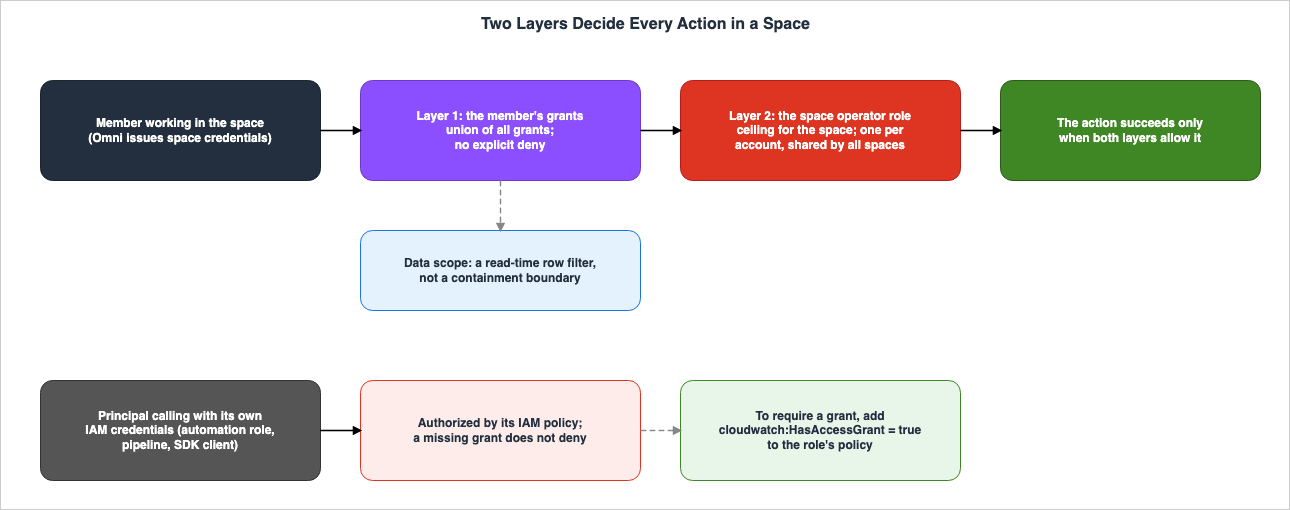
Omni has two mechanisms for determining access. As mentioned in the IAM chapter, these two mechanisms are related as follows:IAM controls who can reach CloudWatch Omni and what the service may do in your account. Access to the contents of a space is a second, separate decision, evaluated inside the space. Both apply to every request.This section will examine IAM, grant, the layer where they overlap, calls that are not affected by grant, and data scope.
7.1 The IAM Side — Signing Actions in the CloudWatch Namespace
Omni utilizes the CloudWatch identity. The IAM chapter describes this as follows:Actions are in the cloudwatch namespace and requests are signed with the cloudwatch Signature Version 4 signing name. The endpoint prefix differs from the signing name: requests go to cloudwatch-omni.{region}.api.aws but sign as cloudwatch.Omni's actions reside in the same
cloudwatch namespace as existing CloudWatch actions. If your IAM policies use wildcards for cloudwatch: actions, you should review whether Omni's actions are included in those policies. Management operations are logged in AWS CloudTrail with the event source cloudwatch.amazonaws.com.According to the IAM chapter, Omni does not support resource-based policies, nor does it support ACLs. Space membership and grants determine fine-grained access within a space. The resource types that can be specified in IAM policies are:
access-grant, access-profile, alert, dataset, domain, integration, omni-dashboard, space, and view. For domains and grants that belong to an organization, the identifiers organization-domain and organization-access-grant are used.7.2 The Grant Side — Four Permission Levels and a Simple Additive Structure
When members are added to a space, a grant is created, assigning a level of permissions. Entities that hold a grant (referred to as principals) can be users, groups, IAM users or IAM roles, access profiles, or Omni alerts. The domain's identity provider supplies the users and groups that can be added, while IAM users and IAM roles belong to the space's account.A grant can have one of four permission levels:
| Permission Level | Actions Allowed |
|---|---|
Viewer | Read-only access to the entire space, including queries and the Omni agent. |
Editor | All Viewer permissions, plus the ability to create, modify, and delete resources, execute queries, and manage datasets. |
Space Admin | All permissions, including the ability to manage members and their permissions. |
Custom | Only the specific actions defined. It's also possible to restrict the resources to which the grant applies. |
When creating a grant via the API, the names of the values are different. The
permission field in the CreateAccessGrant API Reference accepts four values: SPACE_ADMIN, READ, READ_WRITE_DELETE, and CUSTOM. The principal type is also specified in the API's principalType field, which accepts eight values: IDC_USER, IDC_GROUP, IAM_USER, IAM_ROLE, IAM_ROOT, ACCESS_PROFILE, ALERT, and AGENT. This is a larger set of types than listed in the user guide.Grants are additive; they build upon each other. As stated on the Control access to your space page:
A member can hold grants directly and through groups, and the grants combine: their effective access is the union of what all the grants allow. For the tiered levels the highest one wins, and a Custom grant adds exactly the actions it lists. There are no explicit denies; a grant only ever adds access.The IAM chapter describes the same concept from an auditing perspective. You cannot reduce access by adding grants; you reduce access by deleting the grant that provides it. Even when a tiered grant is used to restrict the scope of actions, only the explicitly listed actions are restricted; other actions associated with that tier remain available. If you need to allow only a specific set of actions, use a
Custom grant, which functions as an allowlist.Managing grants involves several rules. IAM roles or users who create a space are automatically assigned a system-managed
Space Admin grant, making them the initial Space Admin. A space must always have at least one Space Admin, and the grant that designates the final Space Admin cannot be deleted. No principal can edit or delete their own grant. Grants created by the service cannot be edited or deleted either.An access profile serves as an identity for resources that operate when no user is signed in. For example, Omni alerts evaluate queries according to a schedule. An access profile can have
Viewer, Editor, or Custom permissions, but it cannot have Space Admin permissions. When a space is created, the system also creates a system-managed access profile called DefaultAccessProfileForAsyncWorkflows. This profile is created without any permissions.7.3 Two Layers — The Grant Does Not Exceed the Space Operator Role
For operations within a space to succeed, two conditions must be met. The first is that the member's permission level must allow the operation being requested. The second is that the IAM role assumed by the space must possess the necessary AWS permissions for that operation. The Control access to your space page refers to this role as the Omni Space Access role, while the IAM chapter refers to it as the space operator role.The IAM chapter describes the role's position as follows:
Raising a member to Space Admin adds no permission that this role does not already hold, so the role is the ceiling for everything in the space. One operator role serves every space in the account, so that ceiling is account-wide. You cannot separate two spaces from each other by giving them different operator roles.The space operator role is associated with the
CloudWatchOmniSpaceAccessPolicy as its base policy. When the service-linked role creates this role, it attaches the same policy as a permissions boundary, effectively limiting the role's effective permissions within that scope.The IAM policies to use CloudWatch Omni page details the contents of this policy in two key points. First, all actions related to space operations require that
cloudwatch:HasAccessGrant is true. Principals without a grant for the space will not be able to use those actions. Second, it explicitly denies three tagging actions for all resources except those of the Omni resource types. The page explains that this denial is intended to prevent space sessions from tagging classic CloudWatch resources, such as alarms and CloudWatch dashboards, to gain access on a resource-by-resource basis.Since a space exists only once per account and Region, multiple spaces in the same account reside in different Regions. All of these spaces share the same space operator role as their ceiling.
7.4 Calls That Grants Do Not Constrain — Calling With Your Own IAM Credentials
Access grants restrict the members working within a space. The Security best practices for CloudWatch Omni page states that when calling directly with IAM credentials, the following applies:When a principal calls with its own IAM credentials (an automation role, a build pipeline, or an SDK client), a missing grant does not deny the request. The request is authorized by that principal's IAM policy instead.When members are working within a space, Omni issues credentials for that space, and the member's access is limited to what the grant allows. When automated roles, build pipelines, or SDK clients call using their own IAM credentials, the IAM policy authorizes those calls. The same page advises assigning only the necessary actions to these roles and cautions against assuming that the space's grant can restrict them.
If you also want to require a grant for roles used by programs, add the condition
"cloudwatch:HasAccessGrant": "true" to the role's policy. This ensures that the role's Omni permissions are only active when the caller has a grant for the space. The page recommends placing setup and management actions in a separate statement without this condition, as IAM alone authorizes those operations.In essence, grants do not replace IAM. When members are working with a space's credentials, both are effective. When calling with your own IAM credentials, the IAM policy will authorize the call unless a condition key is specified.
7.5 Data Scope Is Not a Boundary
You can apply a data scope to a grant. A data scope filters the log and trace entries when they are read. This filtering applies to queries, dashboards, traces, and responses from the Omni agent. The Control access to your space page describes the data scope as follows:A data scope is a read-time filter on those rows, not a containment boundary for the space.Data scope has limitations. It does not filter metrics. It also doesn't apply to creating and exporting datasets, AI-powered summarization, or prompt playground runs. A data scope applied to one grant does not restrict other grants. If you have a second grant without a data scope, including one inherited through a group, you will be able to see everything. The data scope filters rows, but all fields within those visible rows are accessible.
As described in Section 4.2, the account and Region define the boundaries of a space. A data scope is used to filter rows within those boundaries.
8. Multiple Accounts and Regions — Aggregate With CloudWatch, Show in the Space
To view telemetry from multiple accounts within a single space, you need to aggregate that telemetry using CloudWatch. This section will outline that Omni does not aggregate on its own, how to configure the centralization rules for collecting telemetry, and the differences between this approach and cross-account observability, which can sometimes be easily confused.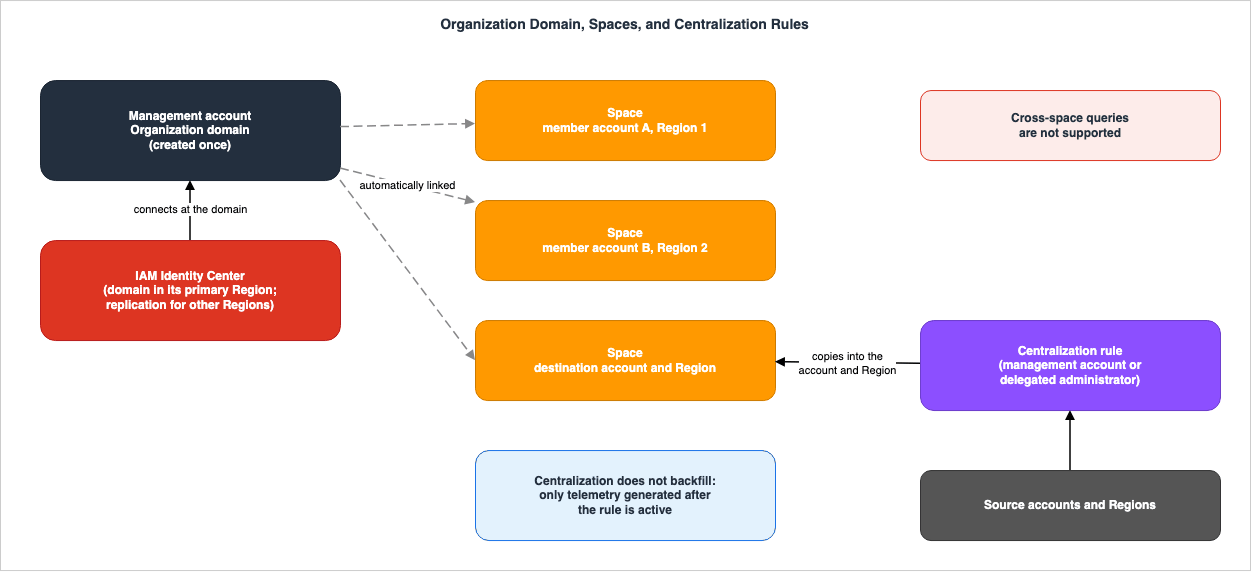
8.1 Omni Does Not Aggregate Telemetry on Its Own
The third item under the section How Omni relates to CloudWatch addresses aggregation, stating:Centralization stays with CloudWatch. Omni does not aggregate telemetry across accounts and Regions on its own. Telemetry you centralize with CloudWatch centralization rules appears in your space like any other telemetry.The wording of the announcement and the FAQ can be read more broadly. The What's New announcement states:
With CloudWatch Omni, you create spaces in your central accounts to see telemetry across your AWS accounts and Regions, as well as other clouds, including Azure workloads. The FAQ states: Omni provides a unified space for all telemetry across AWS accounts, Regions, and other clouds, including Azure workloads. Neither mentions centralization rules. When combined with the user guide, it becomes clear that to view telemetry from multiple accounts and Regions within a single space, you need to use centralization rules to aggregate the telemetry into the space's account and Region. The space displays telemetry that exists within that account and Region.8.2 Centralization Rules — CloudWatch Configuration
Centralization rules are a feature of CloudWatch. The organization page describes the contents of a centralization rule as follows:- A rule specifies the source accounts and Regions from which data is collected, as well as the destination account and Region where the data will be replicated.
- Set the destination to the account and Region that hosts the space.
- Creating a rule requires AWS Organizations and is done by the management account or a delegated administrator.
- Rules can be created before or after a space is created. Collected telemetry will only appear in the space after both the space and the rule are active.
Rules are created in the CloudWatch console. The pages detailing log and metric centralization outline the steps to select Configure rule on the Organization tab under Settings for the management account or delegated administrator. The metric centralization page also lists prerequisites, including that the source and destination accounts must belong to the same organization, and that trusted access for CloudWatch must be enabled within AWS Organizations.
There are several conditions regarding data collection. According to the organization page, centralization does not apply retroactively. Only telemetry generated after the rule is active will be replicated to the destination. To collect traces, enable Transaction Search on all source accounts. Once it is enabled, traces are also collected automatically when log centralization is active. When enabling the Context Graph as part of centralization rules, the Omni application map will include services from all source accounts.
Queries that span spaces are not supported (see Section 4.2). Determining which account and Region to collect telemetry into is the same decision as deciding where to create spaces.
AWS History and Timeline regarding Amazon CloudWatch discusses the history of log centralization.
8.3 Distinguishing Cross-Account Observability
CloudWatch offers several mechanisms for viewing data across accounts, in addition to centralization rules. The Monitor across accounts and Regions page in the user guide compares three distinct features.| Comparison Point | CloudWatch Cross-Account Observability | Cross-Account Cross-Region CloudWatch Console | Cross-Account Cross-Region Centralization |
|---|---|---|---|
| Mechanism | Uses Observability Access Manager (OAM) sinks and links to share data. | The monitoring account assumes the CrossAccountSharingRole in the source account. | Leverages AWS Organizations trusted access to copy logs and metrics to a destination account via rules. |
| Telemetry Handled | Metrics, traces, and logs | Metrics and traces | Logs and metrics |
| Moves Telemetry | No (except for traces that are copied) | No | Yes |
| Cross-Region Support | No | Yes | Yes |
| AWS Organizations | Supported | Supported | Required |
The table indicates that centralization handles logs and metrics. However, the Omni organization page states that, when Transaction Search is enabled in the source account, traces are also collected and centralized along with the logs. This section presents the two descriptions as they appear in their respective sources.
The only aggregation mechanism named in the Omni documentation that this article references is centralization rules. The referenced documentation (the 59 pages of the Omni chapter in the user guide, and the Welcome page in the API Reference) does not mention Observability Access Manager, cross-account observability, or monitoring accounts. The documentation also does not specify whether telemetry shared via links will appear within a space when a space is created in an OAM monitoring account. This article will not speculate or make assumptions on this matter. Section 8 of the AWS Observability Architecture Guide covers the functionality of OAM.
9. Potential for Misunderstanding
Below are areas where misunderstandings are likely, based on the documentation:- Understand that the statement that nothing changes applies to a specific set of components. AWS explicitly states that seven elements remain unchanged: console pages, metrics, logs, alarms, dashboards, Logs Insights queries, and APIs. The space setup pages list three CloudWatch features that activate when a space is created. Notably, span ingestion involves Transaction Search, an account-wide setting. IAM roles and an AWS Config recorder are also created (Section 3).
- Do not assume that Omni aggregates telemetry from multiple accounts. CloudWatch centralization rules aggregate it; Omni itself does not (Section 8.1).
- Do not assume that creating a space in the OAM monitoring account allows you to view telemetry shared via links. The Omni documentation does not mention OAM (Section 8.3).
- Do not assume that space grants can restrict calls made with IAM credentials. Even without a grant, calls will be authorized if the IAM policy permits. To enforce restrictions, you must include the
cloudwatch:HasAccessGrantcondition (Section 7.4). - Remember that grants only add permissions; they do not explicitly deny access. There are no explicit denials, and grants simply augment existing permissions (Section 7.2).
- Do not use data scopes as boundaries. Data scopes filter rows during read operations but do not apply to metrics, dataset creation and export, or AI-powered summarization (Section 7.5).
- Do not assume that masking policies on log groups also apply to the telemetry in the Dataset. CloudWatch Logs data protection policies do not apply to the Dataset, and a masking policy does not carry over (Section 4.3).
- Do not try to isolate spaces by assigning a separate space operator role to each. A single space operator role exists per account, and all spaces within that account share it (Section 7.3).
- Do not assume that there is a process to migrate CloudWatch alarms to Omni alerts. AWS states that these are distinct components. The documentation reviewed for this article does not describe a migration process (Section 5.2).
- Do not create the Organization domain in a different Region from IAM Identity Center. If you are using Identity Center, create the Organization domain in the primary Region for Identity Center (Section 6.3).
10. Frequently Asked Questions about CloudWatch Omni and CloudWatch
This section provides brief answers to common questions that teams already using CloudWatch might have about Omni, based on the information presented here.Q1. Will enabling Omni affect existing alarms or dashboards?
No, it will not. The CloudWatch Omni page states that existing console pages, metrics, alarms, dashboards, Logs Insights queries, and APIs will continue to function as before. Omni alerts and dashboards are separate from CloudWatch's existing alarms and dashboards. However, the space setup pages list three CloudWatch features that are enabled when you create a space. One of these, span ingestion, involves Transaction Search, which is an account-wide setting. IAM roles and an AWS Config recorder will also be created. See Section 3 for more details.Q2. Will enabling Omni mean you no longer need to use the CloudWatch console?
You will continue to use it. Configuration of log groups, retention periods, ingestion endpoints, CloudWatch alarms, and centralization rules is performed in the CloudWatch console. Creation of domains and spaces, as well as management ofSpace Admin, is also handled in the CloudWatch console. The Omni web UI is used for managing other permission levels, data scope, access profiles, and Omni alerts and dashboards, among other functions. See Section 2.3 for details.Q3. What is required to view telemetry data from multiple accounts within a single space?
To view telemetry from multiple accounts in a single space, you need CloudWatch centralization rules. Either the AWS Organizations management account or a delegated administrator must create these rules, with the destination set to the account and Region that hosts the space. Note that centralization does not retroactively collect telemetry data prior to the rule's activation. To collect traces, enable Transaction Search on the source accounts. Cross-space queries are not supported.Q4. If you have monitoring accounts for cross-account observability (OAM), is it then unnecessary to implement centralization rules?
The Omni documentation reviewed for this article does not answer this question. The only aggregation mechanism the documentation names is centralization rules, and it makes no mention of OAM. The comparison page in the user guide lists OAM and centralization as separate features, noting that OAM does not span Regions and does not move telemetry, except for traces that are copied.Q5. Which takes effect: the grant or the IAM policy?
For members working within a space, both grant and IAM policies apply. An operation will only succeed if the member has a grant that permits the operation, and if the space operator role possesses the necessary AWS permissions. If a principal directly invokes something using its own IAM credentials, the IAM policy authorizes the call even without a grant. To require a grant, you must include thecloudwatch:HasAccessGrant condition in the role's policy.Q6. Can a limited number of members be shown only a portion of the logs?
With a data scope, it's possible to filter log and trace entries during read operations. However, the data scope does not represent a boundary. It does not apply to metrics, nor does it affect dataset creation and export, AI-powered summarization, or the execution of the prompt playground. If another grant exists without this data scope restriction, everything will be visible. Regarding metrics, the Security best practices for CloudWatch Omni page specifies that members who should not see a metric should not be granted the ability to read metrics. The account and Region define the boundaries of the space.Q7. How many spaces can be created for a single account?
You can create only one space per account and Region combination. Even with the same account, you can create different spaces if the Region is different. However, the space operator role is limited to one per account, and this role's ceiling is shared across all spaces within that account.Q8. Does the user need an AWS account to use the web UI?
The CloudWatch FAQ states that users accessing the web UI can sign in through IAM Identity Center using their existing corporate SSO credentials, and that they do not require AWS credentials, access to the AWS console, or an AWS account. In domains where an identity provider is not connected, users can sign in using either an IAM user or an IAM role. The IDE extension page states that connecting to an AWS account is not required for local mode. However, the tutorial connects an AWS account even in local mode when the agent calls Amazon Bedrock.11. Summary
The general availability of Amazon CloudWatch Omni was announced on What's New on September 23, 2026 (UTC). The user guide defines Omni as an interface and set of workflows built on top of CloudWatch, explicitly statingIt is not a replacement. This article addresses three key considerations for teams already using CloudWatch, in the scope that AWS states explicitly.What happens to existing CloudWatch configurations when Omni is enabled? Seven elements, as named by AWS, remain unchanged: console pages, metrics, logs, alarms, dashboards, Logs Insights queries, and APIs. Instrumentation does not need to be modified. Settings for log groups, retention periods, and ingestion endpoints will continue to be configured in the CloudWatch console. A masking policy configured on log groups does not carry over to the Dataset. However, the space setup pages list three CloudWatch features that are enabled within an account and Region when a space is created. One of these, span ingestion, involves Transaction Search, which is an account-wide setting. The documentation does not specify whether the setup process always enables Transaction Search. IAM roles are created, along with an AWS Config recorder in the space's Region, and within organizations, integration roles and an AWS Config recorder are provisioned in member accounts.
What needs to be configured within CloudWatch to view telemetry from multiple accounts with Omni? This involves creating CloudWatch centralization rules. Omni itself does not aggregate telemetry across accounts. There is one space per account and Region, and cross-space queries are not possible. When the destination for centralization rules is set to the account and Region where a space exists, the collected telemetry will appear within that space, just like any other telemetry. The documentation reviewed for this article does not state whether telemetry shared via OAM will appear within a space.
Is who sees what decided with IAM or with grants? Both are used. Grants control access within a space, and multiple grants are combined using a union. Grants have no explicit denials. The space operator role is the ceiling for access within a space and is limited to one role per account. IAM policies authorize entities that directly invoke Omni using their own IAM credentials, unless the condition key is used. Data scope filters rows but does not represent a boundary.
The third column of the carry-over table indicated, for all nine rows, that configurations either remained unchanged or would continue within CloudWatch. When compared with the tables in the articles about EventBridge and Firewall Manager, it becomes clear that the introduction of new products and the replacement of existing ones are separate events.
Finally, here are four things to verify before enabling Omni. If you are already using X-Ray, have you documented the current configuration of Transaction Search before creating a space? If you want to view multiple accounts in one space, have you determined the destination for your centralization rules, as well as the account and Region where you will create the space? If your automation roles or pipelines call Omni, have you decided whether to include the
cloudwatch:HasAccessGrant condition? If you are using IAM Identity Center, can you create an Organization domain in its primary Region? After answering these four questions, you can enable Omni, ensuring that you understand what the documentation states and what it does not, and that you can properly position Omni alongside CloudWatch.12. References
- CloudWatch Omni - Amazon CloudWatch User Guide
- Set up Omni - Amazon CloudWatch User Guide
- Set up Omni for your organization - Amazon CloudWatch User Guide
- Set up Omni for a single account - Amazon CloudWatch User Guide
- Send telemetry to CloudWatch Omni - Amazon CloudWatch User Guide
- Explore and query your telemetry - Amazon CloudWatch User Guide
- Alerts - Amazon CloudWatch User Guide
- Dashboards - Amazon CloudWatch User Guide
- Monitor applications with the application map - Amazon CloudWatch User Guide
- Control access to your space - Amazon CloudWatch User Guide
- Manage space members and permissions - Amazon CloudWatch User Guide
- Access profiles - Amazon CloudWatch User Guide
- Limit what members can see - Amazon CloudWatch User Guide
- Identity and access management for CloudWatch Omni - Amazon CloudWatch User Guide
- AWS managed policies for CloudWatch Omni - Amazon CloudWatch User Guide
- Security best practices for CloudWatch Omni - Amazon CloudWatch User Guide
- Protect sensitive data - Amazon CloudWatch User Guide
- Using AWS Config for resource discovery - Amazon CloudWatch User Guide
- Cross-Region inference in CloudWatch Omni - Amazon CloudWatch User Guide
- Tutorial: Fix a production quality regression - Amazon CloudWatch User Guide
- Develop with the IDE extension - Amazon CloudWatch User Guide
- What is Amazon CloudWatch? - Amazon CloudWatch User Guide
- Monitor across accounts and Regions - Amazon CloudWatch User Guide
- Cross-account cross-Region metrics centralization - Amazon CloudWatch User Guide
- Cross-account cross-Region log centralization - Amazon CloudWatch Logs User Guide
- Transaction Search - Amazon CloudWatch User Guide
- Enable transaction search - Amazon CloudWatch User Guide
- Welcome - CloudWatch Omni API Reference
- Amazon CloudWatch Omni: AI-first observability for agents and applications - What's New
- Introducing Amazon CloudWatch Omni: Observability for the AI Era - AWS Cloud Operations Blog
- Amazon CloudWatch FAQs
References:
Tech Blog with curated related content
Written by Hidekazu Konishi