Amazon EC2 Application Status Checks - Where the Probe Comes From, What Marks an Instance Impaired, and Who Acts When It Fails
First Published:
Last Updated:
running state, the EC2 system status checks and instance status checks consistently returned ok results. The Auto Scaling group continued to consider these instances healthy. That the workers were not responding came to light only after a backlog of jobs began to accumulate.On August 10, 2026, Amazon EC2 introduced application status checks. Users now declare the protocol, port, path, and expected response codes that indicate a healthy state. Amazon EC2 sends HTTP or HTTPS requests to the associated instances every 60 seconds and reports the results as the application status. If an instance belongs to an Auto Scaling group, Amazon EC2 Auto Scaling will replace instances that have an application status of
impaired. Even in configurations without a load balancer, it is now possible to automatically replace instances whose application is not responding.However, this mechanism is not centralized. The location where healthy conditions are declared is Amazon EC2, while the service responsible for performing the replacement is Amazon EC2 Auto Scaling. Requests arrive from outside the instance, passing through a managed ENI (Elastic Network Interface) created by AWS in the VPC. Because the declaration location and the enforcer are separate services, it is not possible to fully understand the entire system by simply examining the configuration screen of either service. Questions such as whether healthy instances might be replaced due to applications that are expected to be temporarily unavailable during deployments or patching require answers that span both services.
This article dissects this mechanism. It does not provide a general discussion of health checks or a design guide for application monitoring. Instead, it outlines four perspectives for defining the health conditions declared by users: where the requests come from, what constitutes an
impaired state, who responds to that condition, and what grace period is provided before action is taken. It then adds details on methods for preventing replacements during deployment, and clarifies the differences between health checks in Elastic Load Balancing, Amazon Route 53, and Amazon ECS. The intended audience is operations personnel who run Auto Scaling groups without a load balancer (or cannot place one) and want to automatically replace instances whose application has stopped responding. These readers likely have a general understanding of existing health checks and are seeking to understand where new application status checks fit in.Three boundaries are set first. This article does not cover the design of health checks for load balancers. The parameters for target group health checks are documented in AWS Elastic Load Balancing Decision Guide. It also does not address DNS failover. Health checks and failover in Route 53 are covered in Route 53 Health Check and Failover. Finally, it does not address the trap in the default grace period for Auto Scaling group health checks. This information can be found in Section 7.4 of Surviving Forced Maintenance on AWS.
All specifications presented in this article have been verified against AWS primary sources. The verification date is September 24, 2026. Since application status checks were introduced on August 10, 2026, the user guide descriptions may be subject to revision. Where the primary sources do not state something, this article says so. Where the primary sources disagree with each other, the disagreement is listed as is in Chapter 10.
Table of Contents
- An Application That Stops Answering, With No Load Balancer in Front
- The Anatomy of a Declaration - Five Questions Asked of Three Parts
- The Only Status Check You Define
- Where the Probe Comes From
- What Marks an Instance Impaired
- Who Acts on an Impaired Instance
- Two Grace Periods
- When the Check Should Stop Counting
- How Application Status Checks Differ From ELB, Route 53, and ECS Health Checks
- When a Replacement Fails or a Check Cannot Run
- Failure Modes and Anti-Patterns
- Frequently Asked Questions
- Summary
- References
1. An Application That Stops Answering, With No Load Balancer in Front
It's important to understand that an instance being active and an application running on that instance responding are separate issues. This chapter will clarify how application status checks address this gap, and outline the scope of this article.1.1 When the Instance Is Running but the Application Is Not
EC2 system status checks and instance status checks verify the system supporting the instance and the instance's reachability, respectively. Instance status checks confirm health by sending ARP requests to the instance's network interface. Neither of these checks determines whether the application running on the instance responds to requests.By default, Auto Scaling groups use the results of these EC2 status checks to determine health. When you want to factor in application responsiveness, previous methods have fallen into two categories. One involves using an Elastic Load Balancing load balancer or a VPC Lattice target group, and turning on those health checks for the Auto Scaling group. The other involves implementing your own monitoring system to detect anomalies and reporting them to the Auto Scaling group as custom health checks. What's New describes the situation as follows:
Customers rely on EC2 status checks today to receive alerts when an instance or the underlying
system is unreachable. However, to monitor application issues, customers had to build and
maintain their own monitoring solution.
Application status checks now provide this second approach as an Amazon EC2 feature. You can now connect application responsiveness to Auto Scaling group replacements without needing a load balancer or building your own monitoring system.
1.2 Declared in Amazon EC2, Enforced by Amazon EC2 Auto Scaling
The key initial understanding is that separate services handle declaration and enforcement. As the Amazon EC2 Auto Scaling user guide states:If instances in your Auto Scaling group have application status checks associated and included
in aggregation, Amazon EC2 Auto Scaling automatically terminates and replaces instances whose
overall application status reports impaired. No additional Auto Scaling group configuration is
required.
Application status checks are created and managed in Amazon EC2, not in Amazon EC2 Auto Scaling.Creating checks and associating them with instances is the responsibility of Amazon EC2. No additional configuration is performed on the Auto Scaling group itself. Amazon EC2 Auto Scaling reads the overall status of instances reported by Amazon EC2, and terminates and replaces instances when that status is
impaired.Furthermore, requests are not sent by the instances themselves. According to the EC2 user guide, requests originate from the application status checks service within Amazon EC2, and are delivered to the instances via managed ENIs (Elastic Network Interfaces) created by AWS in the user's VPC (Virtual Private Cloud) (Chapter 4). The prerequisites listed in the user guide are a VPC, an application endpoint, and security group permissions; it does not mention anything about placing anything in the instance. It is not described as a mechanism for the instance to report its own status.
This article will proceed with the separation of these three components: the location of the declaration (Amazon EC2), the entry point for requests (the managed ENI in the VPC), and the enforcer (Amazon EC2 Auto Scaling).
1.3 What This Article Covers and What It Hands Off
This article covers the definition, association, request pathways, determination criteria, status values, aggregation, and suppression of application status checks. It also addresses their integration with Auto Scaling groups, the two grace periods, and their relationship to other types of EC2 status checks. The differences between health checks in Elastic Load Balancing, Route 53, and Amazon ECS are discussed up to the comparison table.The following topics are already covered by other articles on this site and will not be addressed in this article:
- Parameters for load balancer health checks and the design of deregistration delays, which are detailed in Chapter 6 of AWS Elastic Load Balancing Decision Guide.
- Health checks and failover in Route 53, as well as the design of what responses should be returned from health check endpoints, which are covered in Route 53 Health Check and Failover.
- The discrepancy in default values for Auto Scaling group health check grace periods across the console, CLI, and SDK, as described in Section 7.4 of Surviving Forced Maintenance on AWS.
- Container health checks and task health in Amazon ECS, which are detailed in Amazon ECS Deployment Lifecycle.
- Logs for load balancer health checks, covered in Where the Logs Come From on AWS.
- The date of introduction for Auto Scaling, which is included as a timeline entry in AWS History and Timeline regarding Amazon EC2.
- The date when status check metrics were added to CloudWatch, and the date when automated recovery through alarms became available, also included as timeline entries in AWS History and Timeline regarding Amazon CloudWatch.
- Scenarios where AMI declarations can prevent instance launches, which are detailed in AMI Allowed Instance Types and Launch Governance on Amazon EC2.
2. The Anatomy of a Declaration - Five Questions Asked of Three Parts
Application status checks involve users declaring conditions for health, which AWS then evaluates and enforces at predetermined intervals. However, these declarations are divided into three distinct parts, and cannot be contained within a single setting. This chapter will organize these three parts into a single table, using the same five questions as a framework. Similar tables exist for Amazon S3 protection, as detailed in the article Object Lock, Legal Holds, and Event Holds in Amazon S3, and for determining launch eligibility on Amazon EC2, as described in the article AMI Allowed Instance Types and Launch Governance on Amazon EC2. The table in this article will share the same rows as those in the two aforementioned articles.2.1 Five Questions to Ask of Any Declaration
The rows in the table will contain the following five questions. The row names stay fixed.- Where it is declared — Where is the declaration placed?
- Who can change or remove it — Who can modify or remove it?
- When it is evaluated — When is it evaluated?
- What enforces it — What enforces it?
- What it does not cover — What does it not apply to?
In this article, the second question is the most important. This is because, in application status checks, the paths that stop a replacement are present in each of the three parts.
2.2 The Anatomy Table
The columns represent the three parts of a check declaration. The first column defines the check itself, the second column associates the check with specific instances, and the third column specifies suppression settings for each instance. All three are associated with Amazon EC2, and not with Auto Scaling groups.| Question | Check definition | Association | Suppression |
|---|---|---|---|
| Where it is declared | Checks as Amazon EC2 resources, including protocol, port, path, response code, threshold, InitializationGracePeriodSeconds, and aggregation. | Associating checks with instance IDs or tag rules. | Instance-level. Can be applied with or without a specified duration. |
| Who can change or remove it | Entities within an account that have the authority to modify or delete checks. Changing aggregation to excluded will prevent the check from triggering replacements. | Entities with the authority to disassociate checks. If the association is by tag, anyone who can remove that tag from the instance can also remove the association (users cannot remove tags starting with aws:). | Entities with the authority to apply and remove suppression. |
| When it is evaluated | After the InitializationGracePeriodSeconds has elapsed since the instance's launch, and every 60 seconds thereafter. Changes to the definition take effect from the next evaluation interval. | Tag rules apply to both existing instances and instances launched later. | For the specified duration, or until removed. During this period, the check continues to run. |
| What enforces it | Amazon EC2 evaluates and reports the overall status, and Amazon EC2 Auto Scaling terminates and replaces instances with an impaired status. | Same as the Check definition column. | Amazon EC2 reports the overall status as suppressed, and Amazon EC2 Auto Scaling will not take action on that instance. |
| What it does not cover | excluded checks. Validation of server certificates. Redirection targets. Replacement of instances not belonging to an Auto Scaling group. | Instances that are not associated. Targets beyond the Targets per account quota. | The evaluation of individual checks themselves. The evaluation process does not stop. |
The verification date is September 24, 2026. The basis for each cell in the table is provided in the corresponding sections of Chapters 4 through 10, along with the primary source materials.
2.3 How to Read the Table
Reading the table vertically reveals three key points.First, the "Where" row indicates that all three columns relate to Amazon EC2. The definition is placed on the check resource, the association is attached to that check, and the suppression is applied to the instance. Auto Scaling groups have no declarations associated with them. Conversely, the "What enforces" row shows that in all three columns, Amazon EC2 Auto Scaling determines whether a replacement will occur. When reviewing declarations, focus on Amazon EC2; when reviewing enforcement results, focus on the Auto Scaling group.
Second, the "Who" row demonstrates three potential paths to prevent a replacement. Changing the aggregation to
excluded or removing the association (if it was established through tags, removing the tag also works) prevents the check from triggering a replacement. Applying suppression will prevent the instance from being replaced due to its application status. The first two options affect the check, while the final option affects the instance. How to handle the permissions for these three operations is discussed in Section 8.7.Third, the "What it does not cover" row clarifies that suppression does not halt evaluation. Even while suppression is active, individual checks continue to run and their values continue to update. What stops is only the counting of those results in the overall status and the replacement that would follow (as described in Section 8.1).
3. The Only Status Check You Define
Amazon EC2 status checks have expanded to four types with the addition of application status checks. This chapter will clarify the unique characteristics of application status checks, and where their results are reflected.3.1 Four Types of Status Checks
The EC2 user guide describes status checks as follows:Amazon EC2 provides four types of status checks: system, instance, attached EBS, and
application. System, instance, and attached EBS status checks are managed by Amazon EC2 and
run automatically on every instance. Application status checks are opt-in and monitor the HTTP
or HTTPS responses of applications running on your instances.System, instance, and attached EBS status checks are managed by Amazon EC2 and cannot be
disabled or deleted. Application status checks are opt-in; you create, associate, and manage
them yourself.Of these four types, Amazon EC2 automatically runs three on all instances, and users cannot disable or delete them. Only application status checks are opt-in, allowing users to create, associate, and manage them. Application status checks only run on the associated instance.
| Status Check | What it Checks | Who Defines It | Metrics on Failure |
|---|---|---|---|
| System Status Checks | The AWS systems that support the instance | Amazon EC2 | StatusCheckFailed_System |
| Instance Status Checks | The instance's software and network connectivity | Amazon EC2 | StatusCheckFailed_Instance |
| Attached EBS Status Checks | Whether the attached EBS volumes are reachable and I/O operations can be completed | Amazon EC2 | StatusCheckFailed_AttachedEBS |
| Application Status Checks | Whether the application responds to HTTP or HTTPS requests | User | StatusCheckFailed_Application |
3.2 What an Application Status Check Adds, and What It Leaves to the Others
The EC2 user guide lists four examples of scenarios that can cause application status checks to fail. These include: the application process crashing or becoming unresponsive; the application returning HTTP response codes indicating internal errors; the application becoming unreachable on its designated port; and the instance becoming unresponsive due to a software or underlying hardware issue.As the fourth example illustrates, a failure in application status checks doesn't necessarily indicate a failure in the application itself. Even if the instance itself becomes unresponsive, the application status checks will still fail. The troubleshooting section of the user guide also lists verifying the Instance and System status checks as the first step, ensuring they are reporting
ok. Therefore, application status checks alone are not sufficient to determine whether an application has failed. It's important to review the results of other status checks in conjunction with the application status checks.3.3 Where the Result Appears
The results of the application status checks can be accessed through three different channels:- CloudWatch Metrics — The
StatusCheckFailed_Applicationmetric represents the overall status of the instance. It aggregates values only for checks configured withincluded. Additionally, a metric namedStatusCheckFailed_Application_application-status-check-idis published for each individual check. describe-instance-status— This command returns the overall status alongside the results of other status checks for the instance.describe-application-status— This command returns the values for each individual check for each instance, and for failed checks, it returns the HTTP response code returned by the application.
The user guide's guidance is to use the CloudWatch metric for alarm-driven automation,
describe-instance-status if you already query it for instance status, and describe-application-status for per-check detail. The following is an example response from describe-application-status as shown in the user guide.aws ec2 describe-application-status \
--instance-ids i-0123456789abcdef0{
"ApplicationStatuses": [
{
"InstanceId": "i-0123456789abcdef0",
"ApplicationStatus": {
"Status": "ok",
"Details": [
{
"ApplicationStatusCheckId": "asc-1234567890abcdef0",
"Status": "passed",
"Reason": {
"Code": "ResponseCodeMatched",
"StatusCode": 200,
"Protocol": "HTTP"
}
}
]
}
}
]
}The outer
Status indicates the overall status of the instance, while the Status within Details represents the value of each individual check. The two Status fields have different possible values (see Section 5.3).4. Where the Probe Comes From
Requests for application status checks originate from the Amazon EC2 service, travel through managed ENIs created by AWS in the VPC, and reach the instance's port. These requests do not originate from inside the instance itself. This chapter will outline the path these requests take and detail the permissions users must grant for them to traverse this path. This article calls the HTTP or HTTPS request that a check sends the probe.4.1 From the Service, Through a Managed ENI, to Your Instance
The EC2 user guide describes network configuration as follows:Application status checks originate from the Amazon EC2 application status checks service. To
reach your instances, AWS creates a managed elastic network interface (ENI) in your VPC.The source of the probe is the Amazon EC2 application status checks service. From the instance's perspective, the probe originates from a managed ENI in the VPC. For AWS managed network paths, which Section 4.3 describes, the user guide states:
With AWS managed network paths, health check traffic originates from AWS managed Amazon EC2
instances in the same Availability Zone as the target instance (or the parent Availability
Zone for Local Zone targets). The traffic travels over the AWS internal network and does not
traverse the public internet.
In AWS managed network paths, the probe travels through AWS's internal network and does not traverse the public internet. AWS creates and manages the managed ENIs through a service-linked role. Users do not need to configure IAM to create these ENIs. The service-linked role utilizes the AWS managed policy
EC2ApplicationStatusChecksServiceRolePolicy.4.2 One Managed ENI per Source Subnet and Security Group
The number of managed ENIs is not determined by the number of associated instances.AWS creates one ENI per combination of source subnet and security group that has associated
instances. AWS creates the managed ENI when an application status check first requires that
combination, and removes it when no remaining application status check requires it.In the user guide example, if 200 instances are divided into two subnets and all instances use a single security group, then there will be two managed ENIs. If the same 200 instances are divided into two subnets and use three security groups, the maximum number of managed ENIs will be six. By grouping instances that are monitored within fewer combinations of subnets and security groups, you can reduce the number of managed ENIs.
Managed ENIs are not counted against the per-instance ENI limit. However, they are counted against the "Network interfaces per Region" quota for your account. This quota is applied on a per-Availability Zone basis.
By default, managed ENIs may not be visible in the console or API listings.
By default, Amazon EC2 hides these managed network interfaces from the console and API list
operations for accounts that did not have managed resources before this setting became
available.
Whether or not they are displayed can be controlled through the "managed resource visibility" setting in Amazon EC2. The table for this setting includes network interfaces created by Amazon EC2 Application Status Checks. This setting only affects visibility. The user guide states that this setting does not affect the operation or access permissions of the resources. Even if they are not visible, managed ENIs still exist and consume quota (see Section 11.8).
4.3 AWS Managed and Customer-Managed Network Paths
The probe's path can be selected from two options:- AWS managed network paths: AWS selects the source subnet and security group of the managed ENI sending the probe, as well as the subnet and security group of the destination instance.
- Customer-managed network paths: The user specifies these.
Whether you include the
--health-check-paths parameter when creating the check determines the method. If the parameter is not included, AWS managed network paths are used; if it is included, customer-managed network paths are used. The console recommends and defaults to the "Do not specify network paths" option. The user guide suggests using customer-managed network paths in scenarios where strict network isolation or firewall rules are required within a VPC, or when there are compliance requirements that restrict access to application endpoints.The following are examples from the user guide, the first using AWS managed network paths and the second using customer-managed network paths.
aws ec2 create-application-status-check \
        --protocol https \
        --port 443 \
        --path "/health" \
        --status-code-matcher "200"
aws ec2 create-application-status-check \
--protocol https \
--port 443 \
--path "/health" \
--status-code-matcher "200" \
--health-check-paths '[{"Source":{"SubnetId":"subnet-111","SecurityGroupId":"sg-aaa"},"Destinations":[{"SubnetId":"subnet-222","SecurityGroupId":"sg-bbb"}]}]'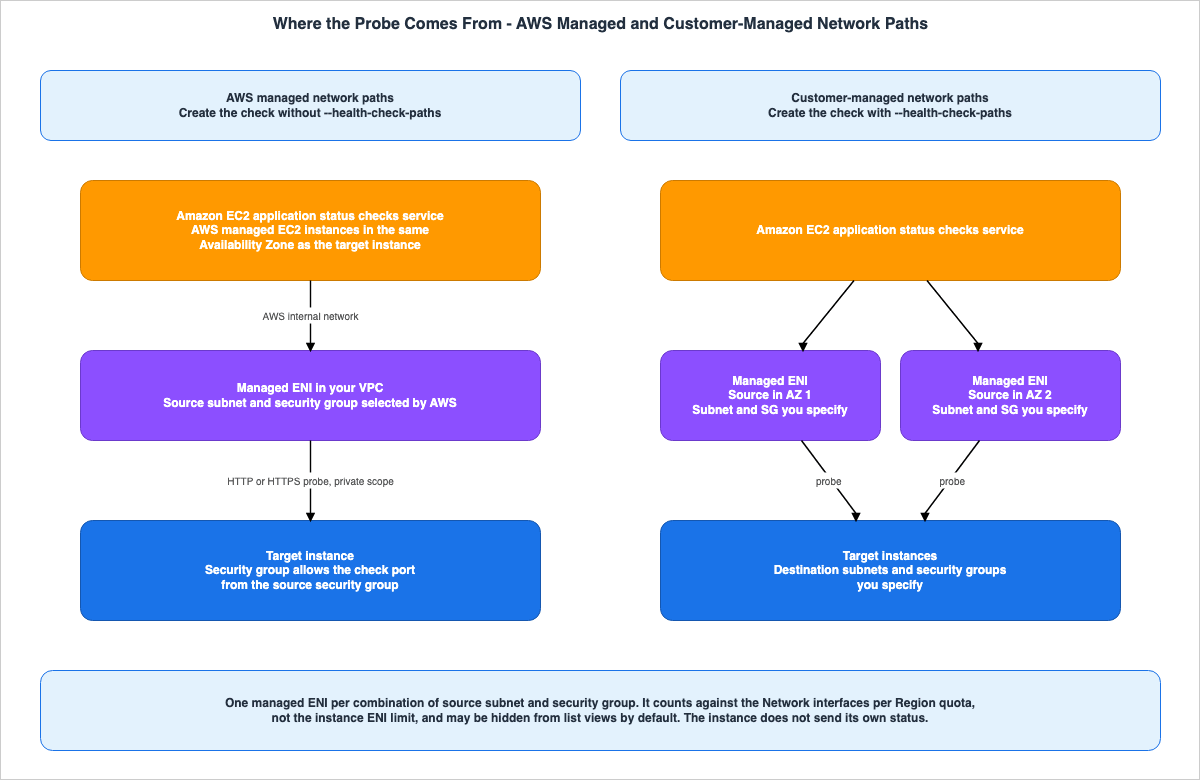
4.4 Private Scope and One IP Version per Check
The probe originates from a private location in the VPC. The user guide states that this scope represents the origin of the check and does not reflect the nature of the instance's IP address. For IPv4, the probe targets the instance's private IP address. For IPv6, AWS does not classify addresses as either public or private; it accepts any IPv6 address and evaluates it from inside the VPC. TheIpScope parameter in the API can only be set to private.Each check can only have one IP version. If you want to monitor an instance over both IPv4 and IPv6, you must create two checks and associate both with the instance. As described in Section 10.3, these two checks will be counted as separate targets.
The network interface the probe targets is specified using the
DeviceIndex. The default value is 0. Change this value if you are not verifying the instance's primary network device.4.5 What Must Let the Probe In
To deliver the probe, the user must grant the following permissions:- Security Group for the Target Instance: Allow inbound communication from the source security group to the port used for the check. With AWS managed network paths, AWS provides the source security group when you create the check. With customer-managed network paths, the security group is the one specified by the user as the source.
- Firewall Within the Instance: The host's firewall (e.g., iptables or Windows Firewall) must also allow inbound communication to the port used for the check.
- Application Listening: The application must listen on the configured port and path, listening to the network interface. If the application only listens on
127.0.0.1, the probe will not reach it (see Section 11.7).
4.6 Local Zones and Monitoring From Two Availability Zones
Instances within Local Zones have managed ENIs (Elastic Network Interfaces) placed in the parent Region, not in the Local Zone itself. Probes reach the instances through service links originating from the parent Region.With customer-managed network paths, it's possible to place the source subnet in a different Availability Zone. The user guide provides configurations that define two paths, each originating from a different Availability Zone, and directing traffic to the same instance.
Monitoring from two Availability Zones keeps health reporting for your instances continuous
even if one Availability Zone becomes unavailable.
With AWS managed network paths, probes originate from the same Availability Zone as the destination (see Section 4.1). If you want to continue receiving health reports even during an Availability Zone outage, configure customer-managed network paths with the source placed in two different Availability Zones.
5. What Marks an Instance Impaired
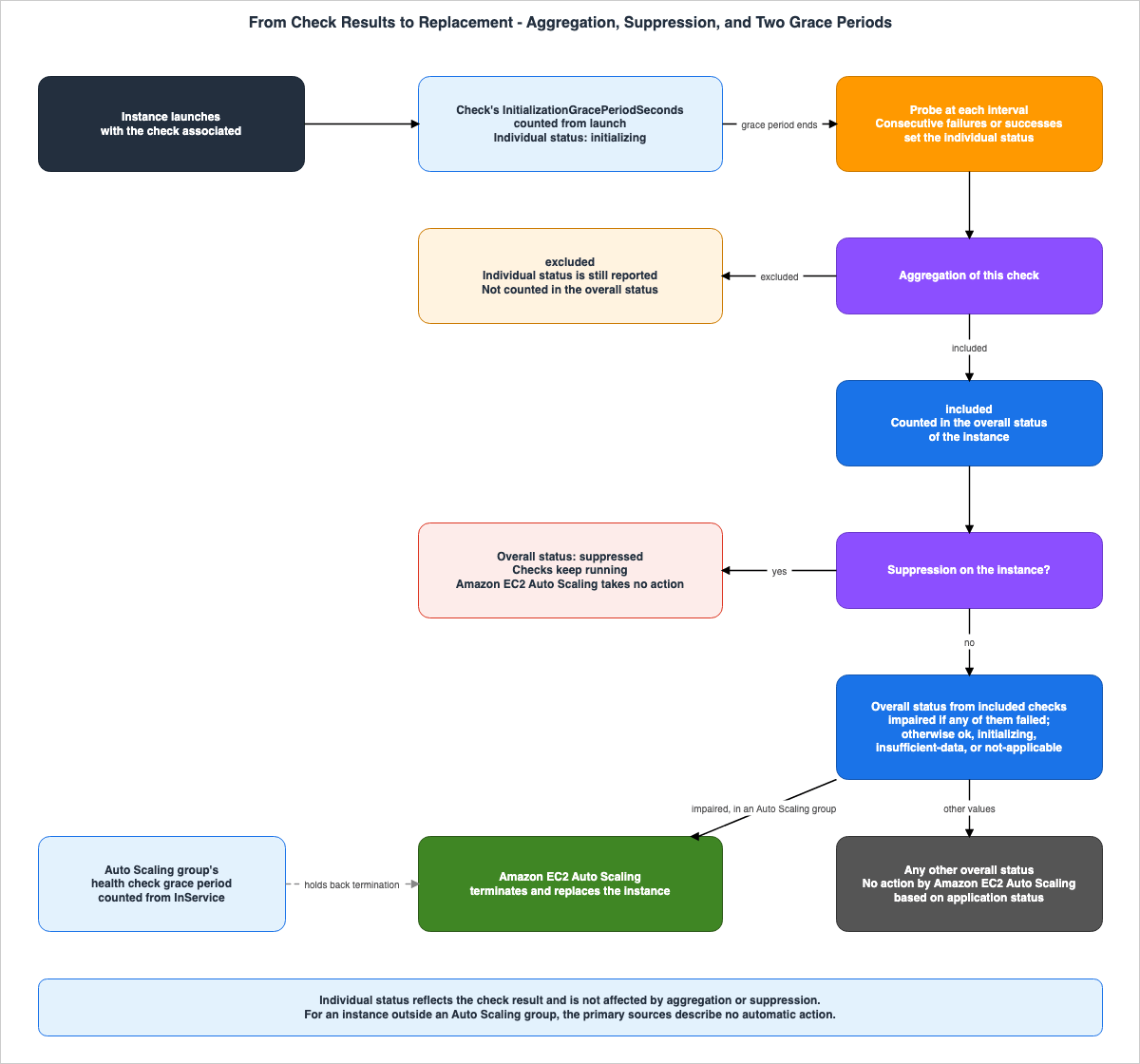
The assessment of application status checks is a two-stage process. Individual checks transition tofailed after a predetermined number of consecutive failures. If any of the included checks is failed, the instance's overall status becomes impaired. However, if suppression is applied to the instance, the overall status is suppressed (see Chapter 8). This chapter will clarify the two-stage criteria, default values, and how to interpret the reasons for failures.5.1 One Request Every 60 Seconds
The check sends an HTTP or HTTPS request to the configured port and path every 60 seconds, verifying the response code against the status code matcher.Application status checks send HTTP or HTTPS requests to an endpoint listening at a network
port on your instance every 60 seconds. AWS compares the response code against the status code
matcher you configured. The check is marked impaired after a number of consecutive failed
requests, and healthy again after a number of consecutive successful requests. Both counts
default to 2 and are configurable.The 60-second interval cannot be changed. The user guide's default values table specifies the interval as "fixed; not configurable." Similarly, the API's
Interval parameter only accepts the value 60. The following parameters are configurable:| Parameter | Meaning | Default | Acceptable Values |
|---|---|---|---|
FailureThreshold | The number of consecutive failures before a failure is recorded. | 2 | Any value greater than 0 |
SuccessThreshold | The number of consecutive successes required to return to a "healthy" state. | 2 | Any value greater than 0 |
Timeout | The number of seconds to wait for a response. If the timeout is reached, any subsequent response will be recorded as a failure. | 6 | 1 to 30. Must be a value less than Interval. |
StatusCodeMatcher | The response codes considered "healthy." Accepts individual values or ranges, separated by commas (e.g., 200,202,300-399). | 200 | Maximum 64 characters |
InitializationGracePeriodSeconds | The number of seconds after the instance launches before the check starts evaluating (see Chapter 7). | 300 | 1 to 600 |
To register a failure, the check requires a number of consecutive failures equal to the value set for
FailureThreshold. With the default value of 2, the check does not become failed until at least one more request, sent 60 seconds after the first failed request, also fails. This figure is this article's own arithmetic from the interval and the threshold.5.2 What the Probe Does Not Do
There are several aspects of the probe's behavior that the user guide notes.Application status checks send the health check request over HTTP/2.
The HTTPS protocol check does not validate the server certificate.
During a reboot, application status checks report a failure until the instance becomes
available again because the application cannot respond to health check requests while the
operating system is restarting.- HTTPS checks do not validate server certificates. This check will not detect expired certificates or name mismatches (see Section 11.6).
- The probe does not follow redirects. The response code table in the user guide states that the probe does not follow redirects. If you specify a path that returns a redirect, you should either specify the destination of the redirect as the path, or add the redirect response code to the status code matcher.
- It will fail during reboots. This is because the application will be unable to respond while the operating system is rebooting. How to handle operations that involve reboots is discussed in Chapter 8.
The probe is sent over HTTP/2. The primary sources do not state what happens when interacting with endpoints that only support HTTP/1.1. Before deploying new checks to production, it is recommended to verify the response in
excluded mode, following the procedure outlined in Section 8.5.5.3 Individual Check Status and Overall Status
Values are divided into two levels: individual check values and the instance's overall status. These two levels have different possible values.There are five possible values for individual checks:
| Value | Meaning in API Reference |
|---|---|
passed | The check reached the success threshold. |
failed | The check reached the failure threshold. |
initializing | Initializing, or has not reached either the success or failure threshold. |
insufficient-data | There is not enough data to determine the result. |
not-applicable | The check is not applicable to this instance. |
There are six possible values for the instance's overall status:
| Value | Meaning in API Reference |
|---|---|
ok | All included checks have a status of passed. |
impaired | At least one included check has a status of failed. |
initializing | At least one included check is initializing, and no included check has failed. |
insufficient-data | At least one included check has insufficient data, and no included check has failed or is initializing. |
not-applicable | None of the included checks apply to this instance. |
suppressed | Suppression is active for this instance. |
impaired is an overall status value and does not apply to individual checks. An individual check that reaches the failure threshold is reported as failed. Combining the two tables, there are eight distinct values, excluding duplicates.The API Reference describes the individual check values as follows:
This value reflects the check result and is not affected by aggregation or suppression.The values for individual checks reflect the result of the check itself, regardless of whether it is
excluded or if suppression is active on the instance. Aggregation and suppression only affect the overall status.5.4 Aggregation - Which Checks Count
For each check, aggregation determines whether it is counted toward the overall status. The default setting isincluded.excluded
The check reports its individual status but does not contribute to the overall status for the
instance and Amazon EC2 Auto Scaling does not use it. Use this setting to validate a new check
in production without affecting the overall status or triggering Amazon EC2 Auto Scaling
replacements.Checks designated as
included count toward the overall status, and Amazon EC2 Auto Scaling uses them. Checks designated as excluded continue to report individual values, but are not counted toward the overall status and are not utilized by Amazon EC2 Auto Scaling. If all checks associated with an instance are set to excluded, the overall status will be set to not-applicable.5.5 Default Settings and the Condition Attached to Them
One sentence that sets a condition precedes the default values table in the user guide.With AWS managed network paths, application status checks use the following defaults.| Setting | Default |
|---|---|
| Check interval | 60 seconds (fixed; cannot be changed) |
| Failure threshold | 2 consecutive failures |
| Success threshold | 2 consecutive successes |
| Timeout | 6 seconds |
| Status code matcher | 200 |
| HTTP path | / |
| IP version | ipv4 |
| IP scope | private |
| Device index | 0 |
| Initialization grace period | 300 seconds |
| Aggregation | included |
| Source subnets and security groups | AWS managed |
The values in this table were taken from the default values section of the user guide on September 24, 2026. This table illustrates the default values for AWS managed network paths. The table for customer-managed network paths is not included in this section. For customer-managed network paths, the user specifies the source subnets and security groups (see Section 4.3). The values in the other rows correspond to the default values listed in the API Reference (Interval: 60 seconds, Timeout: 6 seconds, FailureThreshold: 2, SuccessThreshold: 2, StatusCodeMatcher:
200, InitializationGracePeriodSeconds: 300 seconds).5.6 Reading the Reason Codes
The response fromdescribe-application-status includes a reason for each check. There are six possible reason codes.| Code | Meaning |
|---|---|
ResponseCodeMatched | The HTTP response code received matched the status code matcher. |
ResponseCodeMismatch | The HTTP response code received did not match the status code matcher. |
ConnectionTimeout | The connection timed out. |
ResponseTimeout | The request timed out while waiting for a response. |
ConnectionRefused | The connection was refused. |
ConnectionReset | The connection was reset before a response was received. |
Only when
ResponseCodeMatched or ResponseCodeMismatch occurs, does the reason include the HTTP response code and protocol. In the case of connection errors, neither the response code nor the protocol is provided. The API Reference also notes that older results without structured reasons may contain alternative values such as Http Status Code or HttpConnectTimeoutException.When
ResponseCodeMismatch occurs, the received response code can provide clues to help pinpoint the cause. Here are some common examples, taken from the user guide table:| Response Code | Common Meaning | Remediation |
|---|---|---|
| 301, 302 | The server returned a redirect. The probe does not follow redirects. | Specify the destination URL in the probe path, or add the redirect response code to the matcher. |
| 401, 403 | The path requires authentication or access is denied. | Configure the probe to target a path that does not require authentication. |
| 404 | The path was not found. | Verify that the path in the probe matches the application's route. |
| 502, 503, 504 | The server is reachable but reports an upstream or capacity issue. | If these codes are returned during startup, consider increasing the InitializationGracePeriodSeconds value. |
6. Who Acts on an Impaired Instance
Amazon EC2 evaluates the checks and reports the overall status. It is Amazon EC2 Auto Scaling that replaces instances. This chapter clarifies what Amazon EC2 Auto Scaling monitors and responds to, what it does not, what configurations are unnecessary on the group's side, and what aspects remain relevant.6.1 Amazon EC2 Auto Scaling Acts Only on Impaired
Amazon EC2 Auto Scaling monitors only the overall status of instances; it does not respond to individual check values.Amazon EC2 Auto Scaling also does not act on application status values other than impaired. If
the overall status is ok, initializing, insufficient-data, not-applicable, or suppressed,
Amazon EC2 Auto Scaling takes no action based on application status.Of the six values that comprise the overall status, only
impaired will trigger a replacement. Checks marked as excluded are not counted toward the overall status and will not initiate a replacement. Instances with suppression applied will have an overall status of suppressed and will not be replaced. When an instance's overall status becomes impaired, Amazon EC2 Auto Scaling terminates that instance and launches a replacement instance to maintain the desired capacity of the group.6.2 What "No Additional Auto Scaling Group Configuration" Covers
The EC2 user guide states the following regarding integration with Auto Scaling groups:Amazon EC2 Auto Scaling automatically terminates and replaces instances whose overall
application status reports impaired, as long as the check is included in aggregation. No Auto
Scaling group configuration is required beyond associating the application status check with
the instances in the group.The Amazon EC2 Auto Scaling user guide also states on two pages, "No additional Auto Scaling group configuration is required." This means that no configuration is needed on the Auto Scaling group itself. However, for replacements to occur, the following three elements must be in place on the Amazon EC2 side:
- Create a check.
- Associate the check with the group's instances.
- The check's aggregation must be set to
included.
Furthermore, the health check grace period that the group already has is also relevant to this integration. The Amazon EC2 Auto Scaling user guide, on the application status checks page, specifies that the health check grace period should cover the time it takes for the application on a new instance to begin responding. That no additional configuration is required does not mean that existing settings have no effect (Chapter 7).
6.3 Associating Through the aws:autoscaling:groupName Tag
Association can be established using either instance IDs or tags. For an Auto Scaling group, the method that the Amazon EC2 Auto Scaling user guide shows is theaws:autoscaling:groupName system tag.aws ec2 associate-application-status-check \
--application-status-check-id asc-1234567890abcdef0 \
--target-tag-associations Key=aws:autoscaling:groupName,Value=my-asgAmazon EC2 Auto Scaling automatically applies this tag to every instance in the group. No
launch template changes are required. New instances are associated automatically when they
launch.Amazon EC2 Auto Scaling applies this tag to all instances in the group. If you associate using tags, any new instances launched during a replacement will also be associated at launch, without needing to modify the launch template. The Amazon EC2 Auto Scaling user guide lists associating the check with the group's instances through tags as a prerequisite.
When associating using instance IDs, any new instances launched during a replacement will have a different instance ID. No statement that the association extends to these new instances was found in the primary sources that were checked. It is reasonable to assume that if you associate the check with the group's instances by instance ID, the replacement instances will not be monitored. This is an inference that combines statements in the primary sources (see Section 11.3).
AWS reserves tags that begin with
aws:, and users cannot edit or delete them. Therefore, associations established using the aws:autoscaling:groupName tag cannot be removed by simply removing the tag from the instance. To remove the association, you must use the disassociation operation (Section 8.3).6.4 How This Differs From the Health Check Types You Turn On
The Amazon EC2 Auto Scaling user guide provides a table outlining the types of health checks that an Auto Scaling group can use.| Health Check Type | How to Enable |
|---|---|
| Amazon EC2 status checks and scheduled events | Default health check type for the Auto Scaling group |
| Elastic Load Balancing health checks | Must be enabled on the Auto Scaling group |
| VPC Lattice health checks | Must be enabled on the Auto Scaling group |
| Amazon EBS health checks | Must be enabled on the Auto Scaling group |
| Custom health checks | Defined by the user |
Application status checks are not listed as a separate row in this table. Instead, they appear in the Amazon EC2 health checks section of the same page, as a subsection alongside the "Status checks" subsection. The "Status checks" subsection notes that EC2 status checks are always enabled and require no special configuration. The subsection for "Application status checks" states:
Application status checks extend the Amazon EC2 status check signal to your application.Regarding load balancer health checks, Amazon EC2 Auto Scaling ignores the results until they are enabled on the group. Application status checks do not require this enablement. The group side lists no setting that stops only the results of application status checks from counting. To stop them, stop them in Amazon EC2 (Chapter 8).
Furthermore, the same section, under the "Status checks" subsection, states that when EC2 status checks fail, Amazon EC2 Auto Scaling waits a few minutes for AWS to fix the issue. The primary sources do not state whether this wait applies to application status checks.
6.5 How Fast Instances Are Replaced, and Failures That Arrive Together
The Amazon EC2 Auto Scaling user guide states that instances that are no longer in therunning state, and instances that users have marked as Unhealthy using set-instance-health, are replaced immediately. For instances deemed unhealthy for other reasons, the guide specifies that only up to 10 percent of the Auto Scaling group's desired capacity will be replaced at a time. This percentage can be adjusted through the instance maintenance policy. Instances that have an impaired status due to application status checks remain in the running state, so they can be read as falling into the latter group.The EC2 user guide highlights preparing for correlated failures as a best practice for application status checks. A scenario where a large number of instances fail simultaneously due to an
included check can trigger a wave of replacements. The guide recommends configuring an instance maintenance policy for the Auto Scaling group to limit the number of instances replaced concurrently. Additionally, it suggests setting up an alarm on the StatusCheckFailed_Application metric across the entire fleet. According to the user guide, a significant increase in simultaneous failures across multiple instances indicates an issue with a shared dependency, rather than individual instance failures.If health endpoints return the status of shared dependencies, such as databases or downstream services, a single issue with that dependency can cause multiple instances to fail simultaneously, potentially triggering a full fleet replacement. The user guide recommends designing endpoints to return the health status of the application running on that specific instance (see Section 11.1).
6.6 Instances Outside an Auto Scaling Group
Application status checks can also be associated with instances that are not part of an Auto Scaling group. When an instance has an associated status check, the check runs, an overall status is reported, and theStatusCheckFailed_Application metric is emitted.The automated actions described regarding application status checks in the primary sources are limited to replacement by Amazon EC2 Auto Scaling. The application status checks page does not describe any actions taken by Amazon EC2 when an instance that is not part of an Auto Scaling group enters an
impaired state. The user guide indicates that the available options are metrics and alarms, along with two describe operations. This article does not prescribe which actions to connect to an alarm. One reason for this is the discrepancies between primary sources outlined in Section 10.5.7. Two Grace Periods
When using application status checks within an Auto Scaling group, two grace periods come into play. These are theInitializationGracePeriodSeconds on the check itself, and the health check grace period configured on the Auto Scaling group. This chapter clarifies that these are distinct periods and that they begin at different points.7.1 The Check's InitializationGracePeriodSeconds
The EC2 user guide distinguishes the two grace periods as follows:The check's InitializationGracePeriodSeconds sets how long after an instance launches before
the check starts evaluating the application. Set it to cover your application's startup time,
so the check does not report impaired while the application is still starting up. The Auto
Scaling group's health check grace period is separate. It sets how long after an instance
enters service before Amazon EC2 Auto Scaling terminates it for a failed health check.InitializationGracePeriodSeconds specifies the number of seconds, starting from an instance's launch, before the check begins its evaluation. The default value is 300 seconds, and you can specify a value between 1 and 600 seconds. This grace period is defined in the check's configuration and applies the same value to all instances associated with that check.Until the initial evaluation is complete, the value reported by each individual check will be
initializing. Amazon EC2 Auto Scaling will not take action on instances reporting an overall status of initializing (see Section 6.1). The user guide cautions that a grace period that is too short may result in Amazon EC2 Auto Scaling replacing new instances before the application is fully prepared. For applications that return 502, 503, or 504 errors during startup, the guide recommends increasing the grace period (see Section 5.6).The primary sources do not state how this grace period applies when a check is associated with an instance that is already running. The user guide's definition clearly states that the grace period is measured from the instance's launch.
7.2 The Auto Scaling Group's Health Check Grace Period
The health check grace period is a setting for Auto Scaling groups. According to the Amazon EC2 Auto Scaling user guide, it defines the minimum amount of time to keep a new instance in service before terminating it if it is found to be unhealthy. The grace period begins when the instance enters theInService state.This grace period applies not only to newly launched instances, but also to instances that have returned from the
Standby state, and instances that users have manually attached to the group.The default value for the health check grace period varies depending on whether the group was created through the console, the CLI, or an SDK. Section 7.4 of Surviving Forced Maintenance on AWS details how this difference can impact forced maintenance events, so it will not be repeated here. If you are creating groups using infrastructure-as-code, be sure to explicitly define the health check grace period before incorporating application status checks.
7.3 Why the Two Do Not End at the Same Moment
The two grace periods are based on different starting points.| Grace Period | Where It Is Set | Starting Point | Instances It Applies To |
|---|---|---|---|
InitializationGracePeriodSeconds | Check definition (Amazon EC2) | Instance launch | Instances associated with the check |
| Health Check Grace Period | Auto Scaling group (Amazon EC2 Auto Scaling) | When the instance enters the InService state | Newly launched instance, instance returning from Standby, or instance manually attached |
The Amazon EC2 Auto Scaling user guide states that an instance is attached to the group and enters the
InService state after it launches. The instance launch time and the time it enters the InService state are not the same. Therefore, even if the two grace periods are set to the same number of seconds, they will not end at the same time. Furthermore, one grace period is defined on the check itself, while the other is defined on the group. If a single check is used with multiple groups, the combinations will differ for each group. This is a consequence of the two separate definitions.In practice, follow the recommendations in the EC2 user guide and the Amazon EC2 Auto Scaling user guide. Set the grace period on the check to cover the time it takes for the application to start. Set the grace period on the group to cover the time it takes for the application to begin responding to requests. If you extend only one of the grace periods, and the other is shorter, instances may be replaced before they are fully prepared.
8. When the Check Should Stop Counting
Deployments, in-place patching, and other maintenance activities temporarily stop and restart applications. During these periods, application status checks report failures. The EC2 user guide states that if an instance is part of an Auto Scaling group and the check isincluded, Amazon EC2 Auto Scaling might replace the instance even though the disruption is expected. This chapter organizes the three methods described in the user guide, and clarifies when each is appropriate.| Method | Unit | Evaluation | Overall Status | Best Use Case |
|---|---|---|---|---|
| Suppression | Instance | Continues | suppressed | Known maintenance windows of a specific duration |
Exclude (aggregation set to excluded) | Check | Continues | The check is not counted | Scenarios involving testing or verifying new checks, or changes that last for an extended period |
| Disassociate | Check and Instance Association | Stops on the instance | If there are no other included checks, the status is not-applicable | Situations where the association needs to be removed for an extended period or indefinitely |
These three methods differ in the unit they affect. Suppression operates at the instance level, preventing the results of all application status checks on that instance from being counted. Exclude operates at the check level, preventing that check from being counted across all instances associated with it. Disassociate operates at the association level.
8.1 Suppression - The Check Keeps Running, Its Result Stops Counting
Suppression is applied on a per-instance basis. You can specify a duration, or choose to have it remain active until manually deactivated.aws ec2 enable-application-status-check-suppression \
--instance-ids i-0123456789abcdef0 \
--duration-seconds 3600aws ec2 disable-application-status-check-suppression \
--instance-ids i-0123456789abcdef0The response will return the start and end times of the suppression for each instance. It's possible that only some instances will succeed, and any instances that fail will be included in the response, along with the reason for the failure. A single request can specify up to 100 instance IDs.
Suppression does not stop checks. The API Reference states:
While suppressed, health checks continue to run but do not affect the instance-level application status.While suppression is active, the overall status will change to
suppressed, and Amazon EC2 Auto Scaling will not take any action on that instance. Individual check values continue to reflect the results of their evaluations (see Section 5.3). The resumeAt field in the overall status response indicates the time at which reporting will resume after the suppression is lifted.8.2 Excluding a Check From Aggregation
When you want to continue evaluating a check and reporting its individual values, but without affecting the overall status or replacement process, set the check's aggregation toexcluded. The user guide states that this setting is suitable for long-running scenarios, such as when rolling out a new version of a check, verifying changes without the risk of replacement, or continuing to monitor metrics without impacting operations.Note that exclude applies to the check itself, so that check stops triggering replacements on every instance associated with it. If you exclude a check for maintenance on a single instance, that check will no longer be counted across other instances. If you want to take only one instance out, use suppression instead.
8.3 Disassociating a Check
For longer-lived or indefinite removal, disassociate the check.aws ec2 disassociate-application-status-check \
--application-status-check-id asc-1234567890abcdef0 \
--instance-ids i-0123456789abcdef0The user guide states that if an association was created using tags, you can remove it by detaching the tag from the instance. According to the API Reference, the
DisassociateApplicationStatusCheck action allows you to disassociate the association using either the instance ID or a tag rule. When disassociating a tag rule, you must specify the same key and value that were used when the association was initially created. Disassociating an association will stop monitoring for that instance. After disassociation, the instance's overall status will change to not-applicable.The user cannot remove system tags, such as
aws:autoscaling:groupName (see Section 6.3). To remove a tag rule that targets a group, call DisassociateApplicationStatusCheck on the check and specify that tag rule. Conversely, if an association was created using a user-defined tag, such as Key=Environment,Value=production, the entity that can remove the tag will also be able to disassociate the association. This is an inference drawn from combining these two descriptions.8.4 Suppression Around a Deployment
The user guide identifies deployments as the most common scenario that requires suppression. If the deployment tool provides pre- and post-deployment hooks, the user guide recommends the following pattern:- In the pre-deployment hook, call
enable-application-status-check-suppressionon the instance. The duration should be long enough to cover the expected deployment time. - Perform the deployment.
- In the post-deployment hook, call
disable-application-status-check-suppressionon the instance.
If the deployment tool does not have hooks, manage suppression through the CI/CD pipeline that initiates the deployment.
Specifying a duration ensures that suppression will be lifted at the end of the period, even if the post-deployment hook fails. Suppression without a specified duration will continue until
disable-application-status-check-suppression is called. If the post-deployment hook fails, the instance will remain excluded from replacement (see Section 11.5). This behavior is a consequence of how suppression is defined.8.5 Trying a New Check in Production
The user guide outlines the process for testing new checks on a production instance before including them in the overall status.- Create a check with aggregation set to
excluded. - Associate it with a test instance or a subset of production instances.
- Wait at least two evaluation intervals (approximately 2 minutes) for the initial evaluation to complete.
- Using
describe-application-status, verify that the expected values and HTTP response codes are being reported. - If the results are as expected, change the aggregation setting to
included.
aws ec2 create-application-status-check \
        --protocol https \
        --port 443 \
        --path "/health" \
        --status-code-matcher "200" \
        --aggregation excluded
aws ec2 modify-application-status-check \
--application-status-check-id asc-1234567890abcdef0 \
--aggregation includedChanges to the check definition take effect from the next evaluation interval. Once you change the setting to
included, that check can trigger replacements. Ensure that the scope of verification in step 4 includes the ability to respond over HTTP/2 (Section 5.2) and the responses returned during startup (Section 7.1).8.6 Tools on the Auto Scaling Group Side
Amazon EC2 Auto Scaling also provides general methods to prevent instance replacement. Amazon EC2 Auto Scaling does not perform health checks on instances designated asStandby. By suspending the ReplaceUnhealthy and HealthCheck processes, the group will stop replacing unhealthy instances.Both methods apply not only to application status checks, but to the group's overall health checks. The Amazon EC2 Auto Scaling user guide advises users to utilize suppression features within Amazon EC2 during in-place patching or maintenance, specifically on the application status checks page. If you only want to prevent the counting of application status checks, you can use the first three methods described in Chapter 8.
8.7 Treating the Permissions as Change-Controlled
As indicated by the "Who" row in the table in Chapter 2, the paths to prevent replacements are located within each of the three parts: definition, association, and suppression. The user guide recommends the following best practice:Treat actions such as ec2:CreateApplicationStatusCheck, ec2:AssociateApplicationStatusCheck,
ec2:ModifyApplicationStatusCheck, and ec2:EnableApplicationStatusCheckSuppression as
change-controlled rather than granting them as part of general Amazon EC2 access.These operations determine what triggers Amazon EC2 Auto Scaling replacements, affecting instance availability. Do not grant these as part of general Amazon EC2 access permissions; instead, treat them as subject to change management. If checks are associated by tag, the permission to edit those tags is also a candidate for the same treatment (see Section 8.3).
9. How Application Status Checks Differ From ELB, Route 53, and ECS Health Checks
Application status checks are similar to existing health checks in both name and function. This chapter will outline the differences by comparing them across three points: source, judgment, and enforcement. The articles listed in Section 1.3 cover the design of each health check.9.1 Comparison Table
| EC2 Application Status Checks | Elastic Load Balancing Target Group Health Checks | Route 53 Health Checks | Amazon ECS Container Health Checks | |
|---|---|---|---|---|
| Where it is declared | The check definition and association in Amazon EC2 | Target group | Route 53 health check | Container definition within a task definition |
| Source of requests | Amazon EC2 service. Received from managed ENIs within a VPC, within a private scope. | Load balancer nodes | Health checkers located worldwide, outside the VPC. | Command running inside the container. |
| What it checks | Whether the HTTP/HTTPS response codes match the configured matcher. Checked every 60 seconds. | Whether registered targets respond to health check requests. | Endpoint response, or the status of other health checks and CloudWatch alarms. | Command exit code. |
| Who takes action | Amazon EC2 Auto Scaling replaces instances with an overall status of impaired. | Load balancer stops routing traffic to targets. | If the health check is associated with a record, Route 53 modifies DNS responses. | For services, the service scheduler stops and replaces tasks. |
| Replacement by Auto Scaling group | No configuration required on the group's side. | Only when the Auto Scaling group has Elastic Load Balancing health checks enabled. | Not listed in the table of Amazon EC2 Auto Scaling health check types. | Same as the Route 53 column. The target for replacement is the task. |
Each cell in the table reflects information verified from the respective service's user guide and API Reference as of September 24, 2026.
9.2 How to Read the Comparison
Within the row representing the source, application status checks originate from a private location in the VPC, without the need for a load balancer. Health checks from a load balancer, on the other hand, originate from the load balancer's nodes, making the load balancer a prerequisite. The Route 53 API Reference states that Route 53 health checkers are outside the VPC, and that to verify endpoints in the VPC using an IP address, it is necessary to assign a public IP address to the instance. Health checks for ECS containers run inside the container itself.In the final row, only application status checks, out of the four listed, trigger instance replacement without requiring any configuration on the group's side. To trigger instance replacement based on the results of load balancer health checks, it is necessary to enable this feature on the Auto Scaling group (see Section 6.4). What each service itself acts on also differs. Load balancers stop traffic routing, Route 53 modifies DNS responses, and Amazon ECS replaces tasks.
Not validating the certificate over HTTPS is the same as Route 53. The Route 53 Developer Guide also states that HTTPS health checks do not validate SSL/TLS certificates.
10. When a Replacement Fails or a Check Cannot Run
Even when you implement application status checks, there are cases where replacements don't occur, or the checks themselves cannot run. This chapter will outline four scenarios described in the primary sources, and the discrepancies between primary sources.10.1 A Replacement Is a New Launch
When Amazon EC2 Auto Scaling replaces an unhealthy instance, the new instance launches using the group's current configuration and launch template. A replacement is a new launch. Consequently, a declaration that blocks a launch can also block the replacement launch. If the group's instance type is not allowed by the instance type specification that the AMI owner set on the AMI, the replacement launch will fail. Sections 4.5 and 8.2 of AMI Allowed Instance Types and Launch Governance on Amazon EC2 describe this scenario and how failures manifest in scaling activities.10.2 When the Managed ENI Cannot Be Created
Managed ENIs consume the account's quota for Network interfaces per Region. The user guide's troubleshooting section states:If your account has reached this quota, AWS cannot create the managed ENI and the check cannot run.If you are unable to create a managed ENI when you need a new combination of source subnet and security group, the check cannot run. The user guide recommends monitoring usage to prevent reaching the quota, even as your fleet grows.
10.3 Targets Beyond the Quota Are Not Monitored
Application status checks have four dedicated quotas.| Quota | Default | Adjustment |
|---|---|---|
| Health checks per account | 50 | Automatically approved |
| Associations per health check | 50 | Automatically approved |
| Associations per account | 200 | Automatically approved |
| Targets per account | 5,000 | Requires a request and manual approval |
A target represents a single instance that a check monitors. If multiple checks monitor the same instance, it is counted as one target per instance and check combination. An association is counted as one, whether it's a tag rule or an instance ID, even if it resolves to multiple instances.
If the number of targets in your account exceeds the Targets per account quota, the targets
over the limit are not monitored and do not report an application status.
Targets that exceed the quota will not be monitored and will not report application status. When using tag rules for associations, the target count increases as the group size grows. If you create two checks to monitor both IPv4 and IPv6, the target count will double (see Section 4.4). The user guide recommends creating alarms based on usage metrics published in the
AWS/Usage namespace to receive notifications before reaching quota limits.10.4 Narrowing Down an Unexpected Impaired Status
When an application is expected to be healthy butimpaired is reported, the user guide recommends checking the following in order:- Instance Reachability — Verify that the Instance and System status checks are showing
ok. - Security Group Inbound Rules — Confirm that the security group allows communication from the source security group to the port being checked.
- Host Firewall — Ensure that the firewall inside the instance allows traffic to the port being checked.
- Application Endpoint — From inside the instance, does
curl http://localhost:PORT/PATHreturn a response? - Protocol Mismatch — Is the check attempting HTTPS while only HTTP is being served, or vice versa?
- Status Code Matcher — Does the actual response code fall within the configured matcher?
- Network Paths — If using customer-managed network paths, can traffic reach the destination subnet from the source? Use the VPC Reachability Analyzer to trace the path.
- ENI Quotas — Have you exceeded the quota for Network interfaces per Region?
The reason code can provide clues to help shorten this troubleshooting process (see Section 5.6). If the reason code is
ConnectionTimeout, prioritize checking the security group, firewall, and network paths. If it's ConnectionRefused, focus on the application's listening status. If it's ResponseCodeMismatch, investigate the response codes. This mapping is this article's own pairing of the meaning of each reason code with the checklist above.10.5 Where the Primary Sources Disagree
As of the verification date, the primary sources contain discrepancies in the following areas. This article does not determine which source is correct. Check each source at the time of reading.- Check Limit. The
CreateApplicationStatusCheckAPI Reference states that the maximum number of checks that can be created per account is 50. The user guide's quota table indicates a default of 50 "Health checks per account," and mentions that adjustments can be automatically approved. InitializationGracePeriodSecondsRange. The API Reference's parameter description states that the valid values are 1 to 600. The same parameter's Valid Range lists a minimum value of -1 and a maximum value of 600.- Who Carries
impaired. The user guide explains that a check is marked impaired after a series of consecutive failures. The API Reference's description of the overall status also uses the word impaired for individual checks, in the conditions forinitializingandinsufficient-data. However, the list of values for individual checks does not includeimpaired; a check that reaches the failure threshold isfailed(Section 5.3). This article usesfailedfor individual checks andimpairedfor instances. - Values for the
describe-instance-statusFilter. The AWS CLI Reference lists five possible values for theapplication-status.statusfilter:ok,impaired,initializing,insufficient-data, andnot-applicable. The API Reference's description of the overall status includes six values, addingsuppressedto this list. - List of Metrics. The EC2 user guide's section on CloudWatch metrics lists four status check metrics in the
AWS/EC2namespace:StatusCheckFailed,StatusCheckFailed_Instance,StatusCheckFailed_System, andStatusCheckFailed_AttachedEBS. It does not listStatusCheckFailed_Application.StatusCheckFailed_Applicationappears instead on the status check pages (Status checks and Application status checks). None of these pages states whether theStatusCheckFailedmetric, which represents all status checks, includes application status checks. - CloudWatch Alarm Recovery Actions. The same page in the CloudWatch user guide initially states that recovery actions can be applied to all instance-level metrics except
StatusCheckFailed_Instance. Later, it states thatStatusCheckFailed_Systemis the only metric for which recovery actions are supported. One reason this article does not prescribe alarm actions for instances outside of Auto Scaling groups is due to this discrepancy (Section 6.6).
11. Failure Modes and Anti-Patterns
This chapter lists the failure modes and anti-patterns identified from the preceding chapters regarding application status checks.11.1 Making the Health Endpoint Report a Shared Dependency
When an endpoint reports the status of a database or downstream services, a single issue with a dependency can cause many instances to simultaneously transition to animpaired state. The included check triggers a replacement in Amazon EC2 Auto Scaling, which can escalate dependency issues into a fleet-wide replacement (see Section 6.5). Endpoints should be designed to report the health of the application itself, running on those instances. The design for determining dependencies at each layer is detailed in Chapter 3 of Route 53 Health Check and Failover.11.2 Expecting Replacement While the Check Is Still Excluded
Checks created withexcluded for testing continue to report individual values, which makes them look active. However, checks with the excluded setting are not counted toward the overall status (see Section 5.4) and will not trigger replacements. Once the testing is complete, change the setting to included and verify that the overall status is reflected correctly using describe-application-status.11.3 Associating Auto Scaling Group Instances by Instance ID
Instances launched through replacement will have different instance IDs. The association that the Amazon EC2 Auto Scaling user guide shows goes through theaws:autoscaling:groupName tag (see Section 6.3). To target a group, associate by tag rule.11.4 Treating the Two Grace Periods as One Setting
Extending only theInitializationGracePeriodSeconds may still let instances that are not yet ready be replaced if the Auto Scaling group's health check grace period is too short. These two grace periods differ both in where they are set and in when they start counting (see Section 7.3).11.5 Suppressing Without a Duration and Never Disabling It
Suppression applied without a duration continues until it is disabled. During this period, the instance cannot be replaced due to its application status. To account for a failed post-deployment hook, it's recommended to specify a duration (see Section 8.4). Verify that there are no instances where the overall status ofdescribe-application-status remains suppressed.11.6 Expecting an HTTPS Check to Catch an Invalid Certificate
HTTPS checks do not validate server certificates (see Section 5.2). Even if a certificate has expired, the check will pass if the response code is included in the matcher. Certificate monitoring should be performed through a separate method.11.7 Binding the Application Only to 127.0.0.1
The probe travels from a managed ENI in the VPC to the instance's network interface (see Section 4.1). However, it does not reach applications that are configured to listen only on127.0.0.1. Even if curl http://localhost:PORT/PATH succeeds inside the instance, the probe may not succeed.11.8 Ignoring the Network Interface Quota Because the Managed ENIs Are Hidden
Managed ENIs may not appear in the console or API listings by default (see Section 4.2). Even if they are not visible, they still consume the "Network interfaces per Region" quota. When the quota is reached, new managed ENIs cannot be created, and checks cannot run (see Section 10.2).12. Frequently Asked Questions
This chapter addresses common questions readers may have about application status checks, providing references to specific sections in the text for answers.12.1 Can an Auto Scaling group without a load balancer replace instances whose application stops responding?
Yes. If you create an application status check, associate it with the instances in the group, and its aggregation isincluded, Amazon EC2 Auto Scaling will replace instances with an impaired overall status (see Sections 6.1 and 6.2).12.2 Do I need to change the health check type or any other setting on the Auto Scaling group?
No. The Amazon EC2 Auto Scaling user guide states that no additional configuration is required on the group's side. However, the health check grace period that the group already possesses is relevant to this integration (see Sections 6.2 and 7.2).12.3 Does an agent inside the instance send the check?
No. The request originates from the Amazon EC2 application status checks service and is delivered to the instance via a managed ENI in the VPC (as described in Section 4.1).12.4 Does an HTTPS application status check validate the server certificate?
No. The user guide explicitly states that the HTTPS check does not validate the server certificate (Section 5.2).12.5 Does the check stop running while it is suppressed?
No. The API Reference states that during suppression, checks continue to run and only stop affecting the overall status of the instance (Section 8.1).12.6 Which should I set, InitializationGracePeriodSeconds or the health check grace period?
Both should be configured. The former is defined in the check definition and counts from the instance's launch. The latter is defined on the Auto Scaling group and counts from the point when the instance enters theInService state. The two user guides recommend configuring each of them to cover the application's startup (see Section 7.3).12.7 What happens when an instance outside an Auto Scaling group becomes impaired?
Amazon EC2 reports an overall status ofimpaired, and the StatusCheckFailed_Application metric reflects it. The only automatic action that the primary sources describe for application status checks is replacement by Amazon EC2 Auto Scaling, which applies to instances in an Auto Scaling group (see Section 6.6).12.8 Can I see the managed ENIs in the console?
Whether managed ENIs are displayed in the console depends on the account. Accounts that did not have managed resources before this setting became available will not display them by default. This visibility can be adjusted through the "managed resource visibility" setting (see Section 4.2).13. Summary
This article outlines Amazon EC2 application status checks, categorizing them by request origin, judgment criteria, enforcer, and grace period. It also details the means of stopping replacements and clarifies the differences between them and existing health checks.The declaration resides within Amazon EC2. Amazon EC2 Auto Scaling carries out enforcement. The definition of the checks, their association with instances, and any suppression actions are all managed within Amazon EC2. No additional configuration is performed on the Auto Scaling group itself. When an associated check is
included, Amazon EC2 Auto Scaling will replace instances with an overall status of impaired.Requests do not originate from the instance. Instead, they are sent from the Amazon EC2 service, passing through a managed ENI (Elastic Network Interface) created for each combination of source subnet and security group. The requests reach the instance from a private location in the VPC. The security group and the host firewall must let them through, and the application must be listening on the network interface. Even if not visible, the managed ENI consumes quota.
impaired is a value of the overall status. Individual checks will transition to failed if consecutive requests fail every 60 seconds. The overall status becomes impaired if any of the included checks fail. Amazon EC2 Auto Scaling only takes action when the overall status is impaired. HTTPS checks do not validate certificates, and the probe does not follow redirects.There are two grace periods. The check's
InitializationGracePeriodSeconds is counted from the instance's launch, while the Auto Scaling group's health check grace period is counted from when the instance becomes InService. Set both to cover the application's startup.There are three methods to stop replacements, each operating at a different level. Suppression operates at the instance level, exclude at the check level, and disassociate at the association level. All three are actions performed within Amazon EC2, and checks continue to run even during suppression periods. The permissions for these three operations should be treated as part of change management.
This article presents descriptions from primary sources as of September 24, 2026. The "application status checks" feature was recently added on August 10, 2026, and the user guide may be revised in the future, potentially including corrections to discrepancies between primary sources, as mentioned in Chapter 10. At the time of reading, check whether the sources cited in each section still say the same thing.
14. References
- Application status checks - Amazon EC2 User Guide
- Status checks for Amazon EC2 instances - Amazon EC2 User Guide
- CloudWatch metrics that are available for your instances - Amazon EC2 User Guide
- Amazon EC2 managed instances - Amazon EC2 User Guide
- Use application status checks with an Auto Scaling group - Amazon EC2 Auto Scaling User Guide
- Health checks for instances in an Auto Scaling group - Amazon EC2 Auto Scaling User Guide
- About the health checks for your Auto Scaling group - Amazon EC2 Auto Scaling User Guide
- Set the health check grace period for an Auto Scaling group - Amazon EC2 Auto Scaling User Guide
- Instance maintenance policies - Amazon EC2 Auto Scaling User Guide
- Temporarily remove instances from your Auto Scaling group - Amazon EC2 Auto Scaling User Guide
- Suspend and resume Amazon EC2 Auto Scaling processes - Amazon EC2 Auto Scaling User Guide
- Tag Auto Scaling groups and instances - Amazon EC2 Auto Scaling User Guide
- CreateApplicationStatusCheck - Amazon EC2 API Reference
- AssociateApplicationStatusCheck - Amazon EC2 API Reference
- ModifyApplicationStatusCheck - Amazon EC2 API Reference
- EnableApplicationStatusCheckSuppression - Amazon EC2 API Reference
- DescribeApplicationStatus - Amazon EC2 API Reference
- ApplicationStatus - Amazon EC2 API Reference
- ApplicationStatusDetail - Amazon EC2 API Reference
- ApplicationStatusReason - Amazon EC2 API Reference
- InstanceStatus - Amazon EC2 API Reference
- describe-instance-status - AWS CLI Command Reference
- Stop, terminate, reboot, or recover an EC2 instance - Amazon CloudWatch User Guide
- Amazon VPC quotas - Amazon VPC User Guide
- Health checks for Application Load Balancer target groups - Elastic Load Balancing
- How Amazon Route 53 determines whether a health check is healthy - Amazon Route 53 Developer Guide
- CreateHealthCheck - Amazon Route 53 API Reference
- Determine Amazon ECS task health using container health checks - Amazon ECS Developer Guide
- AWS::ECS::TaskDefinition HealthCheck - AWS CloudFormation Template Reference
- Implementing health checks - Amazon Builders' Library
- Amazon EC2 introduces application status checks - What's New with AWS
- AWS Weekly Roundup: EC2 application status checks, IAM role manager, OpenAI Daybreak on Bedrock, and more (August 17, 2026) - AWS News Blog
- AMI Allowed Instance Types and Launch Governance on Amazon EC2 - What the Image Owner Declares, What Accounts and Organizations Add, and What a Launch-Time Check Leaves Untouched
- Object Lock, Legal Holds, and Event Holds in Amazon S3 - Who Can Shorten a Retention Period, What a Hold Adds, and When the Retention Clock Starts
- Surviving Forced Maintenance on AWS - Retirements, Grace Periods, and Health-Driven Operations
- AWS Elastic Load Balancing Decision Guide - Choosing and Operating Application, Network, and Gateway Load Balancers
- Route 53 Health Check and Failover - Common Pitfalls and Designs
- Amazon ECS Deployment Lifecycle - Early Success Criteria, Deferred Cleanup, and Managed Daemon Rollouts
- Where the Logs Come From on AWS - The Network, What Each Source Actually Records, and Which Traffic Never Appears in Any of Them
- AWS History and Timeline regarding Amazon EC2 - Overview, Functions, Features, Summary of Updates, and Introduction
- AWS History and Timeline regarding Amazon CloudWatch - Overview, Functions, Features, Summary of Updates, and Introduction
References:
Tech Blog with curated related content
Written by Hidekazu Konishi