Install-Time Scripts by Package Manager - npm, pnpm, Yarn, Bun, Deno, pip, and uv: What Runs When You Install a Dependency, Since Which Version, and Where the Approval Is Recorded
First Published:
Last Updated:
preinstall, install, and postinstall scripts of those dependencies, as well as the build process for native add-ons. It was previously understood that a successful npm ci would ensure native modules were in a usable state. However, this assumption has been changing, though at different times for each package manager. pnpm stopped running dependency lifecycle scripts by default with version 10.0.0, released on January 7, 2025. Yarn stopped running postinstall scripts for third-party packages by default with version 4.14.0, released on April 16, 2026. pnpm began treating builds of unreviewed packages (not listed in allowBuilds) as errors by default with version 11.0.0, released on April 28, 2026. npm stopped running dependency lifecycle scripts and implicit node-gyp builds by default with version 12.0.0, released on July 8, 2026. Bun and Deno have, from the earliest source found, not allowed dependency lifecycle scripts to run without explicit permission (Bun from version 0.1.7, released on August 6, 2022, and Deno from version 1.45.0, released on July 10, 2024). For Bun, the exception from version 1.0.17 is the packages on the default allowlist that Bun curates. pip and uv, as of October 8, 2026, still default to building source distributions (sdist). pip's documentation states that the default installation process includes running arbitrary code from distributions.This article details, for each package manager and version, the following information, presented as version and date pairs: what runs by default when dependencies are installed, from which version this behavior is in effect, what exceptions or conditions apply, what needs to be written where and with which command to enable it, and what steps are required to actually run the script after approval. The basis for this information is the official documentation, release notes, CHANGELOGs, announcements, as well as the text and comments of pull requests, and output from running npm 12, verified on October 8, 2026. This article does not aim to rank package managers in terms of security.
Changes to the default settings can sometimes result in a successful installation, but without the native modules being properly assembled. For example, by default, npm 12 skips scripts for unapproved dependencies, issues a list of warnings, and does not fail the installation (in the environment described in section 5.2, re-running the installation in the same directory resulted in an exit code of 0). In npm 12, approving alone does not run the scripts of dependencies that are already installed. The npm CHANGELOG recommends running
npm rebuild after approving dependencies.Related articles on this site:
- Publishing npm and PyPI Packages Without Long-Lived Tokens - Trusted Publishing, Staged Publishing, and What Trusted Publishing Does Not Assert
- Trusted Publishing Beyond npm and PyPI - RubyGems, NuGet.org, crates.io, pub.dev, JSR, and Open VSX: Exchanged or Used Directly, What Trust Is Bound To, and What Each Registry Rejects
- GitHub App Installation Tokens and Token Length and Format Assumptions - Where Validation Patterns, Storage, Proxies, and Log Redaction Hard-Code the Shape of a Token
- Software Supply Chain Security on AWS - Signing, Attestation, and Admission Control
- Hardening GitHub Actions for AWS Deployments - Workflow Permissions, Untrusted Triggers, Action Pinning, and What the Trust Policy Cannot Catch
- Major Security Vulnerabilities History and Timeline - Disclosure, Impact, and the Response Practices They Changed
- Node.js Release and EOL Timeline - LTS Schedule, Active LTS and Maintenance, and End-of-Life Dates
- Python Version Support and EOL Timeline - Release Schedule, Support Policy, and End-of-Life Dates
Table of Contents
- 1. The Scope of This Article and the Date It Was Verified
- 2. The Assumption Table — Defaults by Manager and What You Must Declare
- 3. When and in Which Version Each Default Changed
- 4. Defaults and Exceptions by Manager
- 5. Where to Record Approvals and the Approval Process
- 6. CI, Global Installs, npx, and the npm Bundled with Node.js
- 7. The Python Side — pip and uv Build Source Distributions
- 8. Where the Sources Disagree and Where No Statement Was Found
- 9. Frequently Asked Questions about Install-Time Scripts
- 10. Summary
- 11. References
1. The Scope of This Article and the Date It Was Verified
This section checks where in a pipeline the assumption this article covers was written. It then sets out the verification date, the sources read, the terms used in this article, and what it does not cover.1.1 The Assumption That Installing a Dependency Runs Its Scripts
npm packages can define lifecycle scripts in thescripts field of package.json. The ones that run when a dependency is installed are mainly three: preinstall, install, and postinstall. According to the npm v12 documentation on scripts, if a package has a binding.gyp file in its root directory and doesn't explicitly define install or preinstall scripts, npm will automatically supplement it with an install script that uses node-gyp rebuild.If there is a binding.gyp file in the root of your package and you haven't defined your own install or preinstall scripts, npm will default the install command to compile using node-gyp via node-gyp rebuildThis means that even if a package doesn't have an
install script defined, if it includes a binding.gyp file, a native build has run at install time. The postinstall script serves a similar role. Bun's documentation states that postinstall is frequently used with packages implemented as native Node.js add-ons, allowing them to build or install platform-specific binaries.It's widely used to build or install platform-specific binaries for packages that are implemented as native Node.js add-ons.This assumption is written into several lines of a CI pipeline. After a dependency installation command (such as
npm ci or pnpm install) completes successfully, the next step typically involves running tests or building the project. The line that builds the container image using RUN npm ci operates on the same principle. Lines that cache node_modules carry over the results of any scripts that ran during the previous execution.Under the defaults of npm 12 and Deno, this assumption stops holding without the install failing. Deno's documentation warns that if you ignore warnings related to add-ons that use lifecycle scripts to build or obtain native bindings, the add-ons fail at runtime. This is because the native binding that the install script never fetched is missing.
Ignore the warning and the addon fails at runtime, because the native binding the install script never fetched is missing:With the defaults of npm 12 and Deno, the installation step completes successfully, and the failure appears later when the module is being loaded. Starting with pnpm 11, the installation step will by default end with an error when a dependency has unreviewed builds (see section 6.2). This article lists versions and dates to help you pinpoint the specific version and default setting that is causing this failure within your own pipelines.
1.2 The Date of Verification and Referenced Materials
The information presented in this article was verified on October 8, 2026. At the time of verification, the latest versions were as follows: npm 12.2.0, pnpm 12.10.1, Yarn 4.18.1, Bun 1.4.2, Deno 2.9.7, pip 26.2.1, and uv 0.12.23. This article checked the versions of npm, pnpm, and Yarn against the npm registry'sdist-tags (for Yarn, those of @yarnpkg/cli-dist), the versions of Bun and Deno against the latest releases on GitHub, and the versions of pip and uv on PyPI.The materials referenced are listed below, categorized by provider.
- npm: npm Docs pages for commands and configurations in versions 12 and 11 (
npm install-scripts,npm approve-scripts,npm rebuild, config, scripts), npm CLI CHANGELOG and releases, GitHub Changelog announcements (February 18, 2026, May 22, 2026, June 9, 2026, July 8, 2026). - Node.js: List of Node.js releases (
index.json), Release WG schedule (schedule.json), Node.js 25.0.0 release notes, pull request #66212 for nodejs/node. - pnpm: pnpm Docs pages for Build Settings and
pnpm approve-builds, GitHub releases (10.0.0, 10.1.0, 10.3.0, 10.26.0, 11.0.0, 12.0.0), SECURITY.md, and pull requests #8897 and #8899. - Yarn: Yarn Docs pages for
yarnrc, manifest, Lifecycle Scripts, Security, Error Codes, andyarn rebuild, GitHub releases (4.14.0) and pull request #7089, README for the Yarn 1.x repository. - Bun: Bun Docs pages for Lifecycle scripts,
bun pm, andbun install, Bun blog (0.1.7, 0.6.10, 1.0.17, 1.0.31, 1.3.5, 1.4). - Deno: Deno Docs pages for
deno install,deno approve-scripts, Node.js compatibility, and the Run npm lifecycle scripts tutorial, Deno blog (1.45, 2.6), Releases.md. - pip: pip Docs pages for Secure installs,
pip install, and Build System Interface, along with release notes. - uv: uv Docs page for Settings and CHANGELOG.
For npm 12, in addition to the documentation, this article shows the output of installing
esbuild@0.28.2 into an empty project in an environment with npm 12.2.0, Node.js 24.21.0, and macOS 27.0.1 (sections 5.2, 6.1, 6.2, 8.1, and 8.3). esbuild is a published package that includes node install.js in its postinstall script. For the other package managers, this article relies only on published sources (no hands-on runs).1.3 Terminology Used in This Article
Certain terms with the same spelling may refer to different entities depending on the manager. This article tells them apart as follows.- Dependency Lifecycle Scripts: The lifecycle scripts for dependencies are
preinstall,install, andpostinstall. npm's documentation refers to these as "install scripts", pnpm's documentation calls them "build scripts" or "build", and Yarn's documentation uses "postinstall scripts" and refers to approved packages as "built". Bun's and Deno's documentation refer to these scripts as "lifecycle scripts". - Implicit
node-gypBuilds: When a package has abinding.gypfile but doesn't defineinstallorpreinstallscripts, npm automatically adds anode-gyp rebuild. npm'snpm rebuildpage states that this default behavior doesn't occur if a package specifies"gypfile": false. prepare: In npm, thepreparescript, which is executed during installation for dependencies installed from sources other than the registry (e.g., Git, files, links), is considered part of the installation process.- The Project's Own Scripts: These are scripts owned by the root package or packages within a workspace. The default behaviors discussed in this article primarily concern dependency scripts and are treated separately from the project's own scripts.
- Global Installation and One-Time Execution: This refers to
npm install -g, as well as usingnpxornpm exec. This article treats them separately from project installs, as contexts with no projectpackage.json. - Approval: This means recording a decision to allow a dependency's scripts to run. This is represented by npm's
npm install-scripts approve, pnpm'spnpm approve-builds, Deno'sdeno approve-scripts, and Bun'sbun pm trust. This is distinct from npm's staged publishing approval, where a human approves a specific version for publication using 2FA. - Allowlist: This is the place where approvals are recorded. This refers to npm's
allowScripts, pnpm'sallowBuilds, Yarn'sdependenciesMeta(specifically thebuiltfield), Bun'strustedDependencies, and Deno'sallowScripts. To keep them apart, this article calls the list built into Bun the default allowlist. - Building Source Distributions: This refers to building a Python package from its source distribution (sdist); current pip and uv build a wheel from it. This is separate from npm's native builds; section 7 covers it.
1.4 Topics Not Covered
Publishing npm and PyPI Packages Without Long-Lived Tokens covers the publishing side (trusted publishing, staged publishing, and tokens). That article places default changes on the npm install side out of its scope and only states that npm v12 became generally available on July 8, 2026, and no longer executes dependency lifecycle scripts by default. This article covers only that install side. Trusted publishing on registries outside npm and PyPI is covered in Trusted Publishing Beyond npm and PyPI. The assumption about the length and format of the tokens that CI receives and passes on is covered in GitHub App Installation Tokens and Token Length and Format Assumptions.Software Supply Chain Security on AWS covers the methods for sourcing dependencies (such as internal registries or configurations that restrict dependency sources). This article focuses on what actions are triggered when a dependency is installed.
Hardening GitHub Actions for AWS Deployments covers the triggers and permissions of CI workflows. Major Security Vulnerabilities History and Timeline covers the history and timeline of dependency hijacking incidents. This article does not cover either the history of incidents or the methods used in attacks. The respective timeline articles cover the release dates for Node.js and Python. This article specifically addresses the version of npm included with Node.js and its relationship to npm 12.
Settings that filter dependencies based on time since publication (such as pnpm's
minimumReleaseAge) are only named in section 4.7, as defaults that changed in the same releases. This article does not address the merits of different package managers.2. The Assumption Table — Defaults by Manager and What You Must Declare
This section presents the conclusions of this article in a table format. This article calls it the Assumption Table. It lists, one tool per row, how and when an assumption that pipelines silently relied on changed in that tool, and what the user now has to declare.2.1 How to Read the Assumption Table
The Assumption Table has six columns:Tool or Service: The name of the tool or service, and the version range to which the row applies.Before: The behavior of the tool or service prior to the change.Now: The behavior as of the verification date. The exceptions and conditions attached to the default also go in this cell.Since: The version and date of the change. The format should be<version> (<YYYY-MM-DD>). For services without a specific version, only the date should be listed, along with an indication of what that date represents (e.g., announcement, general availability, completion). For tools that have been in their current state from the beginning, list the earliest verified version and date, and note that they come from the earliest source found. If the default has not changed, indicate that no statement of a change to the default was found, and list the verification date.What You Must Declare: The actions the user must take. This includes the file and key where the approval is recorded and the approval command.Where the Source Says So: The sources that support the information in the row.
The
Before, Now, and What You Must Declare cells should only contain statements from the sources (or summaries of them). If the sources do not address a particular aspect, write The source does not say. Before writing this, search the full text of the sources the row cites, the pages those sources link to, and the same provider's CHANGELOG, release notes, and configuration reference, for terms related to the subject of the row, as well as the terms default, by default, opt-in, allow, approve, trusted, block, warn, and error. If the sources only provide general rules and do not specifically mention the tool in question, note this in the cell. When the sources conflict, present both descriptions, each with its source, without favoring either.This article splits the table into two: one for JavaScript package managers and one for Python package installers. This division is due to an asymmetry, as explained in section 7.
2.2 JavaScript Package Managers
| Tool or Service | Before | Now | Since | What You Must Declare | Where the Source Says So |
|---|---|---|---|---|---|
| npm 12.0.0 and later | Previously, dependencies' preinstall, install, postinstall, and implicit node-gyp builds ran automatically. From 11.16.0, npm showed warnings for the scripts that npm 12 would stop. | Unless explicitly allowed, dependencies' preinstall, install, postinstall, and implicit node-gyp builds will no longer run. prepare scripts of git, file, and link dependencies do not run either. By default, npm does not fail the install; it skips only the scripts and ends with a list of the packages whose scripts were skipped. Setting strict-allow-scripts to true fails the install if any dependency with install scripts is neither approved nor denied (denied dependencies are silently skipped). | 12.0.0 (2026-07-08) | Project's package.json's allowScripts or .npmrc. For package.json, use npm install-scripts approve <pkg> (defaults to version pinning). After approval, run npm rebuild. For global and npx, use --allow-scripts or the user's allow-scripts setting. | GitHub Changelog (2026-06-09, 2026-07-08), npm CLI CHANGELOG (12.0.0), npm Docs v12 (npm install-scripts, config) |
| pnpm 11.0.0 and later (latest checked: 12.10.1) | Version 10.0.0's release notes described the default behavior of not running lifecycle scripts for dependencies as a breaking change. Version 10.3.0 made the warning about blocked scripts more prominent and added an opt-in setting (then spelled strict-dep-builds) that fails the install on unreviewed builds. prepare scripts for git dependencies required approval from version 10.26.0. | Builds for dependencies not listed in allowBuilds will not run. strictDepBuilds defaults to true, and the install fails if there are unreviewed builds. Setting it to false will result in a warning. Git and tarball dependencies are not approved based on name alone. | 10.0.0 (2025-01-07) (default behavior changed) and 11.0.0 (2026-04-28) (unreviewed builds default to error) | pnpm-workspace.yaml's allowBuilds (pnpm approve-builds) | pnpm releases (10.0.0, 10.3.0, 10.26.0, 11.0.0), pnpm Docs (Build Settings, pnpm approve-builds) |
| Yarn 4.14.0 and later (latest checked: 4.18.1) | Version 4.14.0's release notes state that this version made enableScripts: false the default. The Security page of the current documentation says Yarn doesn't run postinstalls by default ever since 4.14. | Third-party package postinstall scripts are not executed. The postinstall script for the workspace itself is evaluated (executed). Only packages with built set to true in dependenciesMeta will be built. The exec: protocol also follows the enableScripts setting. Information regarding how existing projects are handled when upgraded was not found in the yarnrc page or the 4.14.0 release notes. The author of pull request #7089 commented that existing projects should automatically have their previous settings added to yarnrc. | 4.14.0 (2026-04-16) | Root's package.json's dependenciesMeta with built: true. To revert globally, use .yarnrc.yml's enableScripts. | Yarn releases (4.14.0), pull request #7089, Yarn Docs (yarnrc, manifest, Security) |
| Bun (latest checked: 1.4.2) | The source does not say. | Only packages listed in the allowlist (trustedDependencies – if not specified, the default allowlist is used) will have their lifecycle scripts executed. The default allowlist only applies to packages installed via npm. Specifying trustedDependencies overrides the default allowlist and does not add to it. | 0.1.7 (2022-08-06) (the earliest source found; dependency lifecycle hooks were ignored). The allowlist (trustedDependencies) was added in 0.6.10 (2023-06-26), and the default allowlist in 1.0.17 (2023-12-12). | package.json's trustedDependencies (bun pm trust <names>) | Bun Docs (Lifecycle scripts, bun pm), Bun blog (0.1.7, 0.6.10, 1.0.17, 1.0.31, 1.3.5, 1.4) |
| Deno (latest checked: 2.9.7) | Prior to version 1.45.0, Deno did not support the execution of lifecycle scripts. | Lifecycle scripts will not run unless explicitly approved. Scripts only run when using local node_modules. A warning is displayed if unapproved scripts are found. | 1.45.0 (2024-07-10) (initial support was opt-in). deno approve-scripts was added in 2.6.0 (2025-12-10). | deno.json's allowScripts (the 2.6 blog post states that the results of deno approve-scripts are saved here) or deno install --allow-scripts=npm:<package>. For workspaces, specify in the root. | Deno Docs (deno install, deno approve-scripts, Run npm lifecycle scripts), Deno blog (1.45, 2.6), Releases.md |
The
Before cell of the Bun row says The source does not say. The announcement for version 0.1.7 (August 6, 2022), the earliest source found, says that bun install supports lifecycle hooks for the project's own package.json and ignores those of dependencies, but it does not describe how earlier versions behaved. A search of the Bun blog posts for versions 0.1.1 through 0.1.6, using the terms lifecycle, postinstall, preinstall, and install script, found no description of lifecycle scripts (the post for 0.1.0 could not be retrieved). The announcement for version 0.6.10 says that an allowlist can now be configured and that, by default, scripts are not run.2.3 Python Package Installers
| Tool or Service | Before | Now | Since | What You Must Declare | Where the Source Says So |
|---|---|---|---|---|---|
| pip (latest version checked: 26.2.1) | The default is the same as Now. | An install with pip, by default, involves running arbitrary code from distributions. pip hands the build of a source distribution to the build backend, which produces a wheel. | No statement of a change to the default found. Checked release notes up to version 26.2.1 (checked on 2026-10-08). | No declaration is required for building. If you don't want to use source distributions, use the --only-binary :all: option. This option will prevent the installation of packages that don't have wheels. | pip Docs (Secure installs, pip install, Build System Interface), pip release notes |
| uv (latest version checked: 0.12.23) | The default is the same as Now. Building the workspace's own non-editable packages when no-build is enabled was allowed in 0.12.6 (2026-08-25), which the CHANGELOG lists under bug fixes. | By default, the project's no-build setting is false, which means source distributions will be built. Even if no-build is enabled, the workspace's own packages are still built. Editable requirements are also still built, and their build backends may run arbitrary Python code. | No statement of a change to the default found. Checked all versions of the CHANGELOG up to 0.12.23 (checked on 2026-10-08). | No declaration is required for building. If you don't want to build source distributions, use no-build; for individual packages, use no-build-package (the uv pip command has separate settings under [tool.uv.pip]). | uv Docs (Settings), uv CHANGELOG |
For the
Since cells of the pip and uv rows, this article searched the pip release notes (all versions up to 26.2.1, on a single page) for mentions of only-binary, no-binary, source distribution, sdist, build backend, and by default. It searched the uv CHANGELOG (the CHANGELOG.md file containing 0.12.x, and individual files for versions 0.1.x through 0.11.x) for no-build, no-binary, only-binary, source distribution, and build backend. No statement changing the default of building source distributions was found. Not finding such a statement does not prove that the default was never changed.3. When and in Which Version Each Default Changed
This section reorders theSince column of the Assumption Table chronologically. Reordered, the dates show that the point at which each manager came to not run dependency scripts by default (for Bun and Deno, the earliest point at which this can be confirmed) is spread across nearly four years, from August 2022 to July 2026. Even for just the three managers (pnpm, Yarn, and npm) that made this change, the timeframe stretches from January 2025 to July 2026, a period of approximately one and a half years.3.1 Sort by Date
| Date | Manager and Version | What Changed | Source |
|---|---|---|---|
| 2022-08-06 | Bun 0.1.7 | bun install began supporting lifecycle hooks for the project's own package.json. Lifecycle hooks of dependencies were ignored. | Bun's blog |
| 2023-06-26 | Bun 0.6.10 | Introduced the trustedDependencies allowlist. The announcement stated that scripts are not run by default. | Bun's blog |
| 2023-12-12 | Bun 1.0.17 | Added the top 500 most frequently downloaded packages from npm to the default allowlist for running lifecycle scripts. | Bun's blog |
| 2024-03-14 | Bun 1.0.31 | Added bun pm untrusted, bun pm trust, and bun add --trust. The announcement stated that commonly used packages are already trusted by default. | Bun's blog |
| 2024-07-10 | Deno 1.45.0 | Added support for running lifecycle scripts for npm packages. Use --allow-scripts to opt-in and specify packages. | Releases.md (2024-07-10), Deno's blog (2024-07-11) |
| 2025-01-07 | pnpm 10.0.0 | Lifecycle scripts for dependencies no longer run by default. | pnpm release notes |
| 2025-01-26 | pnpm 10.1.0 | Added pnpm approve-builds. | pnpm release notes |
| 2025-02-10 | pnpm 10.3.0 | Added strict-dep-builds as an opt-in setting and made warnings for stopped scripts more prominent. | pnpm release notes |
| 2025-12-10 | Deno 2.6.0 | Added deno approve-scripts. The 2.6 blog post states that selected options are saved to deno.json's allowScripts. | Deno's blog, Releases.md |
| 2025-12-15 | pnpm 10.26.0 | Git dependencies' prepare scripts will no longer run unless explicitly allowed. Added pnpm-workspace.yaml's allowBuilds. | pnpm release notes |
| 2025-12-17 | Bun 1.3.5 | Fixed an issue where packages from non-npm sources with the same name could pose as names on the default allowlist. | Bun's blog |
| 2026-04-16 | Yarn 4.14.0 | Made enableScripts: false the default. | Yarn release notes |
| 2026-04-28 | pnpm 11.0.0 | Made strictDepBuilds default to true, and replaced five older settings with allowBuilds. | pnpm release notes |
| 2026-05-27 | npm 11.16.0 | Introduced the first phase of allowScripts. Changes in v12 are now visible as warnings. | npm CLI release notes, GitHub Changelog (2026-06-09) |
| 2026-07-08 | npm 12.0.0 | Lifecycle scripts for dependencies and implicit node-gyp builds no longer run by default. | GitHub Changelog (2026-07-08), npm CLI CHANGELOG |
| 2026-08-20 | Bun 1.4 | Adjusted how trustedDependencies and --trust match package names, requiring an exact match (hashes are used to verify entries read from older bun.lockb files). | Bun's blog |
| 2026-08-26 | pnpm 12.0.0 | No statement changing the default build settings was found in the release notes. | pnpm release notes |
This table lists only the changes related to dependency scripts. Sections 4.2 and 4.7 discuss other default settings that changed during the same period, such as npm's
--allow-git and --allow-remote.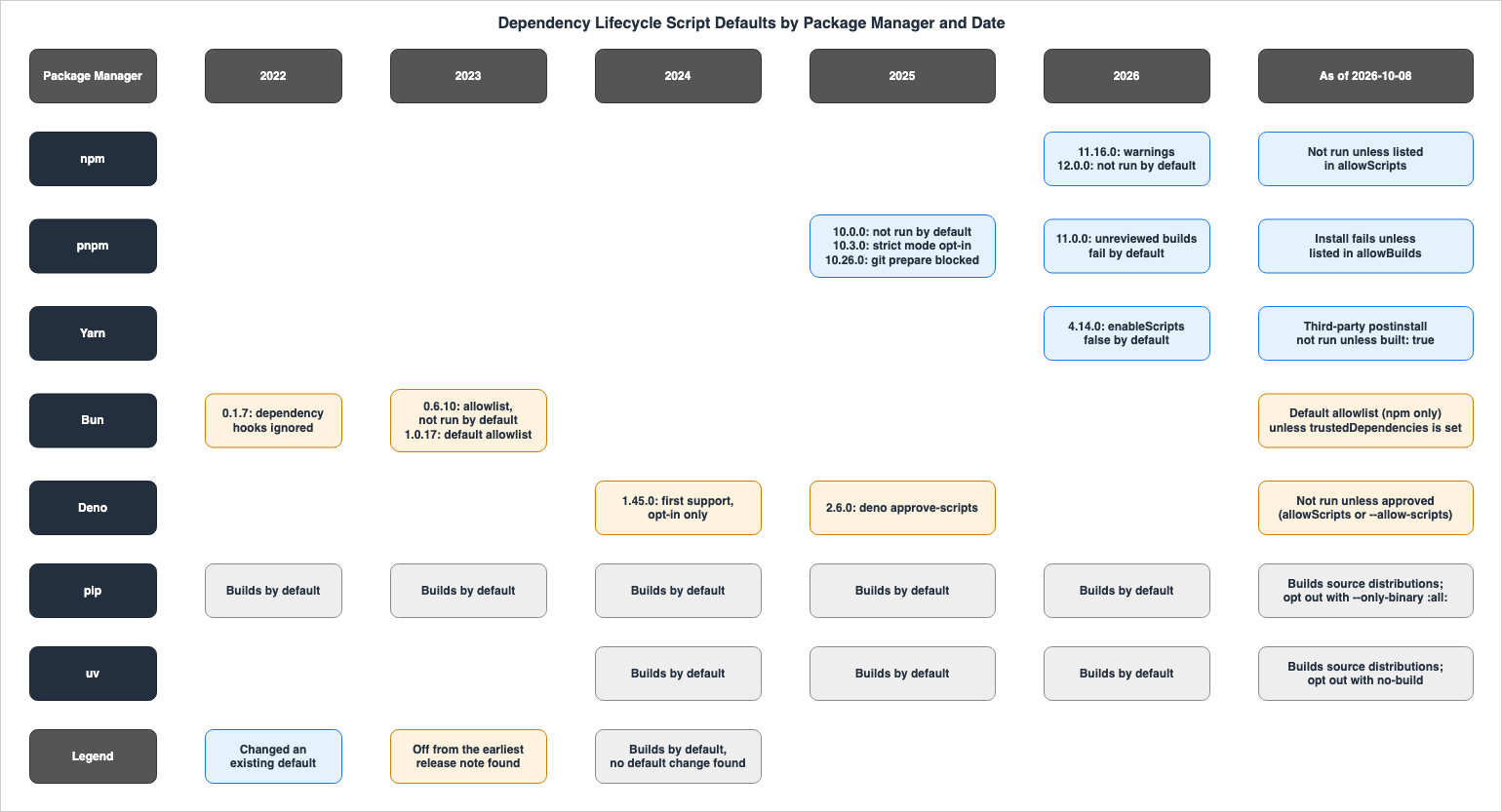
3.2 Tools That Changed a Default, and Tools That Did Not Run Dependency Scripts from the Earliest Source Found
The dates listed fall into two categories.The first category consists of tools that changed their defaults. pnpm and npm had a default of running dependency scripts and, in a particular version, changed it to not running them. For Yarn, the release notes for version 4.14.0 state that this version made
enableScripts: false the default. The release notes for pnpm 10.0.0 call pnpm's change a breaking change.Lifecycle scripts of dependencies are not executed during installation by default! This is a breaking change aimed at increasing security.Yarn introduced this change in version 4.14.0, a minor release. In the body of pull request #7089, the author of this change states that they initially intended to wait for the next major version, but felt it was necessary to address the issue sooner. This is the author's statement, and not a description found in Yarn's official release notes.
I was planning to wait until the next major to land this, but considering the regularity of package compromissions, I think we need to address it sooner than that.The second category includes tools that, from the earliest source found, did not allow dependency lifecycle scripts to run unless explicitly permitted. The announcement for Bun 0.1.7 (August 6, 2022) says that
bun install supports lifecycle hooks for the project's own package.json and ignores those of dependencies.It runs postinstall scripts for your app's package.json, but ignores dependencies lifecycle hooks.The announcement for Bun 0.6.10 states that it is now possible to configure an allowlist, and that by default, scripts do not run.
You can now configure an allow-list of dependencies to run lifecycle scripts, such as postinstall. By default, these scripts are not run to make Bun more secure by default.The Deno 1.45 blog post (July 11, 2024) notes that earlier versions of Deno did not support the execution of lifecycle scripts. Deno implemented a system where users could opt-in to run scripts by specifying packages with the
--allow-scripts flag.Previously, Deno did not support executing lifecycle scripts, so this could result in confusing errors when using some packages, and there weren’t easy solutions.By specifying the --allow-scripts flag with deno cache (or DENO_FUTURE=1 deno install), you can opt into running lifecycle scripts for specific packages:This article does not state that Bun or Deno changed their defaults from running dependency scripts to not running them. In the Assumption Table, the
Since column also notes that the Bun version comes from the earliest source found, and that Deno's lifecycle scripts were opt-in from the first version that could run them.3.3 Tools for Which No Default Change Was Found
As of October 8, 2026, both pip and uv still default to building source distributions. Within the range this article checked (pip release notes up to version 26.2.1, and all versions of uv's CHANGELOG up to 0.12.23), no statement changing this default was found. Section 7 details what the pip and uv documentation actually states.4. Defaults and Exceptions by Manager
This section sets out, for each manager, the default as of the verification date and the exceptions and conditions attached to it. If the description stops at not running by default, the assumption breaks again on the side of the exceptions.4.1 npm 12 Default — allowScripts
npm announced the general availability of npm v12 and a safer default behavior during installation, on the GitHub Changelog dated July 8, 2026. The description regarding dependency lifecycle scripts is as follows:allowScripts defaults to off: Dependency lifecycle scripts (i.e., preinstall, install, postinstall) and implicit node-gyp builds no longer run unless explicitly allowed.An announcement on June 9, 2026, detailed the same changes more extensively. Even packages with
binding.gyp that do not have an install script will be stopped. Similarly, prepare scripts for git, file, and link dependencies will also be halted.allowScripts defaults to off: npm install will no longer execute preinstall, install, or postinstall scripts from dependencies unless they are explicitly allowed in your project. This includes native node-gyp builds (i.e., a package with a binding.gyp and no explicit install script still gets blocked, because npm runs an implicit node-gyp rebuild for it). prepare scripts from git, file, and link dependencies are blocked the same way. To see what would be blocked, run npm approve-scripts --allow-scripts-pending. Then allow the packages you trust with npm approve-scripts and block the rest with npm deny-scripts.The scripts that are stopped are those associated with dependencies. The
npm install-scripts page in the npm v12 documentation states that allowScripts records which dependencies within a project are permitted to run their install scripts. This page does not mention scripts belonging to the project itself. The npm 12.0.0 CHANGELOG lists, as a separate item, that the root package's preinstall script now runs before dependencies are installed. This is a change in the order in which the project's own scripts run, and is a separate issue from allowScripts, which prevents dependency scripts from running.Regarding unapproved dependencies, npm's behavior during installation depends on the default settings and configurations. The
npm install-scripts page states that npm silently skips lifecycle scripts for unapproved dependencies and then provides a list of the packages whose scripts were skipped.Dependency install scripts are blocked by default. Install commands silently skip lifecycle scripts for any dependency that does not have a matching entry in allowScripts, and end with a list of the packages whose scripts were skipped so you can review them here.The
strict-allow-scripts setting on the configuration page (default is false) is a setting that will cause these installations to fail. It only applies to dependencies with install scripts that have been neither approved nor denied. Dependencies that have been explicitly denied with false in allowScripts will continue to be silently skipped, even with this setting enabled.If true, turn the install-script policy from a warning into a hard error: any dependency with install scripts that is not covered by allowScripts will fail the install instead of being blocked with a warning.Dependencies explicitly denied with false in allowScripts are always silently skipped; this setting only affects unreviewed entries (packages with install scripts that are neither approved nor denied).dangerously-allow-all-scripts is a setting that bypasses the allowScripts checks entirely, allowing install scripts for dependencies to run regardless of whether they have been approved or denied. The documentation indicates that this option was provided solely as a migration workaround and strongly discourages its use.If true, bypass the allowScripts policy entirely and run every dependency install script regardless of whether it was approved or denied. Intended as a migration escape hatch only; its use is strongly discouraged.The precedence relationships between settings are also documented on the configuration page. The entry for
dangerously-allow-all-scripts states that the --ignore-scripts flag overrides this setting. The entries for allow-scripts and strict-allow-scripts state that both the --ignore-scripts and --dangerously-allow-all-scripts flags override their respective settings.4.2 Changes in Default Behavior for Package Sources in npm 12 and Exceptions
In the same version, npm 12 also changed the defaults for where dependencies can come from. The defaults of--allow-git (dependencies from Git repositories) and --allow-remote (tarballs from URLs) have both been set to none. However, the allow-remote section on the configuration page clarifies that npm still retrieves tarballs from the same hostname as the configured registry. If the registry serves tarballs from a different hostname, npm blocks the retrieval, and the documentation advises either setting replace-registry-host or overriding this setting.As of npm 12 the default is none. Tarballs that share a hostname with the configured registry (the typical case for the npm registry, GitHub Packages, and most private registries) are still installed normally. If your registry serves tarballs from a different host, set replace-registry-host or override this setting.The behavior for
--allow-file (handling local tarball files) and --allow-directory (handling local directories) remains unchanged in v12. The announcement of June 9, 2026, says so. On the configuration page, both of these defaults are still set to all.The related --allow-file and --allow-directory flags are not changing their defaults in v12.--allow-git and --allow-remote control the retrieval of dependencies, while allowScripts controls whether the scripts of the retrieved dependencies run. These are separate settings, and allowing one does not automatically allow the other.4.3 pnpm 10, 11, 12 Defaults — allowBuilds
pnpm's defaults have changed incrementally across several versions. In version 10.0.0 (January 7, 2025), it stopped running lifecycle scripts for dependencies by default. At that time, allowed packages went in package.json's pnpm.onlyBuiltDependencies. In version 10.3.0 (February 10, 2025), pnpm printed the warning about blocked scripts at the end of the installation output and made it more prominent (as the release notes put it), and added strict-dep-builds, which ends the installation with a non-zero exit code if there are unreviewed builds, as an opt-in setting.Print the warning about blocked installation scripts at the end of the installation output and make it more prominent.Version 10.26.0 (December 15, 2025) also ensured that the
prepare script for dependencies installed from Git would not run unless explicitly permitted. The release notes described this as a semi-breaking change.Semi-breaking. Block git-hosted dependencies from running prepare scripts unless explicitly allowed in onlyBuiltDependencies #10288.In version 11.0.0 (April 28, 2026),
strictDepBuilds began to default to true. The release notes for 11.0.0 stated that the behavior regarding running scripts for dependency packages remained the same as before, and further noted that packages with a postinstall script that are not listed in allowBuilds would now generate an error.strictDepBuilds is true by default.Same as before, by default, none of the packages in the dependencies are allowed to run scripts. If a package has postinstall scripts and it isn't declared in allowBuilds, an error is printed.Version 11.0.0 consolidated the configuration for specifying allowed packages into a single setting. The
allowBuilds setting, introduced in version 10.26.0, replaced five previous, separate configurations.allowBuilds replaces the old build-dependency settings — onlyBuiltDependencies, onlyBuiltDependenciesFile, neverBuiltDependencies, ignoredBuiltDependencies, and ignoreDepScripts have been removed.The Build Settings page of the pnpm Docs, as of the verification date, describes the default behavior as follows: Packages not listed in
allowBuilds are treated as unreviewed and will result in an error by default. Setting strictDepBuilds to false will change the error to a warning instead.Default behavior: Packages not listed in allowBuilds are disallowed by default and are treated as unreviewed. By default, an error is printed (strictDepBuilds defaults to true). If strictDepBuilds is set to false, a warning is printed instead.The same page includes an exception for packages installed from Git. Dependencies from Git or tarballs cannot be approved based solely on the package name. This is because the name alone does not determine which artifact is being used. To approve them, you must specify a resolved path, including the commit, or, for versions 11.11.0 and later, the repository URL. A denial based solely on the name (e.g.,
foo: false) applies regardless of whether the package is sourced from a registry or from Git.Git-hosted packages: a package name on its own never approves builds for a git or tarball dependency — the name alone does not identify the artifact.The release notes for version 11.0.0 state that it fixed a bug that let the
strictDepBuilds and allowBuilds checks be bypassed when a package's build results were in the store's cache (Fixed strictDepBuilds and allowBuilds checks being bypassed when a package's build side-effects are cached in the store).No statement changing the default build settings was found in the release notes for version 12.0.0 (August 26, 2026). As of the verification date, the latest version is 12.10.1. pnpm's SECURITY.md lists 12.x as supported, and 10.x and 11.x as supported until April 30, 2027.
4.4 Yarn 4.14.0 and Later: Default Behavior for enableScripts
Yarn made enableScripts: false the default in 4.14.0 (April 16, 2026), as its release notes state.Makes enableScripts: false the default by @arcanis in #7089The Yarn Docs page on
yarnrc states the following regarding enableScripts: With the default false, Yarn will not execute the postinstall scripts of third-party packages when installing a project. Workspaces still have their own postinstall scripts evaluated (and executed), because they are assumed to be safe when you run an install within them.If false (the default), Yarn will not execute the postinstall scripts from third-party packages when installing the project (workspaces will still see their postinstall scripts evaluated, as they're assumed to be safe if you're running an install within them).Therefore, Yarn only prevents the execution of scripts from third-party dependencies; it does not prevent the execution of
postinstall scripts within a project's own workspaces.You write approvals in the
dependenciesMeta section of the manifest, using the built property. When enableScripts is disabled, only packages that explicitly declare built as true will be built. For packages with built set to false, the warnings about their build scripts are downgraded to notices.If false, the package will never be built (deny-list). This behavior is reversed when the enableScripts yarnrc setting is toggled off - when that happens, only packages with built explicitly set to true will be built (allow-list); as for those with built explicitly set to false, they will simply see their build script warnings downgraded into simple notices.In projects that use workspaces, put
dependenciesMeta at the root. The manifest page notes that dependenciesMeta defined within workspaces will be ignored unless the documentation notes otherwise.In the context of a workspaced project most of these settings will affect all workspaces and as such must be specified at the root of the project. Unless noted otherwise, the dependenciesMeta field will be ignored if found within a workspace.Version 4.14.0 also modified the
exec: protocol to adhere to the enableScripts setting (Makes the exec: protocol respect enableScripts). For dependencies fetched from Git repositories, the same version added a separate setting called approvedGitRepositories. This article will not delve into the handling of Git dependencies.Upgrading existing projects to version 4.14.0 and later requires careful consideration. The author of pull request #7089 commented that if the lockfile version is lower than the one the Yarn binary uses, Yarn applies migration patches to preserve the existing settings. Another comment says that upgrading existing projects should automatically incorporate previous settings into the
yarnrc file. These are the author's words; no statement of this migration was found in the yarnrc page or the 4.14.0 release notes. For existing projects, it is necessary to examine the differences in the .yarnrc.yml file after upgrading Yarn to verify whether a line related to enableScripts has been added.All lockfiles have a lockfile version. If your version is lower than the one used by your Yarn binary we apply the relevant migration patches to your config to maintain your configuration even as our defaults become stricter.Yarn should auto-apply the previous settings in your yarnrc when you update an existing project.Yarn 1.x (Yarn Classic) is not affected by this change. The README file for the Yarn 1.x repository states that the 1.x codebase will only accept security fixes. As of the verification date, npm's registry lists
yarn's latest version as 1.22.22.The 1.x codebase is fairly old and will only accept security fixes.4.5 Bun Defaults — The Default Allowlist and trustedDependencies
The Bun Docs page on Lifecycle Scripts states that Bun operates in a "default-secure" mode, only running lifecycle scripts for packages listed in the allowlist (trustedDependencies, or the default allowlist if not explicitly specified).Bun is "default-secure": it only runs lifecycle scripts for packages on an allow list.However, there are exceptions. Bun includes a default allowlist for commonly used packages that have lifecycle scripts.
A curated list of popular npm packages with lifecycle scripts is allowed by default.The default allowlist is subject to two conditions. First, it only applies to packages installed from npm. To run lifecycle scripts for dependencies using
file:, link:, git:, or github:, you must explicitly list them in the trustedDependencies even if their names appear in the default allowlist. Bun 1.3.5 (December 17, 2025) fixed an issue where packages from non-npm sources could pose as names on the default allowlist.The default trusted dependencies list only applies to packages installed from npm. For packages from other sources (such as file:, link:, git:, or github: dependencies), you must explicitly add them to trustedDependencies to run their lifecycle scripts, even if the package name matches an entry in the default list.Second, if you specify
trustedDependencies in your package.json, it replaces the default allowlist, and Bun lets only the packages listed in trustedDependencies run lifecycle scripts.Defining trustedDependencies in package.json replaces the default list rather than extending it.The documentation states that exactly one of three configurations applies to each project. If you do not specify
trustedDependencies, Bun permits the packages on the default allowlist (limited to those installed from npm). If you specify trustedDependencies, Bun allows only those packages and does not use the default allowlist. If you write trustedDependencies: [], Bun permits no packages to run lifecycle scripts, including those on the default allowlist. The documentation recommends that if you explicitly define trustedDependencies, you should also include the packages on the default allowlist whose scripts you still need (for example, sharp and esbuild).Bun introduced the default allowlist in version 1.0.17 (December 12, 2023). The announcement for 1.0.17 stated that it included the top 500 most frequently downloaded packages from npm, and that
bun install would now run their preinstall, install, and postinstall scripts.In this release, we've added the top 500 most-downloaded npm packages in a default allowlist to run lifecycle scripts during bun install. This means that bun install will now run preinstall, install, and postinstall scripts for the top 500 npm packages which have them defined.This article does not cover the contents of the default allowlist as of the verification date. The documentation calls it a curated list chosen by Bun, and
bun pm default-trusted displays it. Bun version 1.4 (as mentioned in the blog post dated August 20, 2026) changed trustedDependencies and --trust entries to match package names exactly. Previously, it had used truncated hashes for verification. Bun still matches entries read from older bun.lockb files by hash.For some packages, Bun may optimize or replace the
postinstall process. The bun install documentation states that Bun optimizes postinstall by determining which scripts need to be executed for commonly used packages such as esbuild and sharp. The Bun 1.4 blog post also explains nativeDependencies, which was introduced in version 1.3.2. When a package that ships per-platform binaries through optionalDependencies (for example, esbuild) is listed in nativeDependencies, Bun links the right binary directly instead of running postinstall.4.6 Deno's Defaults — --allow-scripts and node_modules
The Deno Docs page for deno install states that, unlike npm, Deno does not run npm package lifecycle scripts by default.Unlike npm, Deno does not run these scripts by default as they pose a potential security vulnerability.Scripts only run when using local
node_modules.Note: Scripts will only be executed when using a node_modules directory (--node-modules-dir).The Run npm lifecycle scripts tutorial states that projects with
package.json will automatically have node_modules created, and that deno.json-only projects should set "nodeModulesDir": "auto". When installing packages with unapproved scripts, Deno will issue a warning stating Ignored build scripts for packages: and recommends using deno approve-scripts. Section 5.6 covers how to record approvals.4.7 Other Default Changes in the Same Releases
Besides the dependency scripts, there are other default changes that have been made in the same releases. This article will simply list them.The npm 12.0.0 CHANGELOG lists the removal of
npm shrinkwrap, the change to treat unknown command-line flags as errors (while unknown .npmrc settings continue to default to warnings), and the change of the default values for --allow-git and --allow-remote to none, all as breaking changes.pnpm version 11.0.0 changed the default value of
minimumReleaseAge to 1 day (meaning it will not resolve to newer versions in the first 24 hours after publication) and set the default value of blockExoticSubdeps to true (as noted in the release notes for version 11.0.0).Supply-chain protection on by default — minimumReleaseAge defaults to 1 day (newly published packages are not resolved for 24h) and blockExoticSubdeps defaults to true.Pipelines that have upgraded to pnpm version 11 may also encounter these default changes, in addition to the build approval process. This article will not cover the configuration that restricts dependencies based on the time elapsed since publication. The settings for each tool are covered in Dependency Cooldowns by Package Manager on this site.
5. Where to Record Approvals and the Approval Process
This section outlines, for each manager, where to record approvals (specifically, which files and keys), which commands to use for recording, and what steps are required to actually run the script after approval.5.1 Where Approvals Are Recorded
| Manager | Approval Command | Recorded In | Key | After Approval |
|---|---|---|---|---|
| npm 12 | npm install-scripts approve <pkg> (also npm approve-scripts) | Project package.json | allowScripts | After approval, npm rebuild will execute the approved scripts (CHANGELOG 12.0.0). |
| pnpm 11 and later | pnpm approve-builds | pnpm-workspace.yaml | allowBuilds | Outside of GVS (global virtual store) mode, pnpm approve-builds can be read as running a rebuild (read from the GVS description in the 11.0.0 release notes). In GVS mode, it performs a full installation instead of a rebuild (11.0.0 release notes). |
| Yarn 4.14.0 and later | No dedicated command found (requires writing a manifest). | Root package.json | dependenciesMeta's built | The source does not say. |
| Bun | bun pm trust <names> | package.json | trustedDependencies | bun pm trust executes the scripts of untrusted dependencies and adds them to trustedDependencies. If you edit it by hand, reinstall the package. |
| Deno 2.6 and later | deno approve-scripts | deno.json (2.6 blog) | allowScripts | In the example on the tutorial page, the output of deno approve-scripts is followed by the execution of the install script. |
The Yarn entry involved searching the yarnrc, manifest, and Lifecycle Scripts pages, as well as the 4.14.0 release notes, using the terms
approve, rebuild, built, and enableScripts. No description was found that specifies what to execute after writing built to trigger script execution. Yarn has a yarn rebuild command, and its page says Rebuild the project's native packages., but the page does not mention dependenciesMeta, built, or enableScripts.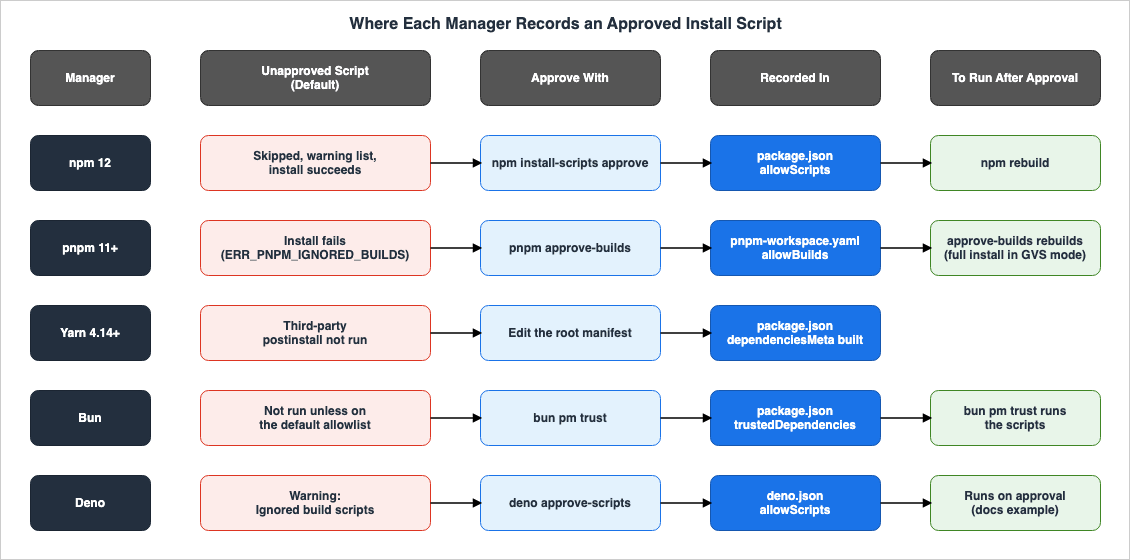
5.2 npm — Viewing, Approving, and Running npm rebuild
The npm v12 documentation places the approval commands under npm install-scripts. npm approve-scripts and npm deny-scripts are aliases for npm install-scripts approve and npm install-scripts deny.The standalone commands npm approve-scripts and npm deny-scripts are aliases for npm install-scripts approve and npm install-scripts deny.The
ls command (view) does not modify package.json.ls is read-only: it lists every package whose install scripts are not yet covered by allowScripts, without modifying package.json.The
approve command, by default, records entries that are fixed to a specific version. To record entries that allow any version (allowing scripts in future versions), use the --no-allow-scripts-pin flag.approve allows install scripts for the named packages. <pkg> matches every installed version of that package. By default it writes pinned entries (pkg@1.2.3), which keep their approval narrowed to the specific version you reviewed. Pass --no-allow-scripts-pin to write name-only entries that allow any future version.Approvals that are fixed to a specific version only apply to that version. If dependencies are updated and the version changes, the scripts in the new version no longer match the approved entries. The documentation for
prune also mentions an example where upgrading a fixed package (e.g., pkg@1.2.3) causes the approved entries to no longer match the package. In automated dependency update pipelines, it is necessary to include steps to update approvals. The npm v12 npm approve-scripts page notes that if package-lock.json has no resolved URL for a registry dependency, npm cannot verify the version and cannot record version-specific approvals. In that case, approve-scripts approves based solely on the name and issues a warning.Approvals are only recorded; existing dependencies' scripts are not immediately executed. The 12.0.0 entry in the npm CLI CHANGELOG states that after installation,
npm install-scripts approve records the approval, and npm rebuild then executes the newly approved scripts.Dependency lifecycle scripts are now blocked by default unless allowed by the root package's allowScripts policy. After installing, run npm install-scripts approve to record approvals and npm rebuild to execute newly approved scripts.In an environment with npm 12.2.0, Node.js 24.21.0, and macOS 27.0.1, installing
esbuild@0.28.2 into an empty project on October 8, 2026, printed the following warning at the end. Re-running the installation in the same directory resulted in an exit code of 0. At that point, node_modules/esbuild/bin/esbuild was still a Node.js script, and the postinstall script had not yet run.npm warn install-scripts 1 package had install scripts blocked because they are not covered by allowScripts:
npm warn install-scripts esbuild@0.28.2 (postinstall: node install.js)
npm warn install-scripts
npm warn install-scripts Run `npm install-scripts ls` to review, or `npm install-scripts approve <pkg>` to allow.Running
npm install-scripts approve esbuild in the same environment added the following entry (in package.json), representing a version-specific approval."allowScripts": {
"esbuild@0.28.2": true
}Immediately after approval,
bin/esbuild remained a Node.js script. Running npm rebuild printed rebuilt dependencies successfully and replaced bin/esbuild with an arm64 native executable. It was at this point that the postinstall script ran. When npm ci ran with the package.json that recorded the approval, bin/esbuild also became a native executable.For a dependency whose scripts you decide to keep blocked, record a denial with
npm install-scripts deny <pkg>. A denial is recorded as a name-only false entry and cannot be overwritten even by npm install-scripts approve --all. npm install-scripts prune removes entries for packages that are no longer installed or packages that no longer have associated scripts. The documentation also notes that npm install-scripts does not recognize workspaces (Note: This command is unaware of workspaces.).5.3 pnpm — pnpm approve-builds and pnpm-workspace.yaml
pnpm added the pnpm approve-builds command in version 10.1.0 (January 26, 2025). The documentation as of the verification date says that approved dependencies are written to allowBuilds in pnpm-workspace.yaml with a value of true, and dependencies that are not approved with false (in the interactive prompt when run without arguments).The approved dependencies are added to the allowBuilds map in pnpm-workspace.yaml with a value of true, while unapproved ones are saved with a value of false.You can also pass package names as arguments. Using a
! before the name indicates a denial. This will only modify the specified package, leaving others untouched. The documentation also says that during installation, pnpm automatically adds dependencies with builds not yet listed in allowBuilds to pnpm-workspace.yaml with a provisional value, which the user can then change to either true or false.The migration example on the Build Settings page shows how version 10 settings are rewritten as version 11's
allowBuilds:allowBuilds:
electron: true
core-js: false
esbuild: falseOn whether scripts run after approval, pnpm's sources say the following. The
pnpm approve-builds page says that from version 12.4.0, when you name a package that is not awaiting approval, it reports a warning instead of an error and does not rebuild that package. The release notes for version 11.0.0 state that in GVS mode, pnpm approve-builds now performs a full installation instead of a rebuild.In GVS mode, pnpm approve-builds now runs a full install instead of rebuild, ensuring that GVS hash directories and symlinks are updated correctly after changing allowBuildsThis article reads this description as assuming that outside of GVS mode,
pnpm approve-builds triggers a rebuild of the approved dependencies. The pnpm approve-builds page also states that for global installations, only the install groups that contain an approved package will be rebuilt. The table and figure in section 5.1 follow that reading.5.4 Yarn — Writing dependenciesMeta
In Yarn, you approve by writing the manifest. Within the dependenciesMeta for the root directory (package.json), set the built property to true for the packages you want to allow to be built. The yarnrc documentation defines enableScripts as a setting that determines whether to run postinstall scripts, and explains that you can disable scripts per package in dependenciesMeta, or re-enable a specific script by combining enableScripts and dependenciesMeta. Within the range this article checked, no dedicated command for writing approvals in Yarn 4.x was found (a search for approve in the yarnrc and manifest documentation and the 4.14.0 release notes).5.5 Bun — bun pm untrusted and bun pm trust
bun pm untrusted lists untrusted dependencies that have scripts. bun pm trust <names> executes the script of that dependency and adds it to trustedDependencies. Using the --all flag will trust all untrusted dependencies.To run scripts for untrusted dependencies and add to trustedDependencies:The documentation provides an example, writing to
package.json as follows:{
"name": "my-app",
"version": "1.0.0",
"trustedDependencies": ["node-sass"]
}When you manually add a package to
trustedDependencies, you need to reinstall that package. The documentation states that Bun reads this field and executes the lifecycle script.After adding the package to trustedDependencies, install or re-install it. Bun reads the field and runs its lifecycle scripts.As described in section 4.5, adding even a single package to
trustedDependencies disables the default allowlist. Projects that previously relied on the default allowlist will need to explicitly list any packages requiring scripts in the trustedDependencies field when they first define it.5.6 Deno — deno approve-scripts and deno.json
The Deno 2.6 blog post states that deno approve-scripts saves the selected results to deno.json's allowScripts setting.Your choices are saved to deno.json in the allowScripts configuration, creating an audit trail of which packages you trust to execute code during installation.The tutorial page describes
deno approve-scripts as a means to verify and run scripts awaiting approval. An example on the page shows that the output of deno approve-scripts npm:better-sqlite3 is followed by the execution of the install script.deno approve-scripts is the way to review and run pending scripts.The example on the tutorial page writes
deno.json as follows.{
"allowScripts": ["npm:better-sqlite3"]
}The tutorial page further explains that using
deno install without additional flags will trigger the build scripts for the listed packages. Alternatively, for a single instance, you can pass --allow-scripts=npm:better-sqlite3 to deno install.Now a plain deno install runs the build scripts for the listed packages without any extra flags. A one-off alternative is passing --allow-scripts=npm:better-sqlite3 to deno install directly.Within a workspace,
allowScripts must be defined in the workspace's root directory.In a workspace, allowScripts must be defined at the workspace root, so the security policy is consistent across all packages.6. CI, Global Installs, npx, and the npm Bundled with Node.js
This section covers contexts outside the project (global installations andnpx), as well as how to handle the version of npm that is included with Node.js, including considerations for potential installation failures within a CI environment.6.1 Global Installation and npx — --allow-scripts
You write npm's allowScripts in the project's package.json. Where there is no project package.json, you cannot write it, so npm provides alternative configurations. The npm install-scripts documentation states that when using npm install -g, npm exec, or npx, you should either include the --allow-scripts flag during installation or configure it using npm config set.This command only works inside a project that has a package.json. Running it with --global (-g) fails with an EGLOBAL error, since global installs (npm install -g) and one-off executions (npm exec / npx) have no project package.json to write to. To allow install scripts in those contexts, use the --allow-scripts flag at install time (for example npm install -g --allow-scripts=canvas,sharp) or persist the setting with npm config set allow-scripts=canvas,sharp --location=user.You cannot use the
--allow-scripts flag in a project's installation. The configuration page notes that passing --allow-scripts to project commands like npm install, ci, update, or rebuild will result in an error. The recommended approach for teams is to either set the allowScripts property in package.json or configure it in the .npmrc file.This setting is intended for one-off and global contexts: npm exec, npx, and npm install -g, where no project package.json is involved. For team-wide policy in a project, use the allowScripts field in package.json (which also supports explicit denials), or configure it in .npmrc. Passing --allow-scripts on the command line during a project-scoped npm install, ci, update, or rebuild is an error.In the same environment as described in section 5.2, running
npm install --allow-scripts=esbuild within a project resulted in an exit code of 1 and the following error.npm error code EALLOWSCRIPTS
npm error --allow-scripts is not allowed in project-scoped installs. Add the entries to the "allowScripts" field in package.json, or to .npmrc, instead.For global installations, the
pnpm approve-builds page describes pnpm approve-builds -g (11.24.0 and later) or including the --allow-build flag during installation (for example, pnpm add -g --allow-build=esbuild esbuild).6.2 Causing Installation Failure in CI
By default, npm 12 allows installation to proceed even with non-approved dependencies. In the environment described in section 5.2, re-running the installation in the same directory resulted in an exit code of 0. CI jobs might fail when attempting to load modules after the installation step.To ensure installation fails, set
strict-allow-scripts to true in npm. In the same environment as described in section 5.2, running npm install esbuild@0.28.2 --strict-allow-scripts in a new, empty project resulted in an exit code of 1 and the following error, and the node_modules directory was not created.npm error code ESTRICTALLOWSCRIPTS
npm error --strict-allow-scripts: 1 package(s) have install scripts not covered by allowScripts:
npm error esbuild@0.28.2 (postinstall: node install.js)
npm error Approve them with `npm install-scripts approve`, deny them with `npm install-scripts deny`, or bypass this check with `--dangerously-allow-all-scripts`.pnpm 11 and later fail the install at the installation step by default. The Build Settings page states that with the default setting for
strictDepBuilds, installation will fail with an ERR_PNPM_IGNORED_BUILDS error if there are unreviewed builds. Deno issues warnings. The pages this article read did not specify how Yarn and Bun handle non-approved dependencies regarding the installation exit code. Yarn's Error Codes page says that a warning is still emitted when build scripts are disabled through enableScripts (YN0004). The announcement for Bun 1.0.31 shows an example in which bun add prints Blocked 1 postinstall. for a postinstall script that did not run.6.3 Node.js Bundled npm and npm 12
As of October 8, 2026, upgrading within Node.js 26, 24, or 22 does not bring npm 12 as the bundled npm. A comment in the pull request #66212 on nodejs/node indicates that the Release Working Group (WG) has decided not to include npm 12 in Node.js versions 26, 24, and 22.The Release WG has decided not to land npm 12 on Node.js 26, 24 or 22.The Node.js release index (
index.json) shows the latest versions for each series and the bundled npm as of the verification date:| Node.js | Release Date | Bundled npm | LTS Status in index.json |
|---|---|---|---|
| 26.11.1 | 2026-10-07 | 11.20.0 | false |
| 24.21.0 | 2026-09-07 | 11.19.0 | Krypton |
| 22.23.3 | 2026-09-23 | 10.9.9 | Jod |
According to the Release WG's schedule (
schedule.json), Node.js 26 is scheduled to enter Active LTS on October 28, 2026, and the alpha version of Node.js 27 is also planned for the same date. As of the verification date, Node.js 26 is not yet an LTS version. The title of pull request #66212 is deps: upgrade npm to 12.1.0. The pull request updated npm on the main branch of Node.js and was merged on September 24, 2026. The person who initiated this pull request has commented that they are hoping for it to be included in Node.js 27, but this is their expectation.The CHANGELOG for npm 12.0.0 states that npm 12 supports the following Node.js versions:
npm now supports node ^22.22.2 || ^24.15.0 || >=26.0.0To use npm 12 in a CI environment, you will need to install it separately from the npm bundled with Node.js. The environment described in section 5.2 uses npm 12.2.0 with Node.js 24.21.0. Conversely, in pipelines that update Node.js while using the bundled npm, the npm stays, as of the verification date, on the defaults of npm 11 or earlier (dependency lifecycle scripts run). If the bundled npm is version 11.16.0 or later (Node.js 26.11.1 and 24.21.0), npm shows warnings for the scripts that npm 12 would stop.
6.4 End of Corepack Distribution and Provisioning of pnpm and Yarn
One way to provision pnpm and Yarn within a CI environment is through Corepack, which was previously bundled with Node.js. The release notes for Node.js 25.0.0 announce the discontinuation of Corepack distribution as a semver-major change.(SEMVER-MAJOR) build: stop distributing CorepackFor pipelines that used Corepack to provision pnpm or Yarn with Node.js 25 and later, it will now be necessary to either include Corepack separately or use an alternative method to manage these package managers. The version of the package manager used will affect the defaults described in section 4.
7. The Python Side — pip and uv Build Source Distributions
This section discusses the default behavior of Python package installers. The versions listed in the table (npm 12 and later, pnpm 11 and later, Yarn 4.14.0 and later, Bun, and Deno) do not, by default, execute dependency lifecycle scripts unless explicitly permitted (with the exception of packages on Bun's default allowlist and thepostinstall script within Yarn workspaces). As of the verification date, pip and uv still build source distributions by default (no statement of a change to this default was found in the range checked). This article does not treat this as lagging behind or as a risk. This article will describe what the default behavior is and where to find the means to modify it.7.1 pip Defaults — Building Source Distributions
The pip Docs' "Secure installs" page states that pip, by default, includes the execution of arbitrary code within a distribution during installation.By default, pip does not perform any checks to protect against remote tampering and involves running arbitrary code from distributions.When building source distributions, pip delegates the build process to a build backend. The Build System Interface page says so. That same page explains that packages can include a
pyproject.toml file, and if this file contains the necessary build requirements and build information, pip will use it to build the package.When dealing with installable source distributions of a package, pip does not directly handle the build process for the package. This responsibility is delegated to “build backends” -- also known as “build systems”.The "Secure installs" page lists using the
--only-binary :all: option to avoid source distributions as one method for more secure installations. The pip install page explains that using this option will prevent the installation of packages that do not have binary distributions (wheels).Do not use source packages. Can be supplied multiple times, and each time adds to the existing value. Accepts either “:all:” to disable all source packages, “:none:” to empty the set, or one or more package names with commas between them. Packages without binary distributions will fail to install when this option is used on them.The structure of pip is essentially the opposite of npm's
allowScripts. npm 12 does not run scripts unless they are listed, and you list what to allow. pip builds when nothing is written, and you add an option to stop it.7.2 uv Defaults — The Default Value for no-build Is false
The Settings page of the uv Docs gives false as the default of no-build. This means that, by default, the source distribution is built. Even when no-build is enabled, the workspace's own packages will still be built, as will editable requirements, whose build backends may run arbitrary Python code, according to the documentation.Don't build source distributions. When enabled, uv will reuse cached wheels from previously built source distributions, but operations that require building a source distribution will exit with an error. First-party packages, such as projects in the workspace, will still be built. uv will also still build editable requirements, and their build backends may run arbitrary Python code.To prevent building on a per-package basis, use
no-build-package. You can write both settings in the [tool.uv] section of pyproject.toml or in uv.toml. The passage above refers to the no-build setting in the project's configuration. The uv pip command also includes a no-build setting in the [tool.uv.pip] section, which the Settings page describes as an alias for --only-binary :all:. This latter description does not mention the workspace's own packages. uv's structure mirrors that of pip, where you specify what to exclude from the build process.7.3 Topics This Article Does Not Cover Regarding Python
Python release dates and Python 3.15 are covered by the Python Version Support and EOL Timeline. This article does not address the publication guidelines on PyPI. This article specifically focuses only on the default settings for building source distributions using pip and uv, and the configurations to modify those defaults.8. Where the Sources Disagree and Where No Statement Was Found
This section lists places where sources from the same provider word things differently, and places where no statement was found in the range searched. It does not call either side wrong.8.1 npm Approval Process — Announcements, Docs, and CHANGELOG
The sources describe npm's steps for approving install scripts differently.| Source | Listing | Approving | Running After Approval |
|---|---|---|---|
| GitHub Changelog (2026-07-08) | To verify and approve, run npm approve-scripts --allow-scripts-pending and commit the resulting allowlist, all in one sentence. | Within the same sentence. | The source does not say. |
| GitHub Changelog (2026-06-09) | To see what would be blocked, run npm approve-scripts --allow-scripts-pending. | Approve trusted packages with npm approve-scripts and block the rest with npm deny-scripts. | Says that after the upgrade, only the approved scripts keep running. Does not mention npm rebuild. |
npm Docs v12 (npm install-scripts) | npm install-scripts ls (read-only). | npm install-scripts approve. (npm approve-scripts is an alias). | Not mentioned in the text. See Also mentions npm rebuild. |
npm Docs v12 (npm approve-scripts) | One of three forms: npm approve-scripts --allow-scripts-pending (read-only). | npm approve-scripts <pkg>, npm approve-scripts --all. | Not mentioned in the text. See Also mentions npm rebuild. |
| npm CLI CHANGELOG (12.0.0) | The source does not say. | Use npm install-scripts approve to record the approval. | Run the newly approved scripts with npm rebuild. |
The relevant passage from the announcement on July 8, 2026, reads as follows. The sentence that the table refers to ("all in one sentence") is the second of the two:
All of these were available behind warnings in npm 11.16.0+, so you can prepare before upgrading. To review and approve the scripts you trust, run npm approve-scripts --allow-scripts-pending, then commit the resulting allowlist in package.json.The
npm approve-scripts page in the v12 documentation describes --allow-scripts-pending as a read-only listing that does not modify package.json.--allow-scripts-pending is read-only: it lists every package whose install scripts are not yet covered by allowScripts, without modifying package.json.The announcement's second sentence folds reviewing and approving into a single command that carries a flag for listing. However, the documentation treats listing and approval as separate operations. Even in the v12 documentation, the
npm install-scripts page lists four subcommands, including ls, while the npm approve-scripts page describes three variations, essentially explaining the same functionality in different ways. This article follows the procedures outlined in the v12 documentation and the CHANGELOG (section 5.2). In the environment described in section 5.2, both npm install-scripts ls and npm approve-scripts --allow-scripts-pending produced the same listing, and neither modified package.json.8.2 Two Pages in the npm v11 Documentation
In npm version 11's documentation, two different pages discuss the same setting,allowScripts, and provide conflicting default behaviors. The page for npm approve-scripts states that in the current release, allowScripts is only a suggestion, and install scripts still run by default.In the current release, this field is advisory: install scripts still run by default, but installs print a list of packages whose scripts have not been reviewed. A future release will block unreviewed install scripts.The page for
npm install-scripts in version 11, as well as the corresponding page in version 12, states that install scripts for dependencies are disabled by default.Dependency install scripts are blocked by default. Install commands silently skip lifecycle scripts for any dependency that does not have a matching entry in allowScripts, and end with a list of the packages whose scripts were skipped so you can review them here.The
strict-allow-scripts section of the v11 configuration page indicates that the default behavior is to run scripts while issuing a notice (instead of running with a notice). The GitHub Changelog (dated 2026-06-09) mentions warnings starting with npm version 11.16.0, which aligns with the descriptions on both the npm approve-scripts page and the configuration page. The page for npm install-scripts is the one that states scripts are disabled by default.8.3 How the npm Docs Describe Skipped Scripts
How the npm docs describe the skipping of unapproved dependencies' scripts differs from page to page. Thenpm install-scripts page describes silently skipping the scripts of these dependencies and then presenting a final list (section 4.1). The strict-allow-scripts section of the configuration page describes the default behavior as blocking them with a warning. That same section also says that denied dependencies are always silently skipped. In the environment of section 5.2, the output listed the dependencies with install scripts that were neither approved nor denied on npm warn lines.8.4 Deno's --allow-scripts Flag
The Deno 2.6 blog post states that deno approve-scripts replaces the deno install --allow-scripts flag.The new deno approve-scripts replaces the deno install --allow-scripts flag to give you more ergonomic and granular control over which packages can run these scripts.As of the verification date, the Deno Docs still list
--allow-scripts on the deno install page, and the tutorial page mentions --allow-scripts as a one-time alternative (section 5.6). This article presents --allow-scripts as a one-time option, and deno approve-scripts and deno.json's allowScripts as the way to record approvals.8.5 Comparing Deno, Bun, and npm Documentation
The Deno documentation states that Deno, unlike npm, does not run these scripts by default (section 4.6). The Bun documentation similarly states that Bun, unlike other npm clients, does not execute arbitrary lifecycle scripts by default.Because running arbitrary code is a security risk, Bun does not execute arbitrary lifecycle scripts by default, unlike other npm clients.As of npm 12.0.0 (released July 8, 2026), npm also refrains from running dependency lifecycle scripts by default. pnpm has done the same since version 10.0.0, and Yarn since version 4.14.0. These two comparisons hold when read as comparisons with the versions before these changes.
8.6 Where No Statement Was Found
No statement was found for the following points in the range searched. This article does not treat not finding them as proof that they do not exist.- What output pnpm 10.0.0 produced regarding unapproved dependencies (searched the release notes for 10.0.0, 10.1.0, and 10.3.0 using the terms
warn,warning,info,ignored, andblocked). Specifically, 10.1.0 states that it does not output an "info" message when not building packages listed inpnpm.ignoredBuiltDependencies, and 10.3.0 mentions highlighting warnings for blocked scripts. However, no statement describing the actual output of pnpm 10.0.0 was found in these release notes. In pull request #8897, which the 10.0.0 release notes link to, the author wrote on December 21, 2024, that pnpm printed an info message (The following dependencies have build scripts that were ignored: ...). Pull request #8899, which the author linked in the same thread and merged before the release, changed how this list is reported. - An
allowScriptsentry on thepackage.jsonpage of the npm v12 documentation (searching forallowScriptson that page yielded zero results). The documentation onallowScriptsis found on thenpm install-scriptsand configuration pages. - The procedure for running scripts after writing
builtin Yarn 4.x (sections 5.1 and 5.4). - How Yarn and Bun handle exit codes when dealing with unapproved dependencies (section 6.2).
9. Frequently Asked Questions about Install-Time Scripts
This section answers common questions that arise when upgrading a package manager or when installation steps in a CI environment appear to have succeeded, but the module still doesn't function.Q1. Will upgrading to Node.js version 26 automatically set npm to version 12 as the default?
No. According to comments in the pull request #66212 for nodejs/node, the Release Working Group decided not to include npm 12 with Node.js versions 26, 24, and 22. As of October 8, 2026, the npm version included with Node.js 26.11.1 is 11.20.0. To get npm 12's defaults, install npm 12 separately (see section 6.3).Q2. Why are native modules failing even though the dependency install scripts were approved in npm 12?
The approval is only recorded inpackage.json under allowScripts, and the existing dependency scripts haven't actually run yet. The npm CLI CHANGELOG states that after approval, you need to run npm rebuild to execute the newly approved scripts. In the environment described in section 5.2 as well, the postinstall script did not run until npm rebuild.Q3. Can you pass --allow-scripts to npm ci in CI to allow scripts?
No. The --allow-scripts flag is intended for use with npx, npm exec, and npm install -g. Passing it with project npm install, ci, update, or rebuild commands will result in an error. Within a project, you should configure allowScripts in package.json, or the allow-scripts setting in the .npmrc file (see section 6.1).Q4. Why did another package's scripts stop running after one package was added to trustedDependencies in Bun?
Because Bun's default allowlist was replaced. Bun's documentation states that writing trustedDependencies in package.json replaces the default allowlist instead of adding to it. To run the scripts of packages that previously ran under the default allowlist, you need to include those packages in trustedDependencies as well (see sections 4.5 and 5.5).Q5. In Yarn 4.14.0 and later, does the workspace's own postinstall script also stop running?
No. According to the yarnrc documentation, when enableScripts is set to false, Yarn does not execute the postinstall scripts of third-party packages. However, workspaces will continue to have their own postinstall scripts evaluated (and executed), as stated in section 4.4.Q6. Do pip and uv have an allowlist equivalent to npm's allowScripts?
The documentation pages this article read did not reveal any settings that allow you to specify a list of allowed items. Instead, the settings described specify items that should not be built from source. pip uses --only-binary, while uv uses no-build and no-build-package. Both tools build source distributions by default, and you write what to stop. However, the uv CHANGELOG for 0.2.12 says that packages named with --only-binary and --no-binary take precedence over :all:. This article reads this as allowing you to stop builds in the uv pip commands with --only-binary :all: and still build from source only the packages named with --no-binary. Even when the project's no-build setting is enabled in uv, it still builds the workspace's own packages and editable requirements (see section 7).Q7. Why did the CI install fail with ERR_PNPM_IGNORED_BUILDS after upgrading to pnpm 11?
This is because the default setting for strictDepBuilds changed to true in version 11.0.0, and if any dependency has builds that are not explicitly listed in the allowBuilds configuration, the installation will fail. You can either approve these builds using pnpm approve-builds, or write true or false for the package under allowBuilds in pnpm-workspace.yaml. Setting strictDepBuilds to false will change the error to a warning (see sections 4.3 and 5.3).10. Summary
The assumption that installing a dependency runs its scripts broke at different times in different package managers. pnpm stopped running dependency lifecycle scripts by default with version 10.0.0, released on January 7, 2025. npm followed suit with version 12.0.0, released on July 8, 2026. Yarn stopped runningpostinstall scripts from third-party packages by default with version 4.14.0, released on April 16, 2026. pnpm began treating builds of dependencies not listed in allowBuilds (and not yet reviewed) as errors by default with version 11.0.0, released on April 28, 2026. Bun and Deno, from the earliest source found, do not run dependency scripts unless explicitly permitted (for Bun, except for packages on its default allowlist).The decision not to run scripts by default is subject to exceptions and conditions. Bun has a default allowlist, which writing
trustedDependencies replaces. Yarn continues to evaluate (and execute) the workspace's own postinstall script. When an existing Yarn project is upgraded, the previous settings should go into .yarnrc.yml, according to the author of the pull request that made the change (no such statement was found in the yarnrc page or the 4.14.0 release notes). pnpm does not approve dependencies from Git or tarballs based solely on their names. On Deno, approved scripts will only run when using local node_modules.npm 12 also stopped, by default, fetching dependencies from Git and URL-based tarballs (
--allow-git and --allow-remote default to none). Tarballs served from the same host as the configured registry will continue to be included as before. These settings are separate from whether or not scripts are run.Where approvals are recorded, and what you must do after approving, differ by manager. npm records the approval in
package.json's allowScripts, and you then run npm rebuild. pnpm writes to pnpm-workspace.yaml's allowBuilds, and it appears that pnpm approve-builds triggers a rebuild. Bun writes to package.json's trustedDependencies and bun pm trust executes scripts. Deno writes to deno.json's allowScripts; in the example on the tutorial page, deno approve-scripts executes scripts. In Yarn, you write the approval yourself in dependenciesMeta in the root directory's package.json. The sources read do not say what to run after approval in Yarn.pip and uv still build source distributions by default as of the verification date. No statement of a change to this default was found in the range checked. Both have settings in which you write what to stop (pip's
--only-binary, uv's no-build and no-build-package). uv's project no-build setting, even when enabled, still builds the workspace's own packages and editable requirements.As of October 8, 2026, upgrading within Node.js 26, 24, or 22 does not bring npm 12 as the bundled npm. According to a comment in the nodejs/node pull request #66212, the Release Working Group decided not to include npm 12 in Node.js 26, 24, and 22. Node.js 26 is scheduled to become an Active LTS version on October 28, 2026.
Finally, here are five points to verify in the pipeline.
- On both CI and locally, determine which version of each manager is running (verify by manager version, as Node.js version alone doesn't determine npm's default behavior).
- Does the installation fail when it encounters dependencies that are neither approved nor denied, or does it proceed with only a warning?
- For dependencies that rely on native builds or
postinstallscripts, which allowlist are they recorded in? With Bun, are you relying on the default allowlist? With Yarn, when Yarn is upgraded, does the.yarnrc.ymldiff add anenableScriptsline? - Are there any steps in the pipeline that trigger scripts to run after approval (e.g., npm's
npm rebuild)? When a dependency is upgraded, is there a step that updates the approvals written in npm'sallowScriptspinned to a package version (pkg@1.2.3entries)? - For Python dependencies, are there any lines that rely on building from source distributions?
11. References
- npm-install-scripts - npm Docs (v12)
- npm-approve-scripts - npm Docs (v12)
- Config - npm Docs (v12)
- Scripts - npm Docs (v12)
- npm-rebuild - npm Docs (v12)
- npm-approve-scripts - npm Docs (v11)
- npm-install-scripts - npm Docs (v11)
- npm CLI CHANGELOG
- Release v11.16.0 - npm/cli - GitHub
- npm bulk trusted publishing config and script security now generally available - GitHub Changelog
- Staged publishing and new install-time controls for npm - GitHub Changelog
- Upcoming breaking changes for npm v12 - GitHub Changelog
- npm install-time security and GAT bypass2fa deprecation - GitHub Changelog
- Node.js Release Index (index.json)
- Node.js Release Schedule (schedule.json) - nodejs/Release
- deps: upgrade npm to 12.1.0 - nodejs/node Pull Request #66212
- Node.js 25.0.0 (Current) - Node.js
- Release pnpm 10 - pnpm/pnpm - GitHub
- Release pnpm 10.1 - pnpm/pnpm - GitHub
- Release pnpm 10.3 - pnpm/pnpm - GitHub
- Release pnpm 10.26 - pnpm/pnpm - GitHub
- Release pnpm 11 - pnpm/pnpm - GitHub
- Release pnpm 12 - pnpm/pnpm - GitHub
- Build Settings - pnpm
- pnpm approve-builds - pnpm
- pnpm Security Policy (SECURITY.md)
- feat!: use an allow list of built dependencies by default - pnpm/pnpm Pull Request #8897
- fix: improve how ignored lifecycle scripts are reported - pnpm/pnpm Pull Request #8899
- Release v4.14.0 - yarnpkg/berry - GitHub
- Makes enableScripts: false the default - yarnpkg/berry Pull Request #7089
- Settings (.yarnrc.yml) - Yarn
- Manifest (package.json) - Yarn
- Lifecycle Scripts - Yarn
- Security - Yarn
- Error Codes - Yarn
- yarn rebuild - Yarn
- yarnpkg/yarn (Yarn 1.x) README
- Lifecycle scripts - Bun Docs
- bun pm - Bun Docs
- bun install - Bun Docs
- Bun v0.1.7 - Bun Blog
- Bun v0.6.10 - Bun Blog
- Bun v1.0.17 - Bun Blog
- Bun v1.0.31 - Bun Blog
- Bun v1.3.5 - Bun Blog
- Bun 1.4 - Bun Blog
- deno install - Deno Docs
- deno approve-scripts - Deno Docs
- Run npm lifecycle scripts - Deno Docs
- Node and npm Compatibility - Deno Docs
- Deno 1.45: Workspace and Monorepo Support - Deno
- Deno 2.6: dx is the new npx - Deno
- Deno Releases.md
- Secure installs - pip documentation
- pip install - pip documentation
- Build System Interface - pip documentation
- Changelog - pip documentation
- Settings - uv
- uv CHANGELOG
References:
Tech Blog with curated related content
Written by Hidekazu Konishi