VSCode Extensions and Keybindings - Complete Guide by Use Case
First Published:
Last Updated:
Two earlier articles on this site provide the broader context. Beyond Self-Disruption: The Paradigm Shift Software Engineers Need in the AI Era describes why the editor itself has become an active surface for AI agents, and Claude Code Harness and Environment Engineering: Designing the Frontline Where Local AI Agents Actually Live goes deep on
settings.json for one specific agent. This article zooms back out and treats the editor as a whole.
Table of Contents:
- Overview
- Mental Model: Extensions vs Settings vs Keybindings
- Universal Extensions (Must-Haves)
- Stack 1: Frontend (TypeScript / React / CSS)
- Stack 2: Backend (Python / Go / Java / Node.js)
- Stack 3: Infrastructure / Cloud (Terraform / CloudFormation / YAML)
- Stack 4: AI Coding (Claude Code, Cursor, Copilot)
- Keybinding Customization Patterns
- settings.json Templates (Copy-Paste Ready)
- Workspace vs User Settings Strategy
- Performance Tuning (Disabling Heavy Extensions per Project)
- Summary
- References
1. Overview
This is a guide for the engineer who can already write code in VS Code but suspects that their setup is leaving something on the table. The shape of the problem is familiar: you installed VS Code, you installed the language pack you needed first, you maybe added Prettier or GitLens, and then you stopped. Six months later you watch a colleague format-on-save, jump-to-definition across a three-package monorepo, drive Claude Code from a side panel, and run a JSON formatter via a chord shortcut you have never seen before. It is the same editor on both machines. The difference is not skill, and it is certainly not raw extension count. The difference is that one setup has been treated as a system and the other has been treated as a pile.The goal of this article is to give you the system. It is organized around three claims:
- The leverage in VS Code lives in three layers — Extensions, Settings, Keybindings — and you only get the full benefit when all three are tuned for the same stack.
- The right number of extensions is small, not large. Heavy extensions cost startup time and editor responsiveness; the curated lists in this article are deliberately short.
settings.json,keybindings.json, andextensions.jsonare configuration files that should live in source control alongside your code, not personal trinkets to lose every time you re-image a laptop.
settings.json templates. Sections 10 and 11 cover Workspace vs User Settings strategy and how to keep the editor fast even after you have added a dozen extensions. Section 12 summarizes the five practical takeaways. Section 13 lists the references.If you only have ten minutes, skip directly to §9 and copy the template that matches your primary stack into your User settings. The other sections explain why each line is there.
2. Mental Model: Extensions vs Settings vs Keybindings
Before we install anything, we need to fix the relationship between the three configuration surfaces, because almost every "VS Code feels heavy" or "this extension does nothing" complaint traces back to a confusion between these three.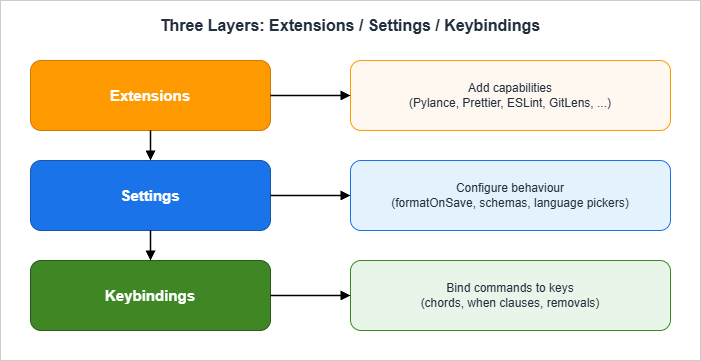
2.1 What Each Layer Actually Does
Extensions add capability. An extension contributes commands, language servers, file decorators, custom views, debuggers, or anything else the API allows. An extension by itself is dormant — installing Prettier does not, on its own, format anything. Installing a Python extension does not, on its own, change how a.py file is linted. An extension expands the menu of what is possible; it does not prescribe what happens.Settings prescribe what happens. They turn capability into behavior.
editor.formatOnSave: true, python.analysis.typeCheckingMode: "strict", files.exclude: { "**/.venv": true } — each line takes a capability that some extension (or VS Code itself) has contributed and binds it to a default behavior for the project, the workspace, or the user. Without settings, an extension is a tool nobody picked up.Keybindings bind commands to keys. Every extension contributes commands; many of those commands have no default key. A keybinding takes the command identifier (you can find them with the Preferences: Open Default Keyboard Shortcuts (JSON) command) and assigns a key, optionally with a
when clause that scopes the binding to a context — only in the editor, only in a Markdown file, only when the integrated terminal is focused. Keybindings are the layer that turns a useful but slow capability into a finger-speed reflex.2.2 Why Mixing Up the Layers Wastes Time
Treating the layers as one undifferentiated bucket is the single most common cause of friction. Three failure shapes I see weekly:- "I installed the extension but nothing happens." The extension contributed a capability; no setting turned it on. Example: installing the YAML extension does not give you schema validation until you point
yaml.schemasat the schema you want to validate against. - "I want to switch X off for one project." A capability is being driven by a setting in the wrong scope. The right fix is almost never to uninstall the extension; it is to override the setting in
.vscode/settings.jsonfor that project. - "My favourite shortcut suddenly stopped working." A new extension contributed a keybinding that overrides the older one. The fix is in
keybindings.json, not in the extensions list.
2.3 The Files Themselves
Three JSON files own the three layers, and each file has both User and Workspace forms:| Layer | User scope | Workspace scope |
|---|---|---|
| Settings | ~/Library/Application Support/Code/User/settings.json (macOS), %APPDATA%\Code\User\settings.json (Windows), ~/.config/Code/User/settings.json (Linux) | <workspace>/.vscode/settings.json |
| Keybindings | ~/Library/Application Support/Code/User/keybindings.json (macOS) etc. | n/a — keybindings are user-scoped only |
| Extensions list | (the Marketplace remembers what you installed) | <workspace>/.vscode/extensions.json (recommendations) |
Two consequences are worth fixing in muscle memory before §3. First, keybindings are user-scoped only — there is no
.vscode/keybindings.json. If you want a team to share a chord, you have to ship instructions or a settings sync profile, not a workspace file. Second, the .vscode/extensions.json file does not install anything; it lists recommendations that VS Code prompts the user to install when they open the workspace. Those two facts shape how you onboard new teammates: settings ride along automatically, extensions get prompted, keybindings need a separate distribution mechanism.3. Universal Extensions (Must-Haves)
These are the extensions I install before I know what stack I am on. They are language-agnostic, they are cheap (small bundle, fast activation), and they pay back their startup cost on day one.3.1 The Universal Eight
| Extension | Marketplace ID | What it does | Why it earns its slot |
|---|---|---|---|
| GitLens | eamodio.gitlens | Inline git blame, history, branch comparisons, hover-to-see-commit | The single fastest way to answer "why is this line the way it is?" |
| Error Lens | usernamehw.errorlens | Renders diagnostics inline at end-of-line | Cuts the loop between writing a typo and seeing the squiggle from "wait for hover" to "instant" |
| EditorConfig for VS Code | editorconfig.editorconfig | Honours .editorconfig files in the repo | The minimum-viable cross-editor convention; respects what the team already standardized on |
| Code Spell Checker | streetsidesoftware.code-spell-checker | Spell-checks identifiers and comments | Catches the embarrassing kind of bug that no test catches |
| Path Intellisense | christian-kohler.path-intellisense | Autocompletes filenames as you type paths | Pays for itself on the first day in any project with deep folder structures |
| TODO Tree | gruntfuggly.todo-tree | Surfaces TODO / FIXME / HACK comments in a side panel | Turns the ad-hoc TODO discipline into a real working list |
| Better Comments | aaron-bond.better-comments | Colors // !, // ?, // TODO annotations differently | Cheap visual cue that survives switching projects |
| Indent Rainbow | oderwat.indent-rainbow | Colors nested indentation | Mostly aesthetic; saves an actual second when reading deeply nested YAML or JSON |
3.2 What Did Not Make the List, and Why
Bracket Pair Colorizer. Functionality is now built into VS Code itself viaeditor.bracketPairColorization.enabled. The standalone extension is deprecated.Material Icon Theme / Material Theme. Aesthetic. They are great; they just do not change what you can do, only how it looks. Install if you like them, but they do not belong in a "must-have" list.
Live Share. It is excellent for pair programming, but it is a sometimes-tool, not an everyday one. Install it on demand.
Settings Sync. This was an extension before VS Code grew built-in Settings Sync; the built-in one does the job and is part of the editor.
3.3 A Word on Activation Cost
Each of the Universal Eight has an activation event narrow enough that the editor's startup is barely affected. As a rough order of magnitude on a typical project, GitLens activates in 50–150 ms, Error Lens and Path Intellisense in roughly 20–80 ms each, and EditorConfig / TODO Tree / Better Comments / Indent Rainbow / Code Spell Checker each well under 50 ms cold — numbers worth verifying for yourself with Developer: Show Running Extensions (§11.1). If you ever feel VS Code take three seconds to open, the cause is rarely one of these eight; it is almost always a heavy language-server extension activating eagerly. We come back to that in §11.4. Stack 1: Frontend (TypeScript / React / CSS)
The frontend stack is wheresettings.json earns the most per line. There are real conventions to honour (Prettier formatting, ESLint rules, Tailwind class ordering) and the editor is the place where they meet.4.1 The Curated Frontend List
| Extension | Marketplace ID | Role |
|---|---|---|
| ESLint | dbaeumer.vscode-eslint | Runs ESLint as you type; reads eslint.config.js / .eslintrc.* |
| Prettier - Code formatter | esbenp.prettier-vscode | Format-on-save with the team's .prettierrc |
| Tailwind CSS IntelliSense | bradlc.vscode-tailwindcss | Autocompletes Tailwind class names, hover-shows the resolved CSS |
| Pretty TypeScript Errors | yoavbls.pretty-ts-errors | Re-renders TypeScript's notoriously dense error messages into something a human reads in one pass |
| Vitest | vitest.explorer | Test Explorer panel for Vitest; click to run; gutter icons |
| CSS Variable Autocomplete | vunguyentuan.vscode-css-variables | Picks up custom properties (--brand-color) from the project and offers them in IntelliSense |
| Auto Rename Tag | formulahendry.auto-rename-tag | Renames the matching JSX/HTML tag when you edit one half |
| MDX | unifiedjs.vscode-mdx | Syntax highlighting and IntelliSense for .mdx; pays off the first time you write Storybook MDX or a Next.js docs page |
4.2 The Frontend settings.json Block
Drop this into ~/.config/Code/User/settings.json (or your platform equivalent) for personal defaults, or into .vscode/settings.json to enforce it project-wide. Per VS Code's precedence rules, anything in the workspace file overrides the user file for the same key, and language-specific settings ("[typescript]") override their non-language-specific cousins.{
"editor.formatOnSave": true,
"editor.formatOnPaste": false,
"editor.codeActionsOnSave": {
"source.fixAll.eslint": "explicit",
"source.organizeImports": "explicit"
},
"editor.bracketPairColorization.enabled": true,
"editor.guides.bracketPairs": "active",
"editor.inlineSuggest.enabled": true,
"editor.suggest.selectionMode": "always",
"[typescript]": { "editor.defaultFormatter": "esbenp.prettier-vscode" },
"[typescriptreact]": { "editor.defaultFormatter": "esbenp.prettier-vscode" },
"[javascript]": { "editor.defaultFormatter": "esbenp.prettier-vscode" },
"[javascriptreact]": { "editor.defaultFormatter": "esbenp.prettier-vscode" },
"[json]": { "editor.defaultFormatter": "esbenp.prettier-vscode" },
"[jsonc]": { "editor.defaultFormatter": "esbenp.prettier-vscode" },
"[css]": { "editor.defaultFormatter": "esbenp.prettier-vscode" },
"[html]": { "editor.defaultFormatter": "esbenp.prettier-vscode" },
"[markdown]": { "editor.defaultFormatter": "esbenp.prettier-vscode" },
"typescript.tsdk": "node_modules/typescript/lib",
"typescript.enablePromptUseWorkspaceTsdk": true,
"typescript.preferences.importModuleSpecifier": "non-relative",
"typescript.updateImportsOnFileMove.enabled": "always",
"typescript.suggest.autoImports": true,
"javascript.updateImportsOnFileMove.enabled": "always",
"eslint.format.enable": false,
"eslint.workingDirectories": [{ "mode": "auto" }],
"eslint.run": "onType",
"tailwindCSS.includeLanguages": { "typescriptreact": "html" },
"tailwindCSS.experimental.classRegex": [
["cva\\(([^)]*)\\)", "[\"'`]([^\"'`]*).*?[\"'`]"],
["cn\\(([^)]*)\\)", "[\"'`]([^\"'`]*).*?[\"'`]"]
]
}
eslint.format.enable: false keeps ESLint out of the formatter race so Prettier wins on whitespace and ESLint runs only as a code-action fixer. Second, typescript.tsdk: "node_modules/typescript/lib" makes the editor use the project's TypeScript version rather than VS Code's bundled one — essential when a monorepo pins a specific TypeScript version that differs from whatever shipped with this week's VS Code release.4.3 React / Next.js Notes
For Next.js projects that mix server components, client components, and route segment configs, the import path style matters. Settypescript.preferences.importModuleSpecifier to "non-relative" and configure paths in tsconfig.json; the editor's "Move file" refactor will then keep @/ aliases tidy on rename. For Storybook + MDX, the MDX extension above plus a Prettier rule for .mdx covers most of the friction.5. Stack 2: Backend (Python / Go / Java / Node.js)
Backend stacks differ enough that a single template is misleading. The pattern that recurs across all four languages, though, is the same: install the official language extension, install one fast linter/formatter, and configure both to run on save with explicit code actions.5.1 Python
| Extension | Marketplace ID | Role |
|---|---|---|
| Python | ms-python.python | The core Python extension (debugger, environment discovery) |
| Pylance | ms-python.vscode-pylance | Type checking and IntelliSense; the language server most projects want |
| Ruff | charliermarsh.ruff | Ultra-fast linter + formatter; replaces Flake8 + Black + isort for most projects |
| Python Debugger | ms-python.debugpy | Debugger backend (auto-installed by the Python extension) |
| autoDocstring | njpwerner.autodocstring | Generates docstring stubs from signatures |
{
  "[python]": {
    "editor.defaultFormatter": "charliermarsh.ruff",
    "editor.formatOnSave": true,
    "editor.codeActionsOnSave": {
      "source.fixAll.ruff": "explicit",
      "source.organizeImports.ruff": "explicit"
    }
  },
  "python.languageServer": "Pylance",
  "python.analysis.typeCheckingMode": "basic",
  "python.analysis.autoImportCompletions": true,
  "python.analysis.diagnosticMode": "workspace",
  "python.terminal.activateEnvironment": true,
  "ruff.nativeServer": "on"
}
python.analysis.typeCheckingMode: "basic" is the right starting point for an existing codebase; "strict" is the right target if you are in a green-field project that has been typed from day one. Setting "strict" on a code base that has never been type-checked produces hundreds of diagnostics on day one, almost all of them noise, and the team turns Pylance off within a week.5.2 Go
| Extension | Marketplace ID | Role |
|---|---|---|
| Go (Google) | golang.go | Official Go extension; bundles gopls integration and registers tests with VS Code's built-in Test Explorer (no separate explorer extension needed) |
{
  "[go]": {
    "editor.defaultFormatter": "golang.go",
    "editor.formatOnSave": true,
    "editor.codeActionsOnSave": { "source.organizeImports": "explicit" }
  },
  "go.useLanguageServer": true,
  "go.toolsManagement.autoUpdate": true,
  "go.lintTool": "golangci-lint",
  "go.lintFlags": ["--fast"],
  "go.testFlags": ["-v", "-race"],
  "gopls": {
    "ui.semanticTokens": true,
    "ui.completion.usePlaceholders": true
  }
}
go.work files, opening the parent directory rather than each module individually lets gopls resolve cross-module symbols correctly.5.3 Java
| Extension | Marketplace ID | Role |
|---|---|---|
| Extension Pack for Java | vscjava.vscode-java-pack | Bundles the language support, debugger, test runner, Maven, and project manager |
| Spring Boot Extension Pack | vmware.vscode-boot-dev-pack | Spring-aware completions, application properties IntelliSense |
For Lombok, do not install a separate annotation-support extension — the modern path is to enable Lombok support inside the bundled JDT language server with
java.jdt.ls.lombokSupport.enabled: true (set in the snippet below). The standalone Lombok-extension story has fragmented over the years; the JDT-LS toggle is the version that the Red Hat language server officially maintains.{
"[java]": { "editor.defaultFormatter": "redhat.java" },
"java.format.settings.url": "${workspaceFolder}/.vscode/eclipse-formatter.xml",
"java.format.settings.profile": "Project",
"java.saveActions.organizeImports": true,
"java.completion.importOrder": ["java", "javax", "org", "com", ""],
"java.compile.nullAnalysis.mode": "automatic",
"java.jdt.ls.lombokSupport.enabled": true,
"java.test.config": { "vmArgs": ["-Xmx2G"] }
}
5.4 Node.js
For a Node.js (non-React) backend, the frontend stack from §4 minus Tailwind covers most of the ground. The two additions worth knowing are:| Extension | Marketplace ID | Role |
|---|---|---|
| REST Client | humao.rest-client | Send HTTP requests from a .http file in the editor; reply renders inline |
| DotENV | mikestead.dotenv | Syntax highlighting for .env files |
5.5 The editor.codeActionsOnSave Pattern
All four backend templates above use the same editor.codeActionsOnSave pattern. The literal value "explicit" (rather than true) is the modern form; it tells VS Code to run the code action only on an explicit save (Cmd+S / Ctrl+S), not on every implicit save such as window blur. This avoids the surprising failure mode where switching apps reformats half a file behind your back.6. Stack 3: Infrastructure / Cloud (Terraform / CloudFormation / YAML)
Infrastructure-as-code lives in YAML, HCL, and JSON. The editor cannot give you everything thatterraform plan or cfn-lint does, but it can catch the cheap mistakes (typos in resource types, schema-invalid keys) before you hit the CLI.6.1 The Curated Infra List
| Extension | Marketplace ID | Role |
|---|---|---|
| HashiCorp Terraform | hashicorp.terraform | Official Terraform language server; terraform fmt on save, terraform validate diagnostics |
| AWS Toolkit | amazonwebservices.aws-toolkit-vscode | CloudFormation / SAM templates IntelliSense, AWS Explorer, Step Functions / EventBridge / Lambda authoring |
| Amazon Q Developer | amazonwebservices.amazon-q-vscode | AWS-specialized AI assistant; ships as its own extension separate from AWS Toolkit |
| CloudFormation Linter | kddejong.vscode-cfn-lint | Wraps cfn-lint for inline diagnostics on *.template.yaml |
| YAML (Red Hat) | redhat.vscode-yaml | Schema-aware validation; the engine that AWS Toolkit and Kubernetes-aware tooling extend |
| Docker | ms-azuretools.vscode-docker | Dockerfile linting, image management, compose support |
| Kubernetes | ms-kubernetes-tools.vscode-kubernetes-tools | YAML validation against k8s schemas, cluster explorer |
6.2 The Infra settings.json Block
{
  "[terraform]": {
    "editor.formatOnSave": true,
    "editor.defaultFormatter": "hashicorp.terraform",
    "editor.tabSize": 2
  },
  "[terraform-vars]": {
    "editor.formatOnSave": true,
    "editor.defaultFormatter": "hashicorp.terraform"
  },
  "terraform.experimentalFeatures.validateOnSave": true,
  "terraform.experimentalFeatures.prefillRequiredFields": true,

  "[yaml]": {
    "editor.defaultFormatter": "redhat.vscode-yaml",
    "editor.tabSize": 2,
    "editor.autoIndent": "keep",
    "editor.quickSuggestions": { "other": true, "comments": false, "strings": true }
  },
  "yaml.schemas": {
    "https://raw.githubusercontent.com/awslabs/goformation/master/schema/cloudformation.schema.json": [
      "**/cloudformation/*.yaml",
      "**/cloudformation/*.yml",
      "**/template.yaml",
      "**/*.template.yaml"
    ],
    "https://json.schemastore.org/github-workflow.json": [".github/workflows/*.yml"],
    "https://json.schemastore.org/github-action.json": [".github/actions/*/action.yml"]
  },
  "yaml.format.enable": true,
  "yaml.completion": true,
  "yaml.validate": true,

  "cfnLint.path": "cfn-lint",
  "cfnLint.ignoreRules": [],

  "[dockerfile]": { "editor.defaultFormatter": "ms-azuretools.vscode-docker" }
}
editor.quickSuggestions.strings: true for YAML is what makes the schema completions actually appear inside string values (CloudFormation resource types are strings). Without it, you start typing AWS::S3::Bucket and get nothing. And the yaml.schemas map is the single most useful block in any infrastructure setup — every quoted-string typo in a CFN template that is caught by the editor instead of by cfn-lint is fifteen seconds of test loop saved.6.3 What Belongs Outside the Editor
Plenty does. Editor diagnostics will not catch a circular dependency that onlyterraform plan can surface, will not run a cdk synth, will not detect a CloudFormation drift. The point of these extensions is not to replace those tools; it is to make sure that by the time you reach for the CLI, the file is already syntactically clean and schema-valid. Use the editor for the cheap mistakes; use the CLI for the expensive ones.7. Stack 4: AI Coding (Claude Code, Cursor, Copilot)
The fourth stack is the newest, and the one where the configuration discipline matters most. AI coding assistants live close to your files; their permissions and their suggestions land directly in your code; conflicts between them produce mysterious double-completion and lost cursor focus. Three of them are worth installing — sometimes together, sometimes carefully separated.For deeper context on how AI coding has reshaped what an editor is for, see Beyond Self-Disruption: The Paradigm Shift Software Engineers Need in the AI Era. For the configuration anatomy of one of these agents —
settings.json, hooks, sandboxing — see Claude Code Harness and Environment Engineering.7.1 Claude Code (Anthropic, Official)
The official Claude Code extension is published asanthropic.claude-code on the Visual Studio Marketplace. It lives next to the Claude Code CLI and shares its session state — opening a chat in the side panel resumes whatever you had going in the terminal. Inline diffs, automatic checkpoints, and the Spark icon in the editor toolbar are the surface-level features; the deeper feature is that the same ~/.claude/settings.json and .claude/settings.json files that govern the CLI also govern the extension. There is no second permission system to learn.If you are new to Claude Code, the entry-point article is Claude Code Getting Started; install the CLI first and the extension second.
A note on look-alikes. The Marketplace has several extensions that include "Claude" in their names but are not from Anthropic. Verify the publisher reads Anthropic and the extension ID is exactly
anthropic.claude-code before you install.The extension's own
settings.json surface is intentionally tiny; the real configuration — permissions, hooks, MCP servers, model selection — lives in ~/.claude/settings.json (User scope) and .claude/settings.json (per-repo), shared with the CLI. We come back to the implications for User vs Workspace scope in §9.5.7.2 GitHub Copilot
github.copilot (autocompletion) and github.copilot-chat (sidebar chat) are usually installed together. Two settings are worth setting up front:{
"github.copilot.enable": {
"*": true,
"plaintext": false,
"markdown": true,
"yaml": true,
"scminput": false
},
"github.copilot.editor.enableAutoCompletions": true,
"github.copilot.advanced": { "listCount": 3 }
}
scminput: false is the line that stops Copilot from suggesting commit messages when you are typing in the SCM input box — almost always the wrong context. plaintext: false keeps it from appearing while you write release notes. github.copilot.advanced is an internal advanced settings bag that is not part of the publicly documented Copilot settings reference; listCount works in current builds but may change without notice, so treat it as an opt-in tweak rather than a stable contract.7.3 Amazon Q Developer
Amazon Q Developer is published as its own extension —amazonwebservices.amazon-q-vscode — separate from AWS Toolkit (amazonwebservices.aws-toolkit-vscode). The two were once bundled, but AWS split them so that engineers who want CloudFormation / SAM authoring without an AI assistant in the editor can install only the Toolkit, and vice versa. On a developer machine where the primary stack is AWS, Q is the assistant that knows the most about CloudFormation property names, IAM action verbs, and the specific shape of a Boto3 call.Practical rule: install the AWS Toolkit when you want CloudFormation/SAM IntelliSense, an AWS Explorer in the side bar, and Step Functions / EventBridge authoring. Install Amazon Q Developer when you want the assistant. Installing both is fine; they no longer fight for the same surface.
7.4 The Conflict Surface
The single biggest avoidable problem with AI coding extensions is that two of them try to claim the inline-completion slot at the same time. Symptoms: completions flicker and disappear, cursor focus jumps between two ghost-text providers, Tab sometimes accepts the wrong suggestion. The fix is to pick one provider per language:{
"editor.inlineSuggest.enabled": true,
"[python]": { "editor.inlineSuggest.suppressSuggestions": false },
"github.copilot.enable": { "*": true, "python": false }
}
7.5 Where to Steer Each Tool
The three assistants are not the same. As a rough decomposition of what each is best at on my machine: Copilot wins for short-loop completions inside a single function; Claude Code wins for "read three files, change two, and run the test suite"; Q wins when the task is genuinely AWS-shaped — drafting a CloudFormation template, refining an IAM policy, debugging a Lambda trace. Keeping all three installed is fine; what is not fine is letting all three try to autocomplete the same line.A note on Cursor. Cursor is a fork of VS Code rather than an extension of it; everything in this article applies if you swap the binary, but installing Cursor as a replacement for VS Code is a separate decision from anything below. Mentioning it here for completeness — the present article is about VS Code itself.
8. Keybinding Customization Patterns
This is the section that returns the most leverage per minute of effort. A well-chosen handful of keybindings turns "open command palette, type seven characters, hit enter" into a single chord.8.1 Where Keybindings Live
Open the keybindings JSON via Preferences: Open Keyboard Shortcuts (JSON) from the command palette. The file is your overrides — VS Code ships a default set, and your file layers on top of (or removes) those defaults.A keybinding entry has three fields:
{
  "key": "cmd+k cmd+f",
  "command": "editor.action.formatDocument",
  "when": "editorTextFocus && !editorReadonly"
}
key is the keystroke (or chord — see §8.2). command is the command identifier. when is an optional boolean expression that scopes the binding.8.2 Chords (Multi-Key Sequences)
Two keys separated by a space form a chord — VS Code waits for the second keystroke after you press the first. The conventioncmd+k <something> is the standard chord prefix that VS Code itself uses (cmd+k cmd+s for keyboard shortcuts, cmd+k cmd+t for theme picker). Reserving cmd+k <letter> for your own commands keeps you out of the way of single-keystroke conflicts.[
{ "key": "cmd+k cmd+t", "command": "workbench.action.selectTheme" },
{ "key": "cmd+k cmd+f", "command": "editor.action.formatDocument", "when": "editorTextFocus && !editorReadonly" },
{ "key": "cmd+k cmd+r", "command": "workbench.action.reloadWindow" },
{ "key": "cmd+k cmd+l", "command": "workbench.action.toggleZenMode" }
]
8.3 The when Clause Is the Real Power
A when clause can use logical operators (&&, ||, !), equality (==, !=), regex match (=~), and membership (in, not in). It can read any user or workspace setting via the config. prefix. Common context keys you will reach for repeatedly:| Context key | Meaning |
|---|---|
editorTextFocus | Cursor is in a text editor (not a diff view, not a panel) |
editorLangId == 'python' | Active editor is Python |
isInDiffEditor | Editor is the diff view (useful during code review) |
terminalFocus | Integrated terminal is focused |
sideBarFocus && activeViewlet == 'workbench.view.explorer' | File Explorer has focus |
inDebugMode | A debug session is active |
resourceExtname == '.md' | The active file is Markdown |
8.4 Removing a Default Binding
Prefix the command with- to remove a default keybinding without rebinding it:{ "key": "ctrl+w", "command": "-workbench.action.closeActiveEditor" }
8.5 The Patterns I Reach For Most
A small set of patterns covers about 80% of the keybindings I add to a fresh machine.Toggle the integrated terminal cleanly:
{ "key": "ctrl+`", "command": "workbench.action.terminal.toggleTerminal" }
Move-line-up / move-line-down. The defaults are
alt+up / alt+down on Linux/Windows and option+up / option+down on macOS. Worth confirming once on your platform; one of the highest-leverage editor bindings.Run the tests in the active file:
{ "key": "cmd+; cmd+t", "command": "testing.runCurrentFile", "when": "editorTextFocus" }
testing.runCurrentFile is the unified Test API command shipped by VS Code itself. Any extension that registers a TestController — the Python extension, the Go extension, the Vitest extension, the Java test runner — participates automatically, so a single chord works across every stack in this article. If you want a finer-grained "run only the test under the cursor" binding, pair it with testing.runAtCursor:{ "key": "cmd+; cmd+r", "command": "testing.runAtCursor", "when": "editorTextFocus" }
cmd+; is unused in vanilla VS Code on macOS, which makes it a clean prefix for your own commands. On Linux/Windows, swap to ctrl+;.Open the matching test file (or implementation file). VS Code has no built-in "go to matching test" command, and the Marketplace has several community extensions that add one (search for "jump to test" / "toggle test"). Pick one that matches your test-file naming convention, bind it to a chord —
cmd+; cmd+m is what I use — and the round-trip implementation-to-test becomes one keystroke each way.Navigate diagnostics:
[
  { "key": "f8",       "command": "editor.action.marker.nextInFiles" },
  { "key": "shift+f8", "command": "editor.action.marker.prevInFiles" }
]
Multi-cursor by selection. Add a cursor at the next occurrence of the current selection:
{ "key": "cmd+d", "command": "editor.action.addSelectionToNextFindMatch" }
ctrl+d. The follow-on cmd+u undoes the last cursor add — useful when you went one too far.Toggle word wrap for the current view:
{ "key": "cmd+k cmd+z", "command": "editor.action.toggleWordWrap" }
Send selection to the integrated terminal:
{ "key": "cmd+enter", "command": "workbench.action.terminal.runSelectedText", "when": "editorHasSelection && editorTextFocus" }
cmd+enter is the default for editor.action.insertLineAfter; the when clause above scopes the override to "selection present", so the unselected behavior falls back to the default. If that ambiguity bothers you, swap to cmd+shift+enter.Quick-fix the diagnostic at the cursor:
{ "key": "cmd+.", "command": "editor.action.quickFix", "when": "editorTextFocus" }
Reveal the active file in the explorer:
{ "key": "cmd+k cmd+e", "command": "workbench.files.action.showActiveFileInExplorer" }
8.6 Two Pitfalls
First, the last matching rule inkeybindings.json wins. VS Code walks the list from the bottom upward and stops at the first rule whose key chord and when clause both match — equivalent to "the bottom-most match wins." If your binding appears to be ignored, another rule below it in the file is matching first. The fix is to move your rule to the bottom of the file, or tighten its when clause so the conflict cannot occur.Second, the ordering of evaluation does not check kindly for chord prefixes. If you bind
cmd+k cmd+f and a default cmd+k (single key) exists for some other command, the chord still works, but the editor briefly enters chord mode every time you press cmd+k. This is by design but can feel laggy; use cmd+k cmd+<something> rather than cmd+k <letter> for chords.9. settings.json Templates (Copy-Paste Ready)
This section consolidates the language-specific blocks above into four self-contained templates. Each is intended to be dropped directly into your Usersettings.json and then trimmed for the Workspace.9.1 The Common Block (Everyone Should Have These)
{
  "files.autoSave": "onFocusChange",
  "files.trimTrailingWhitespace": true,
  "files.insertFinalNewline": true,
  "files.trimFinalNewlines": true,
  "files.eol": "\n",

  "files.exclude": {
    "**/.DS_Store": true,
    "**/.git": true,
    "**/.hg": true,
    "**/.svn": true,
    "**/CVS": true,
    "**/Thumbs.db": true,
    "**/__pycache__": true,
    "**/.pytest_cache": true,
    "**/.mypy_cache": true,
    "**/.ruff_cache": true,
    "**/node_modules": false
  },
  "search.exclude": {
    "**/node_modules": true,
    "**/dist": true,
    "**/build": true,
    "**/.next": true,
    "**/coverage": true,
    "**/*.lock": true
  },

  "editor.tabSize": 2,
  "editor.insertSpaces": true,
  "editor.detectIndentation": true,
  "editor.rulers": [80, 120],
  "editor.minimap.enabled": false,
  "editor.renderWhitespace": "boundary",
  "editor.cursorBlinking": "smooth",
  "editor.smoothScrolling": true,
  "editor.linkedEditing": true,
  "editor.stickyScroll.enabled": true,
  "editor.suggest.preview": true,

  "workbench.editor.enablePreview": false,
  "workbench.editor.highlightModifiedTabs": true,
  "workbench.list.smoothScrolling": true,
  "workbench.tree.indent": 16,

  "window.titleBarStyle": "custom",
  "window.confirmBeforeClose": "keyboardOnly",
  "window.commandCenter": true,

  "terminal.integrated.scrollback": 10000,
  "terminal.integrated.copyOnSelection": true,
  "terminal.integrated.persistentSessionReviveProcess": "onExit",

  "git.confirmSync": false,
  "git.autofetch": true,
  "git.openRepositoryInParentFolders": "always",

  "explorer.compactFolders": false,
  "explorer.confirmDelete": true,
  "explorer.confirmDragAndDrop": true
}
editor.minimap.enabled: false — the minimap is information you can already get from the scroll position; the screen real estate is more valuable. workbench.editor.enablePreview: false — preview tabs collapse the second you click a different file, which is exactly the wrong behavior 80% of the time.9.2 The Frontend Template
Concatenate §9.1 with §4.2.9.3 The Backend Template (Python-Primary)
Concatenate §9.1 with §5.1.9.4 The Infrastructure Template
Concatenate §9.1 with §6.2.9.5 The AI Coding Add-On
Append this to whichever of §9.2–§9.4 you used:{
"editor.inlineSuggest.enabled": true,
"github.copilot.enable": {
"*": true,
"plaintext": false,
"scminput": false
},
"github.copilot.editor.enableAutoCompletions": true
}
anthropic.claude-code extension intentionally has a very small surface in settings.json. Its real configuration — permissions, hooks, MCP servers, model selection — lives in ~/.claude/settings.json (User scope) and .claude/settings.json (per-repo), shared with the Claude Code CLI. If you want a project-level Claude Code policy, edit .claude/settings.json in the repo, not VS Code's settings.json. See Claude Code Harness and Environment Engineering for the full schema.10. Workspace vs User Settings Strategy
Now that the templates are in front of you, the question becomes where each block belongs. Putting everything in User settings makes every project behave the same; putting everything in Workspace settings disables the User defaults silently. Neither extreme is right.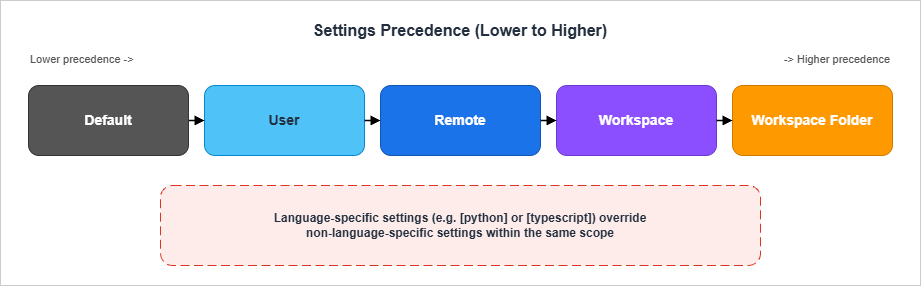
10.1 Precedence in One Sentence
Later scopes override earlier scopes. From lowest to highest precedence: Default → User → Remote → Workspace → Workspace Folder. Within any given scope, language-specific settings ("[python]": { ... }) override their non-language-specific cousins in the same scope.The single subtlety worth memorizing: a language-specific User setting beats a non-language-specific Workspace setting. So if you set
"[python]": { "editor.tabSize": 4 } in your User file and the Workspace file says "editor.tabSize": 2, Python files in that workspace still use four spaces. If that surprises you, the trick is to make both halves match — set both the User language-specific and the Workspace language-specific block.10.2 What Belongs in Each Scope
A working rule of thumb that keeps the right things portable and the right things repo-pinned:| Setting kind | Belongs in | Why |
|---|---|---|
| Personal aesthetics (font, theme, minimap, cursor blinking) | User | Travels with you; nobody else cares |
| Tab size, EOL, formatter on save | Workspace | Repo-specific; must match what CI enforces |
eslint.workingDirectories, python.languageServer | Workspace | Depends on the repo's structure |
| Personal extensions (Vim emulator, theme) | User (and a Profile if needed) | Should not surprise teammates |
| Language-specific formatter overrides | Workspace | The team agrees on Prettier vs Black |
| API keys, account-specific paths | User (or .vscode/settings.json ignored by git) | Never commit secrets |
Two failure shapes worth flagging. First, putting
editor.tabSize only in User settings is what gives a repo the "every developer has different indentation" problem; pin it in the Workspace file and the .editorconfig (the second covers editors that are not VS Code). Second, putting personal extensions in .vscode/extensions.json recommendations is the right impulse, but be picky — recommending the team to install your favourite Vim emulator is rude.10.3 Profiles (One Editor, Several Personas)
VS Code Profiles bundle settings, extensions, keybindings, snippets, tasks, and UI state into a switchable persona. The Command Palette command is Preferences: Create Settings Profile, with three starting points: Empty Profile, Based on Current Profile, or Based on Template Profile (Web Development, Data Science, etc.). The profile-specific settings file lives at~/Library/Application Support/Code/User/profiles/<profile-id>/settings.json on macOS (Windows: %APPDATA%\Code\User\profiles\<profile-id>\settings.json).The use case profiles handle better than anything else: keeping a heavy stack out of the way of a light stack. If your machine has both a Java backend project and a frontend project open in different windows, putting Java in its own Profile means the Java language server (Eclipse JDT) only loads when you switch to that profile. Your TypeScript editor remains snappy.
A concrete recipe:
- Default profile: Universal Eight (§3) + Frontend stack (§4). The lightweight everyday environment.
- Backend profile: Universal Eight + Python or Go or Java. Switch to it when you open a backend repo.
- Infrastructure profile: Universal Eight + Terraform/AWS Toolkit/CFn Linter. Switch when you open a CDK/Terraform repo.
- AI Coding profile (optional): the AI coding add-on (§9.5) plus Claude Code; lets you experiment with AI configurations without polluting the everyday Default profile.
10.4 Sharing Settings With a Team
The mechanisms that work in practice, in order of how reliable they are:.vscode/settings.jsonchecked in. Reliable; everyone who opens the workspace gets the settings automatically. Use this for everything that the team agrees on..vscode/extensions.jsonrecommendations. Reliable; VS Code prompts the user to install the recommended set on first open. Use this for the must-have extensions for the project..editorconfigat the repo root. Reliable across editors (not just VS Code); use this for the cross-cutting basics (indent, EOL, trim trailing whitespace).- Built-in Settings Sync. Sync your User settings, keybindings, snippets, and extensions across your own machines. One pitfall worth knowing: Settings Sync syncs within each Profile but does not synchronize the Profile membership list itself, and signing in with a Microsoft account on one machine and a GitHub account on another creates two parallel sync graphs — pick one identity per machine and keep it consistent.
- Profiles export. A profile can be exported as a JSON file and shared. Useful for onboarding, less reliable for ongoing changes.
.claude/settings.json, MCP servers, hook scripts — the same first principle applies: anything that is part of the team agreement goes into the repo; anything that is personal stays in the User scope.11. Performance Tuning (Disabling Heavy Extensions per Project)
Once you have followed §3–§7, you have somewhere between fifteen and thirty extensions installed. The editor's startup time is the canary; if it has crept past two seconds on a fresh window, an extension is activating eagerly and unnecessarily.11.1 Diagnose First
The two commands that find the culprit:- Developer: Show Running Extensions. Lists every active extension with activation time in milliseconds and current CPU/RAM. Sort by activation time; anything over 200 ms in a fresh editor is a candidate for review.
- Developer: Startup Performance. A more detailed breakdown of where startup time went, including extension-host activation events.
11.2 The Tools the Editor Already Has
| Tool | Where it lives | What it does |
|---|---|---|
| Disable for a workspace | Extensions view → right-click an extension → Disable (Workspace) | Keeps the extension installed but inactive in this workspace |
| Profiles | §10.3 | Per-profile extension set |
extensions.json | .vscode/extensions.json | Recommends extensions to install (and unwantedRecommendations to flag the wrong ones) |
extensionKind | User settings.json | Force an extension to run on the local or remote side in remote-development scenarios (worked example in §11.5) |
The
unwantedRecommendations field is underused. It is the polite way to tell teammates "the older version of this extension was popular but we have switched away":{
"recommendations": [
"dbaeumer.vscode-eslint",
"esbenp.prettier-vscode",
"bradlc.vscode-tailwindcss"
],
"unwantedRecommendations": [
"hookyqr.beautify",
"ms-vscode.vscode-typescript-tslint-plugin"
]
}
11.3 Settings That Save Real Time
A handful of settings disable expensive behaviors that few projects actually need:{
"telemetry.telemetryLevel": "off",
"workbench.startupEditor": "none",
"extensions.autoCheckUpdates": false,
"git.autorefresh": true,
"git.decorations.enabled": true,
"search.followSymlinks": false,
"files.watcherExclude": {
"**/.git/objects/**": true,
"**/.git/subtree-cache/**": true,
"**/node_modules/**": true,
"**/.next/**": true,
"**/.venv/**": true,
"**/__pycache__/**": true,
"**/dist/**": true,
"**/build/**": true,
"**/.terraform/**": true,
"**/cdk.out/**": true
}
}
workbench.startupEditor: "none" skips the Welcome page render on every cold start, and extensions.autoCheckUpdates: false stops the editor from polling the Marketplace on launch — a small but predictable saving on slow connections, and trivial to undo when you actually want to update. files.watcherExclude is the single highest-leverage perf setting on monorepos. The default file watcher walks every subdirectory it can; .git/objects alone in a long-lived repo can hold tens of thousands of small files, and so can node_modules. Excluding them is a one-line change that frees up CPU continuously.11.4 Heavy Extensions That Are Worth the Cost
Performance work should not be confused with austerity. Some extensions earn their startup cost back the first time you use them: Pylance on a typed Python codebase, the Java extension pack on a Spring Boot service, the Go extension on a microservice. The point is not to remove them; the point is to keep them out of the windows where they would not pull their weight.11.5 Remote-SSH, Dev Containers, WSL: extensionKind
Once you start working over Remote-SSH, in a Dev Container, or inside WSL, every extension has to make a choice: does it run on the local UI side, on the remote workspace side, or both? VS Code's default for each extension is set in its manifest, but you can override it per-extension via the extensionKind setting in your User settings.json:{
"remote.extensionKind": {
"esbenp.prettier-vscode": ["workspace"],
"ms-azuretools.vscode-docker": ["workspace"],
"eamodio.gitlens": ["ui", "workspace"]
}
}
"ui" (run only on the local machine, useful for theming and decoration extensions), "workspace" (run on the remote, required for anything that needs to read files in the workspace), or both as an array (the extension can decide based on context). The most common failure shape is a formatter or linter that VS Code installed on the UI side by default, which then cannot see the remote project's node_modules or virtual environment; pinning it to "workspace" is usually the fix. The Remote-SSH extension surfaces this in its UI ("Install in SSH: hostname"), but the JSON pin is what survives a re-image.12. Summary
Five practical takeaways, in the order you should apply them:- Treat extensions, settings, and keybindings as one system. When something does not work the way you expect, ask which of the three layers is responsible, and look in exactly that file.
- Pin team-shared settings in
.vscode/settings.jsonand.editorconfig. Personal aesthetics stay in your User scope. Heavy stacks stay in their own Profile. - One inline-suggestion provider per language. Two AI assistants racing for the same line is the most common avoidable AI-coding friction.
- Bind a small, reserved chord prefix (
cmd+k <something>orcmd+; <something>) for your own keybindings. Usewhenclauses; the bottom-most matching rule inkeybindings.jsonwins, so place your overrides at the end of the file. - Audit startup time periodically with Developer: Show Running Extensions. Disable per-workspace anything that activates without paying back. Keep
files.watcherExcludehonest on monorepos.
13. References
Official Documentation
- Visual Studio Code: Settings reference
- Visual Studio Code: Profiles
- Visual Studio Code: Keyboard shortcuts
- Visual Studio Code Extension API: when clause contexts
- Claude Code: VS Code extension documentation
- Claude Code for VS Code on the Visual Studio Marketplace
Marketplace IDs Referenced in This Article
- Universal:
eamodio.gitlens,usernamehw.errorlens,editorconfig.editorconfig,streetsidesoftware.code-spell-checker,christian-kohler.path-intellisense,gruntfuggly.todo-tree,aaron-bond.better-comments,oderwat.indent-rainbow - Frontend:
dbaeumer.vscode-eslint,esbenp.prettier-vscode,bradlc.vscode-tailwindcss,yoavbls.pretty-ts-errors,vitest.explorer,vunguyentuan.vscode-css-variables,formulahendry.auto-rename-tag,unifiedjs.vscode-mdx - Backend:
ms-python.python,ms-python.vscode-pylance,charliermarsh.ruff,ms-python.debugpy,njpwerner.autodocstring,golang.go,vscjava.vscode-java-pack,vmware.vscode-boot-dev-pack,humao.rest-client,mikestead.dotenv - Infrastructure:
hashicorp.terraform,amazonwebservices.aws-toolkit-vscode,kddejong.vscode-cfn-lint,redhat.vscode-yaml,ms-azuretools.vscode-docker,ms-kubernetes-tools.vscode-kubernetes-tools - AI coding:
anthropic.claude-code,github.copilot,github.copilot-chat,amazonwebservices.amazon-q-vscode
Related Articles in This Series
- Beyond Self-Disruption: The Paradigm Shift Software Engineers Need in the AI Era
- Claude Code Getting Started - Why Knowing About Local AI Agents Changes Everything
- Claude Code Harness and Environment Engineering: Designing the Frontline Where Local AI Agents Actually Live
References:
Tech Blog with curated related content
Written by Hidekazu Konishi