Claude Code Getting Started - Why Knowing About Local AI Agents Changes Everything
First Published:
Last Updated:
Bridge from the parent essay: This article is the hands-on companion piece to my earlier essay Beyond Self-Disruption: The Paradigm Shift Software Engineers Need in the AI Era. That essay argued, in fairly abstract terms, that the arrival of local AI agents — and Claude Code in particular — was the concrete trigger that forced me to disrupt my own way of thinking. The piece you are reading now is the opposite kind of article. It is a deliberately practical, no-prior-knowledge guide whose only goal is to get you from "I have heard the name Claude Code" to "I have run Claude Code on my own machine and watched it touch my own files."
Table of Contents:
- What Claude Code Is — And Where It Differs From Online AI
- The "Minimum Skill Bar" — Who Can Actually Use Claude Code
- Choosing Your Interface — The Six Surfaces of Claude Code
- Plan & Pricing Overview — Which Subscription Includes Claude Code
- Setup Walkthrough A — The Claude Code CLI
- Setup Walkthrough B — VS Code Extension
- Setup Walkthrough C — JetBrains Plugin
- Setup Walkthrough D — Desktop App
- Setup Walkthrough E — Web (claude.ai surface)
- Your First Three Tasks — Thirty Minutes That Make It Real
- The Slash-Command Minimum Set
- The CLAUDE.md Habit — Persistent Context for Free
- How to Talk to Claude Code — The Minimum Viable Prompt
- Safety First — The Beginner's Floor
- Common Beginner Pitfalls — And What To Do Instead
- Where to Go Next
- References
The reason a getting-started guide deserves its own dedicated article — instead of being a footnote at the end of the parent essay — is that whether you have ever let a local AI agent move around in your own environment changes three things at once: how you see generative AI, how you value generative AI, and the level at which you can use generative AI. I will spell out those three shifts in the Introduction below and treat them as the evaluation axes that run through every later section.
If you finish this article and you have Claude Code running on your laptop, you have already crossed the gap that the parent essay was really pointing at. Everything else — prompt engineering, harness engineering, environment engineering, agent orchestration — is downstream of that one moment.
Introduction — Three Things That Change the Moment You Try a Local AI Agent
In §4 Embracing Local AI Agents of Beyond Self-Disruption, I drew a single, deliberately blunt distinction. There are many ways to classify generative AI services, but if we divide them by where they run, they fall broadly into two categories:- Online AI agents — Used through a browser or chat interface. Examples include Anthropic Claude (web version), OpenAI ChatGPT, and Microsoft 365 Copilot.
- Local AI agents — Run on your local terminal (PC) and can directly access the file system. Examples include Anthropic Claude Code (coding-centric) and OpenAI Codex CLI (OpenAI's terminal-based coding agent, launched 2025).
(a) How you see it. Before you have used a local AI agent, "generative AI" is a chat box on a website. You type a question, you get an answer back, and you copy and paste any code by hand. After you have used a local AI agent, generative AI is a thing that lives next to your project and reads your actual files, runs your actual commands, and produces actual diffs. The category itself shifts from "thing I talk to" to "thing that acts."
(b) What you value about it. Before, the unit of value is the answer: how good is the text or code Claude returned? After, the unit of value is the change: how good is the state of my repository now that Claude has touched it? You start grading the agent on outcomes — files added, tests passing, build green — rather than on the eloquence of any single reply. That is also when you start to feel, viscerally, that "AI is a helper" is the wrong mental model and that "AI is the worker, I am the reviewer" is closer to what is actually happening.
(c) The level at which you can use it. Before, your usage tops out at one-shot tasks: write me this function, explain this error. After, your usage extends naturally to multi-step, multi-file, multi-iteration work: "Read the codebase, add this feature, run the tests, fix what breaks, summarize what you did." The ceiling is no longer a single chat reply; it is whatever sequence of actions the agent can plan and carry out before pausing to ask you something.
Those three shifts — perception, value, level — are the same three things that the parent essay was, in the end, pointing at. The fastest way to make them real is not to read more about Claude Code. It is to install it, point it at a folder you do not mind it touching, and ask it to do something. This article is the path for getting there with as little friction as possible, including for readers who have never installed a developer tool before.
A note on scope before we start. This is the entry-level article in a small series. A follow-up companion piece, Claude Code Harness and Environment Engineering, will pick up where this one stops, focusing on both the harness Claude Code runs as (
settings.json, hooks, permissions, MCP scopes, CLAUDE.md) and the environment it runs in (OS user separation, sandboxing, network egress), along with the safety/automation trade-offs that come with letting an agent operate more autonomously. Anywhere this article touches on those topics, it is to flag them and to leave you with a safe default until that follow-up is ready.1. What Claude Code Is — And Where It Differs From Online AI
Before getting into installation, it is worth being precise about what Claude Code actually is, because the name suggests something narrower than the reality.1.1 The One-Sentence Definition
Claude Code is an agentic coding tool from Anthropic that runs on your machine, reads and edits files in folders you point it at, runs commands and tools on your behalf, and works through multi-step tasks until it has either finished them or decided it needs to ask you something. The Anthropic-authored description on its GitHub repository puts it more colorfully: "an agentic coding tool that lives in your terminal, understands your codebase, and helps you code faster by executing routine tasks, explaining complex code, and handling git workflows — all through natural language commands" (anthropics/claude-code on GitHub).The keywords that matter in that sentence are terminal (it runs on your machine, not in a website tab), understands your codebase (it reads files, not just the message you typed), executes routine tasks (it does, it does not only describe), and handles git workflows (it composes multi-step actions, not just single answers). Those four properties together are what make it an agent and not a chat assistant.
1.2 The Same Prompt, Two Worlds
The cleanest way to feel the difference is to imagine giving the exact same instruction to two different surfaces. Suppose your project folder contains a README and twenty markdown notes, and you say:"Read everything in this folder, summarize what the project is about in three bullets, and propose three concrete next steps."
In an online AI like the Claude.ai web app, what actually happens is: you have to manually copy-paste each file's contents into the chat (or upload them), wait for the model to reply, and then manually act on whatever it suggests. The AI cannot reach into the folder on its own. It cannot create or modify any file as a side effect. If its first answer misses something, you have to restart the loop yourself.
In Claude Code, the same instruction goes very differently. You launch
claude inside the folder. Claude lists the directory itself, opens each file it judges relevant, reads them, returns the three-bullet summary and the three proposed next steps, and — if you tell it to — drafts a NEXT_STEPS.md file containing them. If a file is missing, it notices on its own. If it needs to look at one more file, it just looks. You did not paste anything; the result is not a wall of text in a chat window, it is a change in the folder.That is the difference that matters. It is not "Claude Code is smarter." Both surfaces use the same family of underlying models. It is "Claude Code is allowed to act, while the chat surface is only allowed to talk." In the parent essay I summarized that as the autonomy that pulls the execution environment itself into the loop. The phrasing matters because it tells you where to put your attention later: not in the prompt alone, but in the environment the agent gets to operate in.
| Online AI (browser/chat) | Local AI agent (terminal) | |
|---|---|---|
| Where the model runs | Cloud | Cloud (same family of models) |
| Where the agent loop runs | Cloud — one reply per turn | Your machine — multi-step plan / act / check |
| Access to your files | None — you must paste or upload | Direct read and edit, scoped to a folder |
| What "result" means | Text in a chat box | Changes on disk (files, diffs, commits) |
| If it gets something wrong | You re-prompt and re-paste | It re-reads, retries, and reports back |
| Examples | Claude.ai web, ChatGPT, Microsoft 365 Copilot | Claude Code, OpenAI Codex CLI |
1.3 What Claude Code Is Not
To save you confusion later, here is what Claude Code is deliberately not:- It is not a no-code app builder with a graphical interface. The default surface is a terminal-style conversation. There are IDE extensions, but they are wrappers that surface the same agent inside an editor.
- It is not a single product locked to one transport. The same Claude Code agent is reachable through a CLI, a VS Code extension, a JetBrains plugin, a GitHub Action, and (in some configurations) a web surface tied to your Anthropic account. Section 3 of this article goes through each.
- It is not an autonomous assistant that does whatever it wants in the background. By default it asks for your approval at action boundaries — running commands, modifying files outside the working directory, calling out to the network. You can loosen those defaults; whether you should is the topic of the environment-engineering follow-up.
2. The "Minimum Skill Bar" — Who Can Actually Use Claude Code
One thing that is easy to underestimate, especially if you are surrounded by senior engineers all day, is how low the prerequisites for getting real value out of Claude Code have become. The reason this article exists at all is that the population for whom Claude Code is now a useful tool is far broader than just programmers. It is worth being precise about how broad, and based on what evidence, before talking about installation.2.1 What the Public Record Actually Shows
Anthropic and various independent writers have documented people far outside the traditional engineering pipeline using Claude Code in production. Three categories appear repeatedly in the public record:- Product managers and former designers building working software without writing code by hand. Ondrej Machart, a product manager and former UX designer, has documented thirteen Claude Code projects he has shipped, including a native iOS app, a personal website, a custom MCP server, machine-learning prediction models, and presentation/print projects, all while explicitly identifying as "not an engineer" (Lessons From 13 Claude Code Projects That Changed My Product Manager Role). Mohit Aggarwal, also a PM, describes shipping three working prototypes, an automated competitive-analysis workflow, and a comprehensive PRD generated from scattered meeting notes, without writing a single line of code (Claude Code for Product Managers — Complete Setup Guide + Real PM Workflows (2026)). Builder.io's case study features Dennis Yang, a PM at Chime, going from a markdown PRD to a running prototype in about twenty minutes (Claude Code for Product Managers — Builder.io).
- Founders and operators with no software background shipping production-ready apps. Antonio Gallo describes building a production-ready Progressive Web App in twenty-four hours — with offline support, third-party integrations, route optimization, and a mobile-first design — without writing code himself (How I Built a Production-Ready PWA in 24 Hours Without Writing a Single Line of Code). Anthropic's own product page for Claude Design notes that "Product Managers can sketch out feature flows and hand them off to Claude Code for implementation" and that the larger Claude Code surface is intended for "founders, product managers, and marketers with an idea but not a design background" (Introducing Claude Design by Anthropic Labs).
- University students with limited prior open-source experience contributing to real codebases. In the fall of 2025, Anthropic and CodePath ran a pilot in which over one hundred CodePath students used Claude Code to contribute to open-source projects including GitLab, Puter, and Dokploy (Anthropic partners with CodePath to bring Claude to the next generation of engineers).
2.2 The Minimum Skill Bar, Stated Plainly
Pulling the threads together, the prerequisites for getting started are unusually low. As one practitioner-oriented guide bluntly puts it, "the workflows in this article assume a PM who can read a terminal prompt but not much more. The main skill is giving clear, high-level instructions and letting the agent handle the implementation details" (How to Use Claude Code as a Product Manager (2026) — ProdMgmt World). Builder.io is similarly direct: "Claude Code accepts plain English prompts and generates the code. No terminal or coding experience is required to get started. PMs who understand basic concepts like files, folders, and git will get more value" (Claude Code for Product Managers — Builder.io).Distilled into a checklist, the minimum skill bar for following this article all the way through is:
- You can type on a keyboard at conversational speed. Not "ten-finger touch typing." Just enough that pressing keys is not a barrier.
- You understand the concept of folders and files. You know what a "Documents" folder is, what it means to "open a file," and how to find a folder you created earlier.
- You can copy and paste text. The walkthroughs in this article will give you commands to copy. If you can copy them out of the browser and paste them into a terminal, you can follow along.
- You can read short English sentences. Claude Code itself is multilingual in conversation, but most documentation, error messages, and tool names are in English. If you can read this paragraph, you have enough English.
- You have an internet connection and an Anthropic account. Nothing about Claude Code works fully offline; the model itself runs in Anthropic's cloud. Account creation is at claude.com.
2.3 What You Do Not Need
It is worth saying explicitly what is not on the prerequisites list, because misconceptions here drive away exactly the readers who would benefit most:- You do not need to know any programming language.
- You do not need to know what Git is. (Claude Code can introduce you to it as you go.)
- You do not need a powerful machine. A modern laptop running macOS, Windows, or Linux is plenty.
- You do not need to install any specific IDE in advance. The CLI works in any terminal.
- You do not need to write any configuration files before your first run.
3. Choosing Your Interface — The Six Surfaces of Claude Code
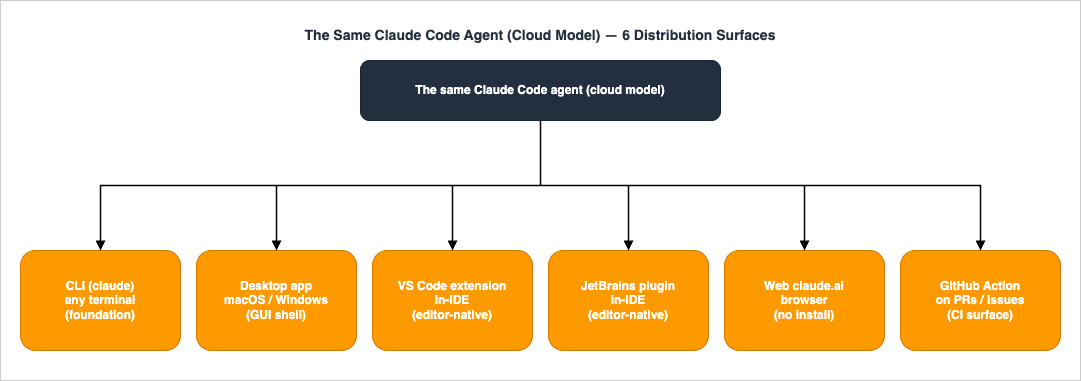
One of the things that confuses newcomers is the sheer number of places the name "Claude Code" appears. There is a CLI binary calledclaude. There is a Desktop app for macOS and Windows that runs Claude Code with a graphical workspace. There is a VS Code extension called Claude Code for VS Code. There is a JetBrains plugin called Claude Code. There is a GitHub Action you tag with @claude in pull requests. And there is the web Claude.ai/Code surface tied to your subscription. They are not six different products. They are six different transports over essentially the same agent. Picking one is a matter of where you already spend your time.The table below summarizes them as of early 2026. Specific compatibility versions and feature flags should be confirmed against the official sources cited in the right-hand column, since this is one of the fastest-moving surfaces in Anthropic's product line.
* You can sort the table by clicking on the column name.
| Surface | Where it runs | Best for | Authoritative reference |
|---|---|---|---|
CLI (claude) | Any terminal on macOS, Windows, or Linux | The default and most flexible surface — recommended starting point | Advanced setup — Claude Code Docs |
| Desktop app | macOS (Universal: Intel and Apple Silicon) and Windows (x64 and ARM64). Linux is not supported (verified 2026-04 at code.claude.com/docs/en/desktop-quickstart) | People who want a graphical workspace with an integrated terminal, diff viewer, file editor, live app preview, parallel sessions, and PR-status monitoring — without ever installing or launching the CLI | Get started with the desktop app — Claude Code Docs |
| VS Code extension | VS Code 1.98.0 or later (verified 2026-04 at marketplace.visualstudio.com); also works in Cursor and Windsurf builds | People already living in VS Code who want inline diffs and a graphical chat panel | Claude Code for VS Code on the Visual Studio Marketplace |
| JetBrains plugin | IntelliJ IDEA, PyCharm, Android Studio, WebStorm, PhpStorm, GoLand, and other JetBrains IDEs | JetBrains-native developers; the plugin requires the CLI to be installed separately and exposes diffs via the IDE's native diff viewer, with Cmd+Esc / Ctrl+Esc to launch and Cmd+Option+K / Alt+Ctrl+K to insert @File#L1-99 references | Claude Code Plugin for JetBrains IDEs |
| Web (claude.ai surface) | Browser; uses an Anthropic-hosted execution surface tied to your account | Quick experiments without installing anything, light editing of files connected via the GitHub link | Claude Code by Anthropic — product page |
| GitHub Action | GitHub-hosted runners (or your self-hosted runners), triggered by @claude mentions on issues and PRs | Code review, automated bug fixes, and issue triage on real repositories | Claude Code GitHub Actions — Claude Code Docs |
3.1 How to Pick
For a complete beginner, the single best starting point is the CLI. There are three reasons:- The CLI is the surface every other transport depends on. The JetBrains plugin literally requires the CLI to be installed separately and works as an integration layer over it. The VS Code extension surfaces the same agent from inside the editor. Learning the CLI first means everything else is a graphical convenience on top.
- The CLI is the best documented surface and the one Anthropic ships fixes for first.
- The CLI is independent of any specific editor's update cycle. If you decide six months from now to switch from VS Code to Zed, your CLI workflow does not change.
If you already live in VS Code and never want to leave it, install the VS Code extension, which will guide you through CLI installation as part of its own onboarding. If you already live in IntelliJ/PyCharm/WebStorm, install the JetBrains plugin plus the CLI.
The web surface is useful for very small experiments and for situations where you do not want to install anything (for example, a friend's machine), but it gives up the central Claude Code superpower — touching files in your real folders directly — for a more chat-like experience.
The GitHub Action is not a starting surface. It is what you graduate to once you have a public repository where you want Claude Code to participate in pull-request reviews and issue triage automatically. Treat it as a topic for after you have used the CLI for a few weeks; the cost-management considerations alone (it bills against your API balance every time you tag
@claude) are not what you want to learn at the same time as the basics.4. Plan & Pricing Overview — Which Subscription Includes Claude Code
Claude Code is unusual in Anthropic's lineup in that it is not a standalone product with its own price tag. It is a CLI/extension surface that runs against the same models you already pay for, billed through whatever Anthropic plan you happen to have. That layering is genuinely confusing, and Anthropic itself has been visibly iterating on it through 2026, so the table below is a snapshot. Anchors of truth: Anthropic's claude.com/pricing page, plus the announcement notes the company posts when plan boundaries shift.* You can sort the table by clicking on the column name.
| Plan | List price | Includes Claude Code? | Best for |
|---|---|---|---|
| Free | USD 0/month | No — the official setup docs state that "the free Claude.ai plan does not include Claude Code access" | Trial of the chat surface only |
| Pro | USD 17/month annual or USD 20/month billed monthly | Yes, with usage limits suitable for individual focused sessions | Individual developers and non-developers learning Claude Code |
| Max 5x | From USD 100/month | Yes, with substantially higher usage limits than Pro | Individuals who hit Pro's limits regularly |
| Max 20x | From USD 200/month | Yes, the highest individual usage tier | Heavy individual use such as full-day coding sessions or running multi-agent workflows |
| Team | USD 20/seat/month annual or USD 25/seat/month billed monthly | Yes — Claude Code is now bundled with the Team plan, alongside Claude Cowork | Teams that need shared billing, SSO, and admin controls |
| Enterprise (self-serve) | Verify on the live pricing page — Anthropic has restructured this tier during 2026 | Yes | Smaller organizations that want Enterprise features without a sales contract |
| Enterprise (sales-assisted) | Custom pricing via Anthropic sales | Yes, with extended context window, audit logs, and compliance features | Larger organizations with regulatory or compliance requirements |
| API (pay-as-you-go) | Per-token, billed against an API balance | Yes — Claude Code can be authenticated against an API key instead of a subscription | Teams building automated workflows on top of Claude Code, or anyone whose usage is too variable for a flat monthly plan |
| Third-party providers | Pay through your AWS / GCP / Azure bill | Yes — Claude Code authenticates against Amazon Bedrock, Google Vertex AI, or Microsoft Foundry instead of an Anthropic subscription | Enterprises whose existing procurement or compliance posture requires the model to be billed and audited through a hyperscaler rather than directly through Anthropic |
Note: Anthropic has been actively iterating on which plans include Claude Code throughout 2026. Pro briefly lost Claude Code access on 2026-04-21 and had it restored on 2026-04-23 after developer backlash (Anthropic (Briefly) Removes Claude Code From $20-A-Month "Pro" Subscription Plan For New Users). Always verify on the live pricing page what is and is not in the column for your chosen plan, and re-verify before renewals.
For someone reading this article and asking "which one should I start with," the practical answer is: start with Pro if Pro still includes Claude Code on the day you read this. It is the cheapest tier that lets you actually use the agent, and it gives you enough headroom for the three first tasks in §10 with room to spare. Move up to Max only after you have noticed yourself bumping into Pro's usage limits more than a couple of times a week.
If your organization will not approve a personal subscription, you can also authenticate Claude Code against an API key instead of a subscription. That route bills per token directly to your API account, which is more flexible but requires more attention to cost. Reports have circulated of unexpected API bills accumulating overnight when a long-running
claude -p shell pipeline silently inherited an ANTHROPIC_API_KEY and billed the API account instead of the subscription — a useful reminder that the same CLI behaves very differently depending on which account it is talking to.Note: All numeric figures and inclusion lists in this section should be re-checked against the live pricing page before committing to a plan. Pricing in this market has been changing on a multi-week cadence.
5. Setup Walkthrough A — The Claude Code CLI
This section is the one to follow for almost everyone reading. Once the CLI is in place, the IDE walkthroughs in §6 and §7 become five-minute add-ons.5.1 Prerequisites
Before installing, you need three things:- An Anthropic account, created at claude.com, with an active subscription that includes Claude Code (see §4) or an API key with available balance.
- A modern operating system. Anthropic's currently published support matrix covers: macOS 13.0+, Windows 10 build 1809+ or Windows Server 2019+, Ubuntu 20.04+, Debian 10+, and Alpine Linux 3.19+ (verified 2026-04 at code.claude.com/docs/en/setup).
- For the npm install path specifically, Node.js 18 or later. Verify with
node --version.
5.2 Picking an Install Method
As of 2026, Anthropic supports several install paths. They all install the same underlying native binary — the npm package, the Homebrew cask, the WinGet package, and the Linux package-manager builds are all wrappers around the same per-platform binary that the native installer downloads. The main difference between paths is how updates are delivered: the native installer auto-updates in the background, while every other path requires a manual upgrade through its respective tool (verified 2026-04 at code.claude.com/docs/en/setup).* You can sort the table by clicking on the column name.
| Method | Updates | Notes |
|---|---|---|
| Native installer (Anthropic-recommended default) | Auto-updates in the background; release channel is configurable via autoUpdatesChannel in settings.json | Lowest friction for most users. macOS/Linux/WSL: curl -fsSL https://claude.ai/install.sh | bash. Windows PowerShell: irm https://claude.ai/install.ps1 | iex. Windows CMD: curl -fsSL https://claude.ai/install.cmd -o install.cmd && install.cmd && del install.cmd. |
npm (npm install -g @anthropic-ai/claude-code) | Manual, via npm update -g @anthropic-ai/claude-code | Convenient if you already have Node 18+. The npm package pulls the same per-platform binary in through an optional dependency such as @anthropic-ai/claude-code-darwin-arm64; the installed claude binary does not itself invoke Node at runtime. |
| Homebrew (macOS only) | Manual, via brew upgrade claude-code (or brew upgrade claude-code@latest) | macOS only — Homebrew casks are not available on Linux; Linux users should use apt/dnf/apk (see below). Two macOS casks are available: claude-code tracks the stable channel (typically about a week behind, skips releases with major regressions); claude-code@latest tracks latest. |
| WinGet (Windows) | Manual, via winget upgrade Anthropic.ClaudeCode | Cleanest install on Windows without Node. Still requires Git for Windows for native (non-WSL) Windows setups. |
| apt / dnf / apk (Linux) | Manual via the package manager (sudo apt upgrade, sudo dnf upgrade, apk upgrade) | Signed repositories at downloads.claude.ai for Debian/Ubuntu, Fedora/RHEL, and Alpine. See §5.5 for the exact repository setup. |
For a first-time install on macOS or Linux, the native installer is the lowest-friction option and Anthropic ships fixes through it most predictably. For Windows users without a Node toolchain, WinGet is the cleanest path that does not require setting up Node. If you already have Node 18+ installed for unrelated reasons, npm is a perfectly valid choice that gets you running in one command; just remember that npm-installed Claude Code does not auto-update, so you will need to run
npm update -g @anthropic-ai/claude-code yourself periodically.5.3 Installing on macOS
Open Terminal (Applications → Utilities → Terminal, or press Cmd+Space and type "Terminal").The Anthropic-recommended path is the native installer:
curl -fsSL https://claude.ai/install.sh | bash
claude --versionbrew install --cask claude-codeIf you prefer the npm path and already have Node 18 or later:
npm install -g @anthropic-ai/claude-code
claude --versionPATH.Note: Do not prefix
npm install -g with sudo. Anthropic's setup guide explicitly warns against it because it leads to permission and security problems on macOS and Linux. If you genuinely cannot install globally without elevated permissions, the right fix is to point npm at a user-owned global prefix, not to use sudo.5.4 Installing on Windows
Prerequisite for native Windows installs: Anthropic's setup guide states that "Native Windows setups require Git for Windows" — Claude Code uses Git Bash internally to execute commands regardless of which shell you launched it from. Install Git for Windows first if you do not already have it. WSL setups do not need it (verified 2026-04 at code.claude.com/docs/en/setup).The native installer also has Windows builds for both PowerShell and CMD. Open PowerShell or CMD as a normal user (not as Administrator):
# Windows PowerShell
irm https://claude.ai/install.ps1 | iex
claude --version
REM Windows CMD
curl -fsSL https://claude.ai/install.cmd -o install.cmd && install.cmd && del install.cmd
claude --versionThe token '&&' is not a valid statement separator, you are in PowerShell, not CMD. If you see 'irm' is not recognized as an internal or external command, you are in CMD, not PowerShell. PowerShell prompts begin with PS C:\; CMD prompts do not.For a Node-free path, WinGet works without any prerequisites beyond Windows itself:
winget install Anthropic.ClaudeCode
claude --versionnpm install -g @anthropic-ai/claude-code
claude --version5.5 Installing on Linux
Open your distribution's terminal.Important: The
claude-code package is not in the default Debian/Ubuntu, Fedora/RHEL, or Alpine repositories — you must add Anthropic’s signed package source first or the install command below will fail with Package 'claude-code' has no installation candidate. The commands below are quoted from the official setup documentation; always cross-check the live page before piping curl output into a privileged step.For Debian/Ubuntu, run the repository setup first, then install. Note that the
deb line uses the suite name stable twice — once in the URL path and once as the suite name — and omitting either form will cause apt update to fail (verified 2026-04 at code.claude.com/docs/en/setup):# 1. Create the keyrings directory and download the signing key (.asc, no dearmor needed)
sudo install -d -m 0755 /etc/apt/keyrings
sudo curl -fsSL https://downloads.claude.ai/keys/claude-code.asc \
-o /etc/apt/keyrings/claude-code.asc
# 2. Add the apt source (note the suite name "stable" appears twice)
echo "deb [signed-by=/etc/apt/keyrings/claude-code.asc] https://downloads.claude.ai/claude-code/apt/stable stable main" \
| sudo tee /etc/apt/sources.list.d/claude-code.list
# 3. Verify the GPG fingerprint matches the one Anthropic publishes
gpg --show-keys /etc/apt/keyrings/claude-code.asc
# Expected fingerprint: 31DD DE24 DDFA B679 F42D 7BD2 BAA9 29FF 1A7E CACE
# 4. Install
sudo apt update
sudo apt install claude-code
claude --version# 1. Configure the dnf repo
sudo tee /etc/yum.repos.d/claude-code.repo <<'EOF'
[claude-code]
name=Claude Code
baseurl=https://downloads.claude.ai/claude-code/rpm/stable
enabled=1
gpgcheck=1
gpgkey=https://downloads.claude.ai/keys/claude-code.asc
EOF
# 2. Install (dnf will prompt for fingerprint confirmation on first install)
# Expected fingerprint: 31DD DE24 DDFA B679 F42D 7BD2 BAA9 29FF 1A7E CACE
sudo dnf install claude-code
claude --versionwget -O /etc/apk/keys/claude-code.rsa.pub \
https://downloads.claude.ai/keys/claude-code.rsa.pub
# Expected SHA-256: 395759c1f7449ef4cdef305a42e820f3c766d6090d142634ebdb049f113168b6
sha256sum /etc/apk/keys/claude-code.rsa.pub
echo "https://downloads.claude.ai/claude-code/apk/stable" >> /etc/apk/repositories
apk add claude-code
claude --versionlibgcc, libstdc++, and ripgrep; install them with apk add libgcc libstdc++ ripgrep and then set USE_BUILTIN_RIPGREP to "0" in your settings.json. Package-manager installations do not auto-update; updates arrive through your normal apt / dnf / apk upgrade workflow (verified 2026-04 at code.claude.com/docs/en/setup).If you would rather install via npm and you have a recent Node.js, the same
npm install -g @anthropic-ai/claude-code command works.5.6 Verifying the Install with claude doctor
Once claude --version prints a version number successfully, run claude doctor for a deeper sanity check. claude doctor inspects the environment Claude Code actually sees — auto-update channel, configured authentication, Node and Git versions, ripgrep status, and any recoverable misconfigurations — and reports them in one place. When something later goes wrong (the binary cannot find your project, authentication looks wrong, search returns no results) claude doctor is the first command to run before you start digging through logs:claude --version
claude doctor5.7 First Launch and Authentication
Change into a folder you do not mind Claude Code touching. For example:mkdir -p ~/claude-code-sandbox
cd ~/claude-code-sandbox
claudeclaude, it will open a browser window or print a URL for you to follow. Sign in with the same Anthropic account that holds your subscription. After authenticating, the terminal will return to a Claude Code prompt that looks something like a chat with one critical difference: anything Claude decides to do (read a file, run a command, edit a file) is presented to you for confirmation before it happens, by default. This approval-by-default posture is one of the most important habits to keep — it is the safety floor underneath everything else, and the environment-engineering follow-up will go deep on how to extend or relax it deliberately.If you intend to use API billing instead of a subscription, the official setup docs explain how to set the
ANTHROPIC_API_KEY environment variable, but be aware: once that variable is set, the CLI will quietly bill against it and not against your subscription. If both are configured, double-check which one is actually being used before you start an expensive task. The same CLI also accepts authentication through Amazon Bedrock, Google Vertex AI, or Microsoft Foundry — useful when your organization requires the model itself to be billed and audited through a hyperscaler rather than directly through Anthropic. See code.claude.com/docs/en/amazon-bedrock and the parallel pages for Vertex AI and Foundry for the exact environment variables.6. Setup Walkthrough B — VS Code Extension
If you live in VS Code (or in a VS Code-based fork like Cursor or Windsurf), the official Claude Code for VS Code extension is the most ergonomic surface after the CLI itself.6.1 Install the Extension
Open VS Code. Open the Extensions Marketplace (Cmd+Shift+X on macOS or Ctrl+Shift+X on Windows/Linux). Search for "Claude Code", then look for the entry published by Anthropic — the publisher field reads anthropic.claude-code (Claude Code for VS Code on the Visual Studio Marketplace). Click Install.The extension requires VS Code 1.98.0 or later (verified 2026-04 at marketplace.visualstudio.com). Check your version via Help → About in VS Code; if it is below 1.98.0, update VS Code first.
6.2 Confirm the CLI Is Installed
The VS Code extension is a graphical surface over the same Claude Code agent that the CLI exposes. If you have not installed the CLI yet (per §5), the extension will prompt you to. You can also install the CLI explicitly first, and the extension will detect it on launch.6.3 Launch and First Conversation
Once installed, you can open Claude Code from any of several places, all surfaced by the extension:- A toolbar icon in the editor (often shown as a star/spark icon).
- The Activity Bar on the left side of the VS Code window.
- The Command Palette (
Cmd+Shift+PorCtrl+Shift+P), where typing "Claude" will show the relevant entries. - The integrated terminal — typing
claudein the terminal opens the same CLI experience inside VS Code's terminal pane.
@file references, which let you point Claude at a specific file (and even a specific line range, with @filename#5-10); and multi-tab sessions, which let you run more than one conversation at the same time on different parts of the codebase.7. Setup Walkthrough C — JetBrains Plugin
For users of IntelliJ IDEA, PyCharm, Android Studio, WebStorm, PhpStorm, GoLand, RubyMine, and the other JetBrains IDEs, Anthropic publishes an official plugin (Claude Code Plugin for JetBrains IDEs). The plugin's marketplace listing was originally tagged "[Beta]" and the URL slug still reflects that, but the plugin is in active maintenance and is the only Anthropic-published JetBrains integration.7.1 Install the Plugin
In your JetBrains IDE, open Settings (Cmd+, on macOS or Ctrl+Alt+S on Windows/Linux). Navigate to Plugins. Search the Marketplace for "Claude Code". Install the plugin published by Anthropic, then restart your IDE when prompted.7.2 Install the CLI Separately
Unlike the VS Code extension, the JetBrains plugin requires the Claude Code CLI to be installed separately (confirmed 2026-04 at code.claude.com/docs/en/jetbrains). The plugin is, in effect, a smart bridge that integrates the CLI's interactive session into the IDE's bottom panel and surfaces interactive diffs through the IDE's built-in diff viewer. So if you have skipped §5, do that now.7.3 Launch and First Use
After restart, the IDE will show a Claude Code panel (location depends on IDE version — typically docked at the bottom or right). Open it and you will see a familiar Claude Code prompt. Selecting code in the editor and asking Claude to refactor or explain it will pass that selection as context. Diff review uses the IDE's native diff UI, which experienced JetBrains users will appreciate.The current JetBrains plugin is more of a "smart wrapper" around the CLI than a from-scratch native UI. If you mostly want a graphical experience, the VS Code extension is more featureful; if you would never leave JetBrains regardless, the plugin is well worth installing.
8. Setup Walkthrough D — Desktop App
If you would rather not use a terminal at all, the official Desktop app gives you the same Claude Code engine wrapped in a graphical workspace. It is a single download per platform; you do not need Node.js or the CLI separately. Crucially, when you point Desktop at a project folder it shares all configuration with the CLI — CLAUDE.md files, MCP servers, hooks, skills, and settings — so anything you learn in the GUI carries over the day you decide to add the CLI on top (verified 2026-04 at code.claude.com/docs/en/desktop-quickstart).8.1 Install the Desktop App
Anthropic distributes Desktop installers from claude.com/download. Pick the build that matches your machine:- macOS (Universal: Intel and Apple Silicon) — download the
.dmg, dragClaudeintoApplications, and launch it from Launchpad. - Windows x64 — run the standard setup installer.
- Windows ARM64 — download the ARM64-specific installer rather than the x64 one.
- Linux — not supported by the Desktop app. Use the CLI (§5) instead.
8.2 The Three Tabs
The Desktop app exposes three tabs at the top of the window. Knowing which one you are on is the difference between a session that touches your real files and one that does not:- Chat — general conversation with Claude. No file access. Equivalent to claude.ai.
- Cowork — an autonomous background agent that runs in an Anthropic-hosted cloud VM. Useful for long-running tasks you want to leave running while you do something else.
- Code — the interactive coding tab with direct access to your local files. This is the tab that maps to the experience the rest of this article describes. You review and approve each change in real time, the same way you do at the CLI prompt.
8.3 Choosing an Environment
When you start a session in the Code tab, Desktop asks you to choose where Claude should run:- Local — runs Claude on your own machine against your own files. This is the default and the right answer for almost everyone reading this article. On Windows, Local sessions also require Git for Windows; macOS ships Git by default.
- Remote — Anthropic-hosted cloud sessions that survive even if you close the laptop. The same infrastructure as Claude Code on the web.
- SSH — Desktop can connect to your own server / cloud VM / dev container over SSH and bootstrap Claude Code on the remote host automatically.
8.4 What Desktop Adds Over the CLI
The Desktop app is not just a prettier CLI. Several features are easier to use, or simply unavailable, in the bare terminal:- Parallel sessions from a sidebar, each in its own Git worktree, so multiple tasks do not contaminate each other's context.
- Drag-and-drop layout with a chat pane, diff view, integrated terminal (
Ctrl+\`), file editor, and live app preview that lets Claude see your running dev server. - Inline diff review with line-by-line comments — Claude reads your comments and revises.
- Permission modes exposed as a clear UI toggle: Ask permissions (default; same as CLI default), Auto accept edits, and Plan mode for read-only planning before a large refactor.
- GitHub PR monitoring with optional auto-merge once checks pass, plus scheduled tasks for recurring jobs like daily code review or weekly dependency audits.
9. Setup Walkthrough E — Web (claude.ai surface)
Anthropic also offers a web-hosted Claude Code surface accessible from your Claude.ai account. Two notes about it before you reach for it as a starting point.9.1 What the Web Surface Does Well
The web surface is excellent for two scenarios:- Trying Claude Code on a machine where you cannot install software. A friend's laptop, a public computer, a corporate desktop without admin rights — anywhere
npm install -gis not on the table. - Working with a single GitHub repository through the browser. From the chat interface, you can attach a GitHub repository ("+" → "Add from GitHub", then authenticate), select files or folders, and have Claude operate on them with full context awareness. The output flows back to GitHub via pull requests.
9.2 What the Web Surface Does Not Do
The web surface does not — and by design cannot — touch arbitrary files on your local machine. That is the entire trade. You give up the local-environment superpower in exchange for not having to install anything. For learning the what of Claude Code, that is fine. For learning the why local AI agents change everything (the central point of this article), it is not — because the web surface is closer to an "online AI" in the sense of §1 than to a local AI agent. If you only ever use the web surface, you will not feel the perception/value/level shifts described in the Introduction.The pragmatic recommendation: start in the CLI (§5) or the Desktop app (§8). Use the web surface as a complement when you have no choice, not as your primary entry point.
10. Your First Three Tasks — Thirty Minutes That Make It Real
Three tasks are enough to make Claude Code go from "thing I read about" to "thing I have done." Total time on a working install is roughly thirty minutes. Pick a sandbox folder you do not care about —~/claude-code-sandbox will do — and work through them in order.10.1 Task 1 — Read a Folder, Summarize It in Three Bullets
Goal: prove to yourself that Claude Code can ingest your existing files without you pasting anything.Pick any folder on your machine that already has some content — a notes folder, an old project, a Documents subfolder. Copy it to your sandbox so the original is safe:
cp -R ~/Documents/some-folder ~/claude-code-sandbox/sample-input
cd ~/claude-code-sandbox/sample-input
claudeRead every file in this folder. Summarize what the project or content is about
in three short bullets. Then list three concrete next steps I could take.
Do not modify any files.10.2 Task 2 — Compute Something From a CSV
Goal: prove to yourself that Claude Code can do real, repeatable work with structured data without you writing a single line of code.Find a CSV file you have lying around — exported sales data, a downloaded transit schedule, anything with rows and a header. If you do not have one, ask Claude Code to generate a sample one for you in its first turn. Place the file in your sandbox folder.
In Claude Code:
Open the file sample.csv. Tell me how many rows it has, what the columns are,
and three simple summary statistics. If a column is numeric, give me its mean
and max. If a column is categorical, give me the top three values by count.
Do not change the file.10.3 Task 3 — Build a Single HTML Page and Open It
Goal: prove to yourself that Claude Code can produce a complete, runnable artefact end to end.In your sandbox, ask Claude Code:
Create a single HTML file called hello.html in this folder. It should contain
a centered heading that reads "Hello from Claude Code", a one-paragraph
description of what Claude Code is in plain English, and a footer with today's
date. Use only inline CSS so the file is self-contained. After creating it,
tell me the absolute path so I can open it in my browser.open hello.html; on Linux, xdg-open hello.html; on Windows, start hello.html. There is your first piece of software written by an agent, sitting on your disk, viewable in your browser.That is it. With those three tasks done — read, compute, build — you have crossed the gap. The remaining sections are about doing more of this, more safely, more often.
11. The Slash-Command Minimum Set
Claude Code's interactive prompt accepts not only natural-language instructions but also a small family of slash commands — built-in shortcuts that change the state of the session itself. A full treatment is out of scope (the in-app/help shows the complete list, including ones added by skills and plugins), but five are worth memorizing on day one because they map directly to the pitfalls covered in §15./help— print the index of every slash command available in the current session, including ones added by installed skills and plugins. When in doubt, this is the first thing to type./clear— reset the conversation and start fresh while staying in the same project folder. Use it whenever you finish one task and start an unrelated one; it prevents the previous task's context from contaminating the next./cost— report token usage and the rough cost of the current session. Run it at the end of any long task as a habit; this is the practical brake against the "surprise bill" pitfall in §15.4./config— open the in-session settings panel: model selection (Opus / Sonnet / Haiku), diff tool target (terminal vs. IDE), auto-update channel, and similar knobs. You almost never need this on day one, but it is where you go when something behavior-shaped feels wrong./resumeand/continue—/resumeshows an interactive picker over recent sessions;--continueas a launch flag (claude --continue) reopens the most recent session non-interactively. Either is the antidote to the "I closed the terminal and lost everything" pitfall in §15.6.
@filename in any prompt (CLI, Desktop, VS Code, JetBrains) pulls a specific file or line range into context — @auth.py, or with line numbers @auth.py#42-91 — and is faster and more accurate than describing where the code is. One syntax note: the JetBrains plugin uses an L prefix in the line-range form (@File#L42-91) because that is what the IDE's native diff/reference subsystem expects, while the CLI, Desktop, and VS Code surfaces accept the line-range without the prefix (@auth.py#42-91). Use whichever form your surface accepts. And plan mode, an explicit "look but do not touch" permission state, lets Claude read your code, sketch an approach, and produce a written plan without modifying anything; turn it on (/config in the CLI, or the permission-mode toggle in Desktop) before any large refactor. Both make the difference between guessing right and getting it right.12. The CLAUDE.md Habit — Persistent Context for Free
The single highest-leverage thing you can do after your first three tasks is write aCLAUDE.md file at the root of any project you keep coming back to. Claude Code automatically reads CLAUDE.md at session start — you do not have to remind it to — and treats its contents as durable context that should shape every subsequent answer in that project. It is the difference between re-explaining your project at the start of every conversation and having Claude already know the rules.A useful
CLAUDE.md for a beginner is short. Five to ten plain-English lines is plenty. Aim for the kind of facts that change Claude's behavior and that are not obvious from the code:# CLAUDE.md
## Project context
This is a personal-finance dashboard. Frontend is React + Vite under `src/`,
backend is FastAPI under `api/`. We use SQLite locally and Postgres in production.
## Conventions
- Run tests with `pnpm test`, not `npm test`.
- Prefer `httpx` over `requests` for any new HTTP code.
- Date columns are stored as ISO 8601 strings; do not introduce new datetime types.
## Off-limits
- Do not modify anything under `legacy/` without asking first.
- Never write to `.env`. Add new env vars to `.env.example` instead.CLAUDE.md earn its keep over time. First, write the file after Claude has gotten something wrong — the right entries are the ones that would have prevented this conversation's confusion. Second, prefer "do not" rules over "always" rules; the model is reasonable about happy-path behavior but easily wanders into territory you did not authorize. Third, treat CLAUDE.md as code: commit it to Git, review it on PRs, and delete entries that have become stale.The Desktop app, the VS Code extension, the JetBrains plugin, and the CLI all read the same
CLAUDE.md, so a single well-written file improves every surface at once. The environment-engineering follow-up goes much further (project-level vs. user-level vs. enterprise-level files, dynamic loading, file inclusion), but the simple version above is what you actually need to feel the effect on day one.13. How to Talk to Claude Code — The Minimum Viable Prompt
A full treatment of prompt engineering is out of scope for this article. There is, however, a minimum viable structure for a Claude Code instruction that is worth absorbing immediately because it eliminates the most common cause of frustration: vague requests producing vague results.The structure has three parts.
- One sentence stating the goal. What do you want to be true at the end? "Add a search box to the homepage." "Find every TODO comment in this folder and list them in a table." "Refactor the authentication module so it uses environment variables instead of hard-coded secrets."
- The constraints. What is off-limits, what must be preserved, what assumptions should Claude make? "Do not modify any file outside
src/." "Keep the public API ofauth.pyunchanged." "Use the existing logging library, do not introduce a new one." - The output format. How do you want the result delivered? "Show me a diff first, do not apply it until I say so." "Create a new branch and commit each logical change separately." "Write the answer to a file called
report.mdin markdown."
Goal: Add a "Search" field above the article list on the homepage so I can
filter articles by title.

Constraints: Do not change any file outside the src/components/ directory.
Keep the existing styling system (CSS modules). Do not add new npm dependencies.

Output: Show me the diff first. Wait for my approval before applying it.
Do not run the build until I tell you to.A small bonus rule: stick to one language per instruction. Mixing English and Japanese in the same instruction occasionally confuses the model in subtle ways — for example, the model may answer in a different language than the one your file content is in, or interpret a Japanese clarification as ambiguous when its English counterpart would have been clear. Pick one and stay in it.
14. Safety First — The Beginner's Floor
Claude Code is genuinely safe by default, but "safe by default" is the floor, not the ceiling. There are three habits a beginner can adopt today that prevent the bulk of accidents that occur in the wild. The full treatment of safety design is the subject of the environment-engineering follow-up; this section is the minimum to keep you out of trouble until then.14.1 Pick a Folder Boundary on Purpose
Claude Code's working directory — the folder you were in when you ranclaude — is the practical boundary of where it operates by default. Pick that folder deliberately:- Good: A dedicated sandbox folder, a single project directory, a clearly scoped subfolder of a larger workspace.
- Risky: Your home directory, your
Documentsfolder as a whole, or a folder that contains other folders you would not want touched.
~. There is every reason to start it in ~/claude-code-sandbox/ or in the specific project you are working on.14.2 Keep the Approval Prompts On
By default, Claude Code asks before doing anything that would change a file or execute a command. Keep that on. It is the single most effective brake against unintended changes. Yes, after a while it will feel slightly tedious to keep tapping "yes" — and yes, there are flags to bypass approvals. But those flags belong inside the isolated environments that the environment-engineering follow-up describes (containers, dedicated OS users, throwaway VMs). Do not turn off approvals on your real laptop, on a folder containing real work, or anywhere your mistakes will be hard to undo.14.3 Have a Way to Roll Back
Before you let Claude Code make any non-trivial change, make sure you have a way to undo it. The simplest two ways:- Git. Initialize a git repository in your sandbox folder and commit early and often.
git init && git add -A && git commit -m "before claude"takes five seconds and gives you a fence to fall back to. After Claude makes a change,git diffshows you exactly what changed. - Backups outside the folder. macOS Time Machine, Windows File History, or just a manual zip of the folder. A way to restore the previous state, not just to view the current state.
14.4 Sensitive Folders Are Not "Workspace"
A short list of folders Claude Code should never be pointed at, no matter how confident you feel:- The directory holding SSH keys (
~/.ssh/). - The directory holding cloud-provider credentials (
~/.aws/,~/.config/gcloud/,~/.azure/,~/.kube/). - Browser profile directories.
- Anything labeled "Secrets," "Credentials," "PrivateKeys," or similar — even if it looks like the wrong folder, treat that label as load-bearing.
15. Common Beginner Pitfalls — And What To Do Instead
A handful of failure modes show up over and over. Each is worth recognizing because each has a clean fix.15.1 "It Said It Did Something, But Nothing Changed"
Symptom: Claude Code responds with a confident-sounding summary of what it did, but when you check, the file was not actually modified, or the test was not actually run.Cause: The model can sometimes describe an action as if it had happened when it has actually only planned to do it. The fix is not "trust the summary" but always verify the result yourself. Use
git status and git diff to see what changed. Run the test yourself, or ask Claude to run it and show you the output.15.2 The Infinite Loop of Self-Correction
Symptom: Claude tries something, observes it failed, tries a slightly different version, observes it failed again, and continues indefinitely.Cause: The agent is following its self-execution loop without enough feedback to escape a local minimum. The fix is to interrupt the loop (in most surfaces,
Esc or Ctrl+C will pause it), then add information to the next instruction. Tell Claude what assumption it is making that you know is wrong, or paste the exact error text it keeps seeing, or restrict the scope to a smaller piece of the problem. Letting it spin is letting your token budget bleed.15.3 Unintended File Changes
Symptom: Claude was asked to change filefoo.py, but it also touched bar.py and config.yaml.Cause: A vague instruction left the scope open. The fix is the structure in §13: state the constraints explicitly. "Do not modify any file outside
src/." "Touch only foo.py; if you need to change anything else, ask first."15.4 The Surprise Bill
Symptom: At the end of the month, the API charge is much larger than expected.Cause: Either an API key was inherited by a long-running CLI session that was billing per-token instead of using your subscription; or a GitHub Action was configured to run on every PR commit instead of only on the first; or a multi-step task was allowed to recurse without budget controls. The fix is multi-layered: be explicit about which authentication you are using (subscription vs. API key), tightly scope GitHub Actions triggers, and consider adding spend alarms in the Anthropic console as well as Anthropic's per-user spending limits where available.
15.5 Mixed-Language Instructions
Symptom: You ask in Japanese, Claude answers half in Japanese and half in English; or it interprets a casually phrased mixed-language instruction differently than you intended.Cause: Mixing languages within a single instruction occasionally confuses both the model's intent parsing and its choice of output language. The fix: pick one language per instruction. If you and Claude have been conversing in English, ask in English. If your codebase comments are in Japanese, you can switch to Japanese for that thread, but stay consistent within the turn.
15.6 Forgetting That Restarting Loses Conversation State
Symptom: You close the terminal, reopen it, and Claude no longer remembers what you were working on.Cause: A new
claude invocation starts a new session unless you explicitly resume one. The fix is to use claude --resume (to pick from recent sessions interactively) or claude --continue (to resume the most recent session) when you want continuity (verified 2026-04 at code.claude.com/docs/en/cli-reference), or to commit important context to a CLAUDE.md file in the project (Claude Code reads that file automatically) so the next session can pick up the context without you re-explaining.15.7 Not Knowing Where the Output Went
Symptom: You asked Claude to "save the report," and now you cannot find the file.Cause: Without an explicit path in the instruction, the agent picks a path that may not match where you were looking. The fix is to ask for an absolute path back: "Save the report to
~/claude-code-sandbox/report.md and confirm the absolute path of the file you wrote." A small habit that saves a lot of "where did it go" moments.16. Where to Go Next
Once Claude Code has been running on your machine for a few days, three directions are worth pursuing in roughly this order.1. Harness and Environment Engineering. How to design both the harness Claude Code runs as (
settings.json, hooks, the permission model, MCP scopes, CLAUDE.md) and the environment it runs in (OS-level boundaries, sandboxing for full-auto workflows), along with the trade-offs between safety and autonomy. This is the direct sequel to this article and is available at Claude Code Harness and Environment Engineering — Designing the Frontline Where Local AI Agents Actually Live. If you remember only one sentence from the parent essay Beyond Self-Disruption, it is that harness and environment engineering together are the frontline for local AI. The follow-up turns that claim into a working configuration.2. Building real agents on AWS. Once you have internalized what an agent is and how it behaves, the natural next step is to design and run agents on top of cloud infrastructure rather than only on your laptop. My ongoing series on Amazon Bedrock AgentCore walks through that transition end to end, starting from Amazon Bedrock AgentCore Beginner's Guide — AI Agent Development from Basics with Detailed Term Explanations. The mental models from Claude Code transfer directly: the agent is the same idea; the environment is just much larger.
3. Frameworks for orchestrating multiple agents. Once you have one agent doing useful work, you start wanting two or three. Frameworks like Strands Agents become relevant; Anthropic's own multi-agent and sub-agent patterns become relevant; AgentCore's runtime story becomes relevant. The right time to look at these is after you have gotten value from a single Claude Code agent, not before.
The single most important "where to go next," though, is just to keep using Claude Code. The shifts described in the Introduction — perception, value, level — happen on a curve, not in a single moment. Each week of use deepens them. The article you have just finished is only the on-ramp.
17. References
- Claude Code overview — Claude Code Docs
- Advanced setup — Claude Code Docs
- Get started with the desktop app — Claude Code Docs
- CLI reference — Claude Code Docs
- JetBrains plugin setup — Claude Code Docs
- Claude Code GitHub Actions — Claude Code Docs
- Configure Claude Code with Amazon Bedrock — Claude Code Docs
- Configure Claude Code with Google Vertex AI — Claude Code Docs
- Configure Claude Code with Microsoft Foundry — Claude Code Docs
- anthropics/claude-code on GitHub
- @anthropic-ai/claude-code on npm
- Claude Code by Anthropic — product page
- Plans & Pricing — Claude by Anthropic
- Download Claude — Anthropic
- Claude Code for VS Code on the Visual Studio Marketplace
- Claude Code Plugin for JetBrains IDEs
- Super Teacher creates AI tutor for elementary schools with Claude
- Anthropic partners with CodePath to bring Claude to the next generation of engineers
- Introducing Claude Design by Anthropic Labs
- Anthropic (Briefly) Removes Claude Code From $20-A-Month "Pro" Subscription Plan For New Users — Where's Your Ed At
- Lessons From 13 Claude Code Projects That Changed My Product Manager Role — Ondrej Machart
- Claude Code for Product Managers — Complete Setup Guide + Real PM Workflows (2026) — Mohit Aggarwal
- Claude Code for Product Managers — Builder.io
- How to Use Claude Code as a Product Manager (2026) — ProdMgmt World
- How I Built a Production-Ready PWA in 24 Hours Without Writing a Single Line of Code (Using Claude Code) — Antonio Gallo
- Beyond Self-Disruption: The Paradigm Shift Software Engineers Need in the AI Era
- Claude Code Harness and Environment Engineering — Designing the Frontline Where Local AI Agents Actually Live
- Amazon Bedrock AgentCore Beginner's Guide — AI Agent Development from Basics with Detailed Term Explanations
- MCP Server on AWS Lambda Complete Guide
Related Articles in This Series
- Beyond Self-Disruption: The Paradigm Shift Software Engineers Need in the AI Era
The conceptual parent of this article. Argues that local AI agents trigger a paradigm shift in how software engineers should perceive, value, and use generative AI; this getting-started guide is its hands-on companion. - Claude Code Harness and Environment Engineering — Designing the Frontline Where Local AI Agents Actually Live
The direct sequel coveringsettings.json, hooks, MCP scopes, sandboxing, and the safety/autonomy trade-offs hinted at throughout this article. - Amazon Bedrock AgentCore Beginner's Guide — AI Agent Development from Basics with Detailed Term Explanations
The natural next step once you are comfortable with Claude Code on your laptop — the gentle on-ramp to Amazon Bedrock AgentCore for designing and running agents on AWS. - MCP Server on AWS Lambda Complete Guide
How to expose your own tools to local AI agents through the same MCP protocol Claude Code already speaks.
References:
Tech Blog with curated related content
Written by Hidekazu Konishi