Protecting Your Family from Tech Support Scams and Phishing - A Practical Guide for the Family IT Helper
First Published:
Last Updated:
1. Introduction — Who This Is For, and How to Use It
If you are the person in your family who gets the phone call when something looks wrong on a computer or phone, this guide is for you — and for the family members you help. Scammers who pretend to be tech support, your bank, or a well-known company have become very good at what they do. Anyone can be caught off guard by a well-timed message; being fooled once is not a matter of age or carelessness, and it is nothing to be ashamed of. The goal here is not to make anyone afraid of their devices — it is to agree on a few simple habits and settings, in advance, so the whole family knows what a scam tends to look like and what to do the moment something feels off.There are two readers in mind throughout this guide. The first is the family IT helper — the engineer or tech-comfortable relative who sets things up and answers the questions. The second is the family member being helped, who may not think of themselves as "technical" at all. The writing is kept plain on purpose, so you can read it together, or hand it over, without translation.
These scams are common and widely reported — which is exactly why it helps for families to look out for one another. According to the FBI Internet Crime Complaint Center (IC3) 2025 Annual Report, people aged 60 and older filed more than 201,000 complaints and reported over $7.7 billion in losses in 2025 — up from roughly 147,000 complaints and $4.8 billion the year before, as reported in the IC3 2024 Annual Report. That number is not here to frighten anyone. It is here to make one point clearly: this happens to careful, intelligent people every day, because the scripts are designed to work. Knowing the script is most of the defense.
How to use this guide:
- Read it together once, calmly, before anything goes wrong.
- Print the Family Rules in section 10 and keep them near the phone or on the fridge.
- Come back to the pattern that matches whatever just happened — each one follows the same simple shape: what it looks like, how to tell, and what to do.
- Share it with anyone in the family who could be targeted, which is everyone.
This guide focuses on tech support scams (fake warnings and fake "support" that pressure you into paying or handing over device access) and phishing (fake messages that trick you into giving up passwords or personal information) — the fake-warning, fake-support, and fake-message tactics that target everyday device users. Other scams (investment scams, romance scams) work differently; where they come up, this guide points to official resources rather than covering them in depth.
A note on trust: everything below is drawn from official public agencies and from the companies' own security pages. Where a company says plainly "we will never do this," that sentence is one of your most useful tools, so those statements are quoted directly and linked in the References.
2. How These Scams Work — Urgency, Authority, and Secrecy
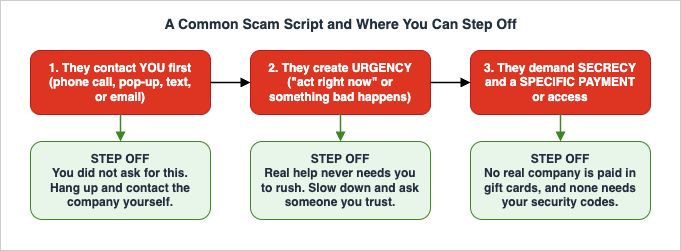
Almost every scam in this guide runs on the same three levers. Once you can name them, you can feel them being pulled.- Urgency. "Act now or your account will be closed, your computer will be locked, the police are on the way." Real organizations give you time. Manufactured urgency is designed to stop you from thinking or checking.
- Authority. The caller or message claims to be someone you trust — a big technology company, your bank, a government agency, even a relative. A familiar name is not proof of who you are dealing with.
- Secrecy and isolation. "Don't tell anyone," "keep me on the line," "this is confidential." Scammers try to separate you from the people who would help you see the trick.
The United States Federal Trade Commission (FTC) describes four common signs of a scam: the contact pretends to be from an organization you know; they say there is a problem or a prize; they pressure you to act immediately; and they tell you to pay in a specific way, such as a gift card or wire transfer. If a message hits several of these at once, treat that as the alarm — not the "problem" they are describing.
Here is the whole defense in one sentence: when someone contacts you first and creates urgency, that is the moment to slow down and verify through a channel you start yourself. Hang up and call the number on the back of your card. Close the pop-up and type the company's address into your browser yourself. Put the phone down and call your relative back on the number you already have.
3. Fake Virus Alerts and Fake Support Screens
What it looks like. You are browsing normally when a page takes over the screen: a flashing warning that your computer is infected, sometimes with a loud alarm sound, a countdown, or a window you cannot seem to close. It shows a logo of a company you recognize and, crucially, a phone number to call for "support."How to tell. Real security software and real operating systems do not put a phone number in a virus warning. The FTC states plainly: "Real security pop-up warnings and messages will never ask you to call a phone number." Microsoft says the same: "Genuine Microsoft error messages never include a phone number to call." The phone number is the whole trap — calling it connects you to the scammer, not to any company.
It also helps to know what a real warning looks like. Genuine messages from your system are calm, usually appear in a corner or inside your settings, and never demand an urgent phone call. A message that fills the whole screen, plays a siren, starts a countdown, or gives you a number to call is a web page pretending to be a warning — not your computer talking to you.
What to do.
- Do not call the number. Do not click any button inside the pop-up — not even "Close" or "Cancel," which can be fake.
- Close the browser. If it will not close, close it the firm way:
- Windows: press Ctrl + Alt + Delete, open Task Manager, select the browser, and choose End task. If needed, restart the computer.
- Mac: press Option + Command + Esc, select the browser, and choose Force Quit.
- iPhone or Android: close the browser app fully (swipe it away in the app switcher). Restart the phone if the page keeps returning.
- If you are genuinely worried there might be a real problem, run your own security scan and update your software — or contact your security software company using a number from its own website or packaging, never the one on the screen.
The relief of "getting help" is exactly what the scam sells. Closing the window and walking away for a minute is almost always the right move.
4. Tech Support Phone Calls
What it looks like. The phone rings unexpectedly. The caller says they are from a well-known technology company or "your computer's manufacturer," and that they have detected a virus, a hacker, or an expiring subscription on your device. They sound professional and helpful, and they want to walk you through "fixing" it right now.How to tell. Legitimate technology companies do not cold-call you about a problem on your device. The FTC states: "Legitimate tech companies won't contact you by phone, email, or text message to tell you there's a problem with your computer." Microsoft says the same about itself — it "will never proactively reach out to you to provide unsolicited PC or technical support" and, unless you contacted it first, will not call you to offer tech support. Also remember that caller ID can be faked (a trick called spoofing), so a screen that shows a real company name or a local number proves nothing.
What to do.
- Hang up. You never owe an unsolicited caller your time, and hanging up is not rude.
- If you want to be sure nothing is wrong, contact the company yourself using a number from its official website, your account statement, or the back of your card — not a number the caller gives you.
- Never let the caller talk you into installing anything, opening any website, reading out any code, or making any payment. (Those specific traps are covered in sections 6 and 7.)
5. Phishing Emails and Scam Text Messages
Phishing is a fake message that pretends to be from a company or person you trust, in order to trick you into giving up information, money, or access. When the same trick arrives as a text message, it is sometimes called smishing. The messages are often well made and can look almost identical to the real thing.What it looks like.
- An urgent problem: a "locked account," a "failed delivery," a "suspicious charge," an "unpaid toll," or a prize.
- A link or button asking you to "verify," "confirm," or "reactivate" your account.
- A generic greeting ("Dear Customer"), small spelling or grammar oddities, or a sender address that is slightly off.
- An unexpected attachment, or a request for your password, a one-time code, or payment.
Common disguises. The story changes, but the shapes repeat. Be extra careful with a message that claims to be:
- A delivery problem — a package is held, a small fee is due, or an address needs confirming.
- A bank or card alert — a "suspicious charge" you must approve or dispute right now.
- An account problem — a streaming, email, or shopping account "suspended" until you "verify."
- A government or tax notice — an unpaid toll, a fine, or a refund waiting to be claimed.
- A prize or refund — you have won something, or are owed money, and just need to "confirm" a few details.
- An invoice or renewal — a receipt for something you did not buy, with a number to call to cancel.
- An unusual sign-in — a warning that someone logged in, with a link to "secure" your account.
None of these is proof of anything, and the safe response to every one of them is the same: do not use the link or number in the message; go to the company yourself and check.
How to tell. Companies do not ask for your password by email. Google states plainly that "Gmail won't ever ask you for personal information, like your password, over email." The safest assumption is that any message pushing you to click and log in urgently could be fake — so do not use its link to find out.
What to do.
- Do not click links or open attachments in an unexpected message, and do not reply.
- Go to the company directly — type its address into your browser, or use its official app — and check your account there.
- On a computer, you can hover your mouse over a link (without clicking) to preview where it really goes. On a phone, press and hold. If the address looks unrelated to the company, it is a red flag.
- Report it. Reporting is quick and helps get scam sites taken down:
- Forward phishing emails to the Anti-Phishing Working Group at reportphishing@apwg.org, and use your email app's built-in "Report phishing" option (Gmail, Outlook, and Apple Mail all have one).
- Forward scam text messages to 7726 (which spells "SPAM") to alert your mobile carrier.
- In the United States, report scams to the FTC at reportfraud.ftc.gov. In the United Kingdom, forward suspicious emails to report@phishing.gov.uk and texts to 7726. Other countries have equivalent services (see section 13).
For the family IT helper: if you have ever wondered how a scam email can display a legitimate-looking sender address, the underlying email-authentication mechanisms — SPF, DKIM, and DMARC — are what let receiving servers judge whether a message truly came from the domain it claims. A practical walkthrough is in Setting Up DKIM, SPF, and DMARC with Amazon SES and Amazon Route 53. This is background for the helper only; the family member does not need it to stay safe.
6. Remote Access Requests
What it looks like. Often after a pop-up or a phone call, the "support agent" asks you to install a small program so they can "connect to your computer and fix it for you." This is remote-access software — a legitimate category of tool, misused here to hand a stranger control of your screen, your files, and any website you are signed in to, including your bank.How to tell. No real company that you did not contact will ask to take control of your device. Microsoft describes attackers asking you to install applications that give them remote access as the way they then install harmful software — not as anything a genuine support process requires. Amazon warns that scammers aim to have you make a payment, share personal information, or give them access to your computer as part of impersonation scams. Apple similarly states that it "will never ask you to disable any security feature" or hand over your passwords and codes. In short: an unsolicited request for remote control is, by itself, the sign of a scam.
What to do.
- Never install software or grant remote access at the request of someone who contacted you. Say no and hang up.
- If you already granted access, act promptly (this is covered step by step in section 13): disconnect from the internet, uninstall the remote-access tool, change your important passwords from a different device, run a security scan, and contact your bank.
7. Gift Cards, Wire Transfers, and Cryptocurrency
This is the single clearest rule in the whole guide, and it is worth memorizing: the way someone asks you to pay tells you whether it is a scam.How to tell. The FTC's guidance is blunt: "No real business or government agency will ever tell you to buy a gift card to pay them." The same is true of wire transfers, cryptocurrency, and payment apps, or reading card numbers over the phone — anyone who insists you pay that way is a scammer. The companies say the same about their own products. Microsoft states that it "will never ask that you pay for support in the form of cryptocurrency like Bitcoin, or gift cards." Apple advises: "Never use Apple Gift Cards to make payments to other people."
Scammers favor these methods for one reason: they are fast and nearly impossible to reverse or trace. A gift card number read aloud is gone the moment they have it.
What to do.
- Treat any request to pay with a gift card, wire transfer, cryptocurrency, or payment app — especially with urgency or secrecy attached — as a scam. Stop and hang up.
- A real bill or fee can wait long enough for you to verify it independently through the company's official channel.
- If you have already paid, act fast (section 13). Contact the gift card company, your bank, or the payment app immediately — occasionally a very recent transfer can still be stopped.
8. Account Takeovers
What it looks like. You suddenly cannot sign in to your email or a social account; you receive password-reset or "new sign-in" notifications you did not request; or friends tell you they got strange messages "from you." An email account is a common first target, because it can be used to reset the passwords of everything else.Signs to watch for:
- Password-reset emails, security alerts, or verification codes you did not ask for.
- Being signed out unexpectedly, or a password that suddenly no longer works.
- Messages in your "sent" folder you did not write, or friends receiving odd messages from you.
- New forwarding rules, filters, or recovery details you did not add.
What to do.
- Use the provider's official account recovery page to regain access, then change your password to something new and unique.
- Sign out of all other devices and sessions (most services offer this), and check that your recovery email and phone number still belong to you. Look for and remove any unfamiliar email forwarding rules, which scammers add to keep reading your mail.
- If the same password was used on other sites, change it there too — attackers try a stolen password everywhere. A password manager makes this painless (see section 12).
- Turn on two-factor authentication (2FA) — a second step at sign-in, such as a code or an approval tap, so that a stolen password alone is not enough to get in. The United States Cybersecurity and Infrastructure Security Agency (CISA) recommends turning on this protection everywhere it is offered, starting with your email and financial accounts.
- Where you can choose, an authenticator app or a security key is stronger than codes sent by text message. A passkey — a newer sign-in that uses your device plus your fingerprint, face, or PIN instead of a password — is stronger still, because there is no password or code for anyone to steal.
For the family IT helper: if you set a passkey up for someone, the question that matters later is what happens when the device it was created on is gone. Passkeys and WebAuthn in Practice works through where a passkey is kept, which ones sync between devices and which do not, and why account recovery ends up being the decision that matters most. This is background for the helper only; the family member does not need it to stay safe.
9. AI Voice and Family Emergency Scams
What it looks like. You get a call that sounds like a family member in serious trouble — an accident, an arrest, a stranded trip — urgently needing money and asking you to keep it quiet. It is deeply convincing because it may sound like them. With only a short clip of someone's voice, scammers can now use artificial intelligence to clone how they speak.How to tell. The FBI's IC3 has warned about exactly this: criminals "generate short audio clips containing a loved one's voice to impersonate a close relative in a crisis situation, asking for immediate financial assistance." The emotional urgency and the request to stay silent are the tells — the same three levers from section 2, aimed straight at your heart.
What to do.
- Hang up and call the person back on the number you already have for them. If you cannot reach them, contact another family member to check.
- Agree on a family "secret word" now — a simple phrase only your family knows, to confirm identity in an emergency. This one habit defuses the entire scam.
- Watch for the usual payment red flags (gift cards, wire, crypto) as another reason to stop.
- Consider limiting how much of your voice and video is public online, which is the raw material these tools rely on.
10. Family Rules to Agree On
The best time to decide what you will do is before anything happens, together, when no one is under pressure. Print these, keep them somewhere visible, and treat them as the family's shared agreement — "this is just what we do," so no one has to feel singled out in the moment.- If a call, message, or pop-up says you must act right now, treat that urgency itself as the warning sign. Stop, and check with a family member first.
- No real company will ever ask you to pay with gift cards, a wire transfer, or cryptocurrency. If someone does, it is a scam — hang up.
- Never let anyone you did not call connect to your computer or phone.
- Never read out a gift card number, or a one-time security code, to someone who contacted you.
- If a "relative" calls in a panic asking for money, hang up and call them back on the number you already have. Use the family secret word.
- When in doubt, we contact the company ourselves using a number from the back of the card or the official website — never the number in the message.
- It is always okay to hang up, close the window, or say "I'll call you back." And it is always okay to ask the family for a second opinion — no question is a silly one.
11. Talking About Scams Without Fear or Blame
Rules and settings work best after an honest, unhurried conversation — and how you have that conversation matters as much as the settings themselves. Approached the wrong way, "let me protect you" can feel like "I don't trust you to manage your own life." Approached well, it is simply a family taking care of one another.- Make it mutual, not one-directional. Frame it as something the whole family does together, not something one "vulnerable" person needs fixed. Everyone, at every age, gets targeted; sharing a scam that nearly caught you sets the tone better than any warning.
- Lead with respect. Avoid taking over accounts or devices without asking, and avoid language that treats a capable adult as helpless. The goal is to add options, not to remove independence.
- Keep it short, and revisit it. One calm conversation, a printed list of rules, and a quick check-in every few months beats a single overwhelming lecture. Scams change, so a light touch that repeats works better than a one-time fix.
- Make it easy to ask. The most valuable thing you can offer is to be the person they call before acting. Say it plainly: "If anything ever feels urgent or strange, call me first, even at a bad time — you will never be in trouble for asking."
- Normalize slowing down. Agree that "I need to check with my family first" is a complete, reasonable answer to give any caller, and that no honest person will ever object to it.
The same tone applies if a scam does get through. Shame keeps people silent, and silence is what lets a scam continue and grow. A blame-free response is not just kinder — it is what gets problems reported and fixed quickly.
12. Setting Up Protections in Advance
This section is written for the family IT helper. The aim is a few durable settings that quietly reduce risk without getting in anyone's way — a simple setup that gets used beats a complicated one that does not. Everything here uses built-in features of the operating system, browser, or phone; there is no need to buy or install extra products.Keep everything updated automatically. Turn on automatic updates for the operating system, the browser, and the phone. Most scams that rely on software flaws are shut out simply by staying current.
Leave the built-in safety features on. Modern browsers and systems warn you before you open a known scam or malware site (malware is harmful software that can spy on you or damage your device):
- Windows and Microsoft Edge: Microsoft Defender SmartScreen checks the sites you visit and the files you download against a dynamic list of reported phishing and malicious sites; the Windows Security app bundles the built-in antivirus and firewall.
- Google Chrome: Safe Browsing is on by default and shows a full-page warning on dangerous sites; an Enhanced Protection level is available for those who want it.
- Apple Safari: the built-in "fraudulent website warning" flags sites reported as deceptive.
Cut down on scam calls. Fewer unexpected calls means fewer chances to be caught off guard:
- iPhone: turn on Silence Unknown Callers, which sends calls from numbers you have never contacted to voicemail.
- Android: use the Phone app's Call Screen and caller ID and spam protection to filter likely spam calls.
Set up strong sign-in on the accounts that matter. Help your family member use a password manager so each account has a long, unique password they do not have to remember, and turn on two-factor authentication on their email and financial accounts first. Where a service offers a passkey, set that up too: because it uses the device plus a fingerprint, face, or PIN and has no password to type, a passkey cannot be phished. (A password manager is a category of built-in or standalone tool, not a specific product recommendation.)
Prepare the recovery path. Make sure the important accounts have a current recovery email and phone number, and that the family helper knows how to begin account recovery if needed. Writing down critical recovery information and storing it somewhere safe (not in an email) saves a stressful afternoon later.
Turn on your bank's own alerts. Many banks and card issuers can text or email you about each transaction. These alerts are one of the fastest ways to notice a problem early.
A quick setup checklist. If you only have an afternoon, this order gives the most protection for the least effort:
- Turn on automatic updates for the computer, phone, and browser.
- Confirm the built-in browser and system protections are on (SmartScreen, Safe Browsing, or Safari's fraud warning).
- Set up a password manager and fix the weak or reused passwords on the most important accounts first.
- Turn on two-factor authentication — email first, then banking and main shopping accounts — and add a passkey wherever it is offered.
- Check the recovery details (backup email and phone) on the key accounts, and make sure the family helper can assist with recovery.
- Turn on transaction alerts from the bank, and reduce scam calls with the phone's built-in screening.
Write down the numbers that are real. A surprising amount of safety comes from one simple thing: a short, written list of the genuine phone numbers and web addresses your family actually uses — the bank, the card issuer, the main shops — kept near the phone. When a message creates doubt, there is a trusted place to look instead of the number the message provides. It also helps to agree on how family members will normally reach one another, so that an out-of-the-blue message from a new number is easy to recognize as odd.
13. If It Already Happened — and How to Report It
If a scam has already happened, the most important thing is what you do next — not blame. It could happen to anyone, and moving quickly and calmly is what limits the damage. Work through these steps in order:- Disconnect the device from the internet if you suspect remote access or malware (turn off Wi-Fi, or unplug the network cable), and uninstall any remote-access software you were asked to add.
- Change your passwords from a different, trusted device — start with your email, then banking and any account that shared a password. Turn on two-factor authentication as you go.
- Contact your bank, card issuer, or the relevant payment company right away, using the number on the back of your card or their official site. If you paid with a gift card, contact the card's issuer immediately and ask them to freeze the funds.
- Watch your accounts and statements. In some countries you can place a fraud alert or credit freeze so that new accounts cannot be opened in your name; the exact process varies by country. The FTC explains the United States approach in its guidance on what to do if you were scammed.
- Report it (see below). Even when money cannot be recovered, reporting helps authorities warn and protect others.
- Keep simple records — screenshots, dates, phone numbers, and what was said — which make reporting and any bank dispute easier.
If the device may have had malware or remote-access software on it, have it fully checked or reset before using it again for banking — and change those passwords from a device you trust, not the affected one.
Support the person, not just the accounts. Being scammed can feel embarrassing or frightening, and that feeling can be as hard to deal with as any financial loss. A calm "let's just work the steps together" does far more good than a post-mortem of what went wrong. The blame can wait forever; the practical steps cannot.
Where to report. Reporting channels differ by country, and this guide does not offer legal advice — use your national consumer-protection or cybercrime service. Representative official channels include:
| Country | Where to report |
|---|---|
| United States | FTC at reportfraud.ftc.gov; internet crime to the FBI at ic3.gov |
| United Kingdom | Forward suspicious emails to report@phishing.gov.uk and texts to 7726; guidance at ncsc.gov.uk and gov.uk |
| Australia | Scamwatch at scamwatch.gov.au |
| Canada | Canadian Anti-Fraud Centre at antifraudcentre-centreantifraude.ca |
If your country is not listed, search for your government's official "report a scam" or "cybercrime reporting" service — and be cautious of "recovery" services that contact you afterward promising to get your money back for a fee, which is a common follow-up scam.
14. Frequently Asked Questions
My parent already let someone connect to their computer remotely. What now?Stay calm and work through section 13: disconnect from the internet, uninstall the remote-access tool, change important passwords from a different device, turn on two-factor authentication, run a security scan, contact the bank, and report it. Acting in the first hour matters more than assigning blame.
Someone called and said they were from a big tech company. Could it be real?
An unsolicited call about a "problem with your device" is not how legitimate companies operate. Hang up, and if you want to be sure, contact the company yourself using an official number. You will not miss anything real by hanging up.
The caller ID showed a real company name and a local number. Doesn't that prove it?
No. Caller ID, sender email addresses, and even website designs can be faked (spoofed). Treat the content and the request as what matters, not the label on the screen.
They only asked for a verification code that was texted to me, or a gift card number. That's harmless, right?
No. A one-time code is the key to your account, and a gift card number is cash. Never share either with someone who contacted you, for any reason.
Is it rude to just hang up or close the window?
Not at all. Ending an unsolicited contact is always acceptable and is often the safest thing you can do. A real, legitimate matter will still be there when you reach out through official channels.
Should I keep the scammer talking, or try to get back at them?
No. Do not engage, argue, or try to "scam-bait." It wastes your time and can expose you to more risk. Disconnect, and report through the official channels in section 13.
How do I set up a password manager and two-factor authentication without it becoming too complicated?
Start with the few accounts that matter most — email first, then banking and the main shopping account. A password manager fills passwords for you, which is usually easier than the old way, not harder. You do not have to secure everything at once; the quick checklist in section 12 gives a sensible order.
What are passkeys, and are they safer?
A passkey lets you sign in with your device plus your fingerprint, face, or PIN instead of a password. Because there is no password or code to type, there is nothing for a scammer to phish or trick out of you, which makes passkeys one of the strongest protections available wherever they are offered.
My relative used the same password on many sites. Is that a problem?
Yes. If one of those sites is ever breached, attackers try that password everywhere else. Change it on the important accounts first and give each its own unique password — a password manager makes this easy.
How often should we revisit these settings and rules?
A short check-in every few months is plenty. Scams evolve, and a brief reminder keeps the habits fresh without turning it into a chore.
Are the built-in protections enough, or do we need extra security software?
For most people, keeping the system and browser updated and leaving the built-in protections on (covered in section 12) provides strong, no-cost protection. This guide does not recommend specific paid products; the habits in section 2 matter more than any single tool.
The spam calls and texts keep coming. What can we do?
Do not reply or press any keys, because replying confirms your number is active. Use the phone's built-in call screening and spam filtering (section 12), forward scam texts to 7726, and simply hang up on unsolicited calls.
What is the single habit that prevents most of this?
Slow down and verify through a channel you start yourself. Almost every scam depends on you acting fast on their terms; simply not doing that defeats most of them.
15. Summary
Scams that target families through fake support, fake warnings, and fake messages are common, and they succeed by pulling three levers: urgency, authority, and secrecy. You do not have to identify which scam is which. You only have to recognize those levers and step off — by slowing down and verifying through a channel you start yourself.The habits that matter most are few and simple:
- Real warnings never contain a phone number; real companies do not cold-call about problems or ask for remote access.
- No legitimate organization is paid in gift cards, wire transfers, or cryptocurrency.
- Never share passwords or one-time codes with someone who contacted you.
- Turn on automatic updates, built-in browser and call protections, and two-factor authentication (and passkeys) in advance.
- Talk about it together, without blame, and revisit the rules now and then.
- Agree on family rules and a secret word now, and if something does happen, act quickly and without shame.
Print the Family Rules in section 10, talk them through together, and keep them somewhere everyone can see. Being targeted is not a personal failing — it is a shared risk, best handled the way families handle everything else: together.
16. References
Public agencies (international):- FTC — How To Spot, Avoid, and Report Tech Support Scams
- FTC — How To Recognize and Avoid Phishing Scams
- FTC — How To Recognize and Report Spam Text Messages
- FTC — How To Avoid a Scam (Four Signs That It's a Scam)
- FTC — Avoiding and Reporting Gift Card Scams
- FTC — Scammers Use AI to Enhance Their Family Emergency Schemes
- FTC — How To Recover Your Hacked Email or Social Media Account
- FTC — Use Two-Factor Authentication To Protect Your Accounts
- FTC — What To Do if You Were Scammed
- FTC — Report Fraud
- CISA — Recognize and Report Phishing
- CISA — Avoiding Social Engineering and Phishing Attacks
- CISA — Multi-Factor Authentication
- FBI Internet Crime Complaint Center (IC3)
- FBI IC3 — Tech and Government Impersonation
- FBI IC3 — Criminals Use Generative AI to Facilitate Financial Fraud
- FBI IC3 — Elder Fraud
- UK NCSC — Phishing: Spot and Report Scam Emails, Texts, Websites and Calls
- UK Government — Report Suspicious Emails, Websites and Phishing
- Australia — Scamwatch
- Canadian Anti-Fraud Centre
Company official pages:
- Microsoft — Avoid and Report Microsoft Technical Support Scams
- Microsoft — Protect Yourself from Tech Support Scams
- Microsoft — Protect Yourself from Online Scams and Attacks
- Microsoft — How Can SmartScreen Help Protect Me in Microsoft Edge
- Google — Avoid and Report Phishing Emails (Gmail)
- Google — Manage Safe Browsing Protection in Chrome
- Google — Screen Calls Before You Answer Them (Android)
- Apple — Recognize and Avoid Social Engineering Schemes Including Phishing Scams
- Apple — Silence or Screen Unknown Callers on iPhone
- Amazon — Identify a Scam
- Amazon — Report Something Suspicious
Related article on this site (for the technical helper):
Setting Up DKIM, SPF, and DMARC with Amazon SES and Amazon Route 53
References:
Tech Blog with curated related content
Written by Hidekazu Konishi