Practical Git Techniques - Rebase, Worktree, Hooks, and Partial Clone for Mid-Level Engineers
First Published:
Last Updated:
git pull, git checkout -b, git add, git commit, git push, and the occasional git merge is enough to ship code, but it leaves a large surface of the tool unexplored — and that unexplored surface is where the productivity, the safety nets, and the recovery options live. This article is a guided tour of that surface for engineers who already know the basics: a single piece you can read end-to-end and come away with concrete patterns for rebasing cleanly, working on three branches at once without git stash, gating commits with hooks, cloning multi-gigabyte monorepos in seconds, and undoing almost anything you have ever done in Git.The article assumes you understand
merge, pull, push, branches, and the staging area. It does not introduce those primitives. It also stays away from GUI clients and hosting-service comparisons — the techniques here are deliberately portable across plain command-line Git on macOS, Linux, Windows, WSL, and CI runners.If you are reading this because an AI coding agent like Claude Code has started touching your branches and your commit history, you are not alone — see the companion article Claude Code Getting Started — Why Knowing About Local AI Agents Changes Everything. The cleaner your Git workflow is, the more confidently you can hand pieces of it over to an agent, and the easier it is to audit what the agent did. Almost every technique below pays a bigger dividend in an AI-augmented workflow than it did five years ago.
The Git Mental Model You Should Have
Before we get to the techniques, it is worth saying out loud what Git actually is, because the right mental model makes the rest of the article shrink from a list of commands to a small number of obvious moves on a known structure.Under the porcelain, Git is two things stacked on each other. The lower layer is a content-addressable object database — a key/value store in which the key of every value is the SHA-1 (or, in newer repositories, SHA-256) of its content. There are exactly four object types: a blob holds the content of a file; a tree holds a directory listing of names mapped to blob or tree hashes plus mode bits; a commit holds a tree hash, zero or more parent commit hashes, an author, a committer, a message, and a timestamp; and a tag is an annotated, signed pointer to another object. Identical content stores once: two files with identical bytes are the same blob; two commits that touch the same set of files at the same paths share trees and blobs.
The upper layer is a directed acyclic graph of commits over that object database, navigated through human-readable names called refs. A branch is just a file under
.git/refs/heads/ (or packed into .git/packed-refs) containing the hash of one commit; pushing a commit "onto" a branch is no more than rewriting that file. HEAD is a symbolic ref pointing at the current branch (or, in detached state, at a commit directly). The index (also called the staging area) is a binary file at .git/index that holds the tree you are about to commit. Almost every operation can be reframed as "look up object X by hash, follow parents until you find Y, build a new commit Z, rewrite ref R to point at Z."Two more facilities round out the model and matter for everything that follows. The reflog is a per-ref journal of every value a ref has ever held —
.git/logs/HEAD for HEAD, .git/logs/refs/heads/main for a branch — and it is what makes "undoing almost anything" possible (covered later in this article). The packfile is a compressed, delta-encoded archive of many objects on disk; running git gc consolidates loose objects into packs. Modern repositories also store promisor metadata when partial clone is in use.Once this picture is in your head, the headline techniques in this article become small movements on it.
git rebase rewrites a sequence of commits onto a new parent — it builds new commit objects whose tree is the same but whose parent pointer differs. git worktree lets several working directories share one object database. git hooks plug user code into the lifecycle of these object writes. git clone --filter=... fetches the commit graph but skips downloading some blob and tree objects, fetching them lazily later. None of these are tricks; each one is a thin layer over the same object database.Rebase Strategies — Interactive, Onto, Autosquash
git rebase is the place where many developers stop, because their first encounter goes badly. They git rebase main, hit a conflict, do not understand the rebase-in-progress state, and bail out feeling bruised. That is a shame, because three rebase modes solve three different real problems and the only thing that links them is the verb. Once you have practiced each of the three a few times, rebase stops being scary and becomes a precision instrument.Plain rebase: replay commits onto a new base
The simplest form isgit rebase <upstream>, which takes the commits unique to your current branch (those reachable from HEAD but not from <upstream>) and replays them, one by one, on top of <upstream>. The official documentation describes this as "transplant[ing] a series of commits onto a different starting point," which is the right mental image. Each replayed commit becomes a new commit object — same tree, same message, same author, but a different parent and therefore a different SHA. The old commits are abandoned (still in the reflog for ninety days by default) and your branch ref now points at the head of the new chain.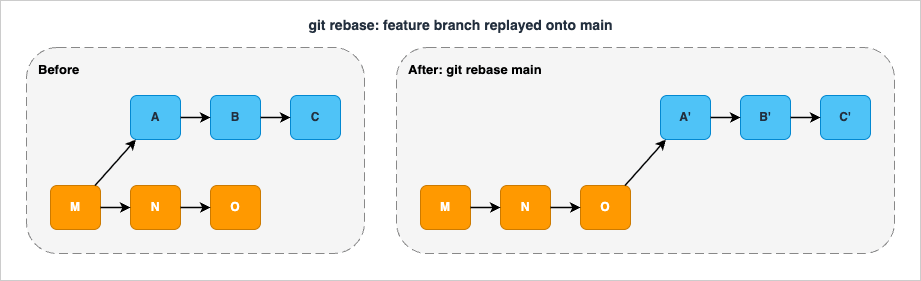
main. Do not use it on a branch that other people have already pulled — that is the topic of the anti-patterns section.The conflict workflow is: when a replayed commit fails to apply, Git stops with the half-applied state in the working tree. Resolve the conflicts,
git add the resolved files, and run git rebase --continue. If the situation is irrecoverable, git rebase --abort puts you exactly back where you started. There is no third option you need to learn.git rebase --onto: branch transplants
The three-argument form git rebase --onto <newbase> <upstream> [<branch>] is the surgical instrument. The selected commits are those reachable from <branch> (or HEAD if omitted) but not from <upstream>, and they are replayed on top of <newbase>. The trick to understanding it is to read it as "everything in <branch> past <upstream>, planted onto <newbase>."The canonical use case is moving a topic branch off the wrong base. Say you branched
topic off next, but next has gone stale and you now want topic to be based on main:# Before:
# ---o---o---o (main)
# \
# ---o---o---o (next)
# \
# ---x---y---z (topic)
git rebase --onto main next topic
# After:
# ---o---o---o (main)
# \ \
# \ ---x'---y'---z' (topic)
# ---o---o---o (next)
git rebase --onto HEAD~5 HEAD~2 says "take everything past HEAD~2 and replay it on top of HEAD~5," which excises the three commits in between. This is rarely the right answer — interactive rebase with drop is usually more readable — but it is fast and scriptable.git rebase -i: interactive rebase
The interactive form opens an editor with one line per commit and a leading verb, plus a help block listing the available commands. This is the true workshop of Git. The full set of verbs in modern Git, distilled from the official reference:| Verb | Effect |
|---|---|
pick | Use the commit as-is (the default) |
reword | Use the commit but stop to edit its message |
edit | Stop after applying so you can amend tree or message |
squash | Fold into the previous commit; combine messages |
fixup | Fold into the previous commit; discard this one's message |
drop | Remove the commit entirely |
exec <cmd> | Run a shell command at this point in the replay |
break | Pause without doing anything (resume with --continue) |
label <name> | Mark the current HEAD with a temporary label |
reset <label> | Reset to a labeled point |
merge | Re-create a merge at this point |
You almost never need all eleven; in practice the daily set is
pick, reword, squash, fixup, drop, and occasionally edit. The other five exist because --rebase-merges (the modern way to preserve merge commits during rebase) needs a way to express "replay the topology, not just the commits," and the label / reset / merge verbs are how you do that.A quick recipe for the most common case — squashing a feature branch's commit history into one or two clean commits before merging:
git fetch origin
git rebase -i origin/main
# In the editor: leave the first commit as 'pick', change all others to 'fixup'
# Save and quit; conflicts (if any) resolve as in plain rebase
exec verb is underused. Inserting exec npm test after each pick runs the test suite at every step of the replay; if any commit fails the test, rebase stops there and tells you which commit broke things. This is one of the cheapest ways to find which commit in a branch introduced a subtle bug.Autosquash: cleaning up while you work
Interactive rebase is where you clean up. Autosquash is where you set up the cleanup as you commit, so that the eventual rebase needs no human edits.The mechanism has two halves. While developing, you commit fixups and tweaks with specially formatted messages —
fixup! <subject of the commit being fixed> or squash! <subject>. Git provides the convenient git commit --fixup=<sha> and git commit --squash=<sha> to write these messages for you, so you never type the prefix by hand:# You are deep in a feature branch; you find a typo in a commit from yesterday.
git commit --fixup=abc1234
# This commits whatever is staged with the message: 'fixup! <subject of abc1234>'
--autosquash to interactive rebase:git rebase -i --autosquash origin/main
fixup! and squash! commits already moved next to their targets and already marked with the right verb. You usually just save and quit. Set git config --global rebase.autoSquash true to make this the default for every interactive rebase — the only cost is one extra step you can ignore when you do not have any autosquash-formatted commits.The newer cousin
amend! and the git commit --fixup=amend:<sha> form let you fix both the tree and the message of an earlier commit in a single follow-up; the autosquash machinery resolves it during rebase by editing the message of the target commit. This is the cleanest replacement for the old "rewrite the wrong commit message later" dance.git rerere: stop solving the same conflict twice
The "reuse recorded resolution" feature, enabled with git config --global rerere.enabled true, watches every conflict you resolve and saves the before/after under .git/rr-cache/. The next time the same conflict surfaces — typically because you rebased the same branch onto a moving target several times, or because two long-lived branches keep drifting against each other — Git applies the recorded resolution automatically and tells you what it did.git config --global rerere.enabled true
# Resolve a conflict normally:
# ... edit file, git add file, git rebase --continue ...
# Next rebase, same conflict reappears:
# "Resolved 'src/server.ts' using previous resolution."
rerere is one of the lowest-effort, highest-payoff settings in Git for anyone who rebases against a fast-moving main. It is off by default because it changes Git's behavior invisibly, but once you have a long-lived branch and have resolved the same conflict for the third time, turn it on.When not to rebase
Two clear rules cover most situations: never rebase a branch that other people have based work on (you will silently invalidate their commits' parents), and never rebase a branch that has been merged into a long-lived integration branch (you will create duplicate-looking commits and confusegit log --graph for the rest of the project's life). On the spectrum between "merge everything" and "rebase everything," the practical middle is rebase your private branch onto main until it is ready, then merge it in. That gives a linear pre-merge history and a single, traceable merge commit at the integration point.Worktree for Parallel Work
Most engineers solve "I am in the middle of a feature and I need to fix something onmain now" with git stash, a branch swap, a hot fix, and a git stash pop. It works, but it serializes three things that should be parallel: the build cache, the IDE state, and your own attention. git worktree lets you keep the feature checkout exactly where it is, lay out a second working directory next to it on a different branch, and let each one have its own node_modules, its own target/, its own watcher process, and its own dirty state.What a worktree actually is
A worktree is a working directory plus a small bookkeeping file that points back at the central object database. The first worktree is the regular checkout you have always had — the main worktree in the official documentation. Every additional one created withgit worktree add is a linked worktree: a directory containing the working copy plus a .git file (not a directory) whose contents are a single line like gitdir: /path/to/repo/.git/worktrees/feature-x. The pointed-at directory under .git/worktrees/ holds that worktree's own HEAD, index, and per-worktree refs (refs/bisect/*, refs/worktree/*). All other refs and all object data are shared with the main .git and with every other linked worktree.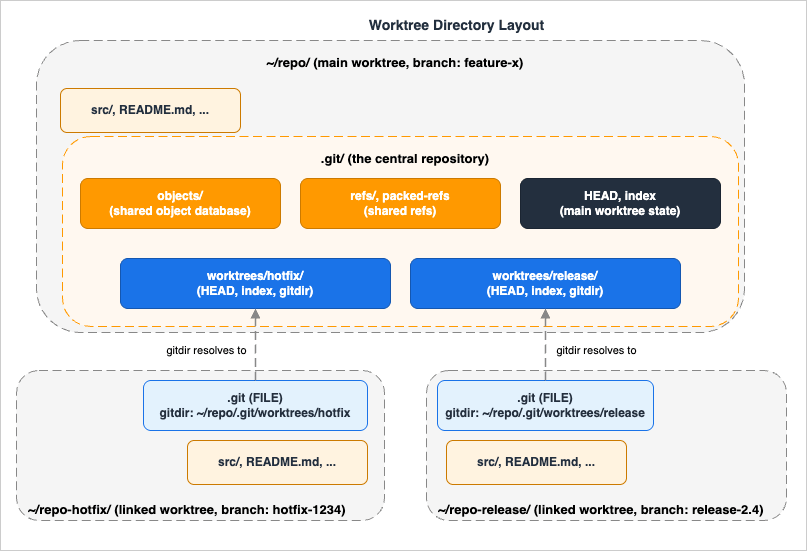
.git/objects database while keeping per-worktree HEAD and index files under .git/worktrees/; each linked worktree's .git is a file with a gitdir: pointer back to its admin directory.git worktree add will refuse unless you pass --force. Disk usage of a second worktree is roughly the size of one checkout plus the small admin directory; the object database is not duplicated.The subcommand surface
Six subcommands carry almost all of the day-to-day usage:# Create a new worktree at ../hotfix on a new branch from main:
git worktree add -b hotfix-1234 ../hotfix main
# Create one on an existing branch (not currently checked out anywhere):
git worktree add ../release-2.4 release-2.4
# List every worktree, including locked ones, with porcelain output for scripts:
git worktree list --porcelain
# Remove a clean worktree (refuses if there are uncommitted changes; -f overrides):
git worktree remove ../hotfix
# Sweep stale entries (e.g. directories deleted with rm -rf instead of remove):
git worktree prune
# Lock a worktree on a removable disk so prune does not collect it:
git worktree lock --reason "on USB drive" /mnt/usb/work
move and repair subcommands cover the rare cases where someone has manually moved the directory; you usually do not reach for them.A real workflow: hotfix without losing context
Mid-refactor, half a feature branch's worth of unstaged changes in the editor, the on-call rotation pages — the production cluster needs a one-line config fix onmain. Without worktrees: stash, switch, fix, push, switch back, pop, hope the stash applied cleanly. With worktrees:git worktree add -b hotfix-prod-config ../repo-hotfix main
cd ../repo-hotfix
# Make the config fix, run the test, commit, push, open the PR.
cd -
git worktree remove ../repo-hotfix # after the hotfix lands
node_modules install in ../repo-hotfix, completely isolated from your feature's; if the hotfix changed dependencies, your feature's dependencies are untouched. When the hotfix is merged, you git worktree remove and the directory disappears.Multi-version testing and CI
A worktree per release branch turns "test that this fix still applies on every supported version" from a context-switch nightmare into a script:for branch in release-2.2 release-2.3 release-2.4; do
git worktree add -B "${branch}-test" "../wt-${branch}" "${branch}" 2>/dev/null || \
git -C "../wt-${branch}" checkout "${branch}"
( cd "../wt-${branch}" && npm install && npm test )
done
Caveats and pitfalls
The submodule story remains awkward — multiple worktrees with submodules is officially "not fully supported and not recommended." Plan around it: avoid worktrees on the most submodule-heavy branches, or use a dedicated full clone for those. Hooks under.git/hooks/ are shared across worktrees; a pre-commit that assumes the main worktree's path will misbehave when run from a linked one. Use relative paths and git rev-parse --show-toplevel inside hooks. Finally, extensions.worktreeConfig (off by default) lets you have per-worktree git config if you need it; without it, every worktree sees the same core.editor, user.email, etc.Hooks: Pre-commit, Pre-push, Commit-msg
Hooks turn Git from a passive recorder into an active gatekeeper. Each hook is an ordinary executable in.git/hooks/ (or a directory configured via core.hooksPath); Git invokes it with a defined argument list at a defined point in the commit/push/rebase lifecycle, and a non-zero exit aborts the operation. Mastering three or four hooks is enough to lift the floor of a team's quality from "we hope nobody pushes secrets" to "the only way to push secrets is to actively bypass the safety nets."The lifecycle, in order
The officialgithooks reference lists about twenty hooks; for a typical client-side workflow the ones you care about, in roughly the order they fire, are:| Hook | Fires | Aborts on non-zero exit? |
|---|---|---|
pre-commit | After git commit is invoked, before the proposed message is built | Yes |
prepare-commit-msg | After the default message is built, before the editor | Yes |
commit-msg | After the user enters the message, before finalizing | Yes |
post-commit | After the commit is recorded | No (notification) |
pre-rebase | Before git rebase begins | Yes |
pre-merge-commit | After merge succeeds, before message editor | Yes |
post-merge | After a merge completes (including git pull) | No |
post-checkout | After git checkout / git switch | No |
pre-push | Before git push contacts the remote | Yes |
post-rewrite | After commit --amend or rebase rewrites commits | No |
The "aborts on non-zero exit" column is the one that matters for enforcement.
pre-commit, commit-msg, pre-push, pre-rebase, and pre-merge-commit give you five places to refuse the operation if the workspace fails a check.core.hooksPath: putting hooks under version control
.git/hooks/ is in .git/ and therefore not in your repository. Two consequences: every clone starts with empty hooks, and there is no way to share a hook by adding it to a commit. The fix is one line:git config core.hooksPath .githooks
.githooks/ in the working tree, and .githooks/pre-commit is just another file you commit. You can wire the configuration via git config --local, via a setup script, or via tools like husky that do exactly this and add a few conveniences. For one-off teams the explicit git config core.hooksPath is the most transparent option and adds no dependencies.pre-commit in practice: the kitchen-sink hook
pre-commit runs before the commit message editor opens. Its job is to look at the staged changes (git diff --cached) and either pass them through or refuse. The single biggest mistake is to run a check against the working tree instead of the index — that lets a developer stage a clean version, make a dirty change, and commit a clean version while their working tree is dirty. Always check what is about to be committed.A minimal hand-written
pre-commit that runs a linter on staged JavaScript/TypeScript files only:#!/usr/bin/env bash
set -euo pipefail
# List staged files that match the language we lint.
mapfile -t files < <(git diff --cached --name-only --diff-filter=ACMR \
| grep -E '\.(ts|tsx|js|jsx)$' || true)
[ "${#files[@]}" -eq 0 ] && exit 0
npx --no-install eslint --max-warnings=0 -- "${files[@]}"
--diff-filter=ACMR excludes deleted files (you cannot lint what no longer exists). The npx --no-install is deliberate: the hook fails loudly if the developer forgot to install the toolchain rather than silently doing nothing.Beyond linters, the high-value
pre-commit checks are: formatter (run prettier --check or gofmt -l and refuse if anything would change); secret scanner (gitleaks protect --staged or trufflehog filesystem --only-verified); large-file guard (refuse anything above, say, 1 MiB unless an LFS pattern matches); and a quick syntax check for the languages in the diff.The widely used
pre-commit framework (yes, the project name and the hook name collide — see pre-commit.com) wraps all of the above into a YAML configuration:# .pre-commit-config.yaml
repos:
- repo: https://github.com/pre-commit/pre-commit-hooks
rev: v5.0.0
hooks:
- id: trailing-whitespace
- id: end-of-file-fixer
- id: check-added-large-files
args: ['--maxkb=1024']
- repo: https://github.com/gitleaks/gitleaks
rev: v8.21.0
hooks:
- id: gitleaks
pre-commit install once and the framework wires .git/hooks/pre-commit to dispatch into the YAML. The trade-off versus a hand-written hook is dependency complexity (you now require Python and pip install pre-commit on every developer machine) for the benefit of a shared, declarative, version-pinned set of checks that match across CI and local.commit-msg: enforcing message conventions
commit-msg receives the path to a file holding the message; you read it, parse it, and exit zero or non-zero. The classic use is enforcing Conventional Commits:#!/usr/bin/env bash
msg_file="$1"
first_line=$(head -n 1 "$msg_file")
# Conventional Commits: type(scope)?: subject
# type: feat | fix | docs | style | refactor | perf | test | chore | ci | build
if ! [[ "$first_line" =~ ^(feat|fix|docs|style|refactor|perf|test|chore|ci|build)(\([a-z0-9_-]+\))?(\!)?:\ .+ ]]; then
echo "Commit message must follow Conventional Commits." >&2
echo " type(scope?)?: subject" >&2
echo " type: feat|fix|docs|style|refactor|perf|test|chore|ci|build" >&2
exit 1
fi
Subsystem: ... style, or a project-specific format are all reasonable. The point is that whatever convention you pick, the only way to enforce it without harassing teammates in PR review is at commit time.pre-push: the last line of defense before the world sees it
pre-push is the single most underused hook in most teams' configurations. By the time a git push is happening, you have the right stuff to finally run the slow checks: full test suite, an npm audit, pip-audit, a build, a type-check across the whole project. The hook receives the remote name and URL on the command line, and a list of <local-ref> <local-sha> <remote-ref> <remote-sha> lines on stdin.A pragmatic
pre-push that refuses to push to main directly (a soft enforcement of a branch-protection rule that should also exist on the server) and runs the test suite for any push:#!/usr/bin/env bash
set -euo pipefail
remote="$1"
remote_url="$2"
while read -r local_ref local_sha remote_ref _remote_sha; do
case "$remote_ref" in
refs/heads/main|refs/heads/master)
echo "Refusing direct push to $remote_ref. Open a pull request." >&2
exit 1
;;
esac
done
# Run the test suite once, regardless of how many refs are pushed.
npm test --silent
pre-push is the right place for the test suite, not pre-commit, is latency: developers commit dozens of times a day and push once or twice. A 90-second test run in pre-commit will produce git commit --no-verify muscle memory within a week; in pre-push it is a small price for catching a regression before it reaches the server.When it is OK to skip hooks
Hooks can be skipped with--no-verify (or git push --no-verify). This is sometimes the right thing to do — for example, when committing a deliberately work-in-progress checkpoint on a personal branch that you intend to rewrite before merge. The right way to make --no-verify rare is to keep hooks fast and trustworthy. The wrong way is to add a process rule that says "never skip." In an AI-augmented workflow the same principle applies: an agent should be configured to skip hooks only when explicitly told to, and for the same reason a human would.A note about server-side enforcement: client hooks run on the developer's machine and can be bypassed. Anything that must hold should also be enforced server-side — branch protection on the hosting service, a CI required-status-check, or a server-side
pre-receive hook on a self-hosted Git server. Client hooks accelerate the feedback loop; they do not replace the server gate. For the corresponding harness-side enforcement when an AI agent is committing on your behalf, see Claude Code Harness and Environment Engineering.Partial Clone for Monorepos
A typical clone of an old, large repository fetches every blob of every version of every file ever committed. For most repositories this is fine: a singlegit clone runs in seconds, the resulting .git/ is a few hundred megabytes, nobody notices. For a monorepo with five years of history, ten thousand contributors, and a build of binary fixtures, a single clone can take an hour and consume a hundred gigabytes of disk before the first build even starts. This is what partial clone fixes.What partial clone does
git clone --filter=<spec> tells the server to omit some categories of objects from the initial pack. Three filters cover almost every real use:--filter=blob:none— fetch all commits and trees, but no blobs. The result is a fully navigable history (you cangit log,git diffbetween any two commits,git showthe metadata of any commit) but file contents are downloaded only when you ask for them.--filter=blob:limit=<n>— fetch all blobs smaller thannbytes; defer the rest. Useful when most history is small text files but a few binary fixtures are huge.--filter=tree:0— fetch only the trees needed for the commits in the requested refs; defer everything else. The most aggressive filter: you get just enough metadata to navigate the linear list of commits.
Lazy fetching backfills what you skipped. The remote you cloned from is recorded as a promisor remote (
extensions.partialClone = origin in the local config). Whenever Git needs an object it does not have locally — you ran git checkout, the merge engine wants a base file, you ran git diff between two old commits — it goes back to the promisor remote and asks for it. The fetch is a one-shot request for the missing object, not a re-clone, so latency is the round trip not the repository size.Partial clone vs shallow clone
The two mechanisms are sometimes confused; they solve different problems and compose well:| Partial clone | Shallow clone | |
|---|---|---|
| Reduces | Object size within the requested commits | Number of commits |
| Result | Sparse objects, full DAG | Full objects, truncated DAG |
git log works on old history | Yes (lazy fetch) | No (history is gone) |
| Combines with the other | Yes | Yes |
Use partial clone for "I want the whole history but not all of the contents." Use shallow clone (
--depth=1) for "I want the latest snapshot and do not care about the past." Use both for "I want the latest snapshot of a huge monorepo, fast, and I will deal with whatever I need on demand." A common CI pattern is git clone --filter=blob:none --depth=50 --single-branch --branch="$BRANCH" "$URL", which tends to bring even multi-gigabyte monorepo clones down to seconds.Practical recipes
# A developer who wants to navigate history without paying for every blob:
git clone --filter=blob:none https://github.com/example/large-monorepo
cd large-monorepo
git log --oneline -- src/    # works; metadata only
git checkout HEAD -- src/    # triggers a lazy fetch of just the blobs in src/

# A CI runner that builds the latest commit on a feature branch:
git clone --filter=blob:none --depth=1 --single-branch \
          --branch="$BRANCH" "$URL" repo

# Convert an existing full clone into a partial one (rarely worth it):
git -C repo config remote.origin.promisor true
git -C repo config remote.origin.partialclonefilter blob:none
# A subsequent gc / repack will not delete existing objects, but new fetches obey the filter.
git blame on a file, generating a diff against an ancient commit — there is a noticeable pause while Git fetches what it needs. Most people find the trade acceptable; if you do not, the workaround is git fetch --refetch to top up to a full clone.Caveats
A few rough edges to be aware of. Some Git-aware tooling (older IDE integrations, custom CI scripts) does not handle missing objects gracefully and crashes. Server support is required: GitHub, GitLab, Bitbucket, Gitea, and modern self-hosted setups all support partial clone, but very old servers do not. Operations that require traversing every blob in history —git log -p with no path filter, git grep $rev over old revisions — will trigger large lazy fetches; structure your queries to use a path filter or a small commit range. Finally, partial clones interact subtly with git gc: do not run git repack -ad blindly on a partial clone, because it can confuse the promisor relationship; modern Git knows about this, but stay on a current version.Sparse Checkout
Partial clone reduces what is downloaded. Sparse checkout reduces what is materialized in your working tree. The two compose: a partial clone with--filter=blob:none plus sparse checkout of one directory means Git fetches the blobs only for that directory and only writes those files to disk. For a monorepo where you only ever work in one corner, this can take a 50 GiB checkout down to 500 MiB.Cone mode vs non-cone mode
There are two flavours of sparse checkout. Non-cone mode supports arbitrary.gitignore-style patterns (including negation), which is flexible but slow on large repositories because every path has to be matched against the whole pattern list. Cone mode restricts patterns to directory cones — entire subtrees rooted at named directories — which is less expressive but dramatically faster, because Git can skip whole subtrees in a single check. For nearly all modern usage, you want cone mode.Setting it up
# Inside an existing clone (Git 2.37+ enables cone mode by default; --cone is an explicit affirmation):
git sparse-checkout set --cone frontend/ shared/

# Verify what is in the cone:
git sparse-checkout list

# Add another directory later without removing existing ones:
git sparse-checkout add tools/codegen/

# Disable sparse checkout entirely (full working tree returns):
git sparse-checkout disable
set, the working tree contains only the named directories plus every file at the repository root (the root is always included so that top-level config files like package.json, tsconfig.json, .gitignore remain available). Subdirectories you did not include are simply absent from disk; Git tracks them as "skip-worktree" entries in the index.For a fresh clone, you can combine the steps:
git clone --filter=blob:none --no-checkout https://github.com/example/large-monorepo
cd large-monorepo
git sparse-checkout set --cone services/payments/
git checkout main
--no-checkout is essential: without it, the initial clone tries to materialize the whole tree before sparse-checkout has a chance to narrow it.Caveats and tradeoffs
Sparse checkout does not affect the index — Git still tracks every file in the repository, every commit you make still operates on the whole tree, andgit status still considers all paths. The directories you excluded are simply not on disk. This can be confusing the first time: git diff of an old commit may show changes to files you cannot see. The conceptual fix is to remember that sparse-checkout is a property of the working tree alone, not of history.Code search across the whole repository (e.g. an editor's "go to definition") only finds what is on disk. If your sparse cone misses a file you wanted to grep, widen the cone or temporarily
git sparse-checkout disable. Some build systems (Bazel, Buck, Pants) explicitly support sparse checkouts and adjust their actions accordingly; many language-specific tools (Webpack, npm workspaces, Maven multi-module) work fine if the directories named in their config files are included in the cone.The combination of partial clone plus cone-mode sparse checkout, paired with
git pull --filter=blob:none to keep new pulls cheap, is the canonical setup for a developer who treats a 50-GiB monorepo as if it were a 500-MiB single-project repo. It is also one of the lowest-friction migration paths from polyrepos to a monorepo: developers who only need their corner do not pay the monorepo's full cost, while the CI that builds everything still gets a full checkout.Reflog and Recovery — Undoing Almost Anything
A developer panicking about lost work is usually wrong about how lost it is. Git keeps a journal of every reset, rewrite, force-update, and head movement for ninety days by default; recovering from "I just rebased and lost my commits" is one command, plus another to verify, plus agit reset --hard to put things back. The mental shift is small but powerful: in Git, almost no destructive action is final within ninety days.How the reflog actually works
Each ref Git writes —HEAD and every branch (and every tag if core.logAllRefUpdates=always is set; tag reflogs are off by default) — has its own reflog file under .git/logs/. When you change HEAD (with checkout, commit, reset, rebase, merge, pull), Git appends a line to .git/logs/HEAD containing the old value, the new value, the actor, and a one-line message. When you change a branch ref, Git appends to that branch's own reflog. The objects pointed at by old reflog entries are kept by git gc (which would otherwise prune unreachable objects) until the reflog entry expires.The expiry defaults are reasonable for almost every workflow: ninety days for reachable objects (
gc.reflogExpire), thirty days for unreachable ones (gc.reflogExpireUnreachable). The names are confusing: "reachable" here means "still reachable from any current ref"; "unreachable" means "only the reflog points at it." A commit you abandoned by git reset --hard HEAD~1 is unreachable and gets thirty days; a commit that is still in some branch's history is reachable and gets ninety. Both windows are long enough to recover from any normal mistake.The five commands to know
# 1. Walk the reflog of HEAD:
git reflog
#   abc1234 HEAD@{0}: rebase finished: returning to refs/heads/feature
#   def5678 HEAD@{1}: rebase: midway commit
#   012abcd HEAD@{2}: checkout: moving from main to feature

# 2. Walk a specific branch's reflog:
git reflog show feature

# 3. Restore HEAD to a previous reflog state:
git reset --hard HEAD@{2}

# 4. Restore a deleted branch (the branch ref is gone but its tip is in the reflog):
git reflog | grep "checkout: moving from feature" | head -1
git branch feature abc1234

# 5. Find dangling commits the reflog does not know about (rare):
git fsck --lost-found
ls .git/lost-found/commit/   # dangling commits live here
Recipe: undo a botched rebase
The single most common reflog use is "I rebased onto the wrong base, or something went wrong, and now I want my pre-rebase branch back." Git records the pre-rebase state underORIG_HEAD:git reset --hard ORIG_HEAD
ORIG_HEAD has moved on, walk the reflog:git reflog show feature
# ...find the line that says "rebase: returning to refs/heads/feature" or similar
git reset --hard feature@{5} # the {5} is the entry number from reflog
@{N} syntax: feature@{5} is "the value feature had five reflog entries ago." HEAD@{2.hours.ago} works too, with date specifiers, which is sometimes more intuitive than counting entries.Recipe: recover a deleted branch
Deleting a branch withgit branch -D removes the ref but leaves the commits in the reflog of HEAD (because you must have switched to it at some point). Find the most recent SHA the branch pointed at, then re-create the branch:git reflog | grep "checkout: moving from old-feature" | tail -1
# 9abc123 HEAD@{42}: checkout: moving from old-feature to main
git branch old-feature 9abc123
git checkout-ed locally), the branch will not be in your local HEAD reflog. In that case, ask the colleague — or, on a hosting service, the branch is in the server's reflog or in a closed PR's commit list.Recipe: recover from --amend of the wrong commit
git commit --amend rewrites the previous commit. If you amend by mistake (added the wrong file, mangled the message), the pre-amend commit is in the reflog of the current branch:git reflog show HEAD
# abc1234 HEAD@{0}: commit (amend): subject
# def5678 HEAD@{1}: commit: subject <-- this is the pre-amend version
git reset --hard HEAD@{1}
git reset --hard to it.When the reflog is not enough
If the reflog has expired, or if you rangit reflog expire --expire=now --all && git gc --prune=now --aggressive (please do not), the objects may genuinely be gone. git fsck --lost-found is the last-resort tool: it looks at every object in the database and reports any commit, blob, or tree not reachable from any ref or from the reflog, and writes them under .git/lost-found/. Most of the time this finds your commit. If even fsck cannot find it, the object has been packed into a pack and pruned during a git gc --aggressive. At that point the recovery options run out.A small habit that prevents almost every bad day: before any operation you are unsure about, type
git rev-parse HEAD and copy the SHA somewhere outside Git (a sticky note, a chat message to yourself). That gives you one extra anchor that does not depend on the reflog at all.Aliases, Configs, and Scripting
Git'sconfig system has a richer surface than most engineers exploit. The interesting parts are not the dozens of flags but the structural features: scoped configuration that lets a personal global default coexist with project-specific overrides, conditional includes that pick configs based on the path, and aliases that let you stash a frequently-used incantation behind a short name.Config scopes, lowest to highest priority
Git resolves any configuration key by walking a chain. Lower scopes are read first; higher scopes override:| Scope | File | Set with |
|---|---|---|
| System | /etc/gitconfig | git config --system |
| Global | ~/.gitconfig (or ~/.config/git/config) | git config --global |
| Local | .git/config (per-repo) | git config --local (default) |
| Worktree | .git/worktrees/<id>/config.worktree | git config --worktree (needs extensions.worktreeConfig) |
| Command-line | git -c key=value <command> | one-off override |
The defaults that almost nobody sets but everybody benefits from:
git config --global init.defaultBranch main
git config --global pull.rebase true              # pull = fetch + rebase, not merge
git config --global rebase.autoSquash true        # autosquash by default
git config --global rerere.enabled true           # remember conflict resolutions
git config --global fetch.prune true              # delete local tracking branches whose remote is gone
git config --global diff.algorithm histogram      # better diffs for moved code
git config --global merge.conflictStyle zdiff3    # show common ancestor in conflict markers
git config --global push.autoSetupRemote true     # 'git push' on a new branch sets upstream automatically
git config --global core.autocrlf input           # avoid CRLF surprises on cross-platform repos
merge.conflictStyle = zdiff3 alone makes most three-way merges easier to read.includeIf: conditional configuration
The includeIf directive is one of the most underused features of git config. It includes another config file if a condition matches the current repository. The conditions are limited but expressive: gitdir:, gitdir/i: (case-insensitive), onbranch:, and hasconfig:remote.*.url.A common setup: separate identities for personal and work repositories.
# ~/.gitconfig
[user]
    name = Hidekazu Konishi
    email = personal@example.com

[includeIf "gitdir:~/work/"]
    path = ~/.gitconfig-work

[includeIf "hasconfig:remote.*.url:git@github.com:my-employer/**"]
    path = ~/.gitconfig-work
# ~/.gitconfig-work
[user]
    email = me@employer.example.com
    signingkey = ABCD1234
[commit]
    gpgsign = true
~/work/; the second applies to any repository whose origin URL points to the employer's GitHub organization. With both you cannot accidentally commit work code under your personal email or vice versa.Aliases
A Git alias is a named expansion stored in config:git config --global alias.lg \
"log --graph --decorate --oneline --abbrev-commit"
git lg # equivalent to: git log --graph --decorate --oneline --abbrev-commit
! run an arbitrary shell command, with the rest of the alias as the body. This is where things get genuinely useful:[alias]
# 'st' = short status, no untracked-noise
st = status -sb
# 'last' = the most recent commit, full
last = log -1 HEAD --stat
# 'undo' = move HEAD back one commit, keep working tree
undo = reset HEAD~1 --mixed
# 'amend' = update the most recent commit with whatever's staged, no message edit
amend = commit --amend --no-edit
# 'unstaged' / 'staged' = explicit diffs
unstaged = diff
staged = diff --cached
# 'find' = case-insensitive log grep over messages
find = "!f() { git log --all --oneline --regexp-ignore-case --grep \"$1\"; }; f"
# 'find-merge' = which merge commit introduced this commit?
find-merge = "!f() { commit=$1; branch=${2:-HEAD}; \
git rev-list $commit..$branch --ancestry-path | grep -F \"$(git rev-list $commit..$branch --first-parent | tail -1)\"; }; f"
# 'cleanup' = delete every local branch whose remote tracking branch is gone
cleanup = "!git branch -vv | awk '/: gone\\]/{print $1}' | xargs -r git branch -D"
find-merge alias is the kind of thing only a deep Git user reaches for — given a commit SHA, it finds the merge commit that brought it into your current branch's history. Useful when triaging a regression: "which PR introduced this?"Bash functions, when an alias is not enough
A shell alias is one expansion; a bash function is real code. For anything with branching, error handling, or interactive output, a function in your~/.bashrc (or ~/.zshrc) is more readable:# git-resyncmain: fetch, rebase the current branch on origin/main, force-with-lease
git-resyncmain() {
git fetch origin main || return $?
git rebase origin/main || return $?
git push --force-with-lease
}
|| return $?), familiarity (no ! weirdness, no escaping shell quotes inside an INI file), and the fact that you can grep your shell rc for it the way you grep code.Read your config, regularly
git config --list --show-origin
Anti-Patterns to Avoid
Most Git incidents are not caused by an obscure command going wrong; they are caused by a small set of bad habits going right one too many times. The list below is the postmortem of a few hundred Git accidents I have seen.Force push to a shared branch
git push --force overwrites the remote branch with whatever is at your local HEAD, and silently abandons any commits the remote had that yours does not. On a personal feature branch, fine — sometimes necessary after a rebase. On a shared branch (main, a release branch, anything someone else is based on), it is one of the few moves in Git that genuinely loses other people's work.The fix is two-layered. First, always prefer
git push --force-with-lease over git push --force. The --force-with-lease form refuses to push if the remote ref has moved since you last fetched it; if a colleague pushed while you were rebasing, your force-with-lease aborts instead of obliterating their commit. Many people set up a shell alias gpf for git push --force-with-lease and never type the unsafe form. Second, branch protection on the hosting service: GitHub, GitLab, and Bitbucket all support "no force pushes to this branch" rules. Server-side enforcement is the only thing that catches a force push that a developer is really determined to make.Long-lived feature branches without rebase
A feature branch that lives for two months and never rebases againstmain will at some point need a forty-file conflict resolution by someone who has forgotten what most of the original commits did. The fix is to rebase against main weekly (or push for the integration on a faster cadence). Empirical evidence from continuous-delivery research consistently associates short branch lifetimes (typically under a working week) with lower change failure rates and faster recovery; longer than that and the integration cost tends to grow superlinearly. rerere makes the weekly rebase cheaper because the same conflicts will only need to be resolved once.Editing already-published commits
git commit --amend, git rebase, and git rebase --autosquash rewrite history. If you do that to commits that are only on your local branch, fine. If you do that to commits that have been pushed to a shared branch, you have just created two parallel histories: the one you have now and the one your colleagues fetched. Their next push will fail; their next pull will surface a thicket of duplicate commits. The fix is the same as for force pushes: rebase before merging, not after.A symmetric pitfall is the inverse: merging a stale feature branch into
main without rebasing first. The merge commit will record the integration but the branch's commits remain at their old base, which means a future git log --first-parent main will reveal commits that pre-date the merge in confusing ways. Rebase first, then merge — that is what git pull --rebase automates for you in the common case.Committing large binaries
Every commit of a 50-MiB binary adds 50 MiB to every clone of the repository, forever. Even after the file is deleted in a later commit, the blob is still in history and must still be packed and downloaded. The fix is Git LFS (large file storage) for genuine binary assets, or — better — store binaries in a build-artifact store and reference them by hash in a small text file. If a large binary is already in history,git filter-repo can rewrite history to remove it, but every clone needs to be re-fetched and every open PR rebased. Avoiding the commit is almost always cheaper than removing it later.A useful
pre-commit hook is the size guard from the hooks section. A useful pre-push hook is a git lfs ls-files audit. A useful CI job is a check that the repository's .git/ packfile size has not grown by more than a pre-approved amount.Committing secrets
Every secret committed to Git is a leaked secret, even after the commit is removed. The threat model is brutal: anybody with read access to the repository, anybody with read access to a fork, anybody who pulled in the seconds before you noticed, every secret-scanning bot on the open internet (for public repositories), and every backup ever made of the repository now has the secret. The right response to a committed secret is: rotate the secret immediately, then remove it from history withgit filter-repo (or BFG Repo-Cleaner), force-push the cleaned history, and make every clone re-clone. Removing the secret without rotating it is theatre.The fix is a
pre-commit secret scanner plus server-side push protection on the hosting service (GitHub, GitLab, and others all offer this). Running both means a developer would have to actively bypass two layers to push a secret.Submodules as the dependency manager
Git submodules pin a parent repository at an exact commit of a child repository. They work, but the developer ergonomics — "my checkout is broken because I did not rungit submodule update," "my CI is broken because the submodule lookup needs a credential," "I cannot bisect because the submodule state is independent of the main repo" — are bad enough that almost every team that adopts them eventually migrates away. Modern alternatives, in roughly increasing order of investment, are: a single repository (turn the submodule into a directory); subtree merges (fold the child's history into the parent at a point); a package manager native to the language (npm, pip, Cargo, Maven, Go modules); or a monorepo with sparse checkout and partial clone. The right answer depends on whether the dependency is shared with other projects and whether it has its own release cadence.Cargo-culting git pull
git pull is git fetch plus an immediate merge or rebase. The merge variant creates merge commits on every pull, which clutters the history of a pull-heavy team. Set pull.rebase = true and git pull becomes "fetch and rebase," which is almost always what people meant in the first place. For maximum clarity, use git fetch followed by an explicit git rebase — it makes the two-step nature of the operation visible. AI-augmented workflows benefit especially from this clarity, because an agent that reads "fetch" and "rebase" as separate verbs makes fewer mistakes than one parsing "pull" with implicit defaults.Related Resources
For a deeper dive into the topics above, the official Git documentation is excellent and authoritative. The free online Pro Git book by Scott Chacon and Ben Straub is the canonical long-form treatment; the second edition is current with all of the features in this article. The Git glossary is a quiet gem for understanding the terminology consistently. For the specific commands above:- git-rebase(1) — interactive rebase,
--onto, autosquash - git-worktree(1) — multiple working directories
- githooks(5) — full list of hooks and their arguments
- git-config(1) —
includeIf, every config key - partial-clone(7) — design and operation of
--filter - git-sparse-checkout(1) — cone mode, set, add
- git-reflog(1) — the recovery surface
If you work with AI coding agents that touch your branches, see Claude Code Harness and Environment Engineering for how
pre-commit, pre-push, and the core.hooksPath mechanism interact with agent-side enforcement: the Git hook is the last enforcement point that runs in your repository regardless of whether the commit was authored by a human or an agent. The closer your Git workflow is to the patterns in this article — small commits, clean branches, rebased before merge, recoverable through the reflog — the more confidently you can hand pieces of it to an agent and the easier it is to audit what the agent did. Good Git hygiene was always valuable; in an AI-augmented workflow, it is the difference between "the agent helped" and "the agent broke something I cannot recover."References:
git-rebase(1) - Official Documentation
git-worktree(1) - Official Documentation
githooks(5) - Official Documentation
partial-clone(7) - Official Documentation
git-sparse-checkout(1) - Official Documentation
git-reflog(1) - Official Documentation
git-config(1) - Official Documentation
Pro Git (2nd Edition) - Scott Chacon, Ben Straub
Claude Code Getting Started - Why Knowing About Local AI Agents Changes Everything
Claude Code Harness and Environment Engineering: Designing the Frontline Where Local AI Agents Actually Live
References:
Tech Blog with curated related content
Written by Hidekazu Konishi